


In this article, we will show you how we can create solutions for different areas of SEO with Screaming Frog using custom JavaScript codes. This way, you can do your work faster and get customized reports according to your needs. Let's take a look at what we can do in Screaming Frog.
Screaming Frog Custom Javascript Feature
First, let's talk about one of Screaming Frog's most useful features: Custom JavaScript. With Screaming Frog's May update, you can crawl using either Spider mode or List mode, and now you can also get AI outputs using this crawl data. So, how do we use this feature? Let's learn step by step.
To use the Custom JavaScript feature, we first need to activate Screaming Frog's Rendering feature. The order is as follows:
Configuration -> Spider -> Rendering -> JavaScript
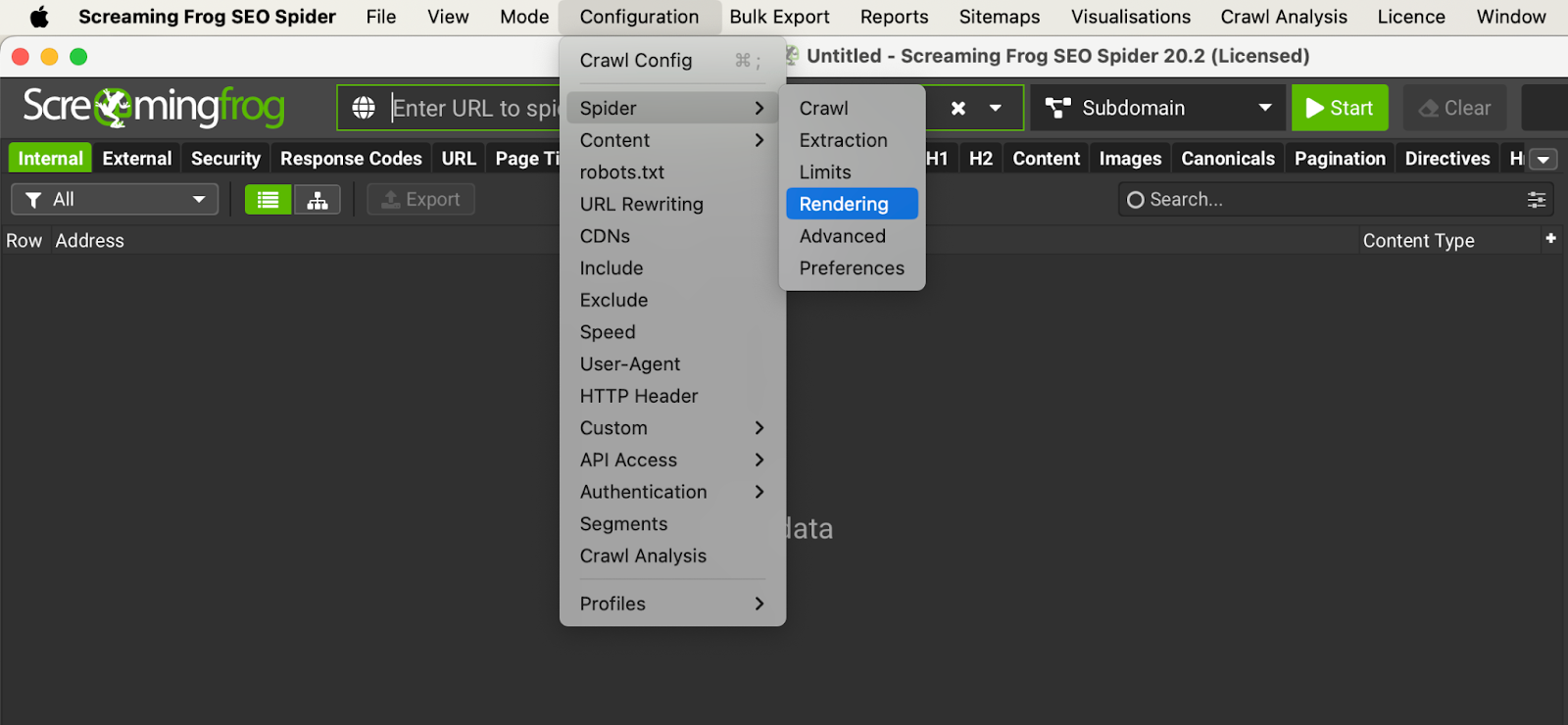
After selecting the “JavaScript” option in the screenshot below, we activate JavaScript Rendering. The first step is done.
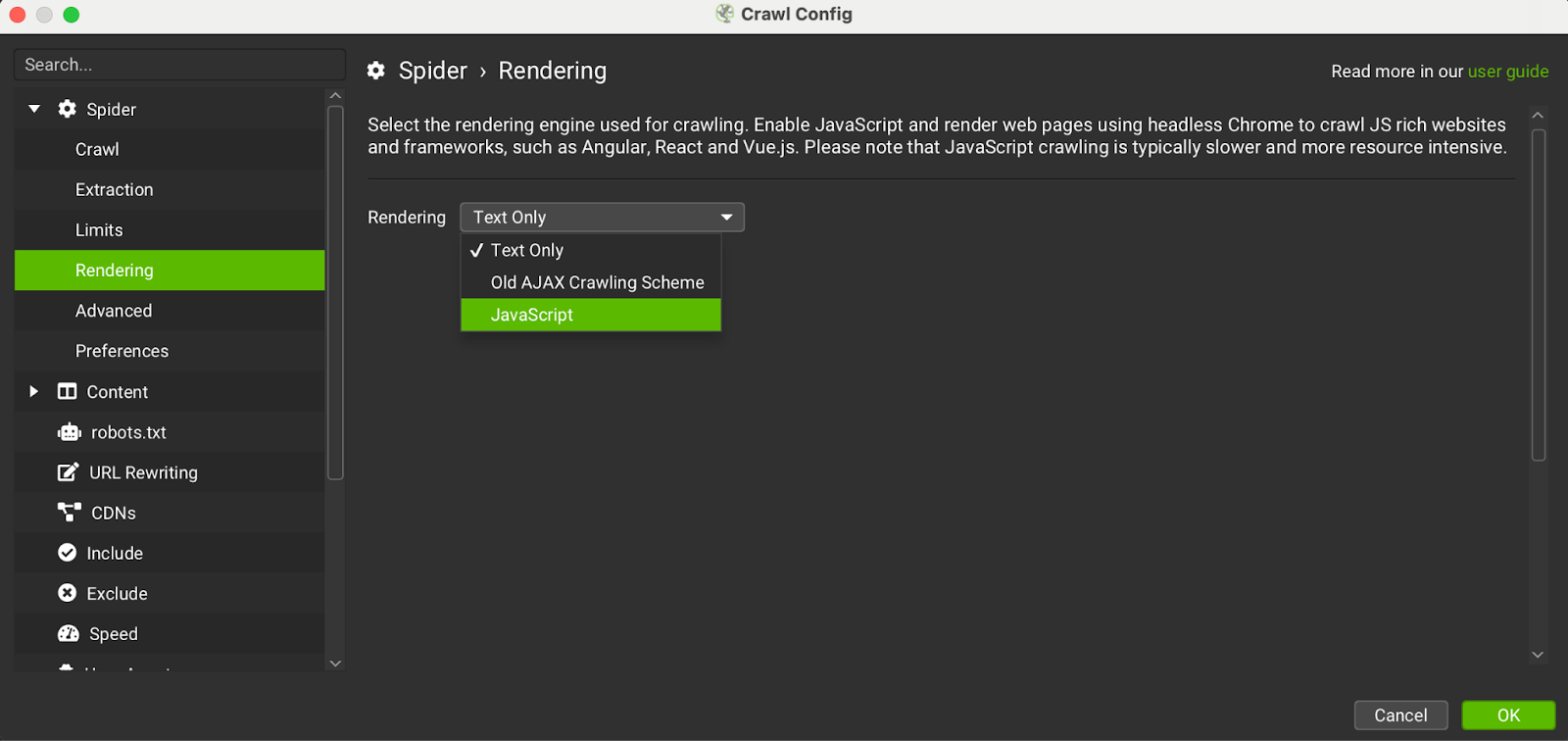
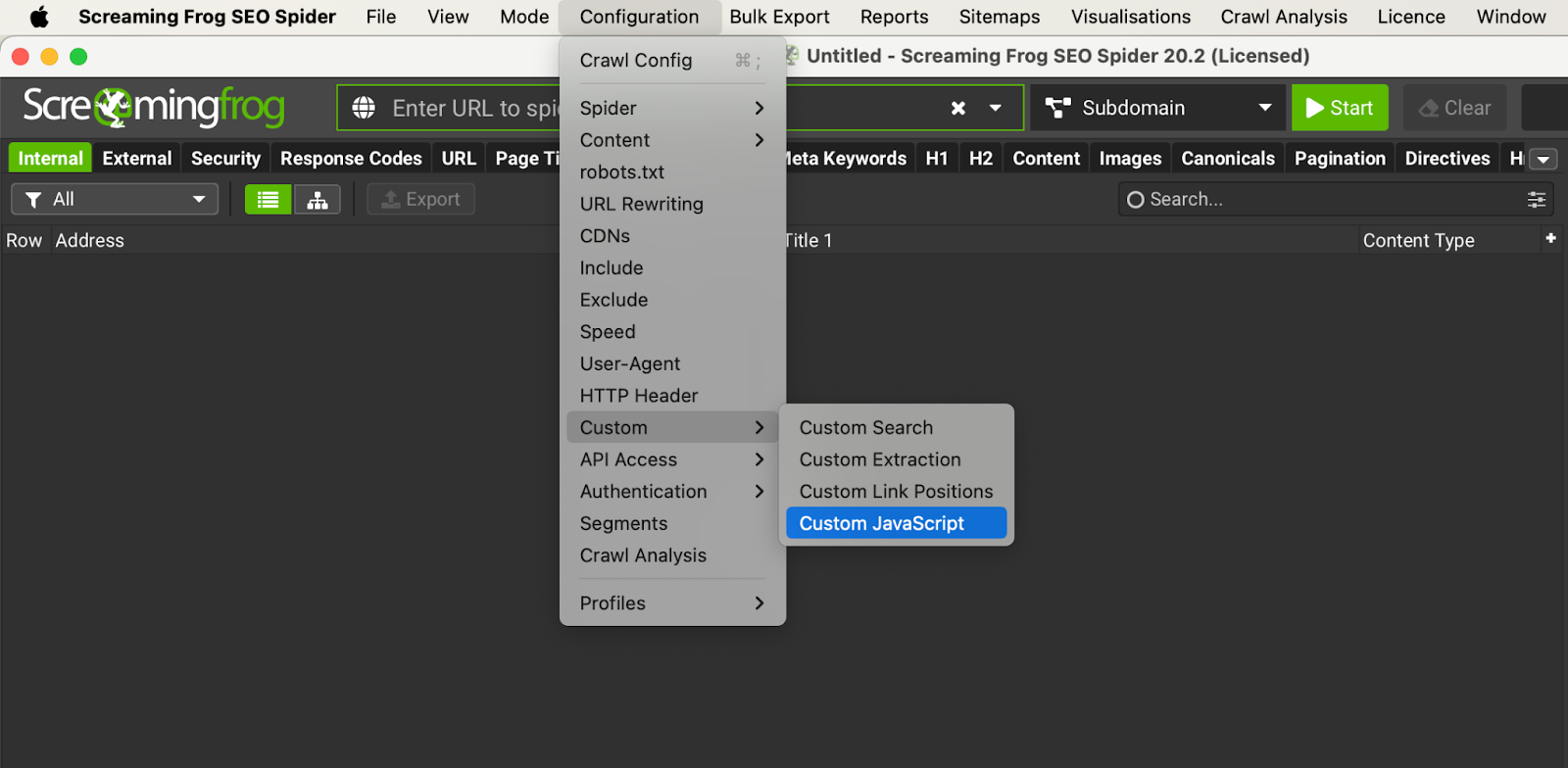
After activating the rendering mode, we select the “Custom” option in the “Configuration” section. By clicking on the “Custom Javascript” option, we access the area where we can add our JS library and JS code. This feature allows us to use the data we receive from Screaming Frog with Javascript code and send these outputs back to the relevant fields in Screaming Frog.
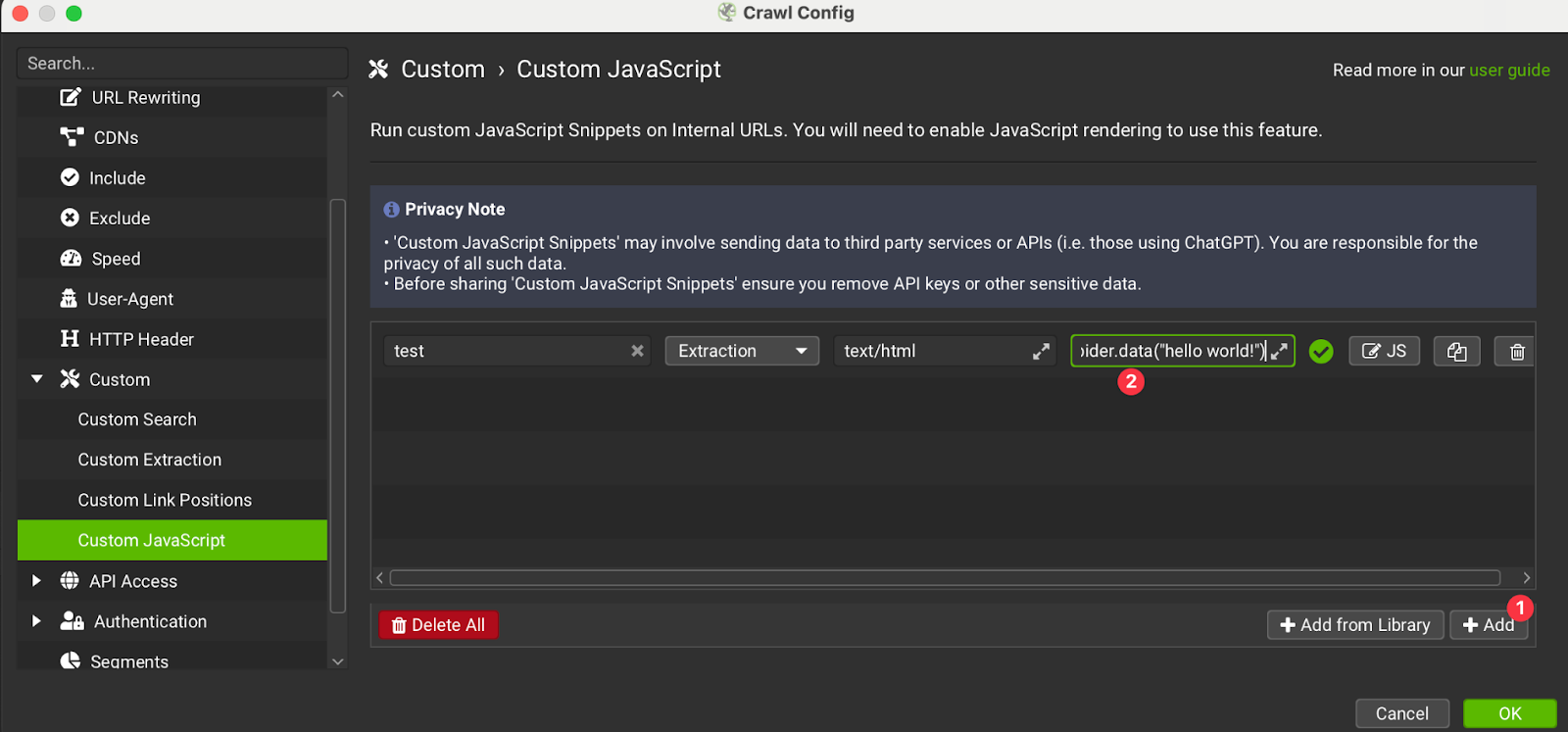
You can try running the following command on the page that opens:
Command: return seoSpider.data("hello world!")

First Steps with the JS Library: Reviewing the Code and Writing Your Code
The JS library included by default in Screaming Frog has code for many purposes, such as determining content intent and writing alt text for images. If you wish, you can run your first experiments using and testing these snippets. When you examine the code, you'll notice that different AI models are used as well.
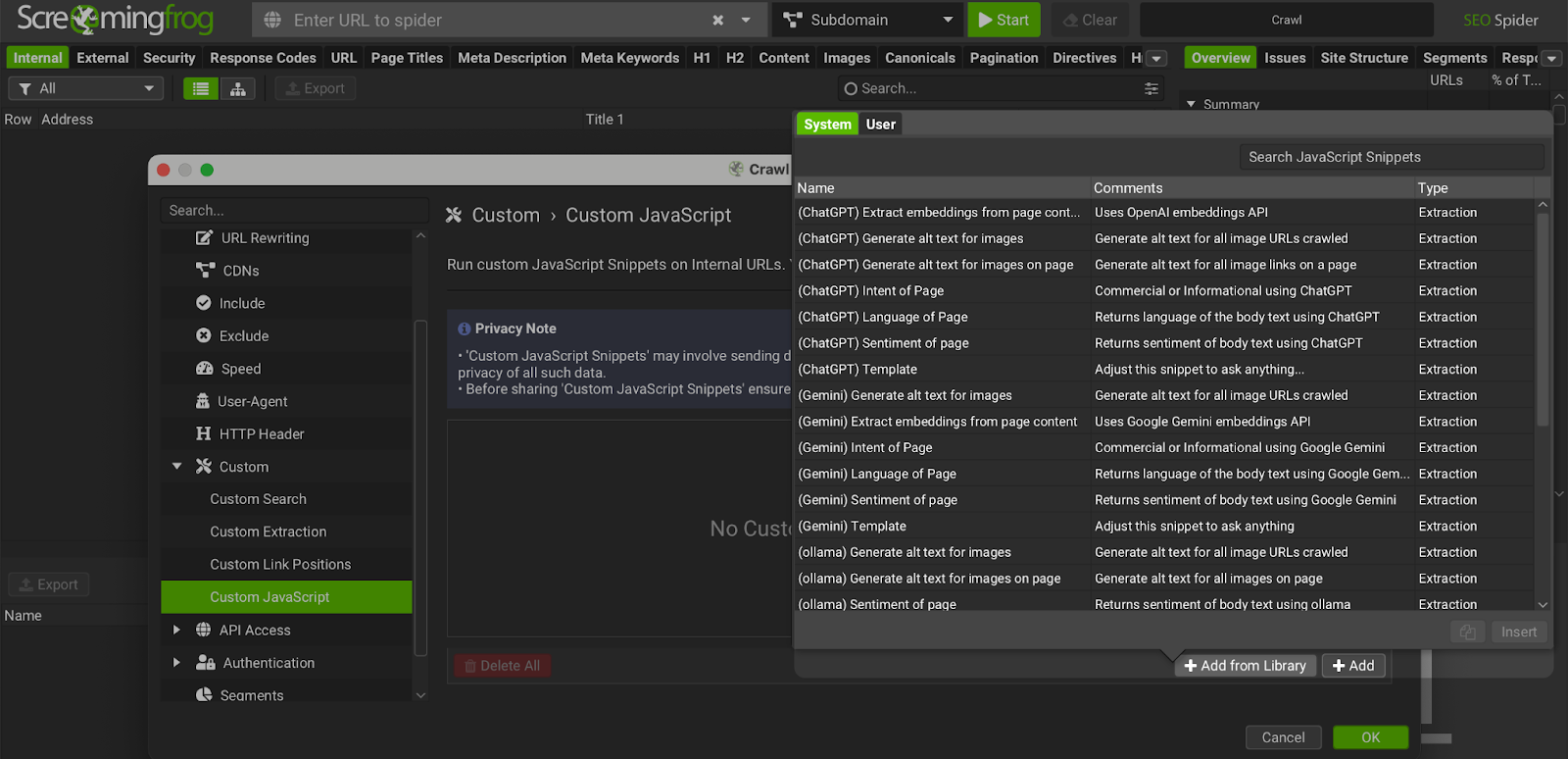
To scan using the code available in the library, we first select a JS snippet.
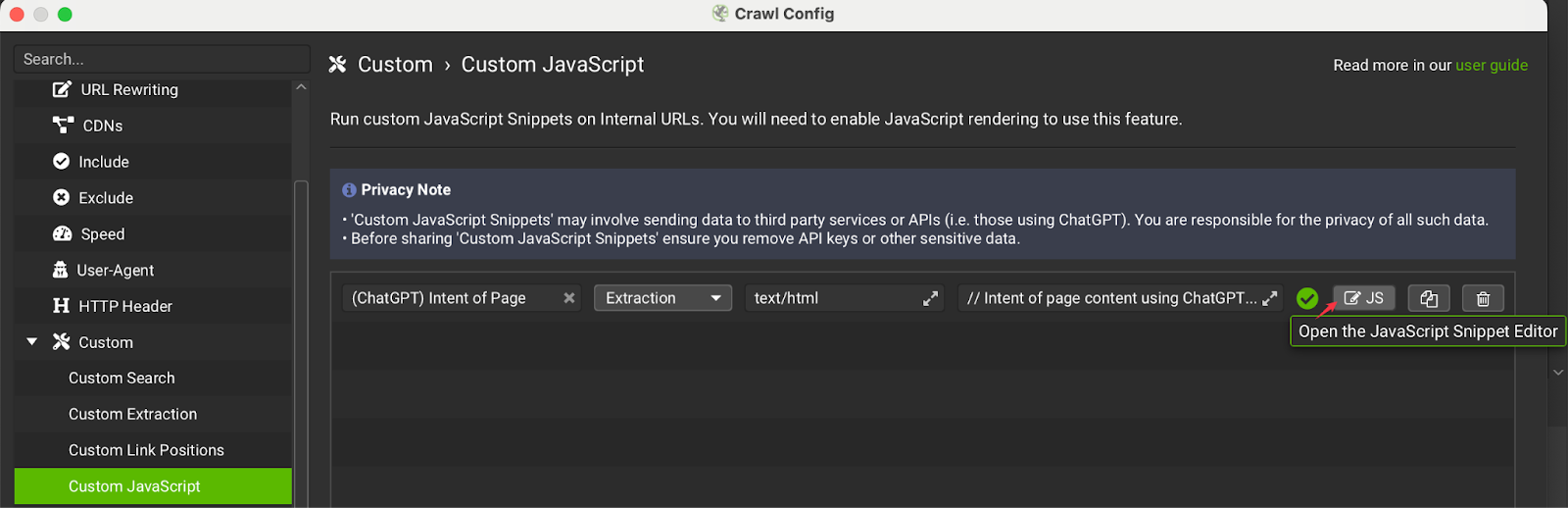
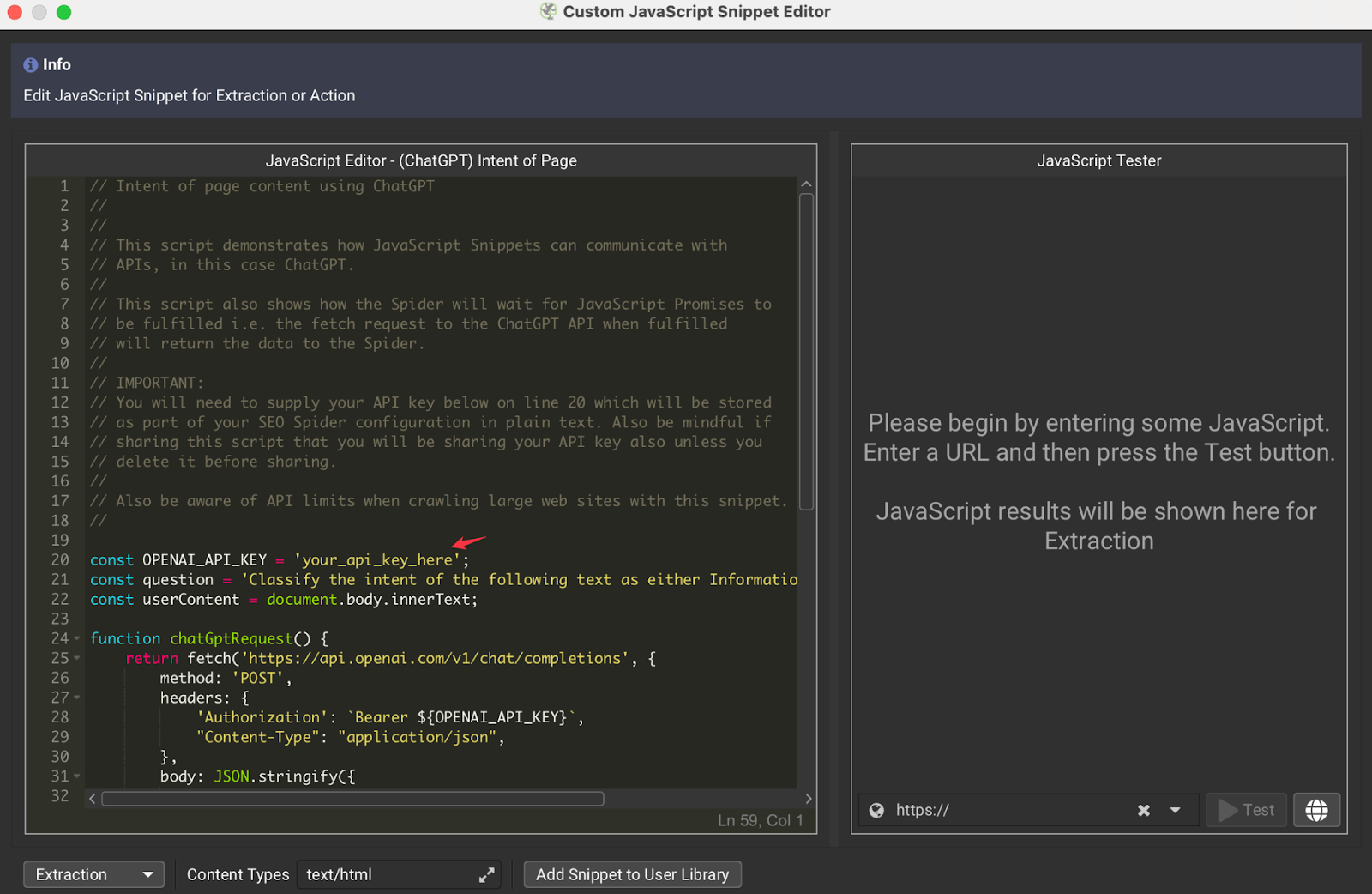
For example, when we select the "Intent of Page" code, all you need to do is enter your own OpenAI API key in the 'your_api_key_here' section in the code.
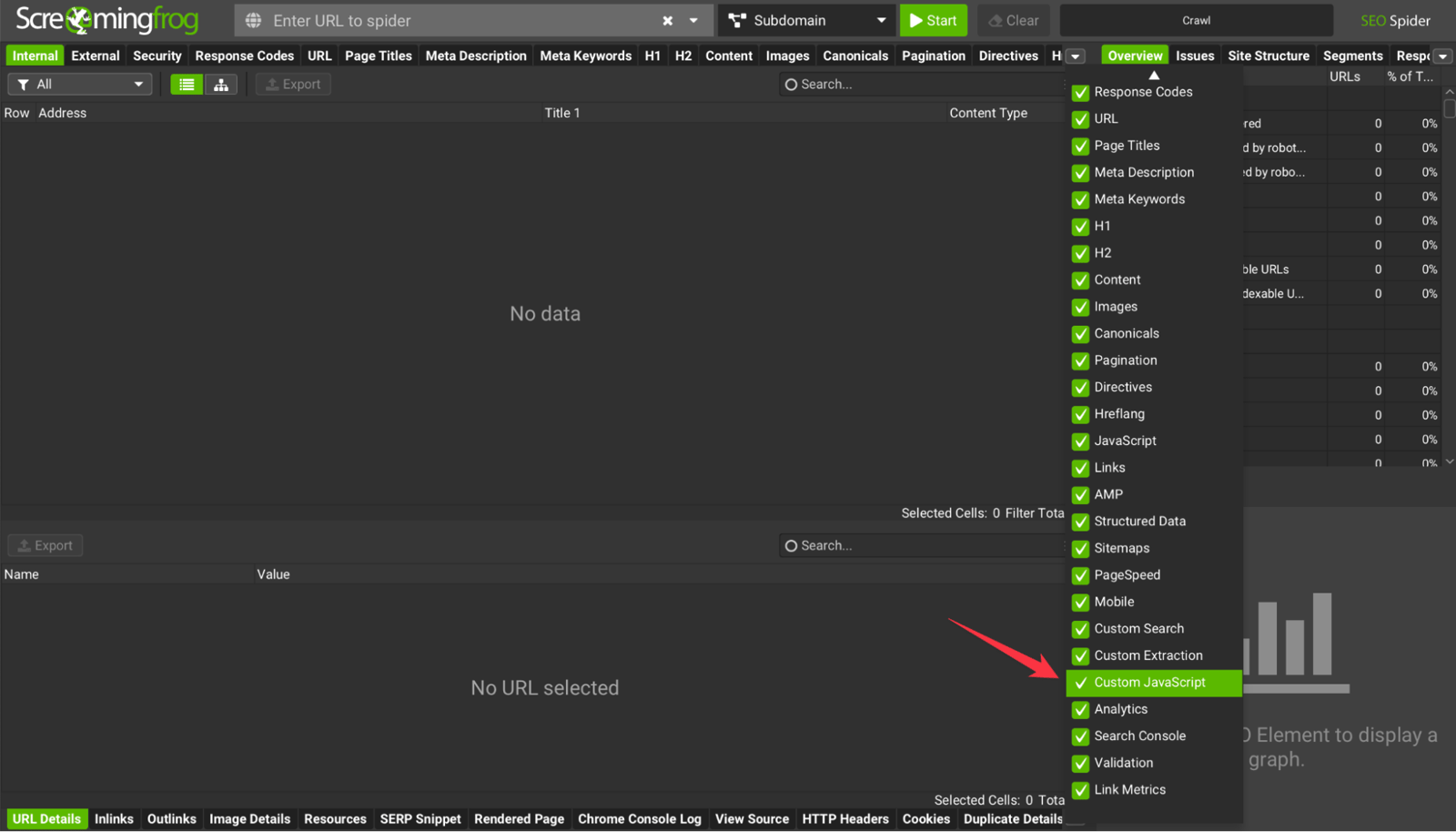
Click on the “Custom Javascript” tab and you will see the output of your javascript code.
If you wish, you can write your customized code based on the code in the library and use it in different projects.
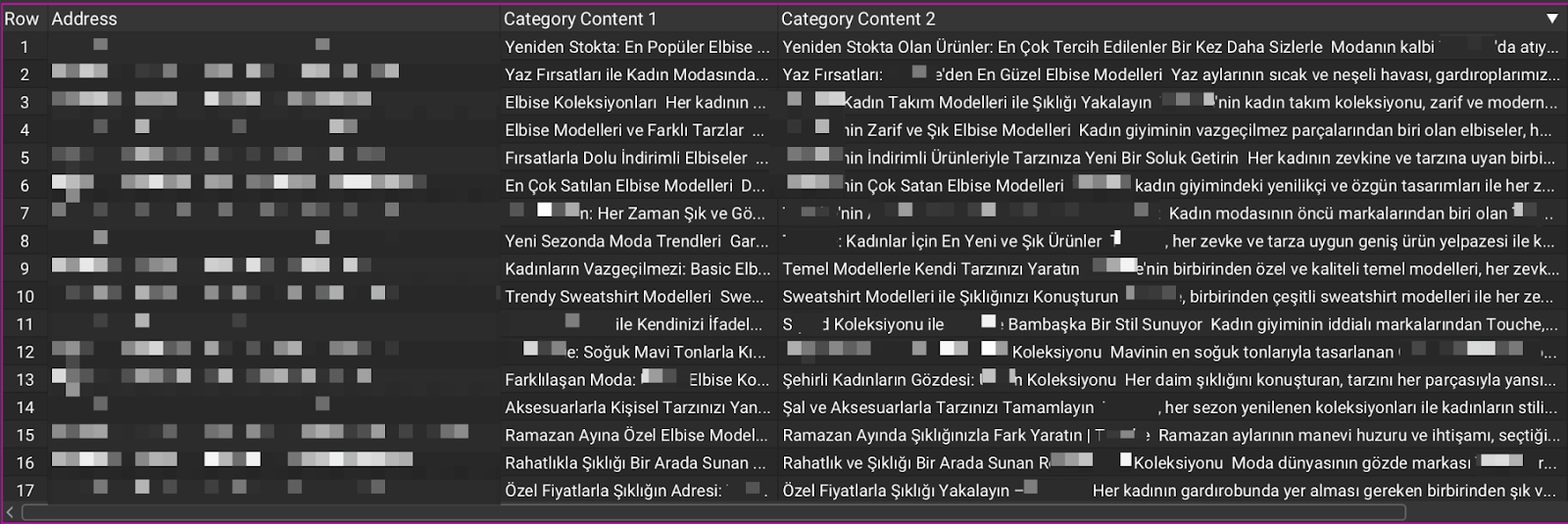
Custom JS: Creating Category Content for E-Commerce Sites with OpenAI
You can even create category and collection content for e-commerce sites this way. Thanks to Custom JavaScript and AI, what you build is limited mainly by your imagination. Let's take a look at an example I use in my daily work.
To create category content, I used the title and H1 tags of each URL as my keywords, then generated content from that data. To get the best results here, it is very important to prepare your prompt specifically for your brand and use the few-shot prompting technique.
You can share the JS snippets you created for Screaming Frog with your friends by exporting them in JSON format. This way, you can make your work easier and teamwork more efficient.
We think it's genuinely exciting that the tools we use most often in our day-to-day work are now enriched with AI in this way. Now you too can build powerful results in minutes with Custom Javascript and AI APIs!


