In 2023, Google Analytics 4 fully replaced Universal Analytics. Google announced that access to Universal Analytics would be discontinued as of July 1, 2024. As a result, moving from Universal Analytics to Google Analytics 4 and setting up Google Analytics 4 became a key concern for brands and digital marketing professionals.
This guide explains how to check your Google Analytics 4 property. There is no single way to check your Google Analytics 4 property, so we have brought together the main topics and subtopics that we consider important and use in our own work.
We will review your Google Analytics 4 property under three main headings: Integration Checks, Property Checks, and Base Report Checks.
Integration Controls
Integration Controls help you confirm that Google Analytics 4 and Google Tag Manager are collecting data from your website accurately. The three steps below cover the integrated Google Tag Manager and Google Analytics 4 tracking codes on your website.
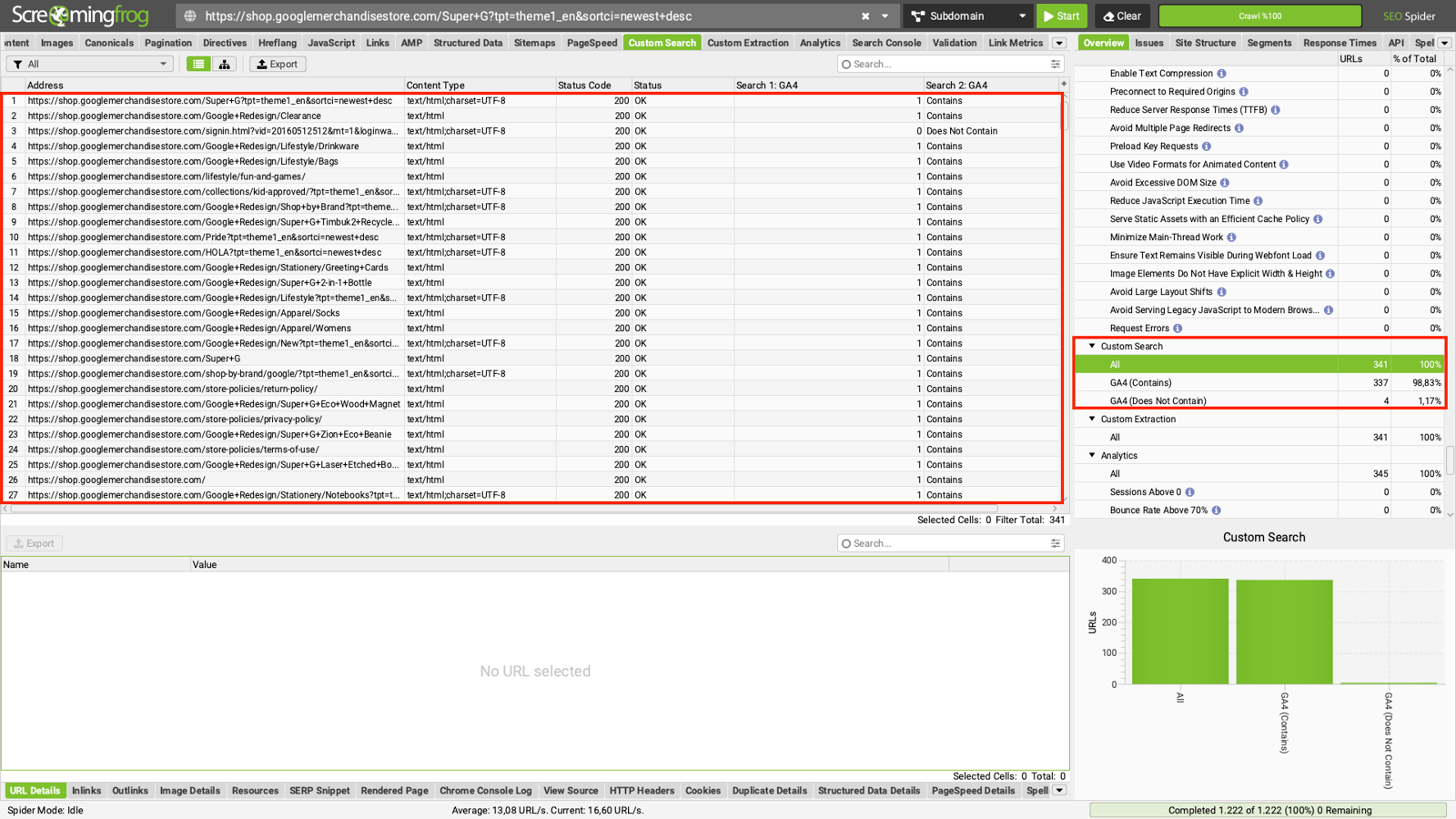
Step 1 - Is Google Tag Manager & Google Analytics 4 Properly Integrated with Your Website?
Pages where the Google Tag Manager and Google Analytics 4 tracking codes do not work can directly affect your data and produce misleading reports. You can use Screaming Frog to examine the tracking codes in your website's source code. This shows you which pages have active Google Tag Manager and Google Analytics 4 codes and which pages do not.
Step 2 - Is Your Cookie Consent Working Correctly?
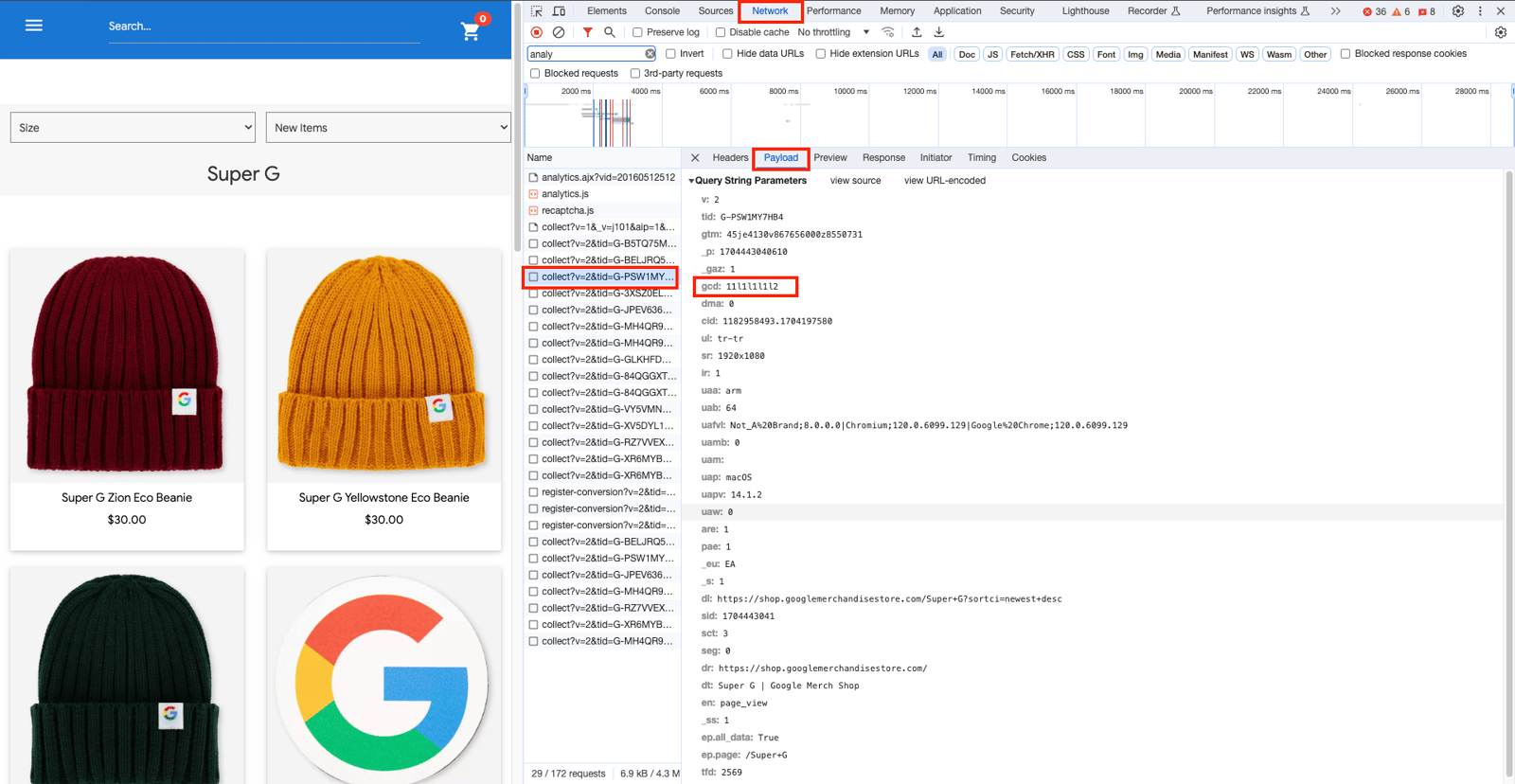
If your website has a cookie consent area, the Google Analytics 4 tracking code should respond to the actions users take there. You can use the console to check whether the consent area and tracking code behave correctly for each user action.
Step 3 - Do You Have Duplicate Page View Activities on Your Website?
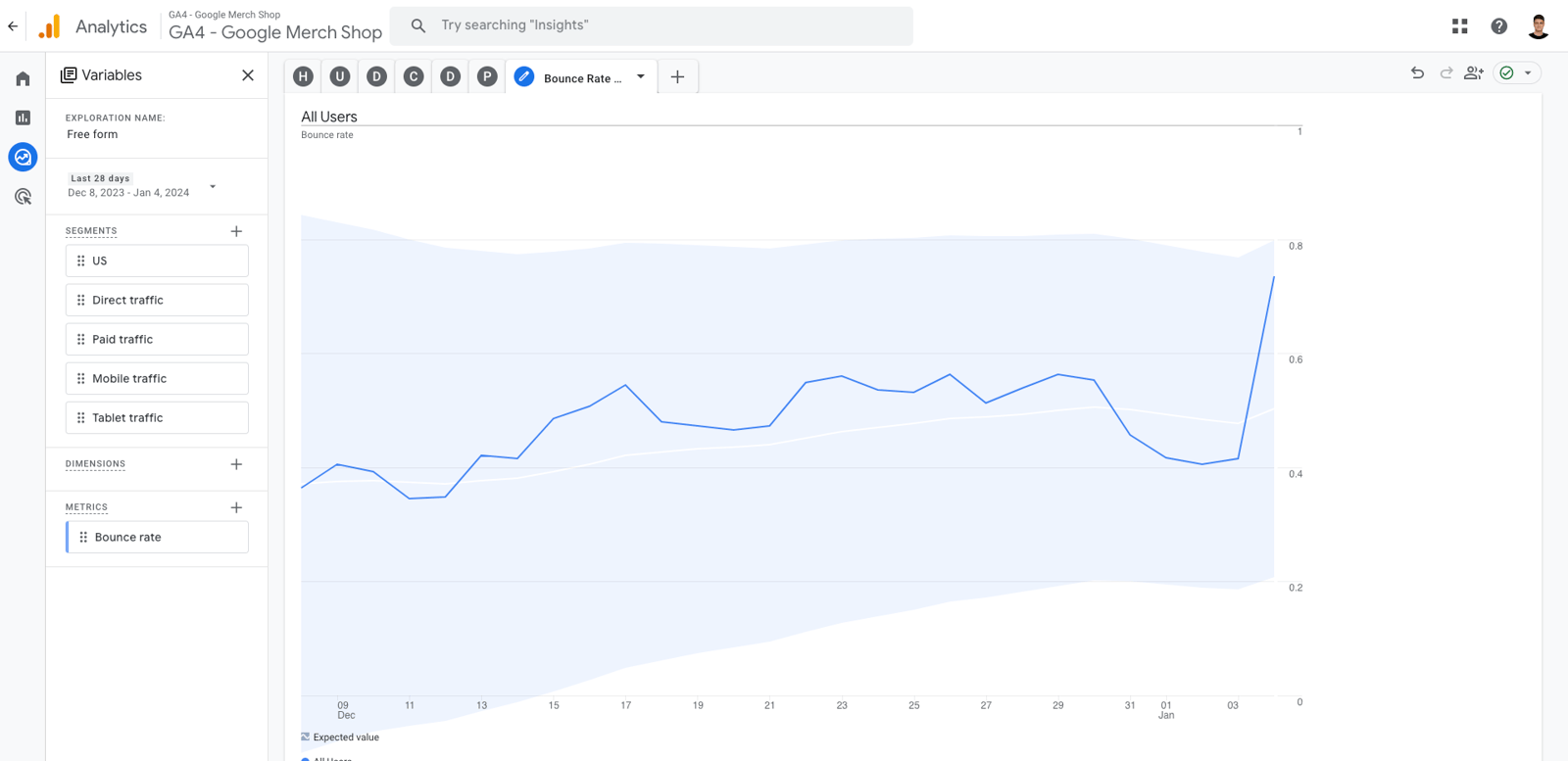
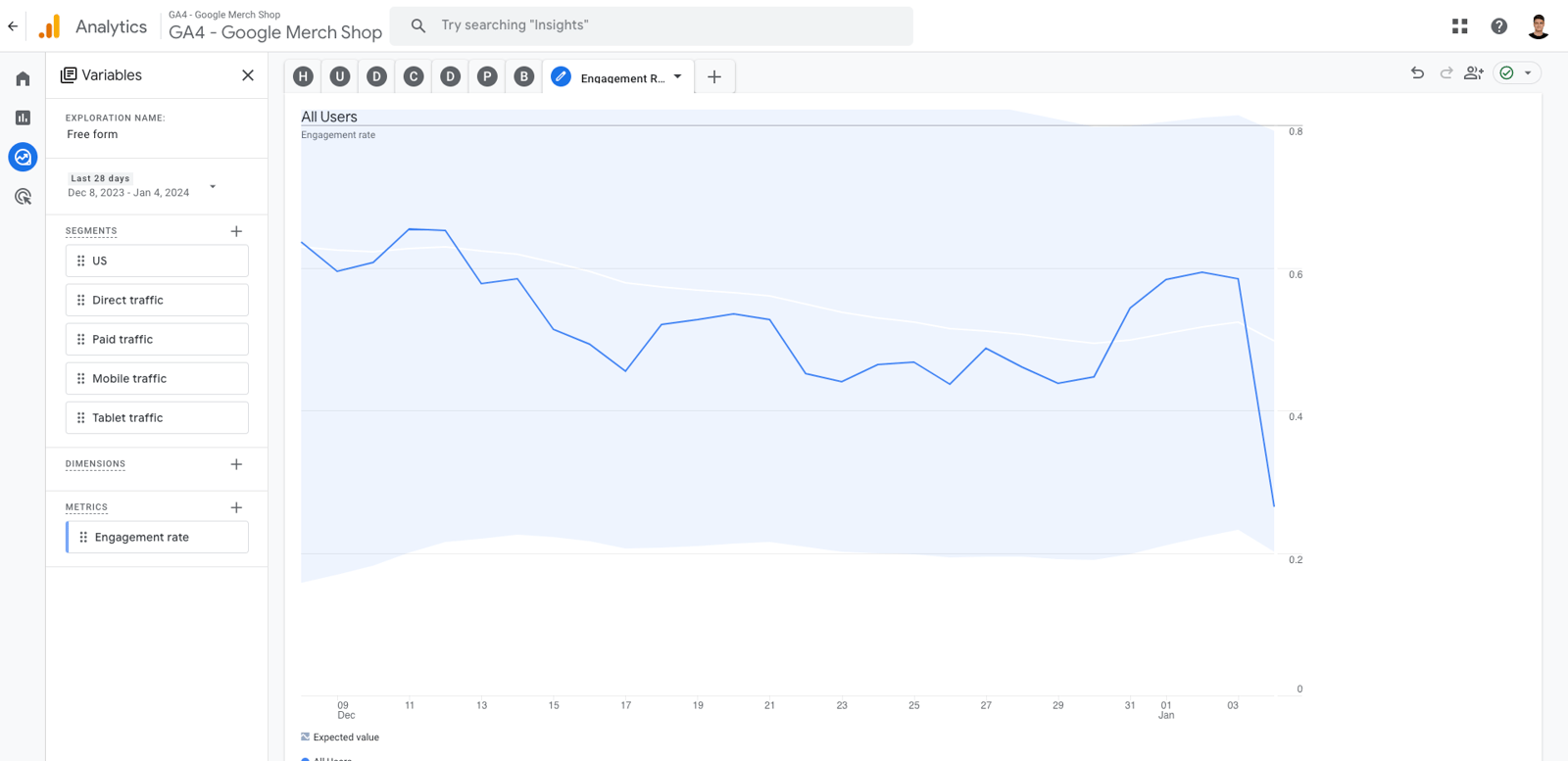
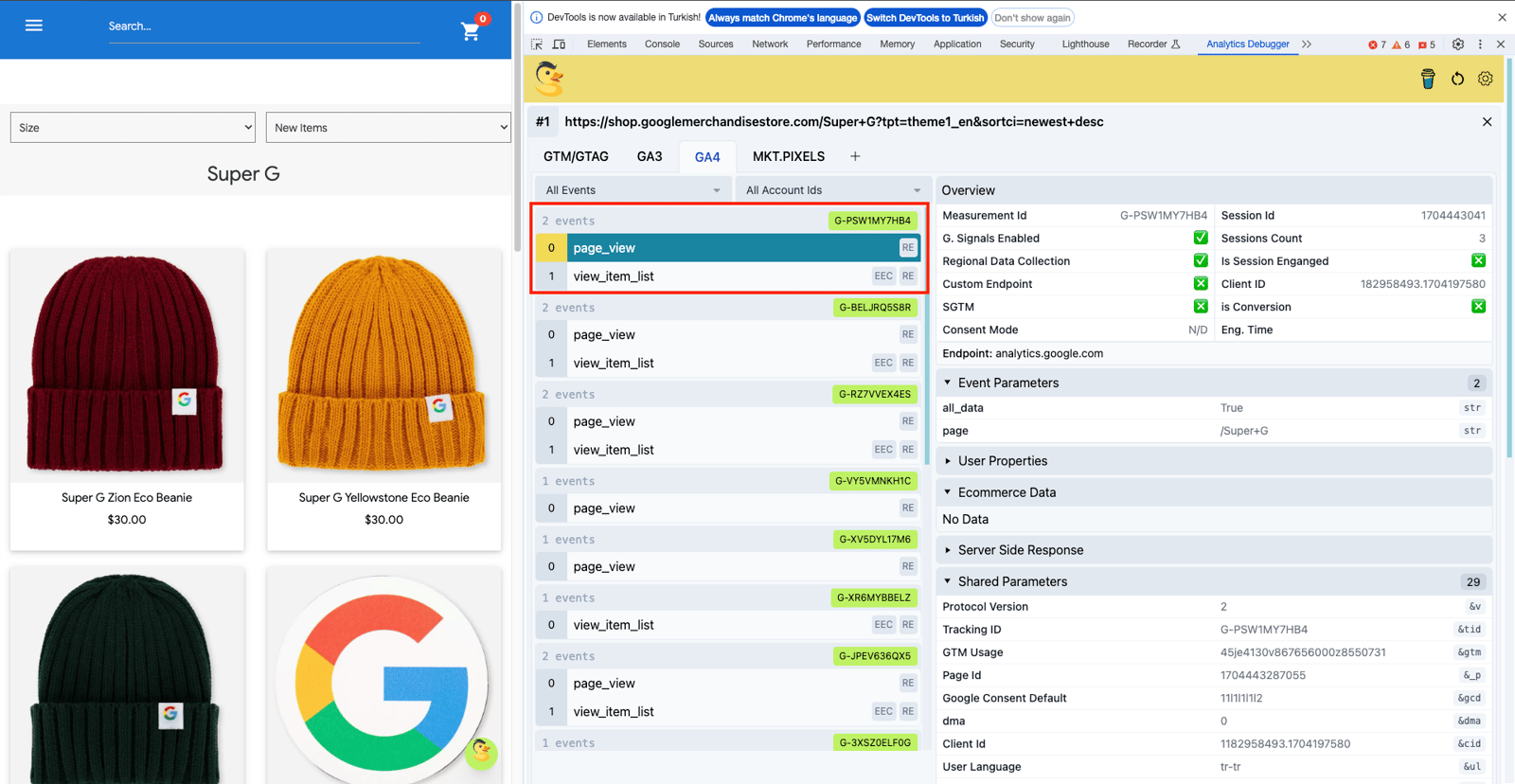
Page view activity is one of the main activities sent to your Google Analytics 4 property. A common issue is sending the same page view activity twice to your Google Analytics 4 property. Duplicate page views can directly affect your bounce and engagement rates, which can make your reports inaccurate.
You can use the Analytics Debugger Tool to check for and control this activity.
Property Checks
Property Checks help you confirm that the data transferred through correctly integrated Google Tag Manager and Google Analytics 4 tracking codes is interpreted accurately. The 12 steps below explain how to check your Google Analytics 4 property.
Step 1 - Are Your Property Settings Correct?
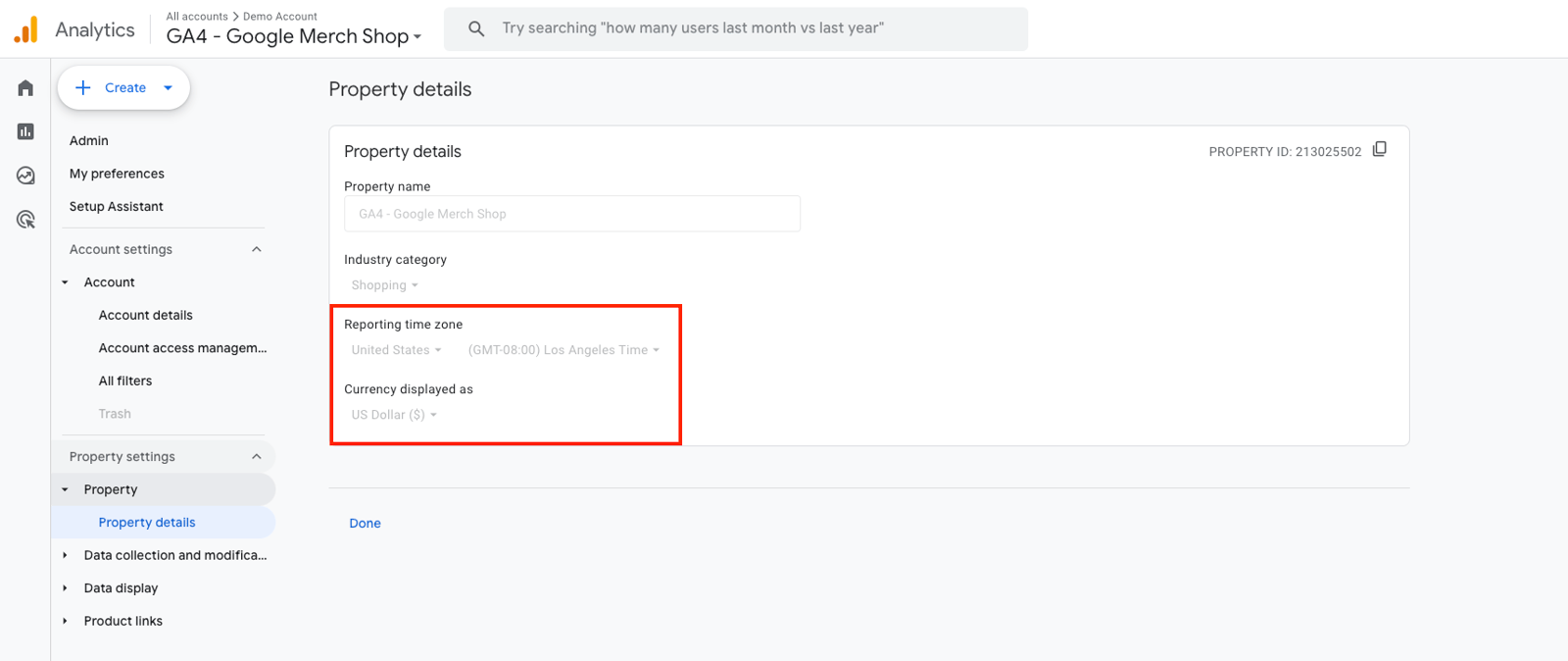
The Property Settings Check verifies that Google Analytics 4 is configured for the country and currency in which your website operates. Selecting the wrong currency or operating region can lead to incorrect report data.
You can check your property settings in the Admin > Property > Property Details section.
Step 2 - Is Your Data Stream Working Correctly?
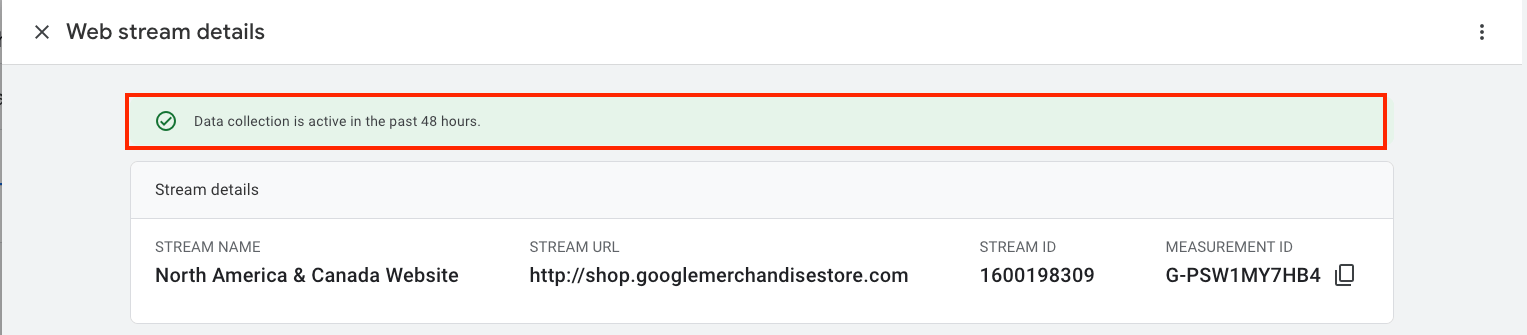
The Data Stream Check confirms that data is flowing from the data points connected to your website. Your property displays information about each data stream, and you can click the connections to see which are flowing and which are not. If you have Google Play and iOS applications connected to the website, it is ideal to add them here.
You can perform the Data Stream Check from Admin > Data Collection and Modifications > Data Streams section.
Step 3 - Is Your Data Being Collected Accurately?
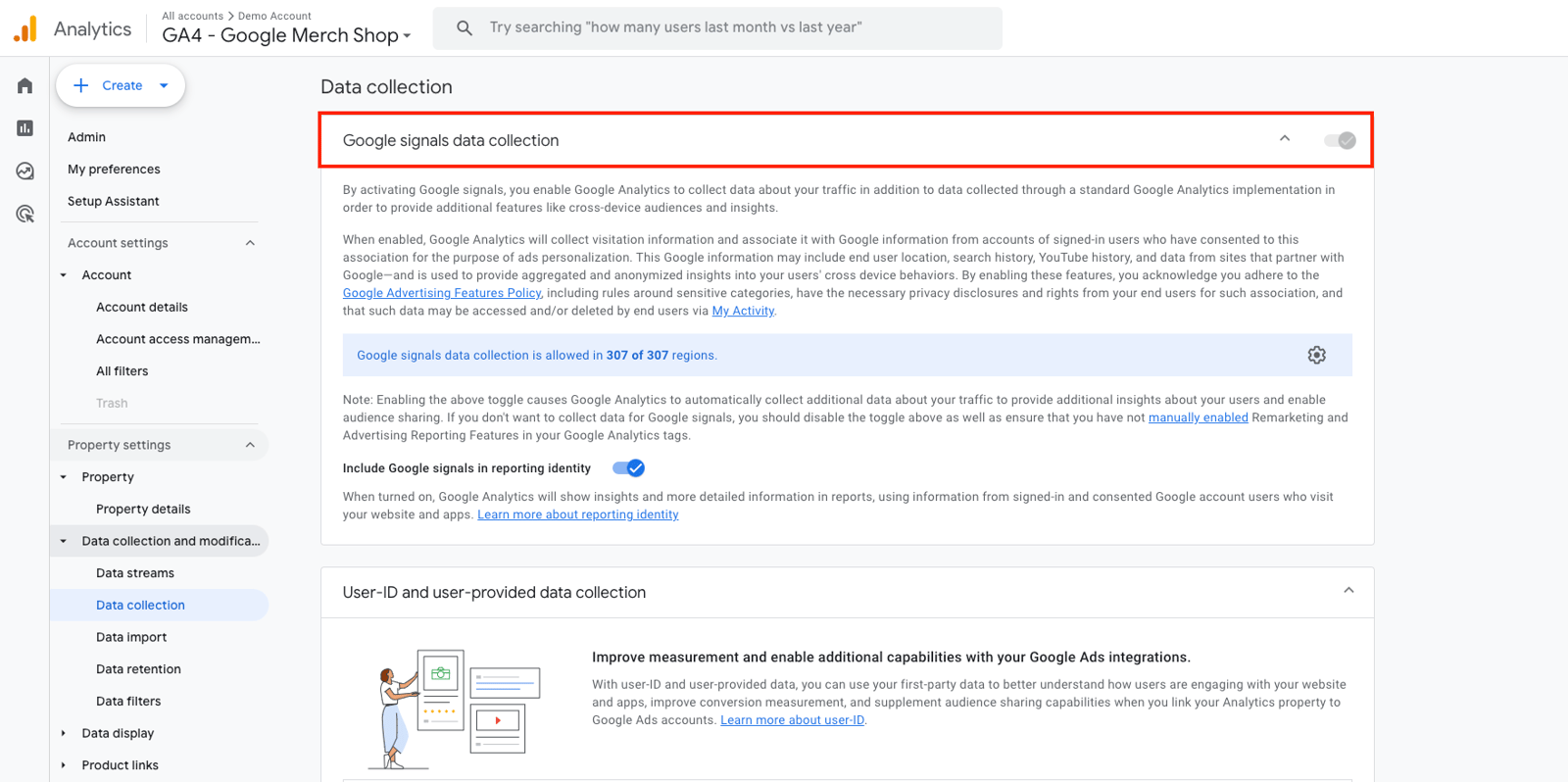
The Data Collection Check verifies whether Google Signals is active. Google Signals enables the collection of data from website visitors and provides information such as their age, location, and interests. Activating Google Signals adds more data to your reports and supports more comprehensive analysis.
You can perform the Data Collection Check from Admin > Data Collection and Modifications > Data Collection section.
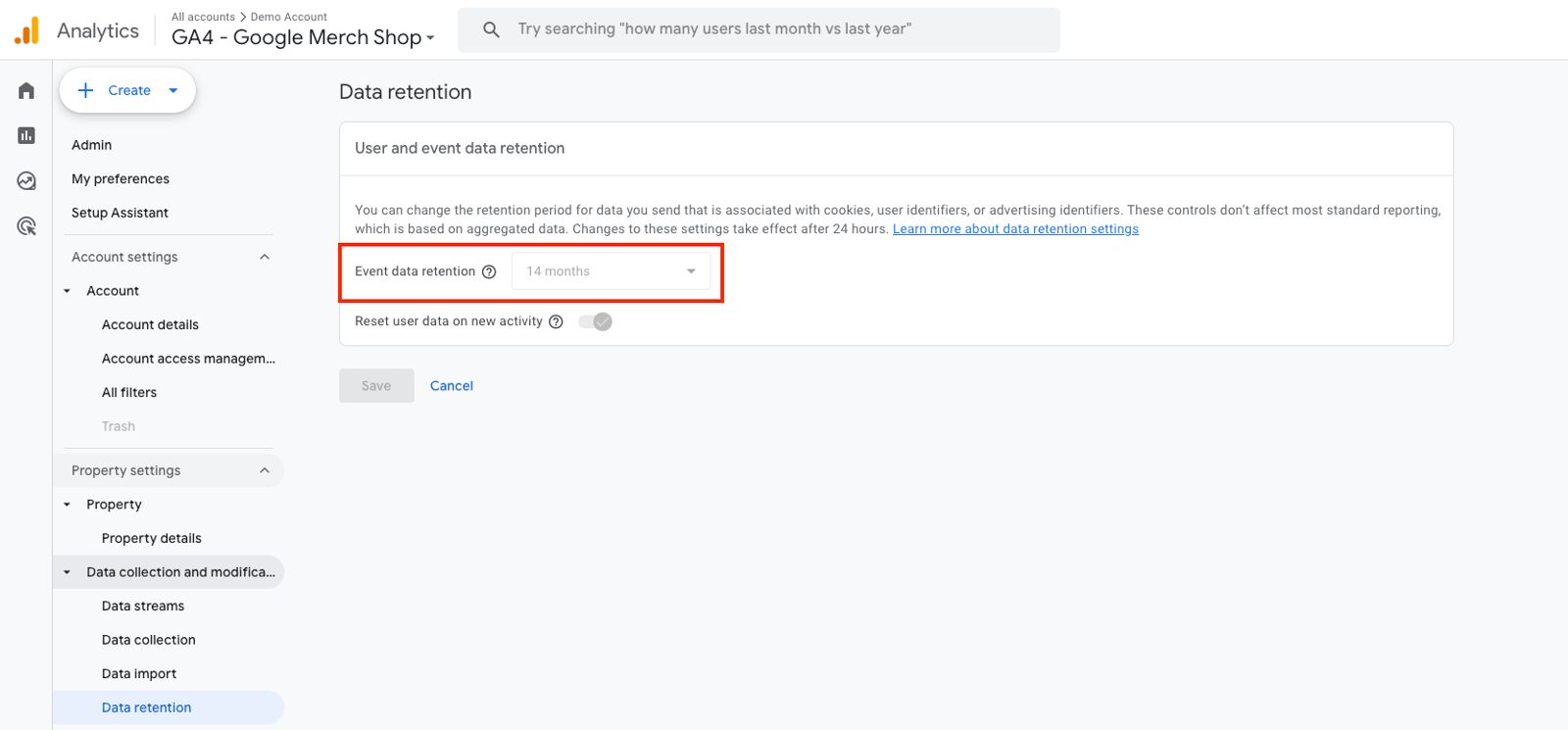
Step 4 - Is Your Data Retention Set to the Maximum Duration?
The Data Retention Check reviews the retention setting used for reports in Google Analytics 4. A common issue is leaving this period at two months, which means data in custom reports is deleted after 2 months. The ideal setting is the maximum duration of 14 months.
You can perform the Data Retention Check from Admin > Data Collection and Modifications > Data Retention section.
Step 5 - Have You Checked Your Conversions?
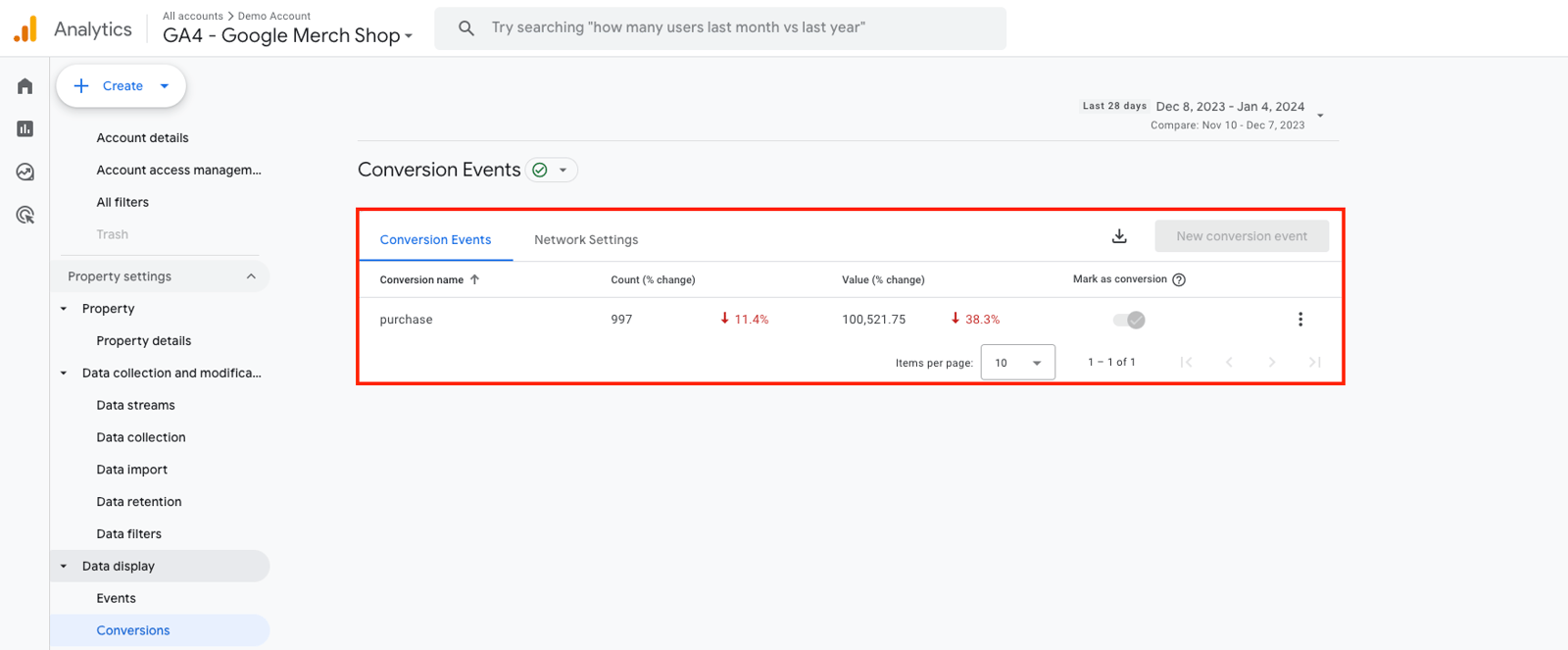
The Conversion Check verifies which events installed on the website are selected as conversions.
The ideal approach is to mark critical events that represent specific data collection areas on your website as conversions.
You can perform the Conversion Check from the Admin > Data Display > Conversions section.
Step 6 - Do You Have Your Audiences?
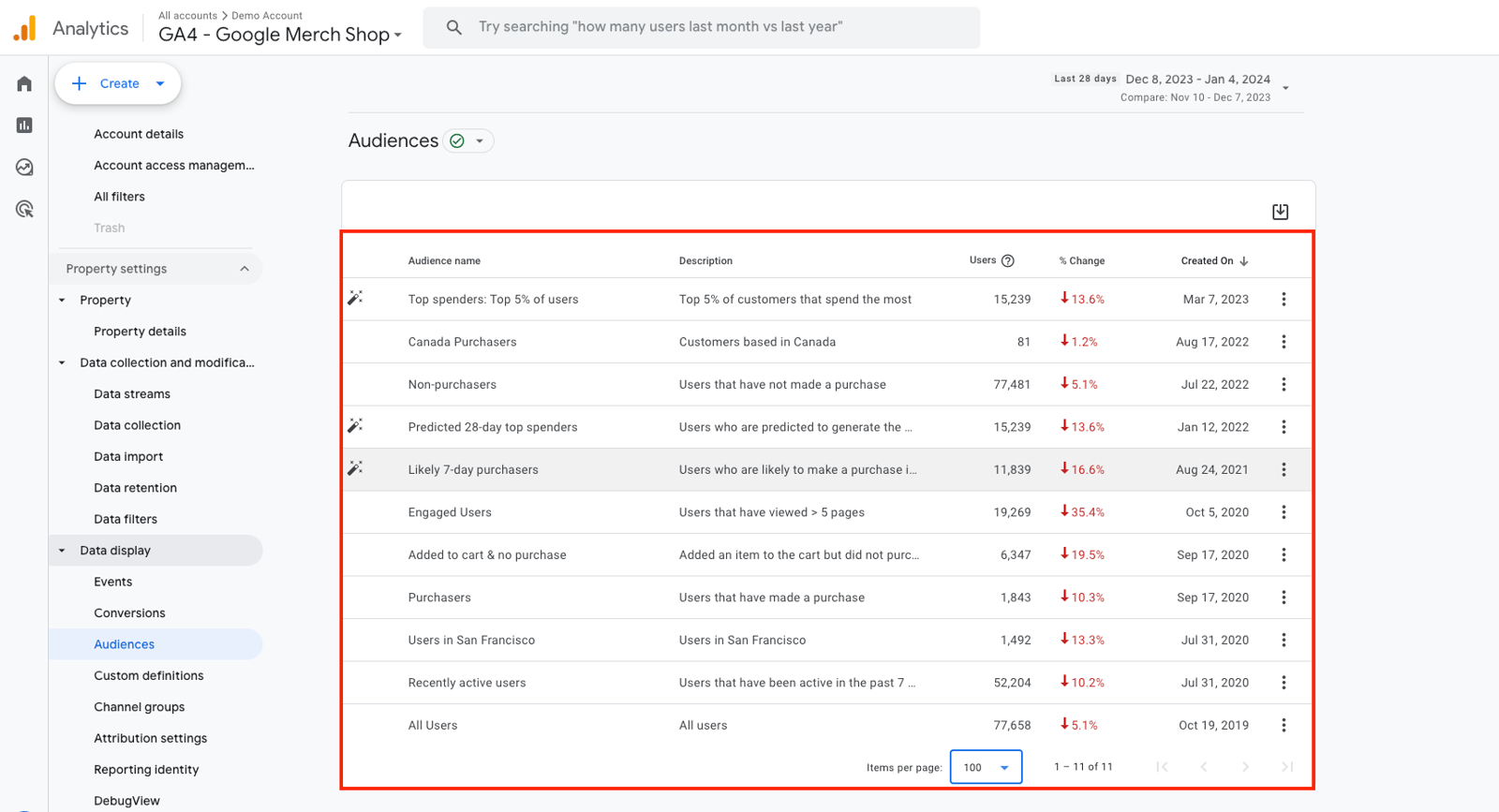
The Audience Check verifies whether the audiences created in your Google Analytics 4 property are configured correctly. Audiences are user groups segmented by specific characteristics or behaviors. At this step, confirm that each audience matches the characteristics and behaviors you intend to target.
You can perform the Audience Check from the Admin > Data Display > Audiences section.
Step 7 - Are Your Enhanced Measurement Events Active?
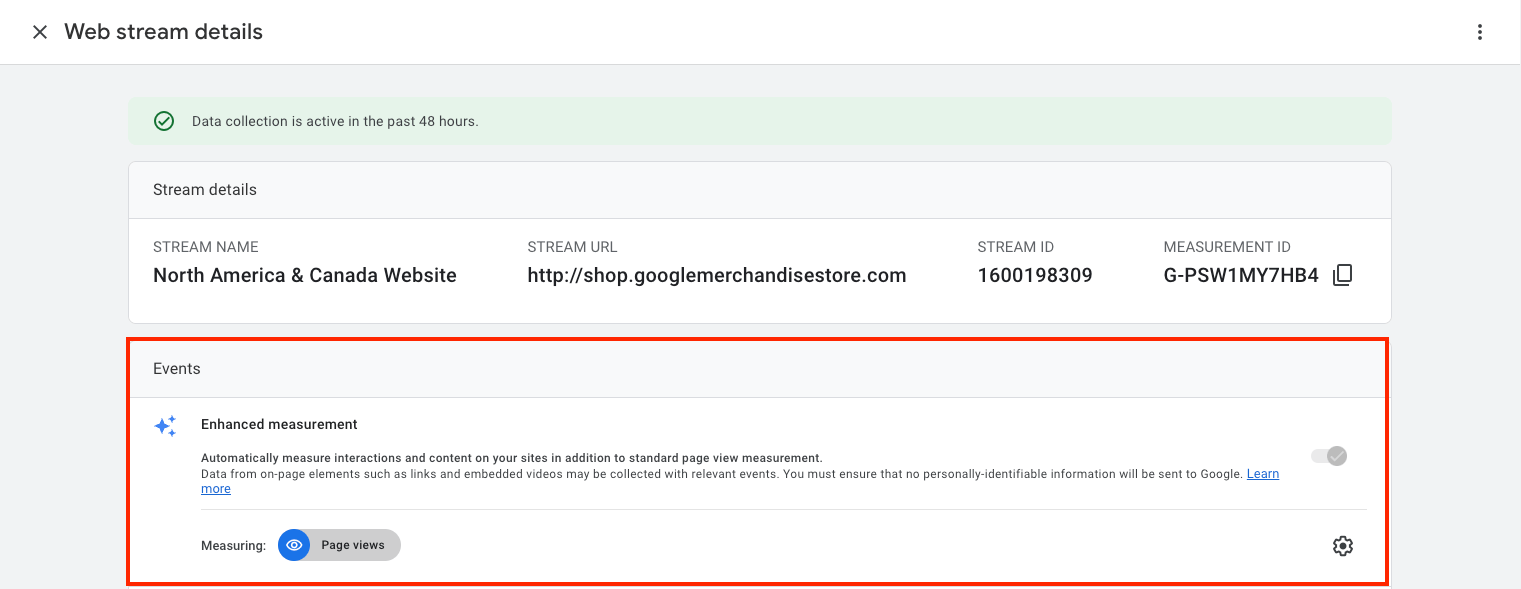
The Enhanced Measurement Events Check verifies whether the base events automatically enabled through the website's Google Analytics 4 integration are active.
A common practice is to disable the Site Search and Form Interaction events. These events may not always capture the relevant activity on your website accurately. Keeping them disabled when they do not function as intended can produce healthier reports.
You can perform the Enhanced Measurement Events Check from Admin > Data Collection and Modifications > Data Streams > Relevant Data Stream > Enhanced Measurement section.
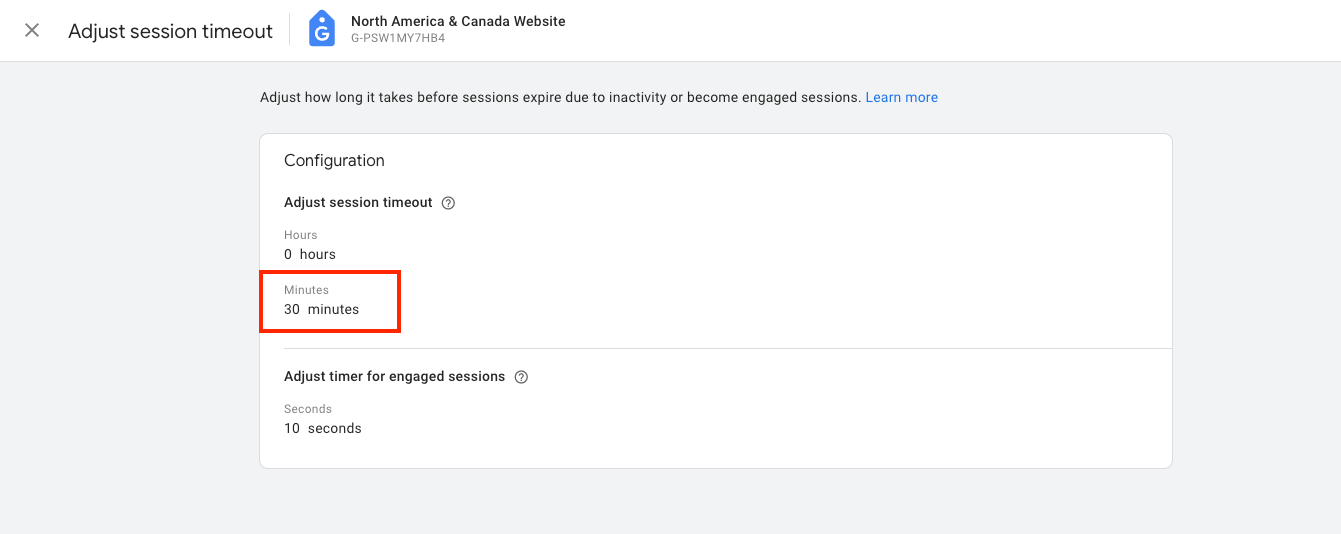
Step 8 - What is the Session Timeout Duration?
The Session Timeout Duration Check verifies how long a session remains active after activity on the website stops.
The ideal approach is to set the Session Timeout according to the Average Session Duration. A common recommendation is 30 minutes.
You can perform the Session Timeout Duration Check from Admin > Data Collection and Modifications > Data Streams > Relevant Data Stream > Configure Tag Settings > Adjust Session Timeout section.
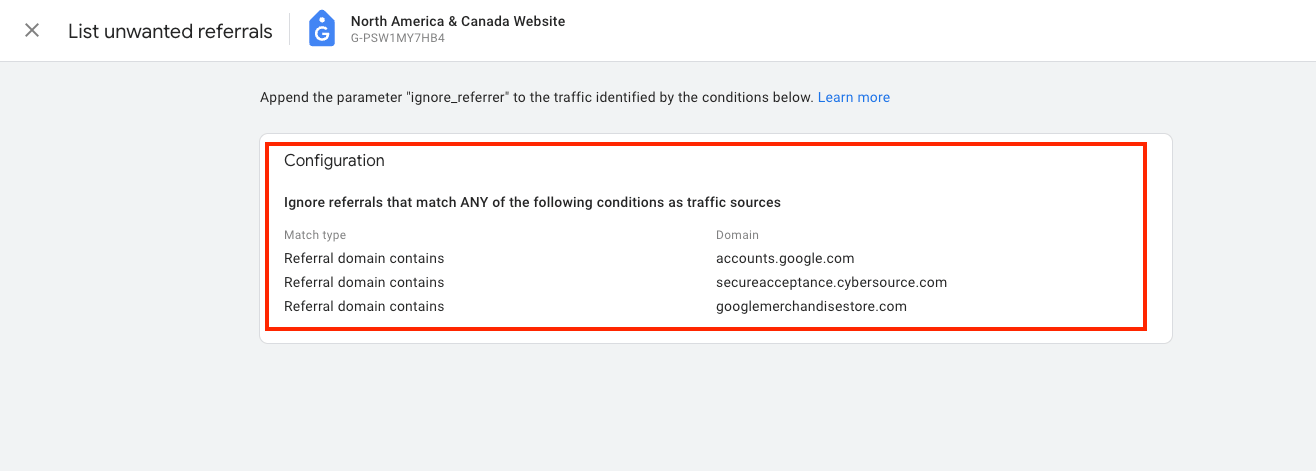
Step 9 - Do You Have Unwanted Referral Exclusions?
The Unwanted Referral Check verifies whether web pages that you do not want to appear among your website referrals have been added to this area.
The ideal approach is to review your reports for unwanted referrals and add them here.
You can perform the Unwanted Referral Check from Admin > Data Collection and Modifications > Data Streams > Relevant Data Stream > Configure Tag Settings > List Unwanted Referrals section.
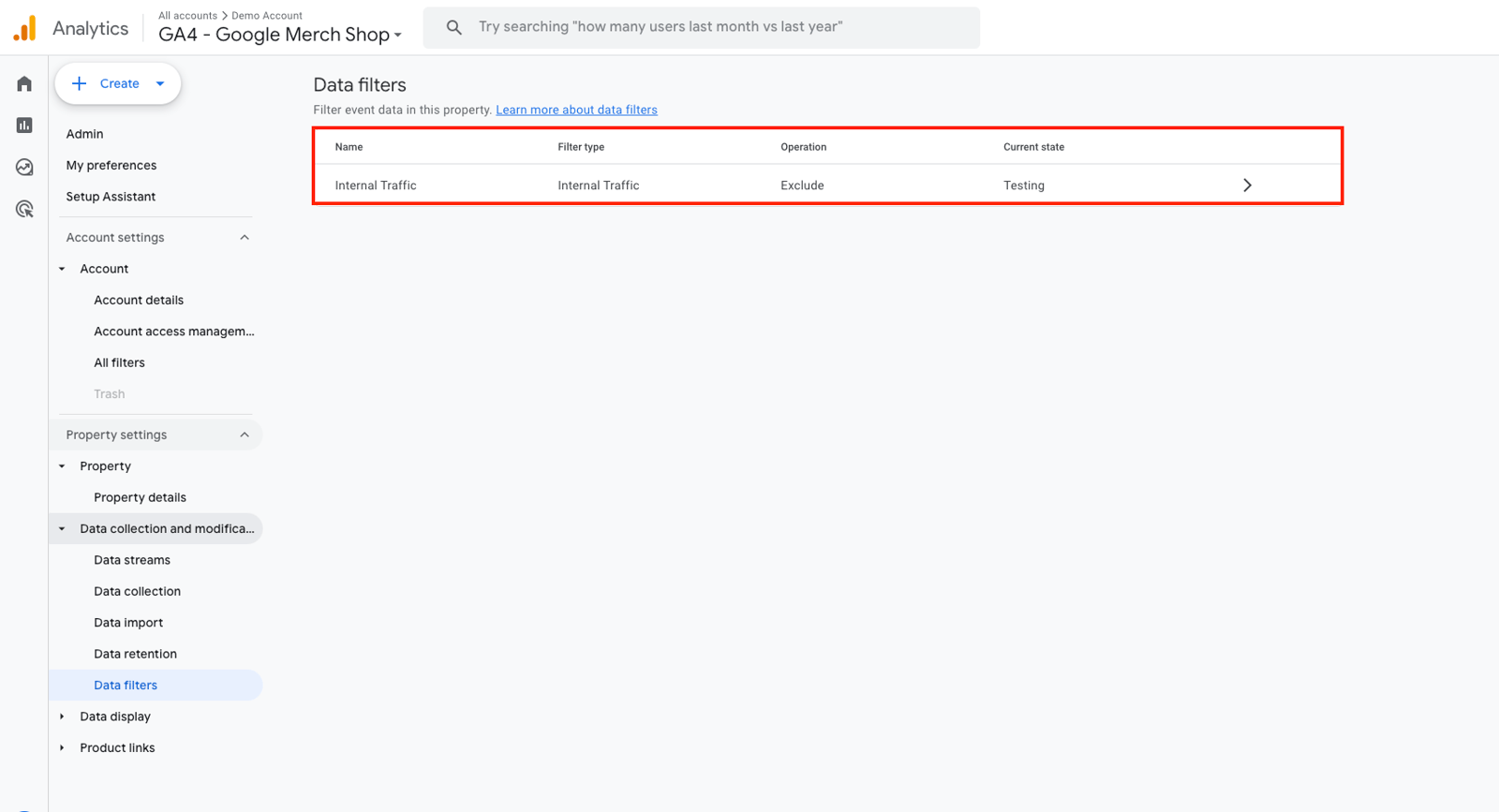
Step 10 - Do You Have Data Filters?
The Data Filters Check verifies whether unwanted groups of website visitors are filtered out.
The ideal approach includes identifying your company's IP addresses and filtering internal traffic. If you have a developer team, you can also filter its activity with Developer Traffic Filters.
You can perform the Data Filters Check from Admin > Data Collection and Modifications > Data Filters section.
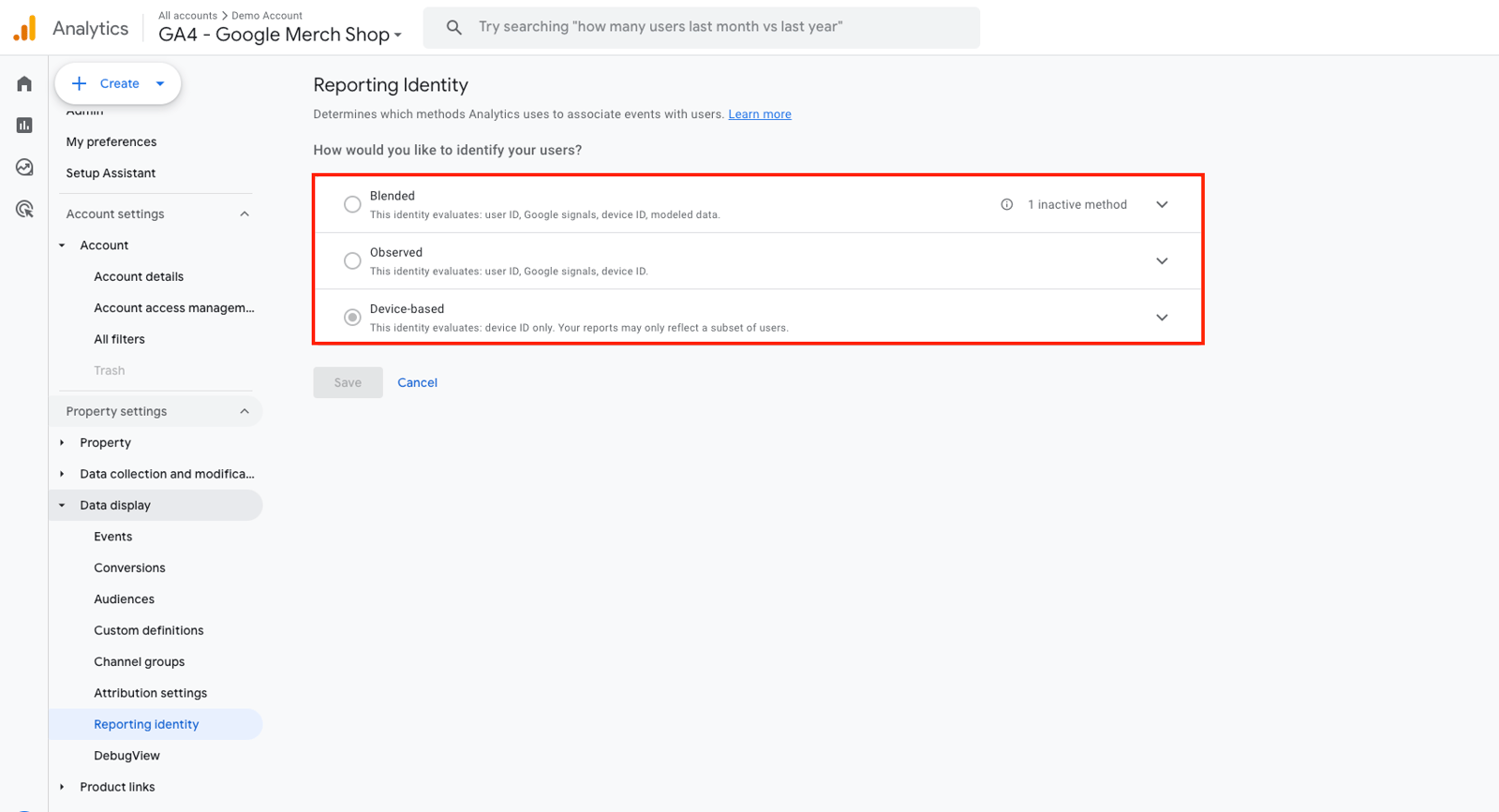
Step 11 - What is Reporting Identity?
The Reporting Identity Check verifies how website visitors are reported and which identity is used. The ideal approach is typically to select the Blended system. This system uses modeling for users it cannot categorize. Two other options are also available. All three are listed below:
-
Blended Reporting Identity: Gathers reports based on User-ID, Google signals, device ID, and then modeling. If no user identity can be collected, it uses information obtained from Google signals if available. If User-ID or Google signals information is not available, Analytics uses the device ID. If there is no identifier, Analytics uses modeling.
-
Observed Reporting Identity: Gathers reports based on User-ID, Google signals, and then the device ID. If no user identity can be collected, it uses information obtained from Google signals if available. If User-ID or Google signals information is not available, Analytics uses the device ID.
-
Device-Based Reporting Identity: Uses only the device ID and ignores all other collected identities.
You can perform the Reporting Identity Check from Admin > Data Display > Reporting Identity section.
Step 12 - Are You Connected with Your Google Tools?
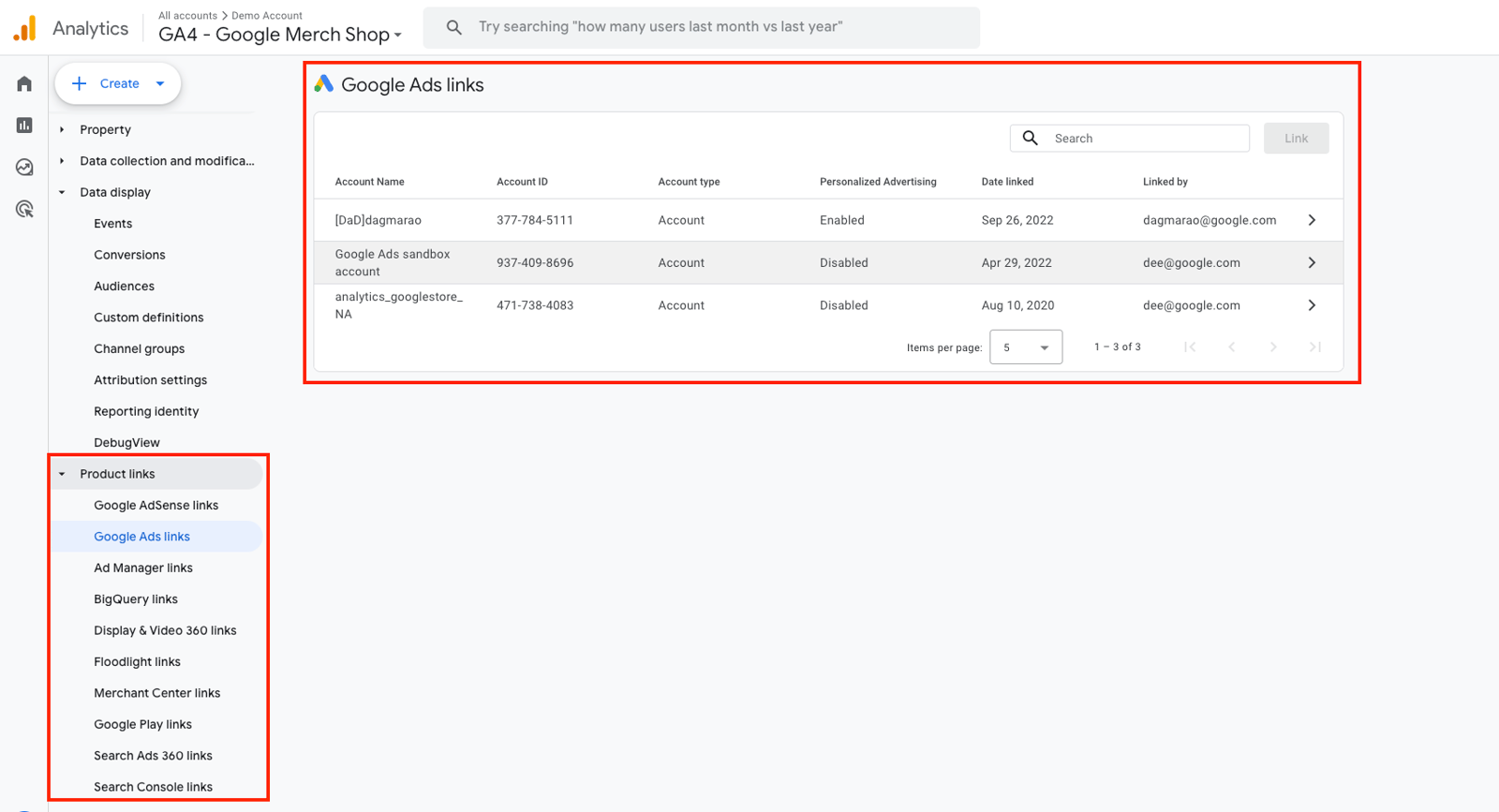
The Google Tools Connection Check verifies whether tools connected to your website are also linked to Google Analytics 4. Connecting the Google tools associated with your website to Google Analytics 4 enriches the data in your reports and can help you produce more accurate reports.
You can perform the Google Tools Connection Check from Admin > Product Links section.
Base Reports Check
Base Report Checks follow the integration and property checks. They help you identify reporting issues in your Google Analytics 4 property early. The nine steps below explain how to check your basic reports.
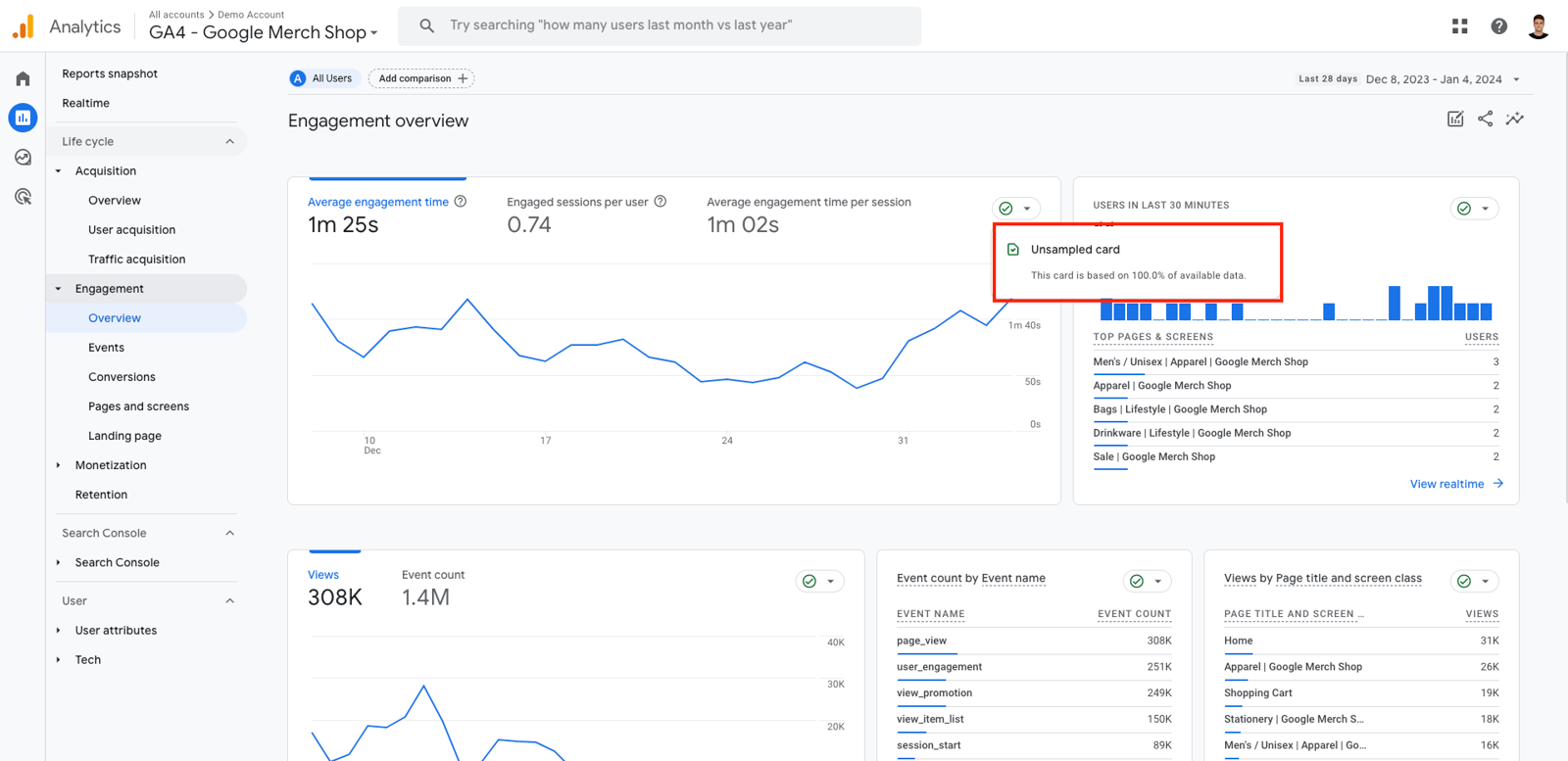
Step 1 - Are You Experiencing Sampling Errors?
Sampling Data is one of the most common issues. The Sampling Error Check verifies whether your data is limited. Limited data can create misleading reports. You can recreate the reports you review most often as custom reports in Google Analytics and check them for sampling.
Step 2 - Do Your Session / Domain Reports Contain Different Websites?
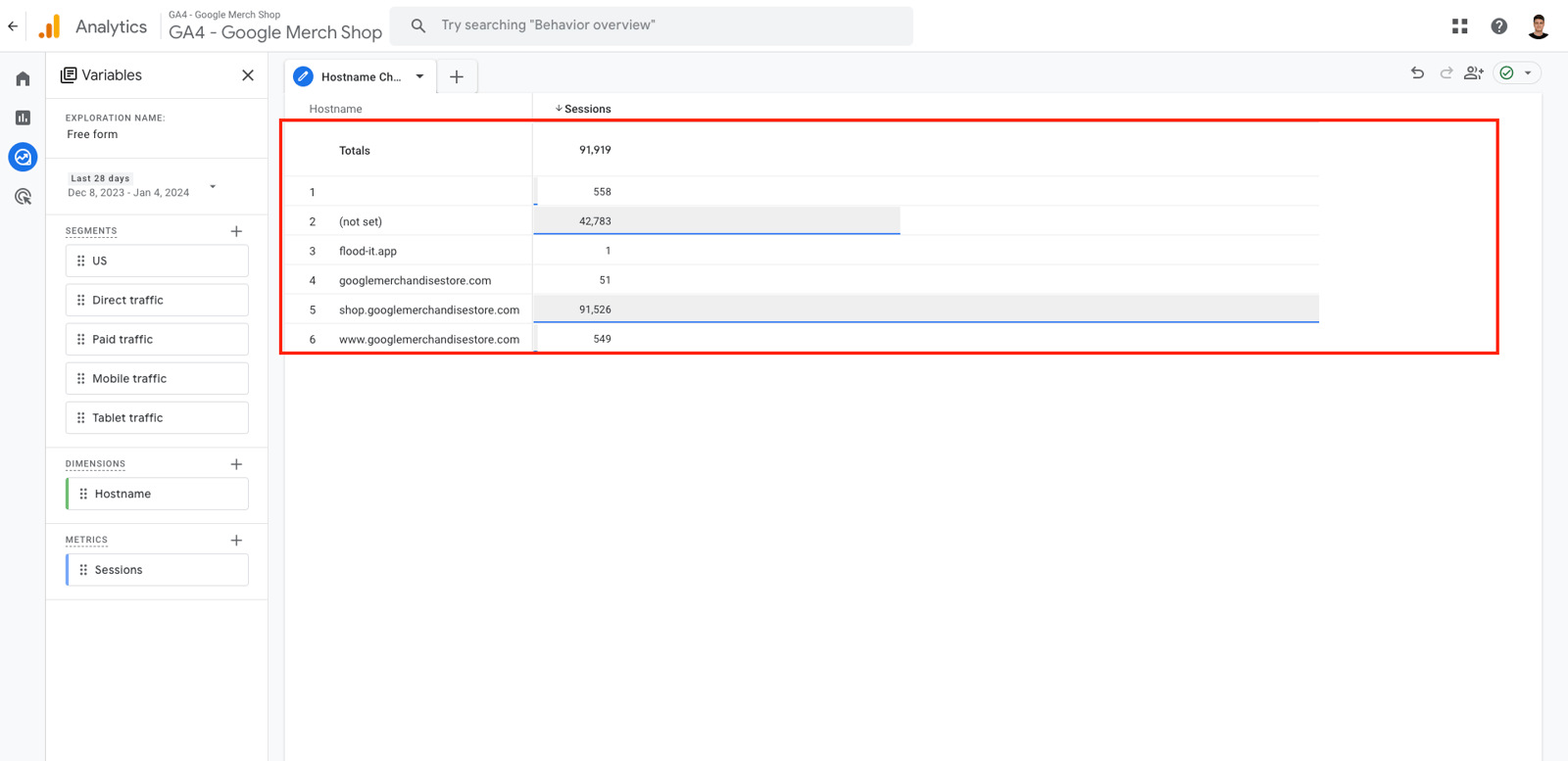
The Session / Domain Check verifies which domains are sending data to the website.
The ideal scenario is to see only one domain in this area.
Step 3 - Do You Have Unwanted Referrals?
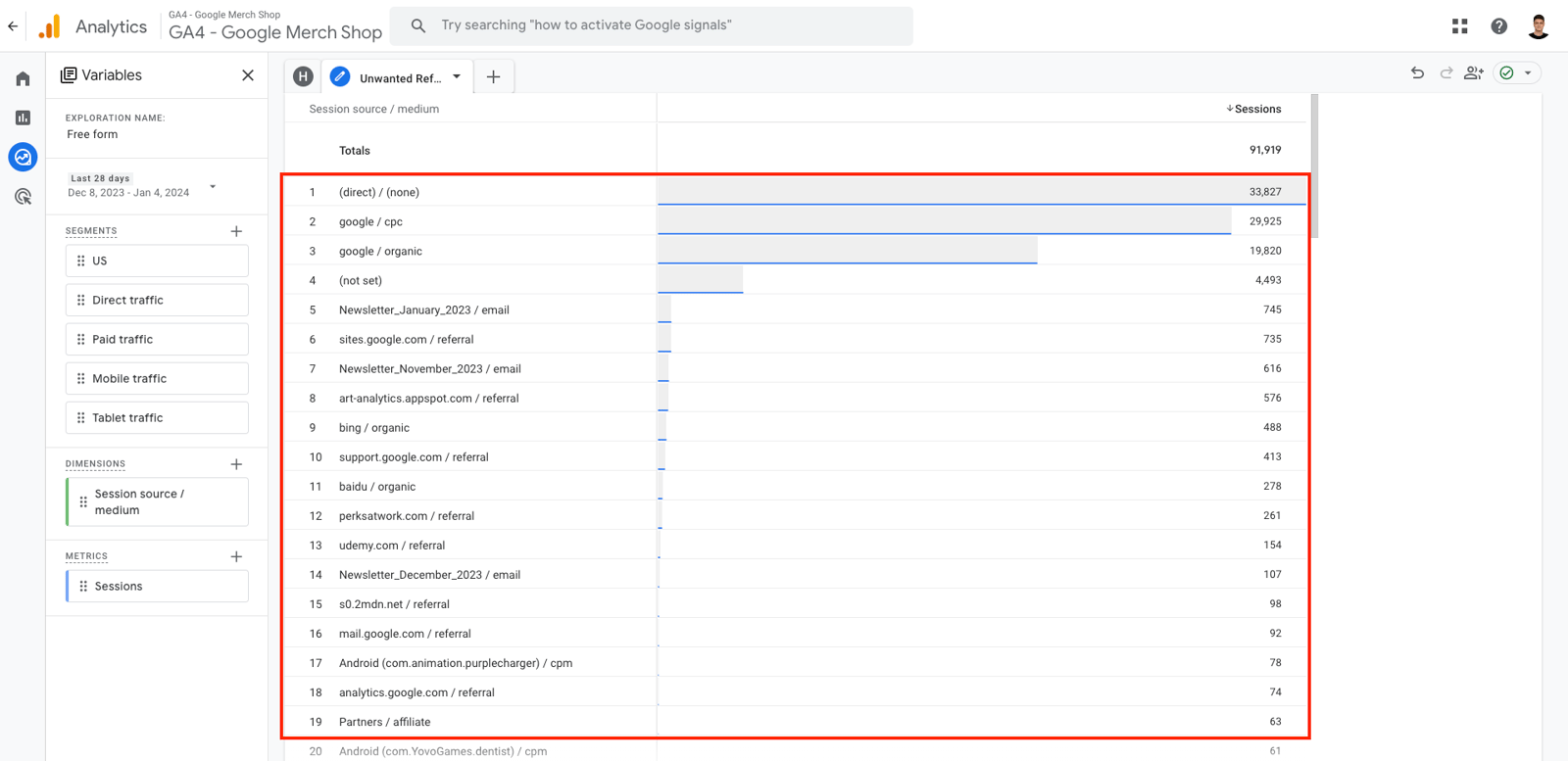
The Unwanted Referrals Check identifies web pages among the incoming referrals that you do not want to see in your reports. You can add these pages to the area described in Property Checks Step 9.
Step 4 - Do You Have Self-Referrals?
The Self-Redirect Check examines areas where Google Analytics 4 could count activity within your website as a referral. It helps identify cases where users are already on your website, but Google Analytics 4 interprets their activity as a referral.
The ideal scenario is not to see your own website in Traffic Reports.
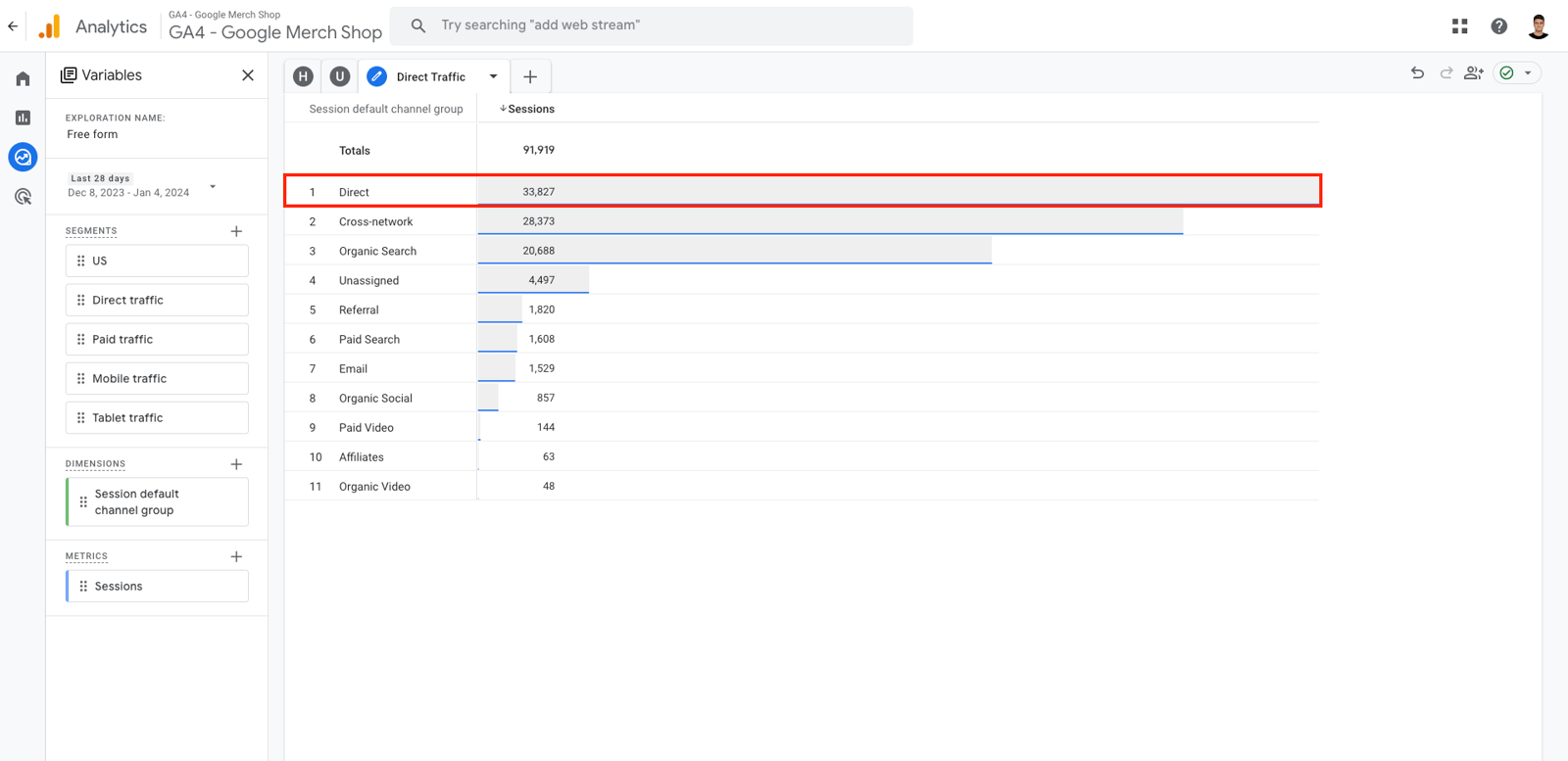
Step 5 - What is Your Direct Traffic Rate?
The Direct Traffic Check monitors the proportion of users who navigate directly to the website through its URL.
The ideal approach is to keep the ratio of users who reach the website through Direct Traffic below 20% of total users. If this ratio exceeds 20% in your property, you may suspect UTM tagging issues.
Step 6 - Are Your UTM’s Working Correctly?
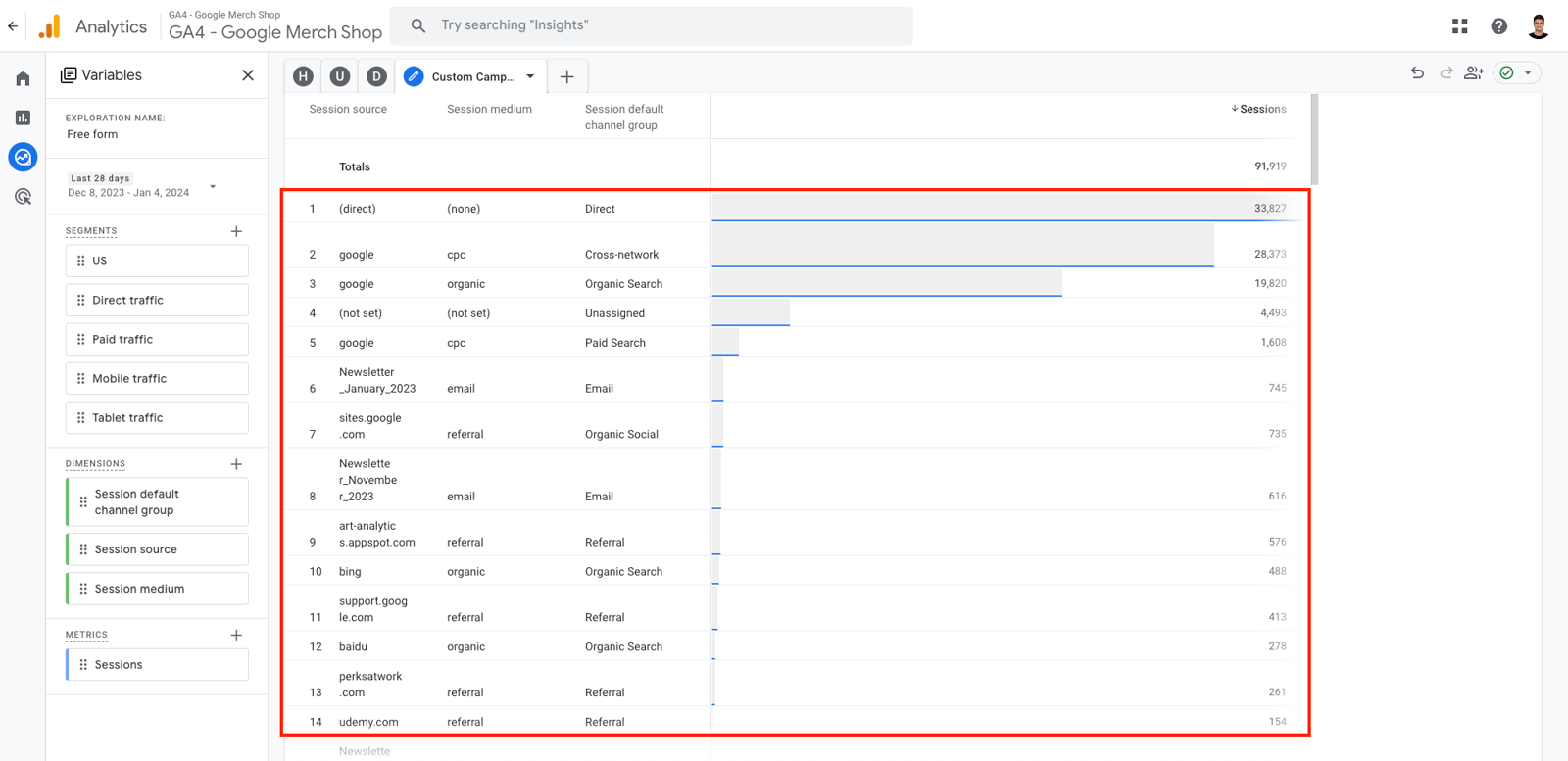
The Campaign Tracking Check monitors how users directed to the website are grouped.
The ideal scenario is not to see data such as "Not Set," "Unassigned," or "googlesyndication" in Session Source and Session Medium breakdowns. If most of the data in your property falls into these categories, you may suspect UTM tagging issues.
Step 7 - What is Duplicate Transaction ID
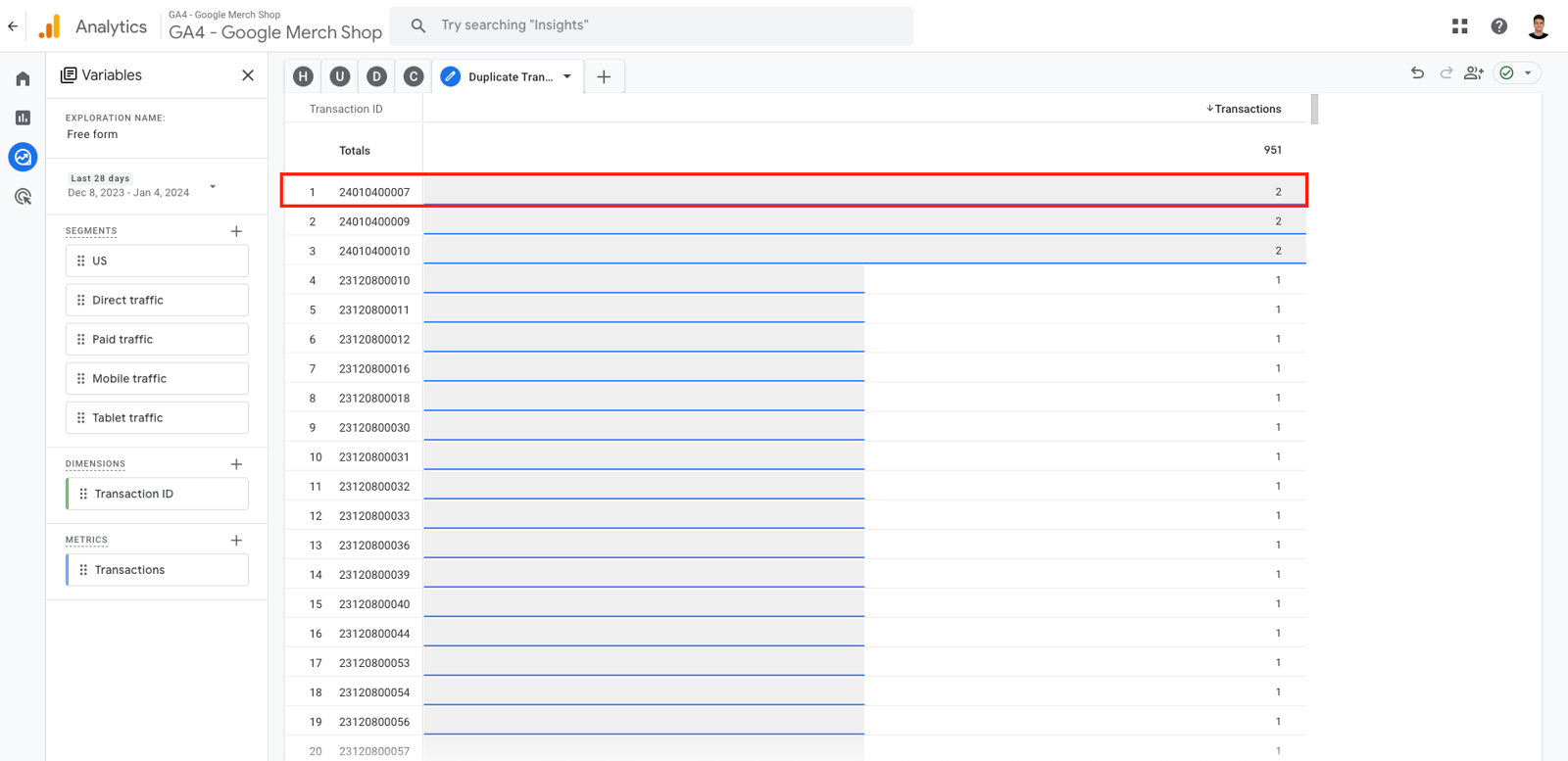
The Duplicate Transaction ID Check confirms that purchase events on your website are unique. If your website sells products and tracks purchase events, the same purchase identity should not appear twice in your reports.
If your property contains duplicate purchase identities, you may suspect issues with the purchase event or your website's source code.
Step 8 - Do You Have PLL - GDPR Violation?
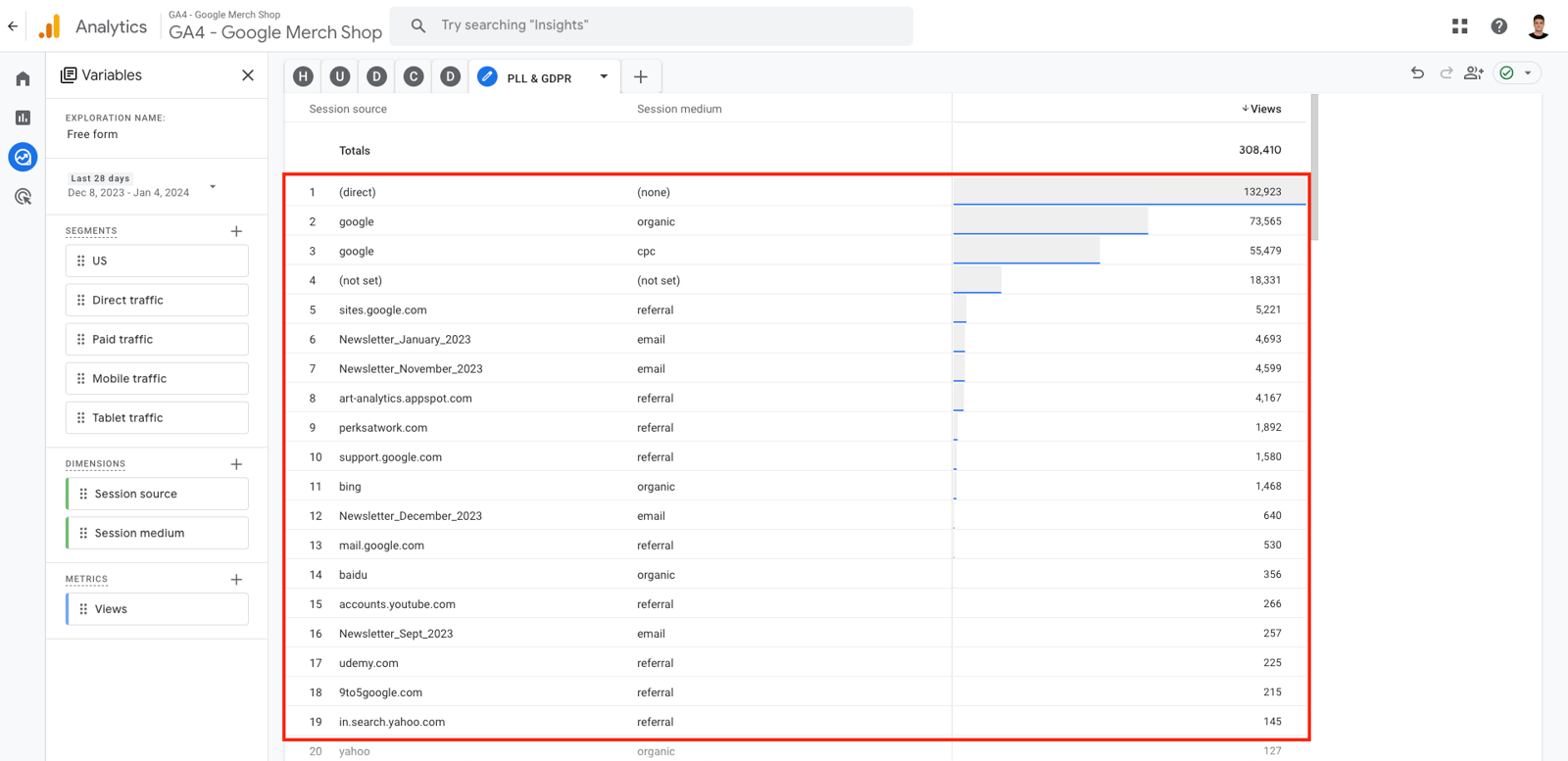
The Data Privacy Check verifies whether individual user data appears in the data flowing to the website.
The ideal scenario is to have no personal data in Session Source and Session Medium reports. Examples include Name, Email address, and address.
Step 9 - What is Your Bounce Rate - Engagement Rate Ratio?
The Bounce Rate and Engagement Rate Check helps you interpret user behavior on the website. The ranges below describe an ideal e-commerce website. However, the ranges considered ideal can vary from one site to another.
%1 - %20: Very low. You may be experiencing issues with triggered events on your website.
%20 - %30: Low. You may be experiencing issues with triggered events on your website, or your webpage might be receiving views outside its intended purpose.
%30 - %70: Ideal range. Generally, there are no significant issues on your website.
%70 - %100: Very high. Your website may be receiving views outside its intended purpose. You might be facing bot attacks, or there could be issues with the speed and views on your website.