


In this post, I'll walk through what it takes to build a professional LinkedIn account that stands out in every respect.
LinkedIn is a platform over 930 million people use, as of May 2023. It offers benefits like searching job postings, expanding your network by connecting with new people, and staying on top of industry trends. Research suggests that a complete LinkedIn profile increases visibility by 30%, so it's worth having a fully set-up profile. So what should you pay attention to when setting up and actively using LinkedIn? Let's cover each part in detail.
1. Setting up Your LinkedIn Profile
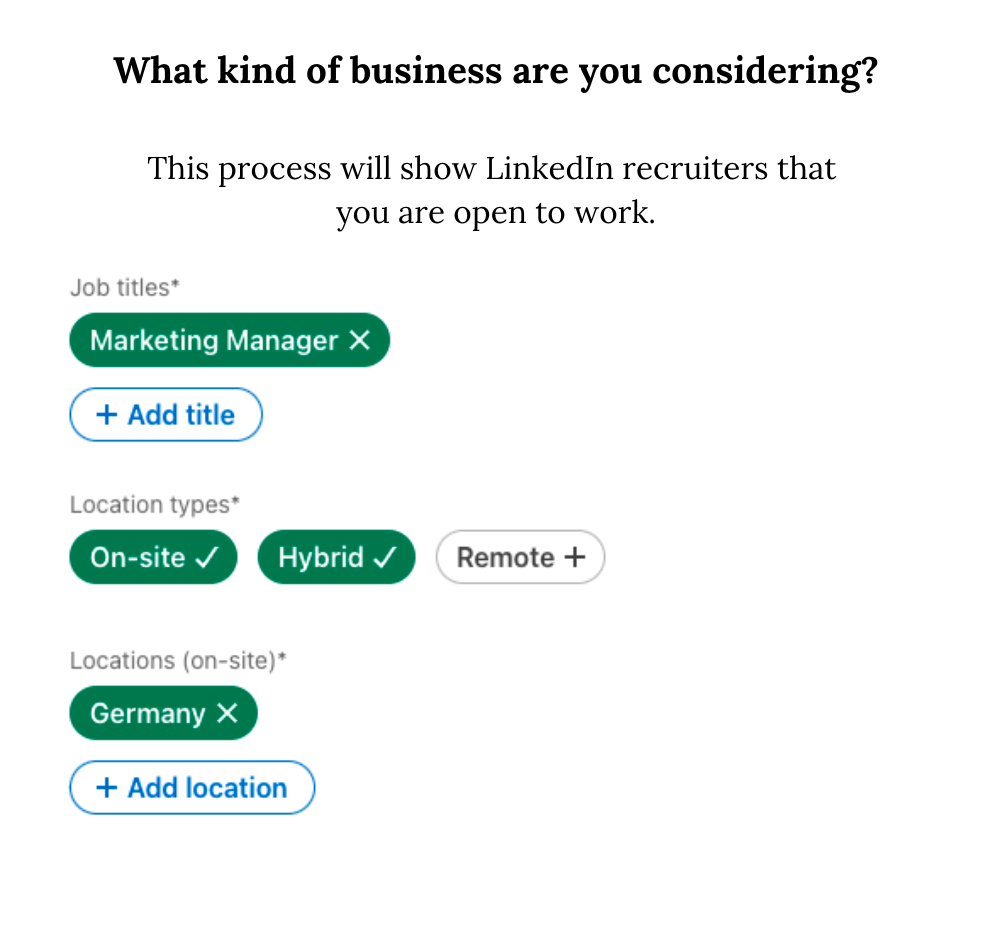
In the first step of LinkedIn setup, you start by entering basic information like your name, surname, email, and city. If you're actively job hunting, you can enter the positions and cities you'd consider working in, so LinkedIn can notify you by email when a suitable role opens up. That way, you can keep up with job listings for more than one position across different cities.
Next, LinkedIn suggests hashtags and pages you might want to follow based on your country, education, and work experience. Select the ones that apply to you and continue.
Everything up to this point covers the mandatory steps for a basic LinkedIn setup. From here, we'll look in detail at the methods you can use to personalize your account and make it more visible.
URL and Language Selection
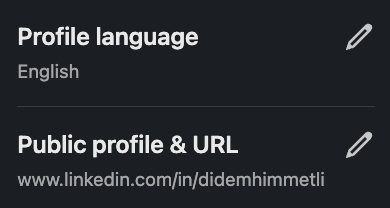
Make sure your LinkedIn URL contains only your first and last name. This makes you easier to find and signals that you've put real care into setting up your account. Click the profile icon at the top right of your profile to reach the 'General profile and URL' section. You can use 3-100 letters or numbers here, but keep it short and memorable so people searching for you can find you easily. Delete the numbers that appear after your first and last name so your URL becomes something clean like www.linkedin.com/in/didemhimmetli, then move on to the next steps. You can also update your LinkedIn language options from this same area.
Selection of Photo and Cover Image
The next stage is to make your LinkedIn profile more visually appealing. Your LinkedIn photo is one of the most important parts of your presence and says a lot about you. Once you're logged in, you can edit your existing photo or add a new one by clicking the round photo section. If you're currently looking for a job, you can add the 'Open to Work' frame around your profile photo by clicking the Frame section at the bottom of the add-photo panel. If you're a recruiter, you can use the 'Hiring' frame from the same place.
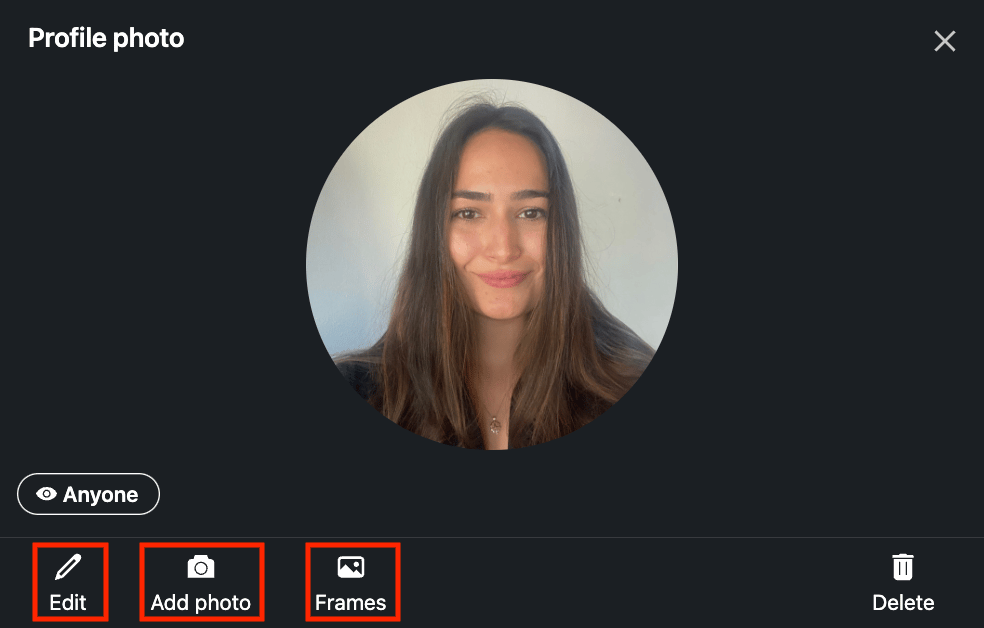
So what kind of photo should you use? Go with a clear, high-quality shot where you're dressed appropriately for your job, well-lit, in front of a simple background, with your face in the foreground. Make sure there's no one else or any distracting elements in the frame, and that your face fills most of the photo. Rather than a selfie, a photo taken by a professional will make a much stronger impression.
More than 80% of LinkedIn users use color photos, so a black-and-white photo can help you stand out from the crowd. Just make sure the contrast and brightness are dialed in correctly; in other words, use a genuinely high-quality black-and-white photo.
The image for your cover photo should be 1584 x 396 pixels and up to 4MB in size. Because this area has more pixels than the profile photo, it lets you effectively show the message you want to send about yourself and your profile. For example, if you're a blogger who posts regularly and you use LinkedIn to share your articles with your audience, you can highlight your blog posts in the cover image. If you've won an award that matters in your industry, you can add a professional photo of you receiving it. And if you run regular courses, you can use images that showcase your previous ones.
Headline Section
Your LinkedIn headline is where you give a quick, compelling introduction to who you are and what you do. When people search on LinkedIn, the first things they notice are your profile picture and headline. Choose something that fits your industry but still helps you stand apart from your peers. To edit it, open your LinkedIn profile and click the edit icon in the top right.
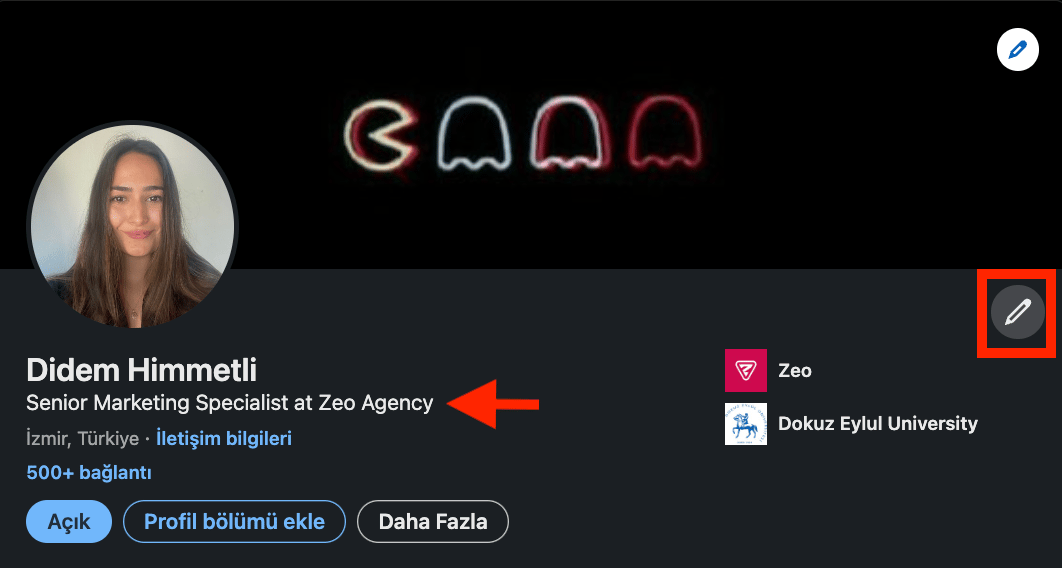
Your LinkedIn headline can encourage the right people to learn more about you, and it plays an important role in how recruiters see you. An effective headline should include keywords related to your industry and role. Using industry-related keywords makes it easier for recruiters and colleagues to find you. Here are some sample headlines for different industries and positions:
Marketing Student | Seeking Marketing Job & Internship Opportunities | Social media, E-mail marketing | 2025 Graduation.
Students studying marketing can use this headline to show that they're eager to gain professional experience while continuing their studies.
I Help People Land Their Dream Jobs | Career Coach & Resume Writer | Transforming Careers. This title makes it interesting by accurately articulating the individual's value proposition and expertise.
Business Development Intern @Zeo | Dokuz Eylül University Business Administration Graduated | Open for Work. This heading directly emphasizes the openness to job applications by showing the institution where the internship is currently carried out and the department graduated from.
Software Engineer | PHP, C++ | Seeking Opportunities in Software Development. This title effectively communicates the person's job title, primary skills, and career goal, making it relevant for potential recruiters.
Digital Marketing Strategist | SEO, CVR Specialist, Analytics | Helping Brands Grow. This example of a headline is a specific use, showcases the person's expertise, and includes industry-related keywords to attract targeted audiences.
If you're a marketing specialist, include marketing in your headline. If you work in sales, mention relevant terms like B2B or B2C, along with any tools or programs that would help you stand out. Be clear and specific about what you want your headline to highlight. That might be your current role, an important award, or the skills that give you an edge over the competition. Strategic keywords that people in your industry search for can improve your chances of appearing in recruiter searches. But as with anything, using these keywords excessively can have the opposite effect, so don't overdo it. Your headline should briefly showcase the skills and experience most relevant to your audience. With these tips, you can create a unique LinkedIn headline that represents you accurately, uses keywords in the right proportion, and gets your audience's attention.
About Section
Adding a summary in the 'About' section lets profile visitors get to know you quickly. Think of it as a text summary of everything on your CV. Open your profile, click the 'About' section below it, and add up to 2600 characters of the career information you want to highlight.
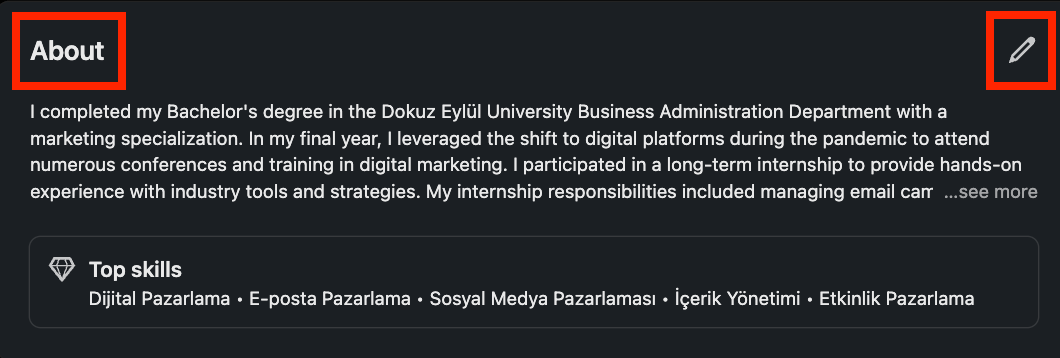
In your "About" section, write a clear, concise "About" summary of your professional qualifications, experience, job responsibilities, and key industry terms. This gives visitors a quick sense of who you are before they explore the rest of your profile. You can highlight articles, projects, awards, designs, training, and other experiences. It matters to sound distinct and original here, but keep the information brief and direct rather than circling around the point. Make sure your summary covers these elements:
- Professional qualifications
- Work experience
- Achievements (Articles, Awards, Programs, Certificates..)
- Skills and expertise
- Training and Education
- Key projects
The title: Start by stating your title. Once you've made your current position clear, add the organization you work for. You can also highlight special skills and experience that set you apart from other professionals and show your commitment to improving.
Professional Qualifications: Include the qualifications most valued in your sector. Highlight any programs or certificates that help you stand out, along with your core skills and areas of expertise.
Experience: State how many years of experience you have in the relevant sector. This helps profile visitors see you as a more established professional. If you've worked across different departments, mention them too, so visitors can clearly see where your expertise lies.
Memberships: If you belong to an association or society and actively take part in its work, include that experience. It helps people in your social and professional network understand you better.
You can use AI language models like ChatGPT and Bing to draft the text for your About section. Once you've listed your education, skills, and work experience, ChatGPT can help turn that information into a polished summary. Below, I've included a simple prompt you can send to ChatGPT, followed by its response. You can customize it by adding or removing details:
'About' Section Text Sample - ChatGPT
Prompt:
''I don't know what kind of content I should write about my experiences in the LinkedIn About section. I have completed my education successfully, I have internship and work experience. Can you send me a professional and interesting text to add directly to my LinkedIn About section? You can leave it as .... when adding my name, school, work, and internship experiences, areas of expertise, and the tools I know of.''
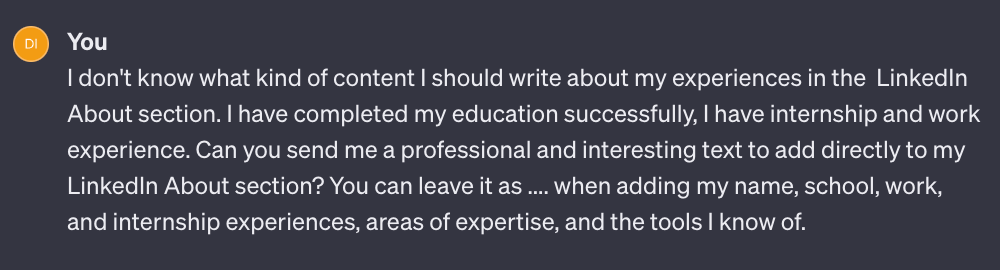
ChatGPT’s Answer:
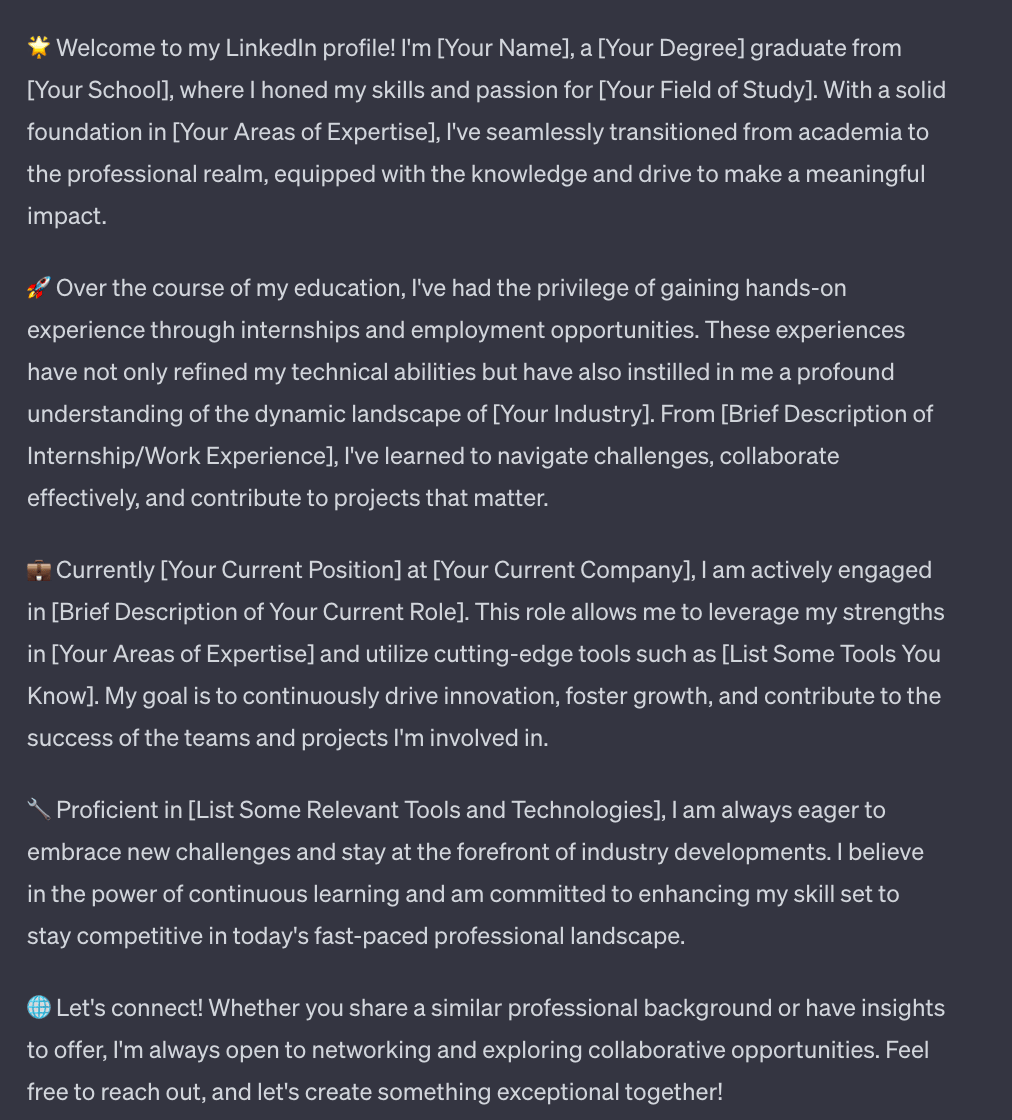
🌟 Welcome to my LinkedIn profile! I'm [Your Name], a [Your Degree] graduate from [Your School], where I honed my skills and passion for [Your Field of Study]. With a solid foundation in [Your Areas of Expertise], I've seamlessly transitioned from academia to the professional realm, equipped with the knowledge and drive to make a meaningful impact.
🚀 Over the course of my education, I've had the privilege of gaining hands-on experience through internships and employment opportunities. These experiences have not only refined my technical abilities but have also instilled in me a profound understanding of the dynamic landscape of [Your Industry]. From [Brief Description of Internship/Work Experience], I've learned to navigate challenges, collaborate effectively, and contribute to projects that matter.
💼 Currently [Your Current Position] at [Your Current Company], I am actively engaged in [Brief Description of Your Current Role]. This role allows me to leverage my strengths in [Your Areas of Expertise] and utilize cutting-edge tools such as [List Some Tools You Know]. My goal is to continuously drive innovation, foster growth, and contribute to the success of the teams and projects I'm involved in. 🔧 Proficient in [List Some Relevant Tools and Technologies], I am always eager to embrace new challenges and stay at the forefront of industry developments. I believe in the power of continuous learning and am committed to enhancing my skill set to stay competitive in today's fast-paced professional landscape.
🌐 Let's connect! Whether you share a similar professional background or have insights to offer, I'm always open to networking and exploring collaborative opportunities. Feel free to reach out, and let's create something exceptional together!
'About' Section Text Example - Microsoft Bing AI
For the second LinkedIn 'About' method, we'll use Microsoft Bing AI. How useful the result is will depend on how much information you've added to your LinkedIn profile. This time, we'll give Bing nothing but the link to the profile. Here's a simple example I tried that you can adapt however you like:
Prompt:
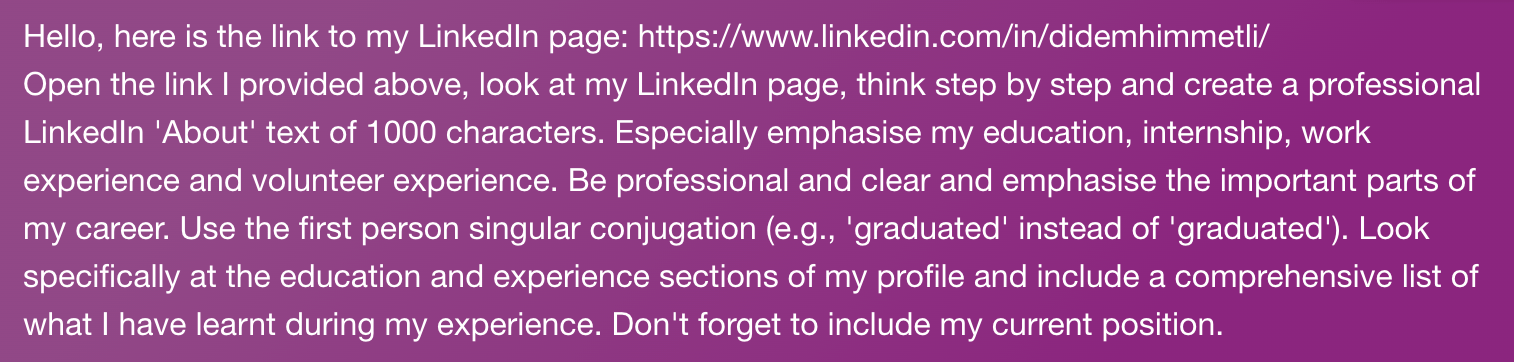
‘‘Hello, here is the link to my LinkedIn page: https://www.linkedin.com/in/didemhimmetli/
Open the link I provided above, look at my LinkedIn page, think step by step and create a professional LinkedIn 'About' text of 1000 characters. Especially emphasise my education, internship, work experience and volunteer experience. Be professional and clear and emphasise the important parts of my career. Use the first person singular conjugation (e.g., 'graduated' instead of 'graduated'). Look specifically at the education and experience sections of my profile and include a comprehensive list of what I have learnt during my experience. Don't forget to include my current position.’’
Bing’s Answer:
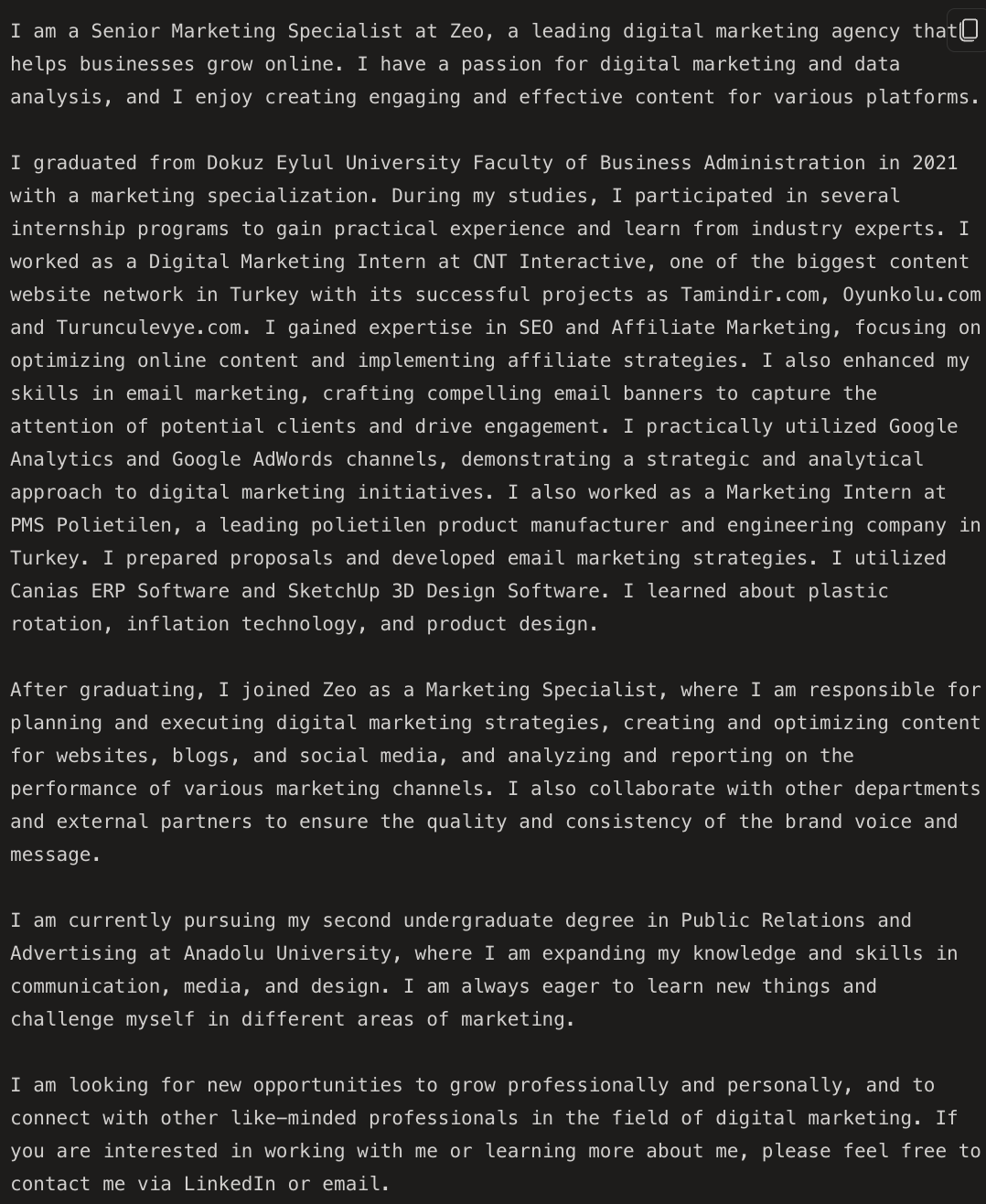
Apart from the 1000-character limit, the text needs very little revision. At this stage, you can adapt it with instructions like 'keep it short' or 'Do not exceed 1000 characters'. You can work directly from these examples, or write your own customized prompts to get more detailed results.
Adding Education and Experience
The "Education" and "Experience" sections on LinkedIn help define and highlight your professional identity, and you'll find them by clicking your profile and scrolling down a little. Each field has a + icon for adding new experience or education, and a pencil icon for editing at any time. Click into these sections to add new entries and write a sentence about what you learned from each experience.
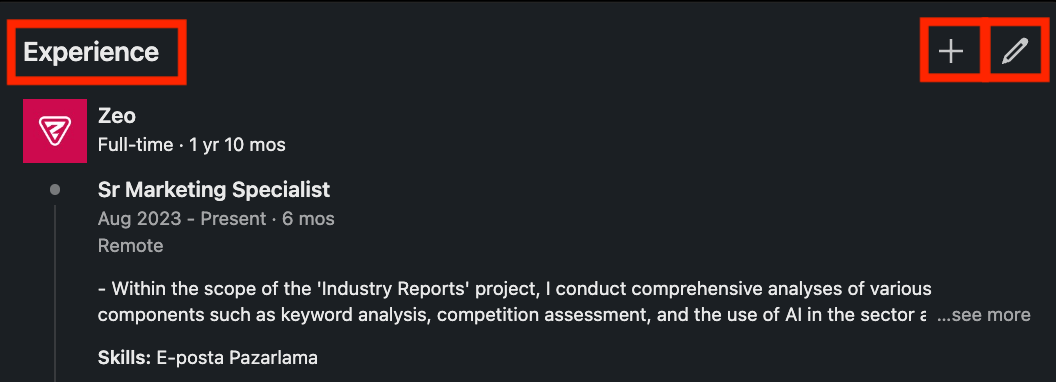
The 'Experience' and 'Education' sections are where you add your past work experience, education, and skills. Since this is where employers form their first impression of you, and where you have a chance to reach new opportunities, walk through your career in detail, from your education through the start of your professional life. Start with your education, then add your internship and work experience, and under each entry, briefly note what you learned, the tools and programs you used, and the competencies you gained. Think of this section as a place where senior professionals who stumble on your profile can quickly get a sense of your background. Since these visitors are often company owners or HR professionals, even a brief glimpse of your sector and experience can mark you as a potential candidate, prompting them to look closer and send a connection invitation. This is exactly why it matters to stay active and keep sharing content once your account setup is done.
Adding Profile Section
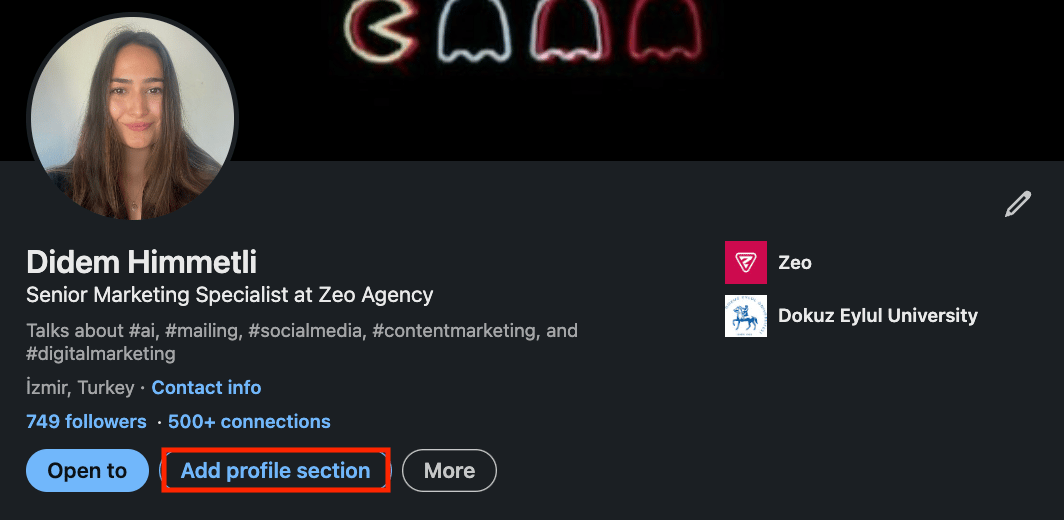
The 'Add Profile Section' field just below your profile photo lets you include experiences and achievements like Projects, Courses, Advice, or Awards. Its main purpose is to help career experts find you more easily and build more confidence in your profile. So what can you add here, and how?
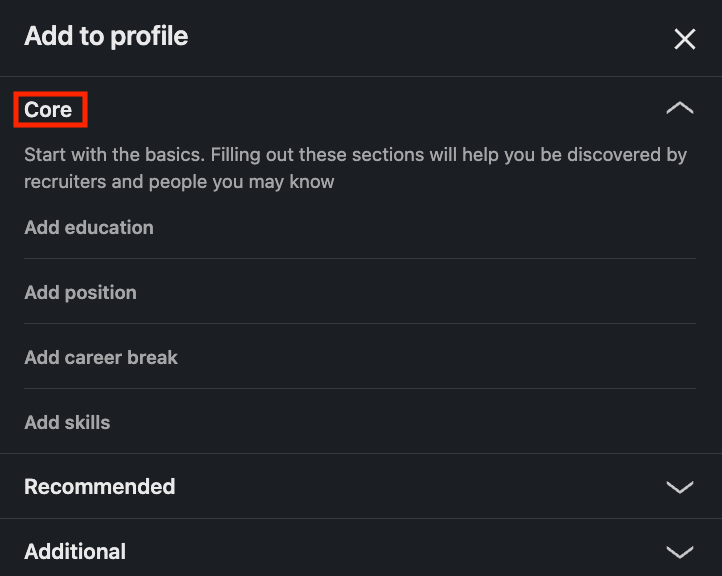
After clicking the Add profile section button, you'll see 3 sub-headings: Core, Recommended, and Additional. The first, the 'Core' option, lets you add basic information such as Education, Position, and Skills. If you skipped any of this information earlier, you can add it here. For the skills section, you can validate your competence by taking LinkedIn's short skill-assessment tests, or by getting people you know to endorse you.
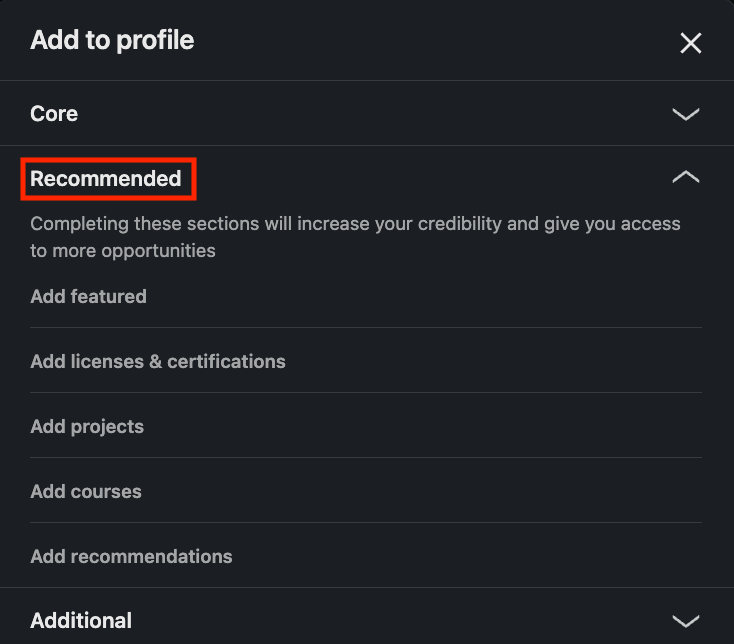
The second option is the 'Recommended' section, which lets you add Licenses, Certificates, Projects, Courses, and Recommendations. Here you can list the courses you've taken, certificates you've earned, or projects you've completed. In the 'Add featured' section, you can highlight career achievements you're proud of, such as a guide or article you've written, or any text, document, photo, website, video, or presentation. The last item in the Recommended section is 'Recommendation'. Here, you can ask past colleagues or academic collaborators to vouch for you, carrying a message from the people you've worked with before to whoever's looking at your profile next.
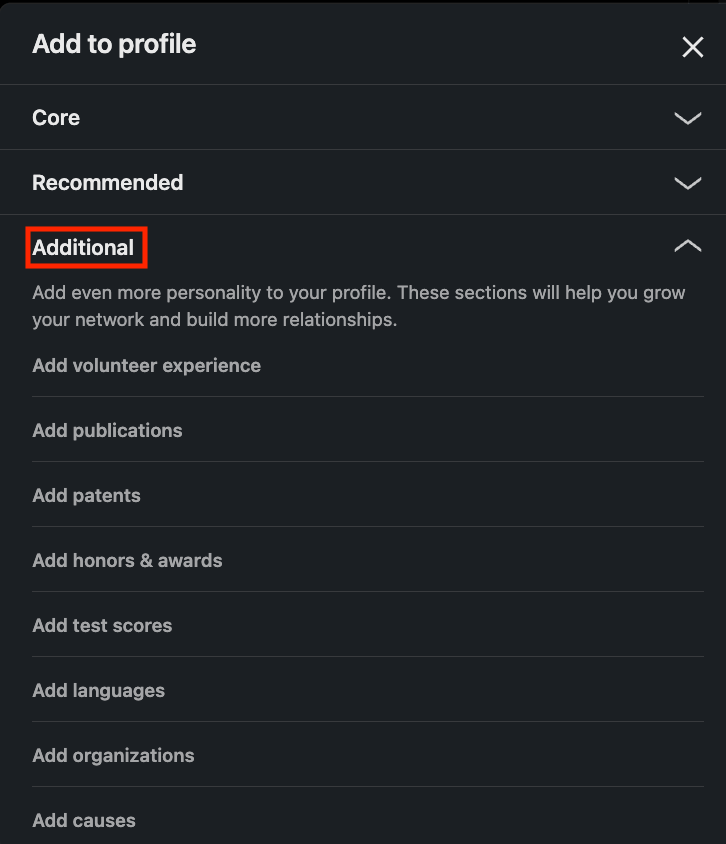
The third and last section is the 'Additional' option, where you can add extra details like Awards, Exam Scores, Publication, and Volunteer Work that help you grow your network and make more contacts.
2. Build Your Network and Stay Interactive
Your number of LinkedIn connections is one of the most important factors people notice. When someone communicates with you for the first time, your connection count is one of the things that draws attention. There's no exact target here, but a good rule of thumb is at least 50 connections. Staying connected with people in your industry keeps you aware of their posts and of what's new in the field. You can send connection requests to leading names in your industry to start building your network. LinkedIn InMail also lets you message members you're not connected with (except those who've disabled InMail), and you can add a short note explaining why you'd like to connect when you send an invitation. Accounts of institutions you follow, people from past internships, university friends, professors, and colleagues are all good candidates for your network. LinkedIn's search and suggestion features can help you expand it further. Once you connect with someone, subscribing to their newsletter is a good first step toward interacting with them. As you grow your network with people you know and people LinkedIn recommends, the next step is to interact by liking and commenting on their posts. During this phase, joining LinkedIn groups related to your industry or interests and actively contributing content is an important way to strengthen your professional network. Attending virtual or in-person events and webinars lets you connect and interact with other professionals in your field. Actively joining group discussions and sharing your thoughts also helps establish you as a valuable member of the professional community.
3. Content Creation and Sharing
Creating content that fits the platform and your industry is the final step in this 3-step LinkedIn visibility guide. This is where everything you set up earlier actually gains visibility. By posting content, you get a chance to show up not just for your own network, but for the people your connections are connected to. Once your profile is set up, you can start sharing the blog posts you've written or your thoughts on current topics to stay engaged with your network. LinkedIn supports a wide range of formats for sharing content: up to 300-page PPT, PPTX, DOC, DOCX, and PDF files up to 100 MB, up to 9 photos up to 5 MB each, or 1 video up to 5 GB (maximum 15 minutes if uploaded from desktop, or 10 minutes from the mobile app). Recommended content topics include news, advice, culture stories, insights and trends, event content, and industry updates. Resharing older content that's still relevant lets you welcome new followers with it while reminding old followers of information they might have forgotten. 57% of LinkedIn users access the platform from mobile, so it's worth checking how your posts look on mobile to make sure they land well. Enabling LinkedIn creator mode and sharing content in the formats LinkedIn supports will help you interact with your network more efficiently. So what is creator mode, and how do you turn it on?
Creator Mode
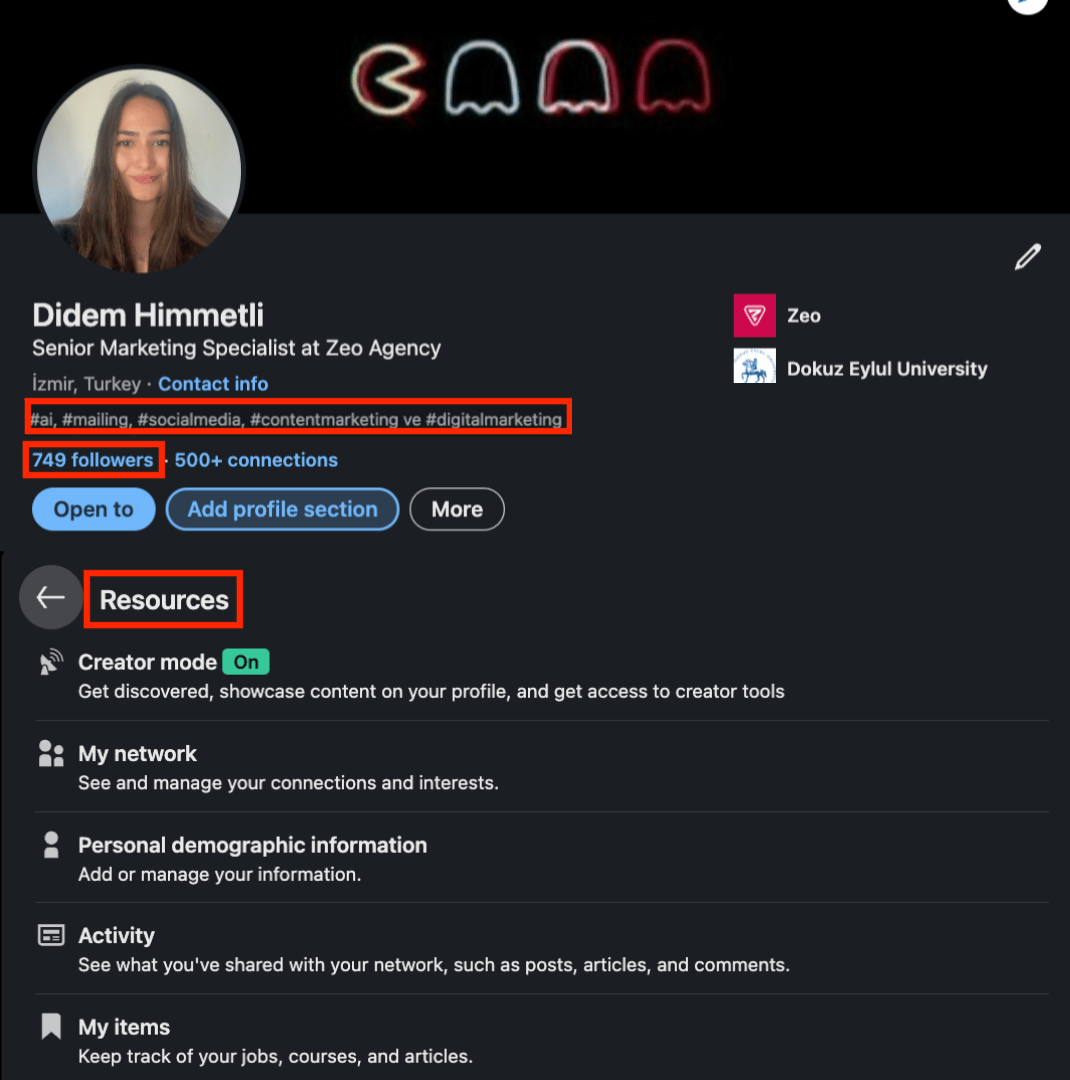
Creator mode is currently free for all LinkedIn users, and it helps increase your reach and engagement with your network. To get additional tools and features for creating content and building your audience, enable creator mode under the 'Resources' heading after logging into your profile.
Advantages of Creator Mode:
Follow button instead of Connect: The Connect button on your profile switches to Follow, and your follower count becomes visible on your profile page.
Tracking Followers: After you switch on Creator mode, anyone who sends you a connection request will automatically start following you. Even if you decline the connection, they'll keep following your posts until they manually unfollow.
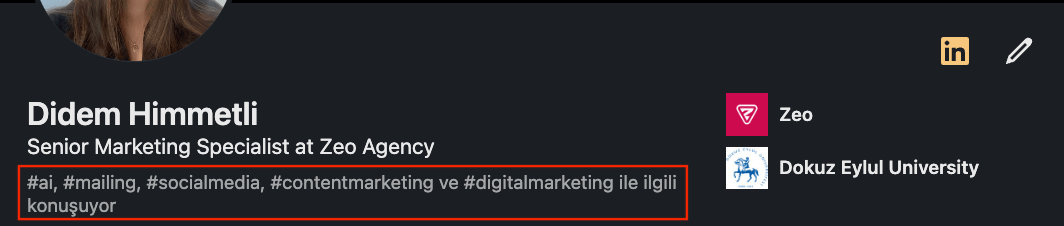
Using hashtags: You can highlight the topics you cover as hashtags in your profile's introduction section. When someone views your profile, they'll immediately see those topic hashtags and be encouraged to follow you.
Highlights and Activity Sections: You can highlight your original content on your profile and show your activity in a more organized way. This means content you've merely liked or commented on won't appear by default (clicking See all activities still reveals it whenever you want).
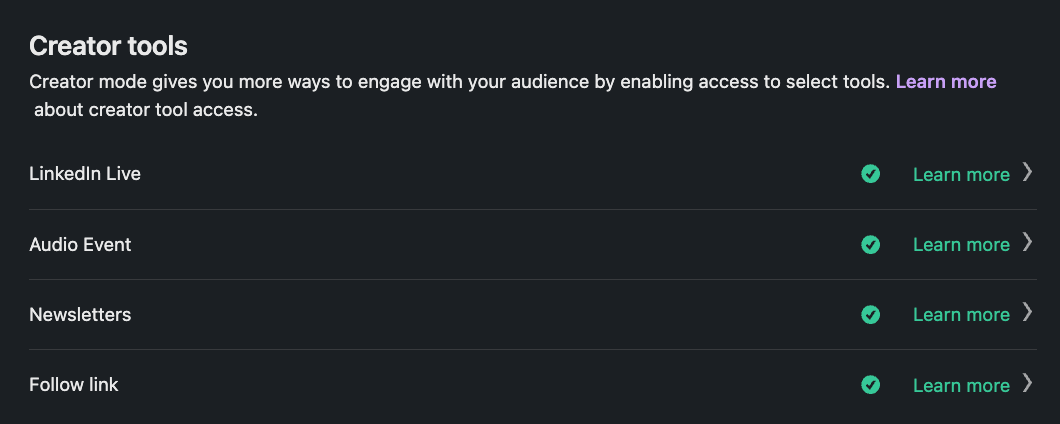
Access to Creator Features: Creator mode gives you access to features like LinkedIn Live, audio events, newsletters, and follow links, along with more ways to create content and build engagement. Once it's on, you can visit the creator tools section to see what you have access to; a green check mark appears next to each available feature. To qualify, you need more than 150 followers or connections, recent original content of any kind (a short post, image, video, event, poll, or article), and a clean record under LinkedIn's Community Policy Guidelines.
Special Tracking Link: You can drive traffic by adding custom links to your website, content, and upcoming events, right in the login section at the top of your profile. Turning off creator mode removes the link. To use this feature, you need to follow the Community Policy Guidelines, your account must have been created less than 48 hours ago, you must have no spam flag in the last 30 days, and no serious violation in the last 12 months. Follow the steps below to add your personalized links to your profile's login section.
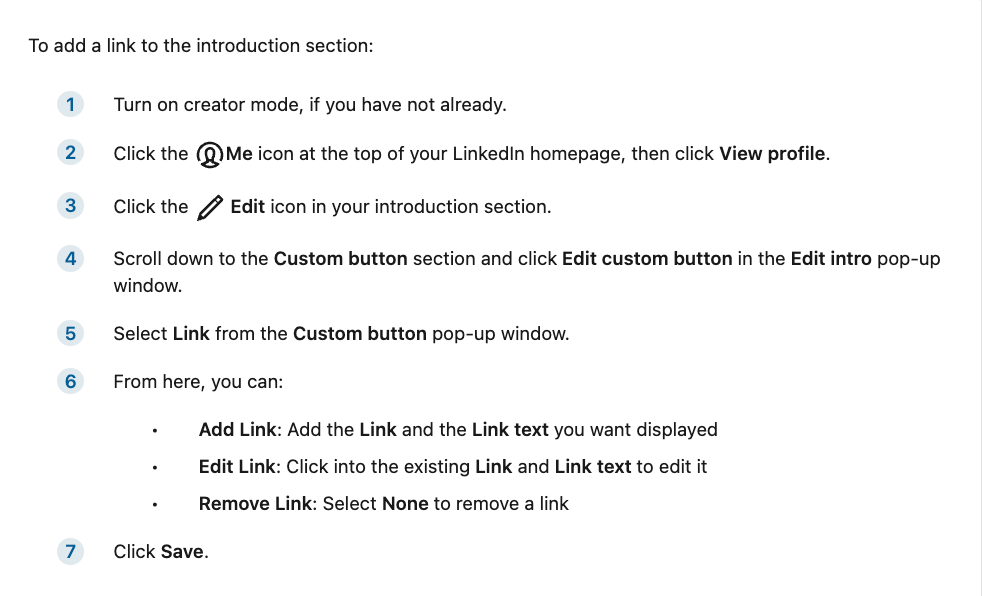
Source: LinkedIn Help
Analysis and Tools: This is a centralized platform where members with creator mode turned on can access tools and resources. Since the feature is new, it isn't publicly accessible yet. Here's what these analyses cover:
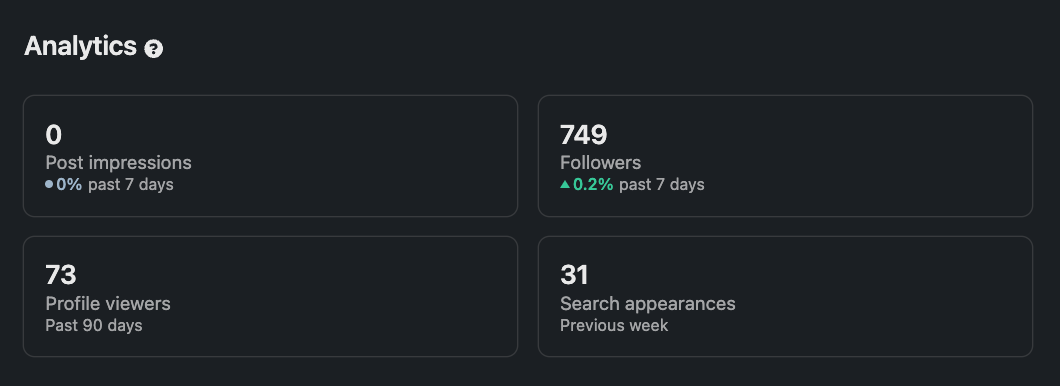
Measuring your performance: Features like profile analytics, bulk post analytics, and audience analytics give you a comprehensive view of who's viewing your profile and how often you appear in search results. This feature is available to all LinkedIn users.
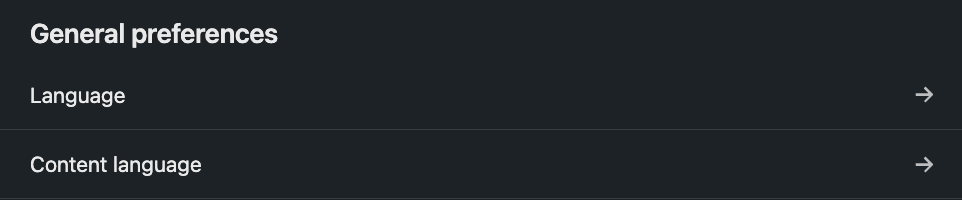
Get content ideas: This feature gives you customized post ideas based on the work experience listed on your profile. It's AI-generated and refreshes twice a week, and right now it's only available to people who use LinkedIn in English. You might not see the ideas section if nothing matches your experience, or if you haven't recently published original content. To change your LinkedIn language settings, open Settings & Privacy by clicking the top right where your profile photo appears, then adjust your preferences in the general preferences section.
Profile Topics: The ability to add profile topics related to what you talk about is currently only available to users who have creator mode turned on.
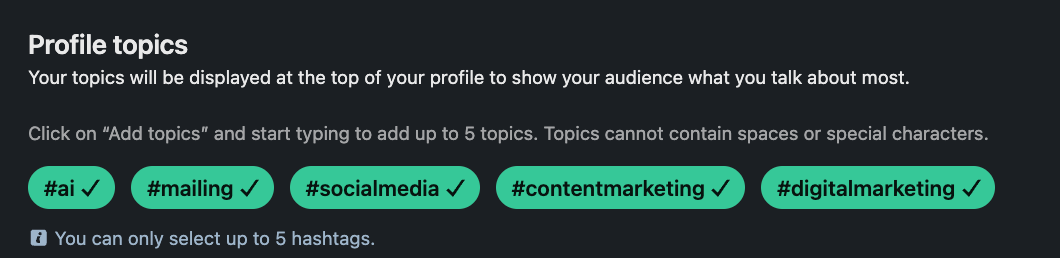
Once you've enabled creator mode under Resources, you can make your topics visible on your profile by clicking Add Topic + under Analyses and Tools.
Newsletter
If your profession lets you write about topics in your industry and produce new content regularly, you can become a newsletter writer and boost your interaction with subscribers by sending regular updates. Anyone can discover, read, and share a LinkedIn Newsletter. All LinkedIn users can also subscribe to yours to get notified about new posts. According to a LinkedIn article, the most engaging newsletters are the ones that keep subscribers curious enough that they can't wait for the next issue, so it's worth writing with intriguing, gripping language.
At Zeo, we run 2 newsletters: one covers updates and trends in AI, and the other covers current Zeo topics like blog posts, event announcements, and success stories. We reach our network through these newsletters twice a week. You can click here to browse them, look at our posts in detail, and get ideas for your own.
PS: To access the newsletter feature, you need creator mode turned on and to meet the newsletter access criteria, which include at least 150 connections and no community-rule violations. Once someone has published a newsletter, they can keep using the feature even after turning creator mode back off.
How to Create a Newsletter?
First, start the newsletter creation process by clicking 'Write Article' at the top of the home page.

Then, on the page that appears, if you manage more than one LinkedIn page, select the one you want to create a newsletter for and continue.
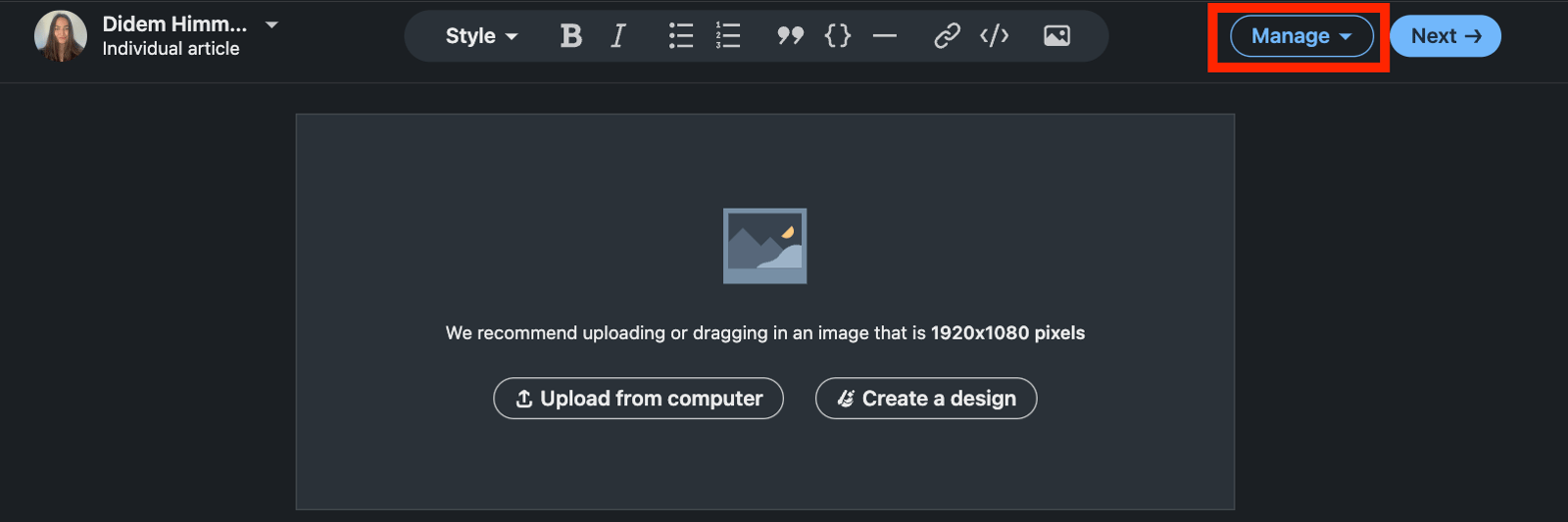
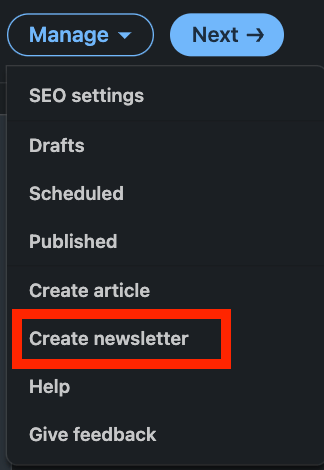
After clicking 'Manage' at the top right of the page that opens, click 'Create newsletter' from the options that appear.
In the section that appears next, add your newsletter's title, description, publishing frequency, and an image or logo, then click 'Done'. LinkedIn recommends against using emoji in the newsletter title, so keep that in mind when choosing one.
Once you've created a newsletter, its title appears in the upper right corner of the page. If you don't see the title, go to 'Manage' and select the newsletter you want to add your article to, and you're ready to write your first piece! Once your content is finalized, click Next from the top right to move on to sharing your newsletter with your network. After adding a few sentences describing your article, share your newsletter in the feed by clicking Publish. Your connections and followers are invited to subscribe by default, and once they do, they'll get a LinkedIn notification and email for every new issue you publish.
Once you publish your first post, LinkedIn automatically creates a newsletter page containing your profile information and the articles in your newsletter. You can use this page to preview your newsletter and share it on LinkedIn or elsewhere to boost reach. You don't need to be logged in to view the page, but members who want to subscribe or share it on LinkedIn do. You can also share your newsletter articles on your other online channels to reach more of your audience. Authors can run up to five newsletters at the same time.
Advantages of the LinkedIn Newsletter
- Linking to content you've shared in your newsletter can drive traffic to your website or wherever else you want to direct people.
- Creating a newsletter sends a subscription invitation to your entire network, giving you visibility with your connections.
- Regular content lets you build a community and reach more people by keeping them informed about upcoming events or new product announcements.
- Sharing your newsletters on set days of the week helps build a rhythm your subscribers can anticipate. (For example, publishing every Tuesday and Thursday.)
Conclusion
In short, there are three main steps to boosting your LinkedIn profile's visibility. 1- Complete profile setup, 2- Build your network and interact with your connections, 3- Create and share content related to your field of expertise. Adapting these steps to fit your own situation will help you grow a network where professionals can easily find you. From there, you can reach the right people with the events you organize, the articles you write, or the product announcements you share, all from a LinkedIn profile with real reach. I hope the information and examples above have been useful to you. See you in the next article!
References
https://www.linkedin.com/help/linkedin
https://www.socialbusinesstr.com/2023/01/05/2023te-linkedin-sayfaniza-takipci-cekmek-icin-15-ipucu/
https://www.socialmediatoday.com/news/LinkedIn-Now-Up-to-930-Million-Members/649239/
https://www.jobscan.co/blog/impactful-linkedin-headline-examples/


