


As AI products become a more established part of daily work, connecting them to third-party tools becomes increasingly useful. These integrations matter most when people want to keep using tools they already know. Someone who works in Google Sheets, for example, may want to connect an AI product such as Claude without writing code. Application-building platforms make this possible through visual, drag-and-drop actions. This approach is known as no-code.
What is No-code? How Important is it for AI Products?
No-code refers to visual programming tools that let people build applications and websites without writing code. These platforms replace much of the coding process with understandable interfaces and guided steps, making development accessible to users without programming knowledge.
No-code can play an important role in AI products because training and deploying AI models normally requires technical expertise. Visual platforms can make some of these operations easier for AI specialists. They can also support the development of AI-based applications, helping teams turn AI capabilities into products without relying on software developers for every step.
No-code can bring AI products to a wider audience. Many no-code tools include ready-made AI models and NLP capabilities, which can simplify development. Together, no-code and AI have the potential to change how AI-powered products are created and adopted.
What is Make.com?
Make.com lets users develop websites and mobile applications with drag-and-drop controls and no coding knowledge.
It is a no-code platform designed to help non-coding users create websites quickly and easily. Users can publish professional-looking websites and applications in a short time.
Key Features of Make.com
Make.com offers features for a broad range of users. Its main capabilities include:
- Creating websites and applications without writing code through a drag-and-drop interface
- Using ready-made templates, themes, and widgets
- Creating websites in different languages
- Publishing a website and connecting a domain name
- Using integrated e-commerce features
- Creating mobile-compatible websites and applications
- Viewing website statistics and analytics
- Choosing between free and premium subscription options
Make.com can be useful for small businesses, freelancers, designers and others who need to create integrations without coding. Its free version allows users to create 1000 operations and visual workflows.
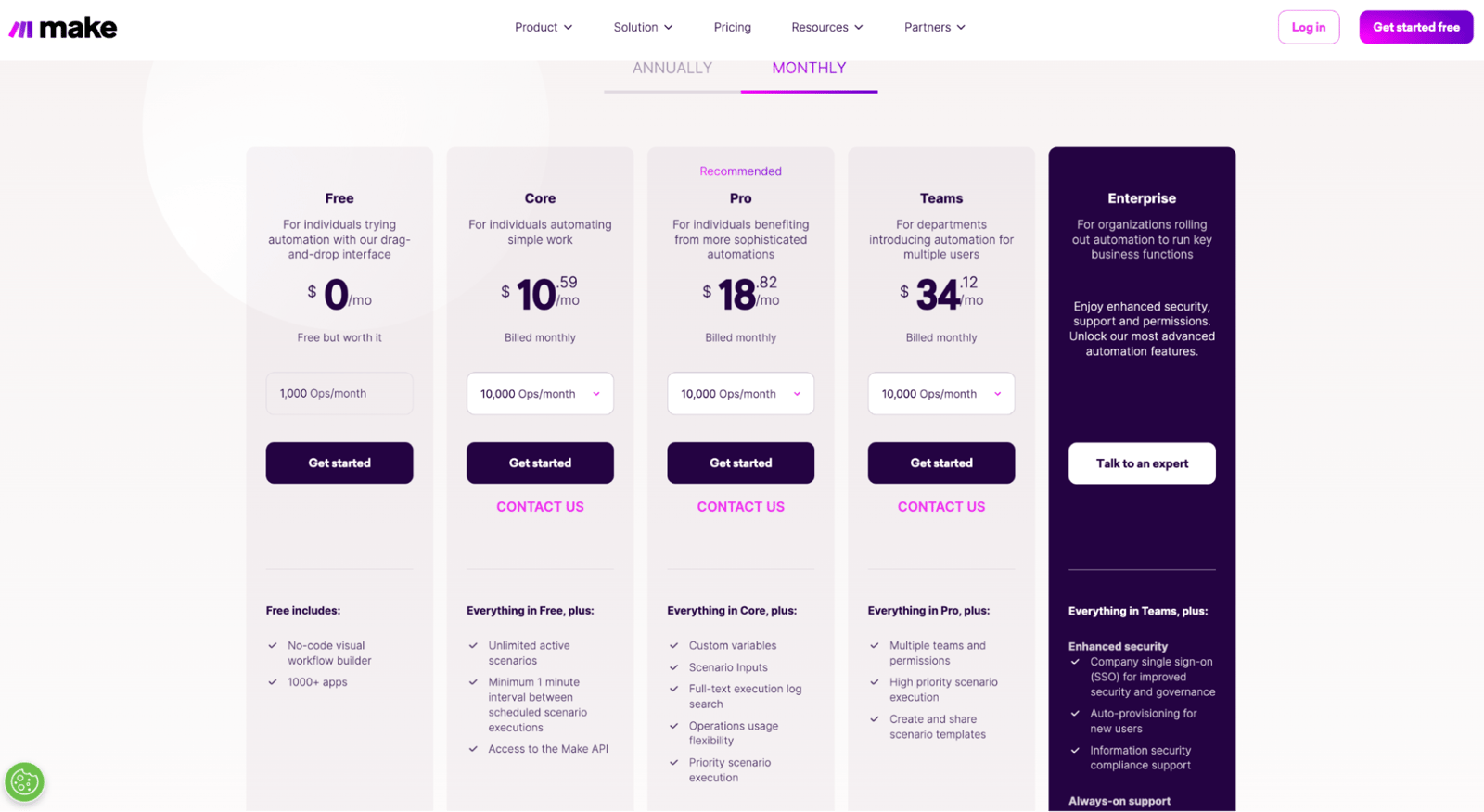
The platform's main no-code capabilities include database integration, content management systems, responsive design, ready-made templates and themes, forms and automation.
How to Connect Make, ChatGPT, and Google Sheets?
Now that we have covered the basic concepts, we can connect Make.com, Google Sheets and an AI product.
Start by creating a Google Sheet. Add columns for the prompt, the action that starts the process and the output, following a structure similar to the example below.
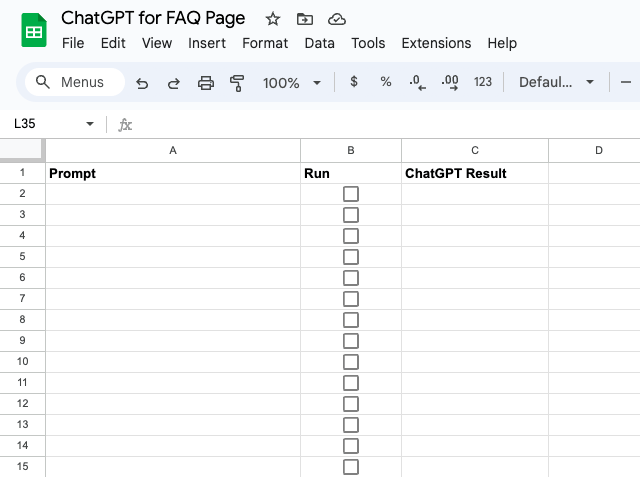
Next, sign up for Make.com and start the free trial. After logging in, click the "Create a new scenario" button in the top-right corner of the screen.

The scenario will connect an AI product to Google Sheets. On the screen that opens, add an application and select Google Sheets from the "search applications" section. The selected trigger will monitor changes caused by actions in the sheet. Choose "watch changes" for this step.
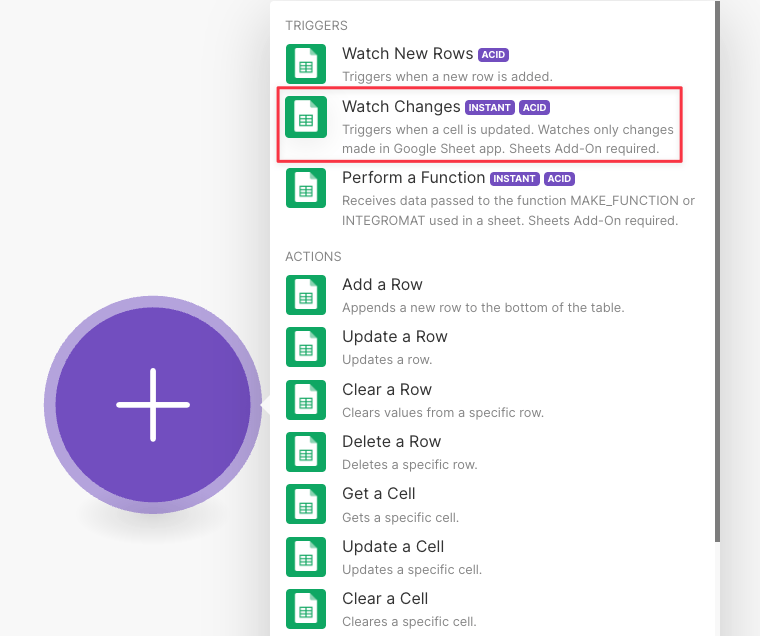
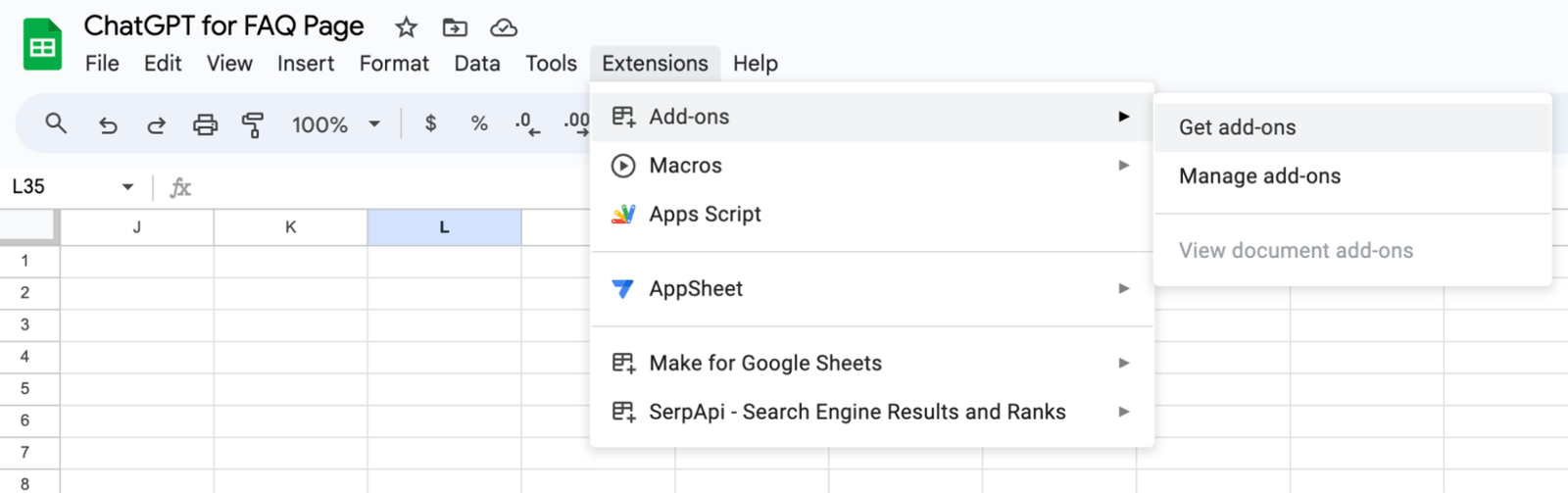
The Google Sheets selection lets you create a webhook. Copy the webhook address, then return to the Google Sheet you created earlier in Drive. Open the "extensions" menu, choose "get add-ons" and install Make for Google Sheets.
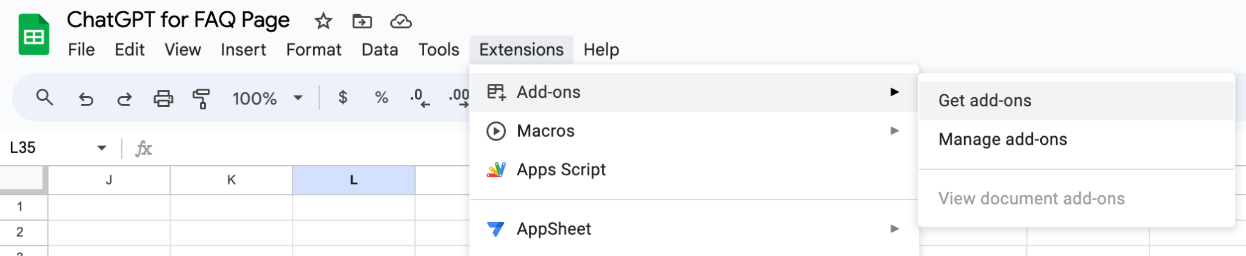
After installation, "Make for Google Sheets" will appear in the "extensions" menu.
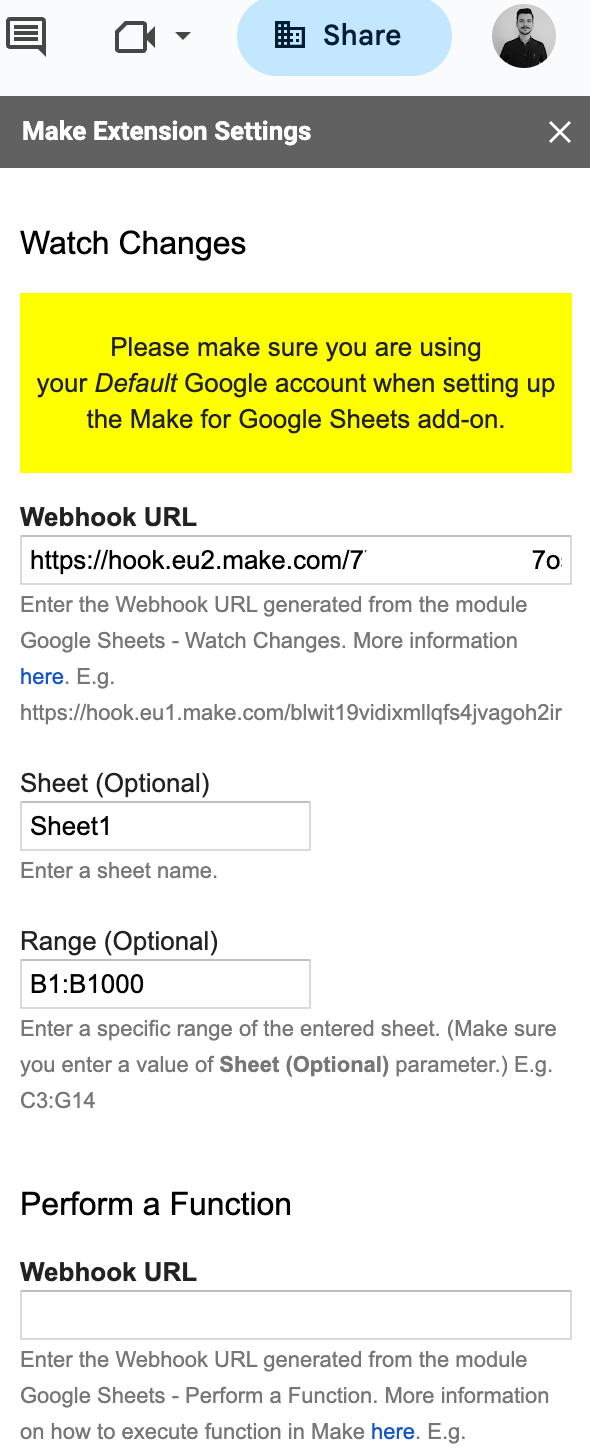
Open the extension. On the screen that appears, enter the webhook address copied from Make.com, the relevant sheet name and the column that will contain the trigger.
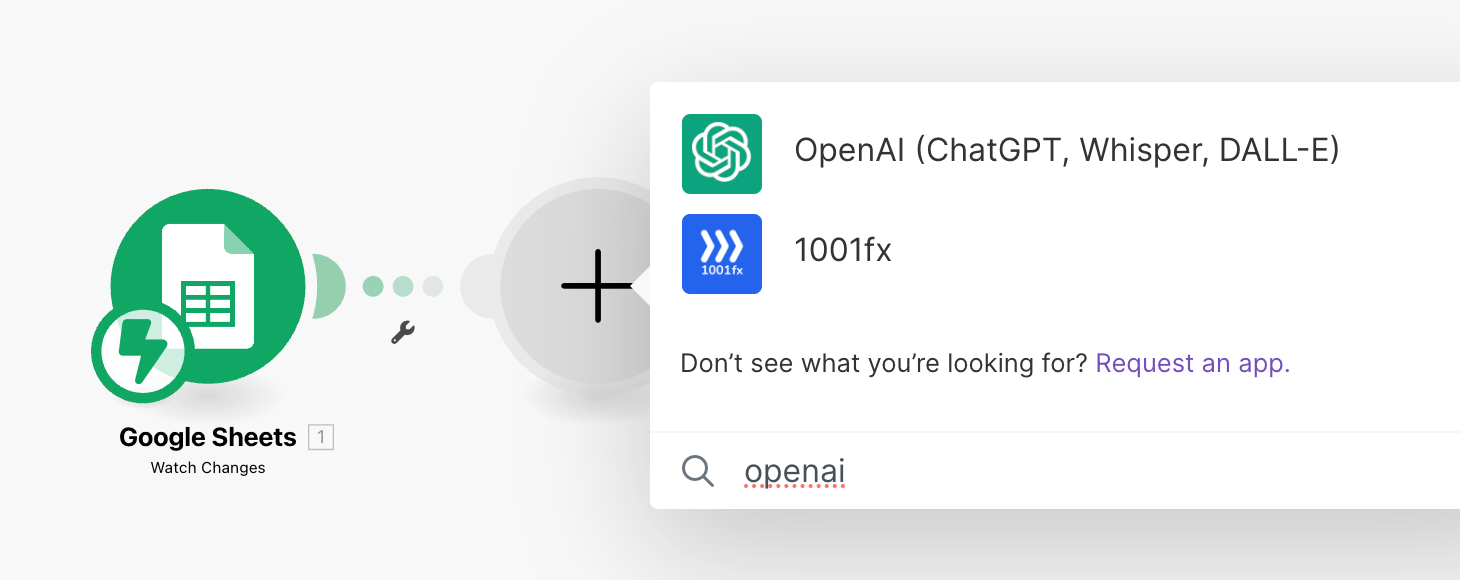
Return to the scenario in Make.com and connect it to ChatGPT. Click the "add another module" button, then select "OpenAI".
On the next screen, select "create completion (GPT-3, GPT3.5, GPT4)" and connect your OpenAI key. Choose the model, then enter the message content under the system option in the "role" section.
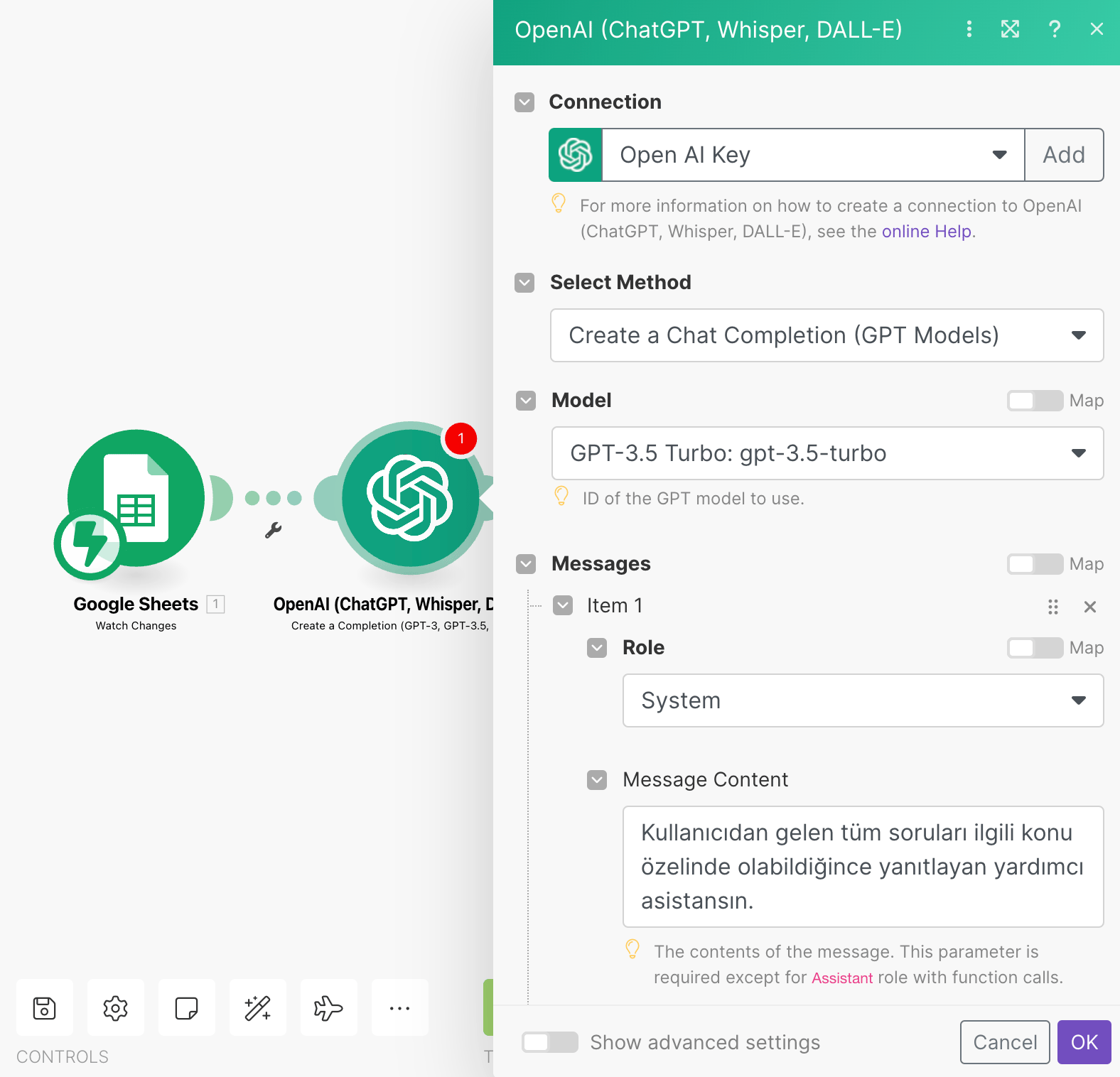
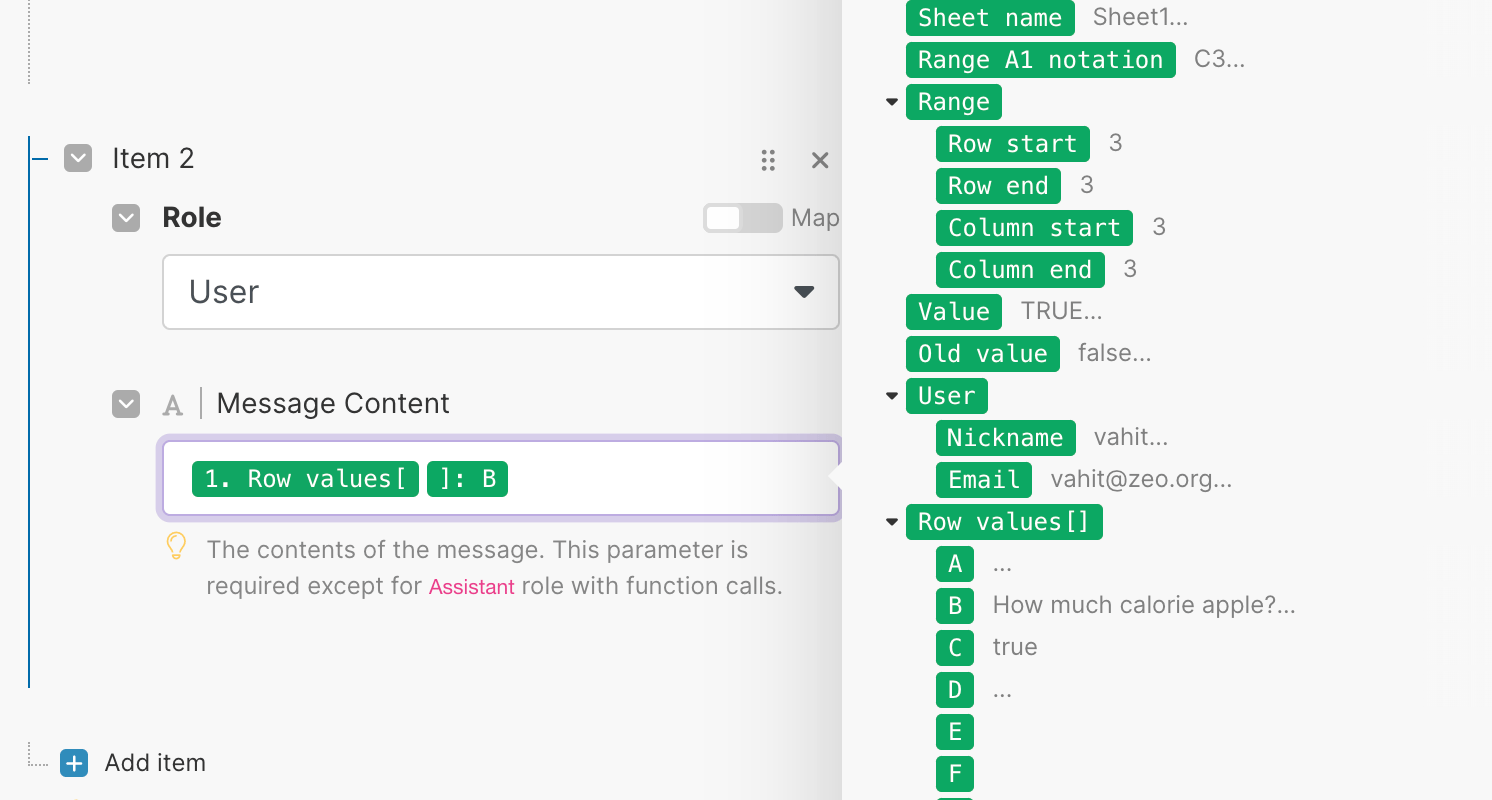
Add a new "item" and bind the data from the user role. Make.com displays the data from the relevant sheet in this section, so you can connect the fields with drag-and-drop actions.
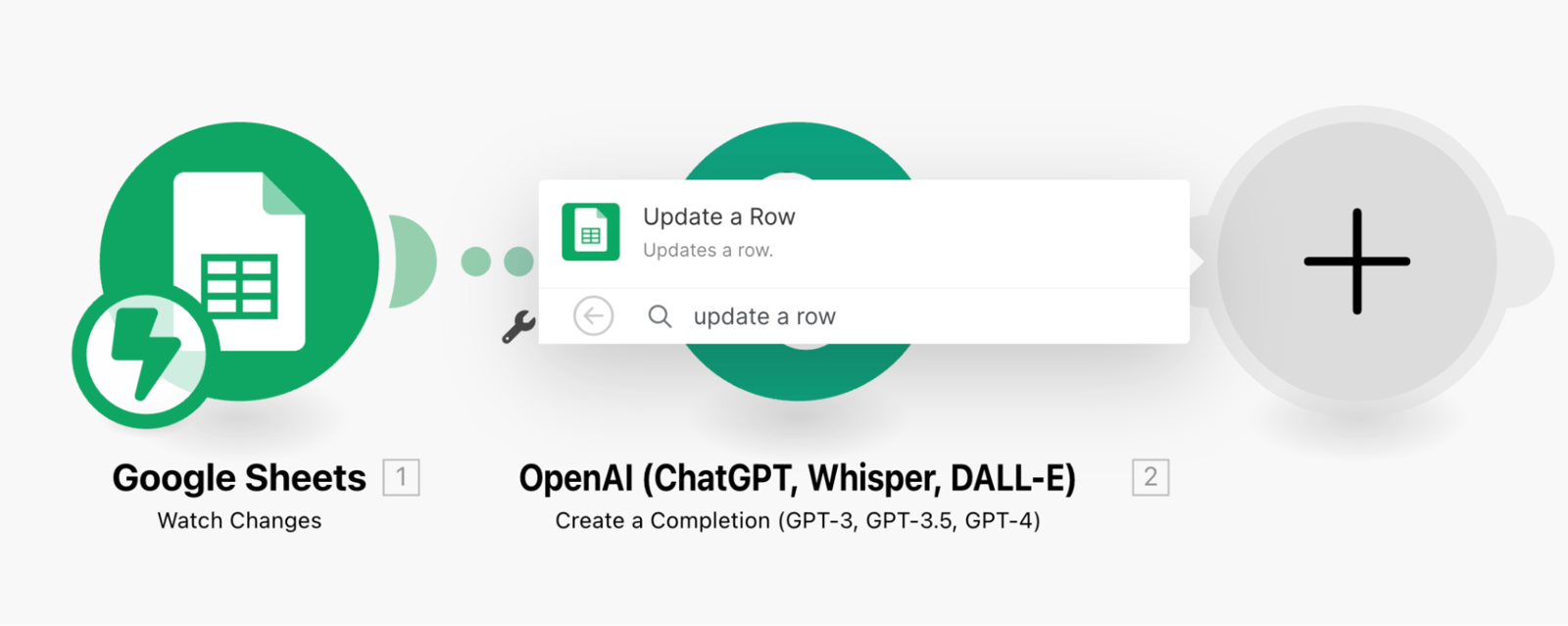
Next, click the "add another module" button beside the ChatGPT item. Select Google Sheets, then choose "update a row".
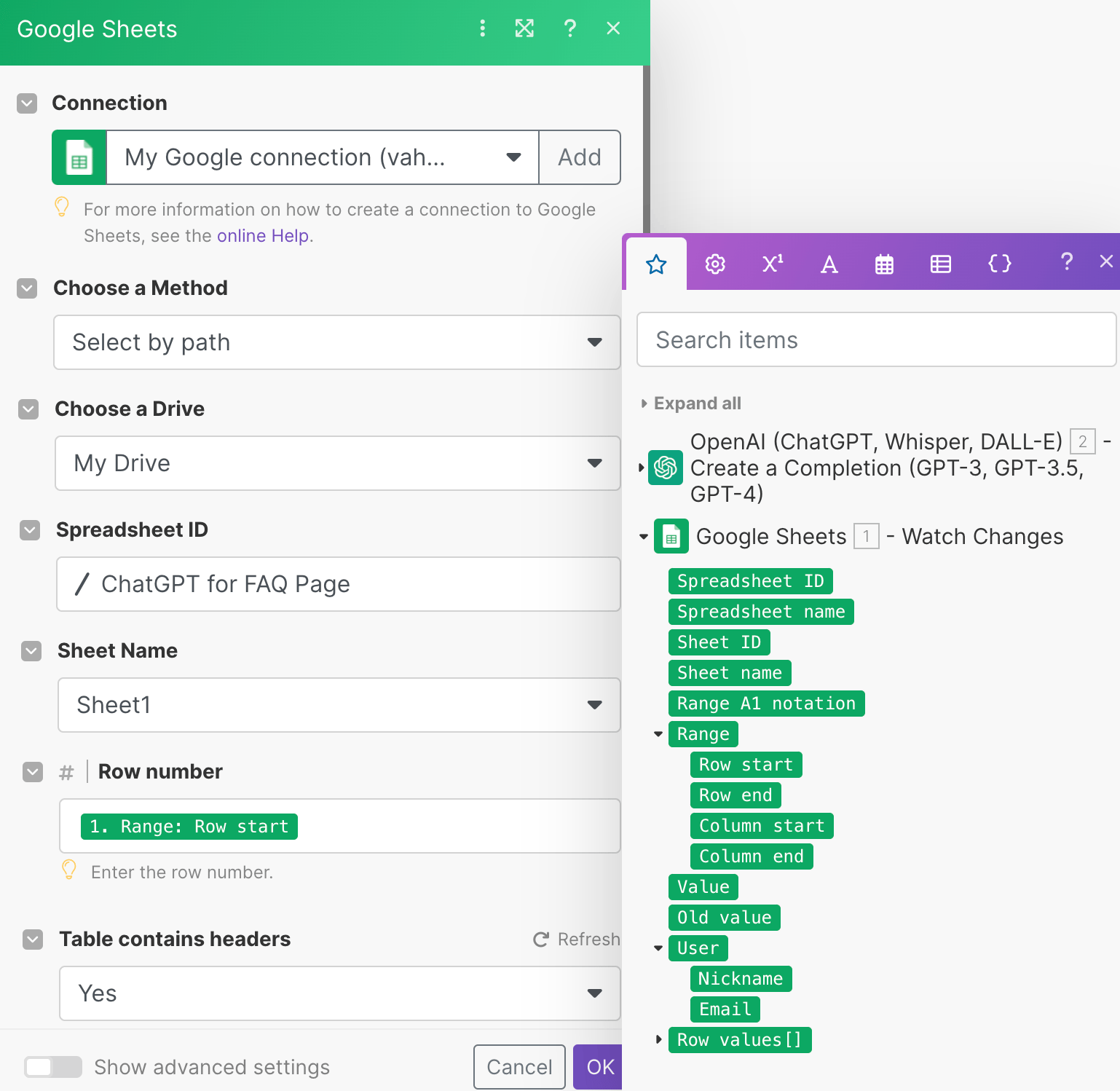
The screen that opens lets you update rows in Google Sheets. Select the path to the relevant sheet in Drive. Under "row number," choose the row where the prompt will be added.
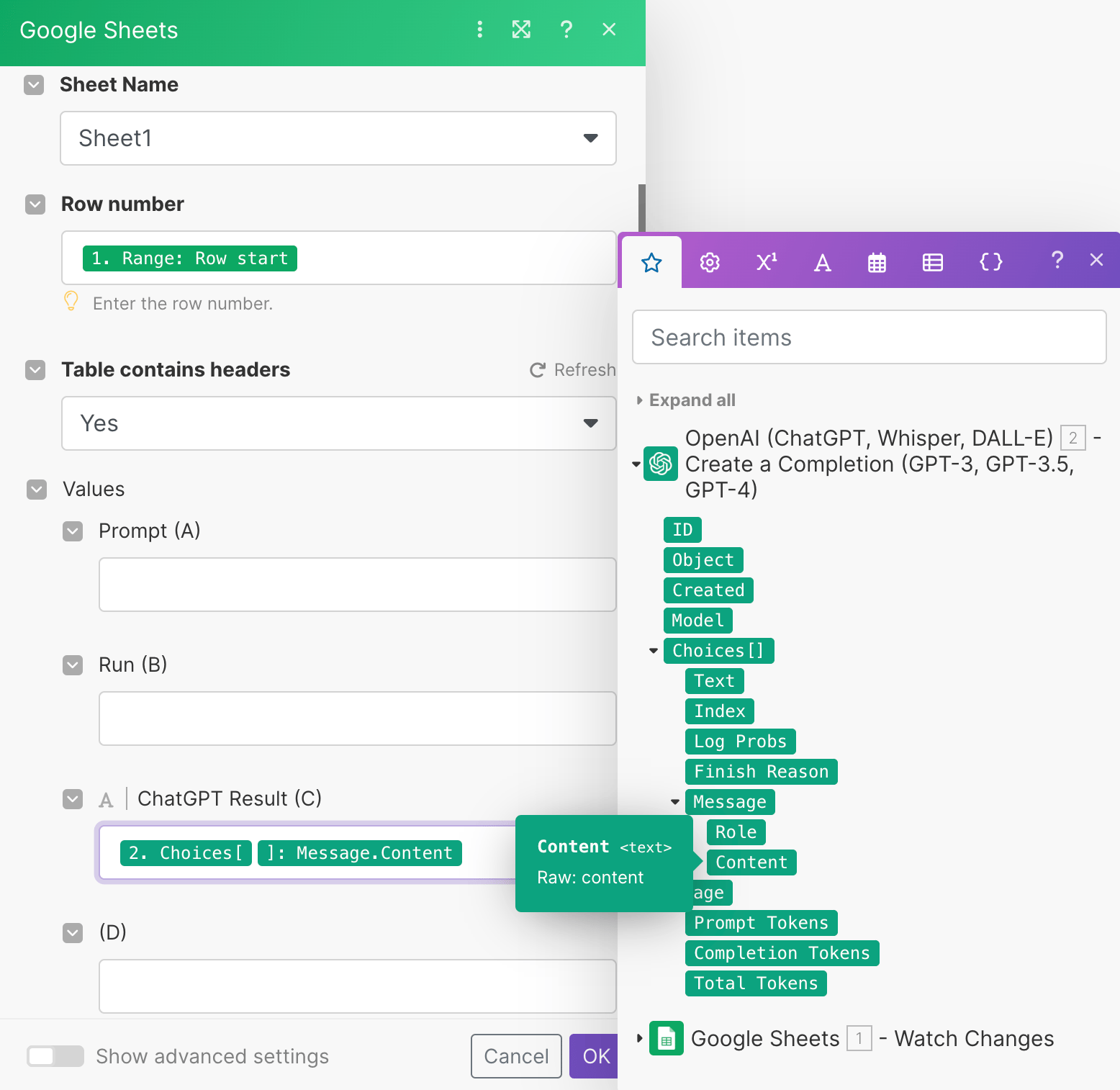
For the question sent with the prompt, select the response from the GPT 3.5 turbo model under the OpenAI "values" field. Use the save button to keep the work you have completed.
The connection between Make, ChatGPT and Google Sheets is now complete. To test it, return to the sheet and enter a prompt. In this example, we asked several questions that could be used in a Frequently Asked Questions section and described how the answers should be written.
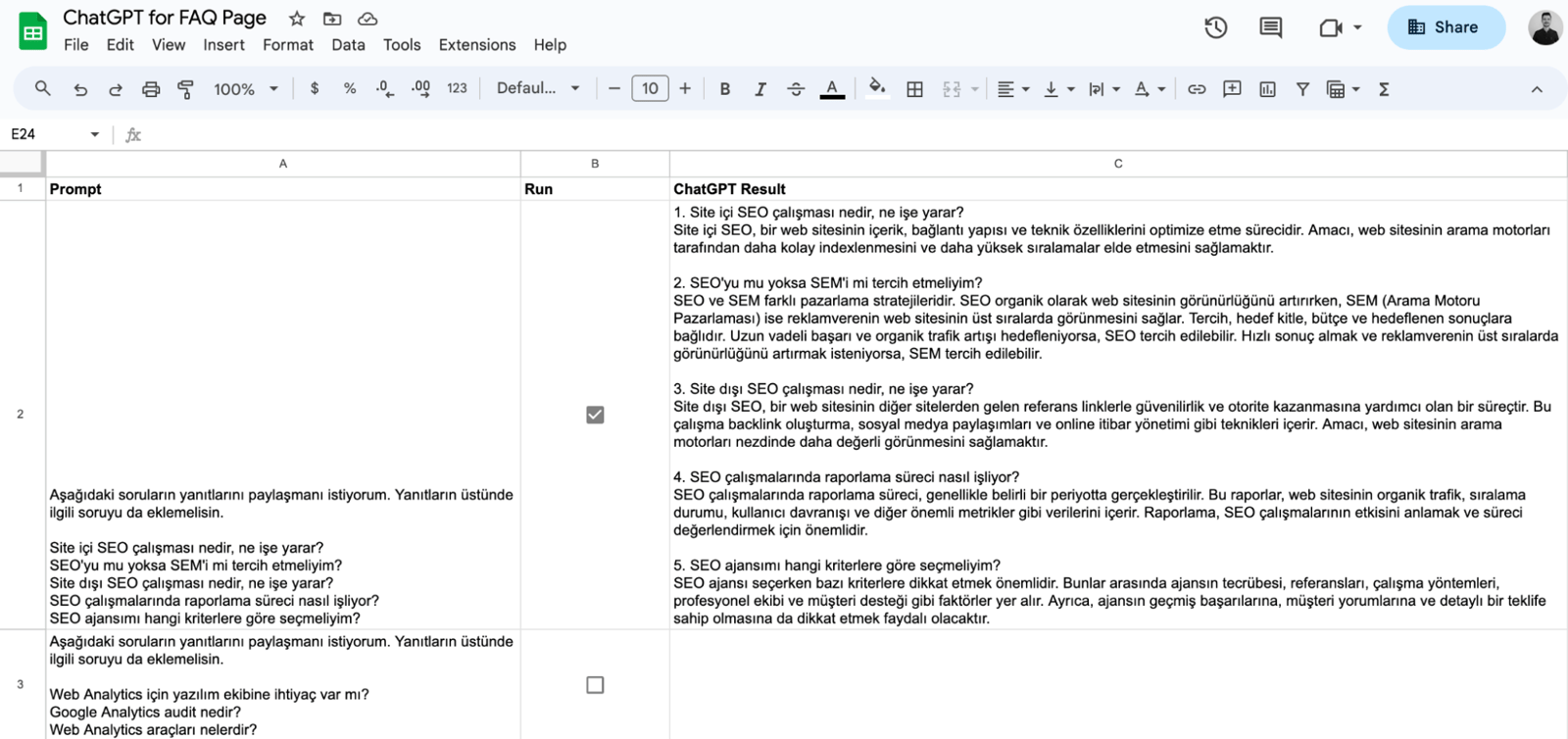
Select the checkbox on the relevant row to run the prompt. The response from the GPT 3.5 turbo model will be added to that row. This completes the basic setup, which you can adapt to your own requirements.
To summarize
Connecting AI products to tools such as Google Sheets lets us use no-code platforms without abandoning familiar workflows. The integration can reduce repetitive work and improve operational efficiency.
I wrote this article to provide a basic introduction to using AI products through Make.com and other no-code platforms. I hope it was useful. If you have a question or an idea to add, feel free to share it in the comments section.


