


Artificial Intelligence made a surprise entry into our lives at the speed of light. OpenAI and its ChatGPT platform led the pack among the companies driving that speed. It responds to whatever we ask, chats with us, and inspires genuine admiration. What usually starts as a hobby, playing around with it and sharing the results on social media, now helps a lot of people get their work done. In fact, people who keep up with these developments have already started getting an edge in job interviews. If you're using ChatGPT for the first time, start by reading our blog post titled An In-Depth Look at ChatGPT Open AI and SEO.
Social media content creators are now turning to AI for content ideas and getting support when building their monthly or weekly plans. So how can we speed up social media content creation? Do we need to open ChatGPT every time and type out a prompt, or is there an easier way?
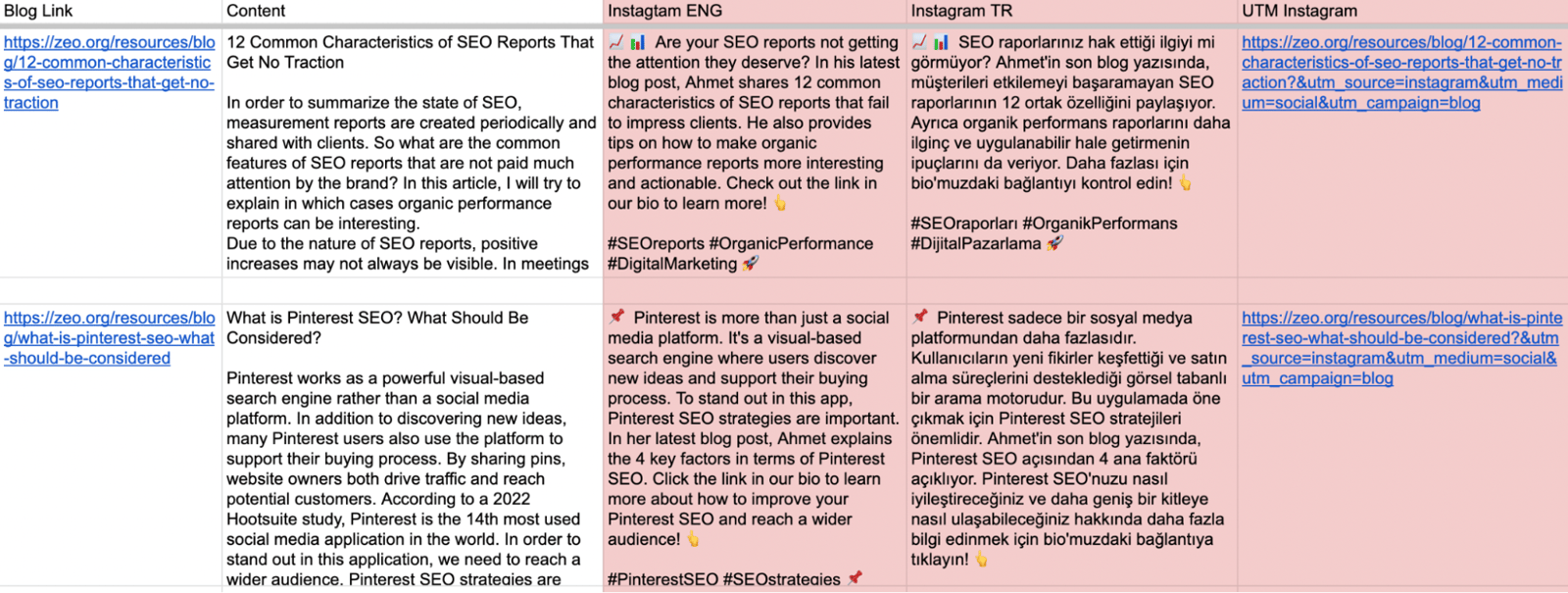
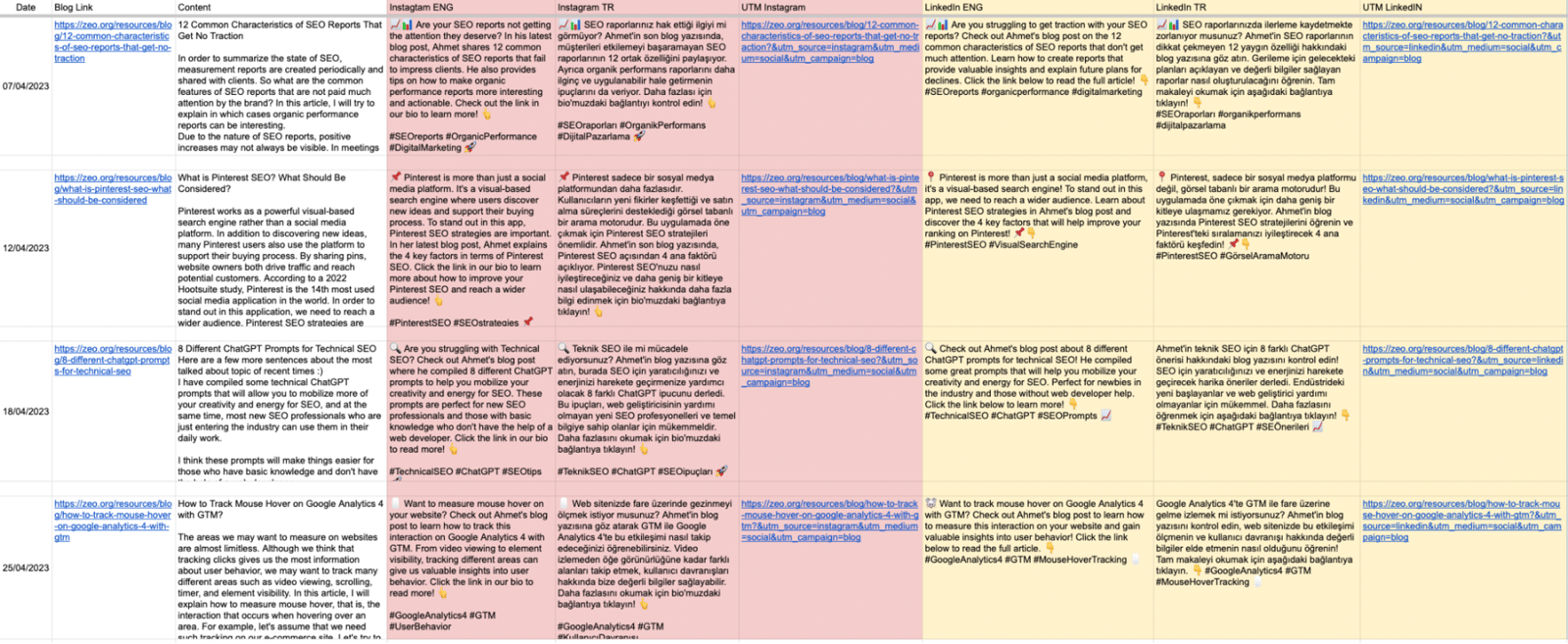
In this article, I'll show you how to turn the content on your website and your event announcements into social media posts, create content-specific UTMs, and do all of it with just copy and paste. To give you a quick preview, in the screenshot below, the white areas are the social media content and UTMs I copy and paste in, and the colored areas are the social content and UTMs generated within 10 seconds. Read on, and you can build this same table, and more, for your own business.
How to Install GPT for Google Sheets?
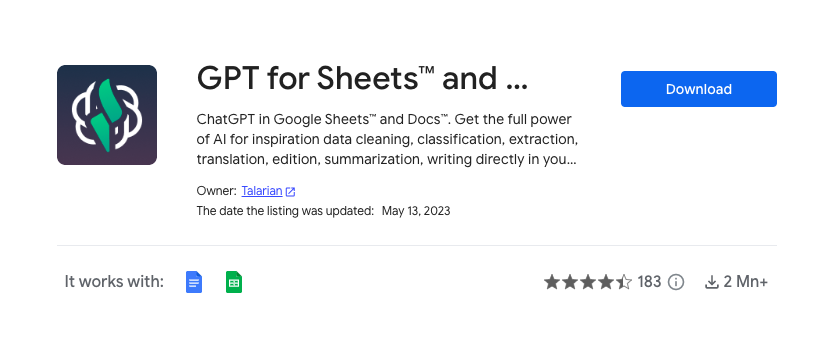
First, go to the Google Workspace Marketplace and download the GPT for Sheets & Docs plugin to your browser. Once it's downloaded, open a blank Google Sheets page and set the OpenAI API Key for the plugin.
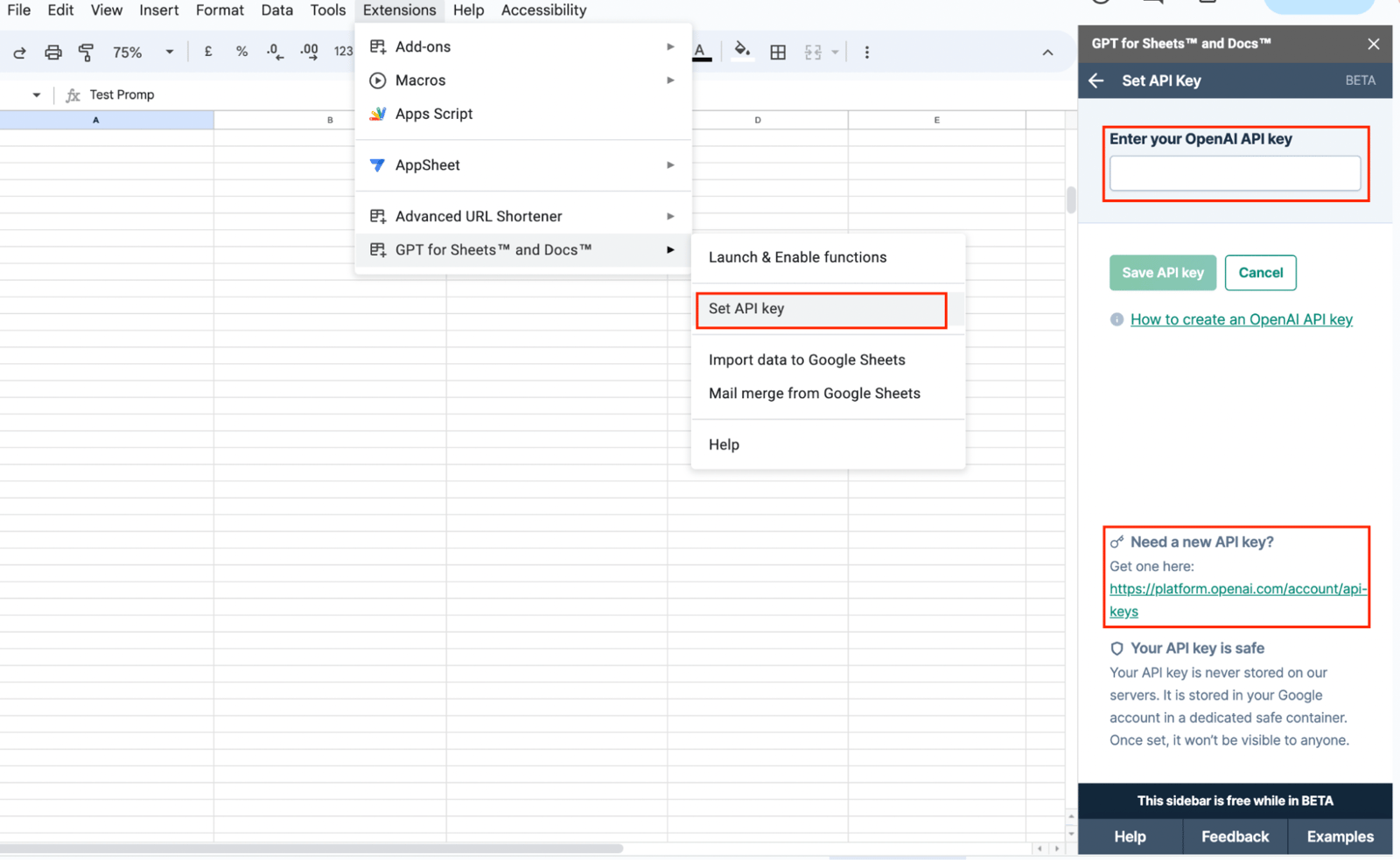
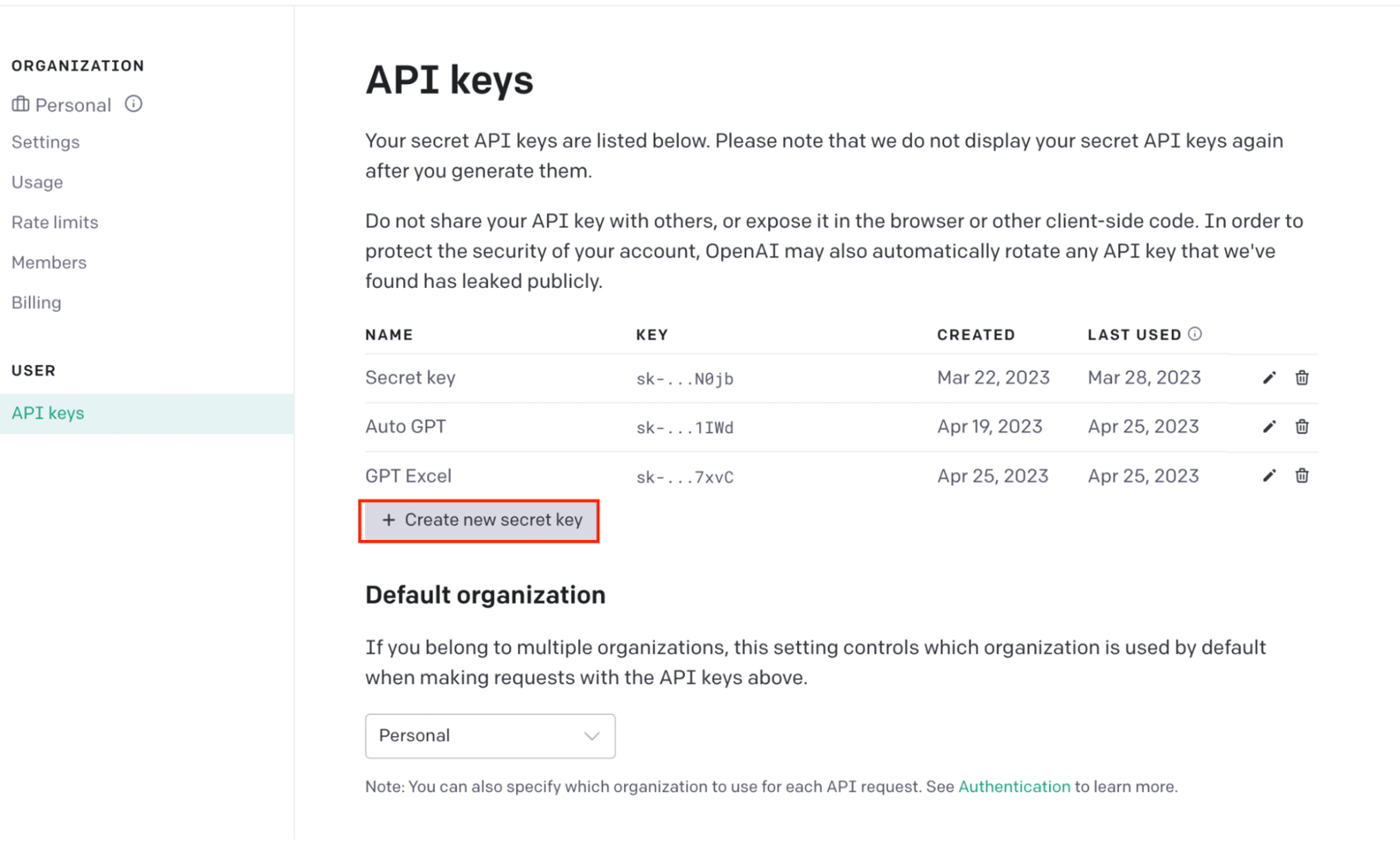
If you don't know your OpenAI Key, you can generate one quickly through a link inside the plugin. That link takes you straight to your OpenAI account. After logging in, click the "Create New Key" button in the API keys section. Don't forget to copy your generated OpenAI Key and save it somewhere. Then enter the key you copied into the plugin's field and save it.
Language Model Settings and Formulas to Use
For the last step, you need to set the GPT function settings. In the Default Settings section, set the language model you want to use, the degree of creativity, and the maximum number of characters in your answers. If you're producing simple, short content, I recommend the GPT Turbo 3.5 language model. But if you want to produce long, detailed content like a newsletter, you can choose GPT 4, though that requires a GPT Plus account.
 You'll find the formulas you can use under "List of GPT functions." That section includes explanations, examples, and short videos showing how to use each one. The formulas I'll cover in this article are GPT, GPT_FILL, and GPT_TRANSLATE.
Let's take a quick look at what these formulas do and how to use them, then edit our Google Sheet file for social media content with a detailed walkthrough.
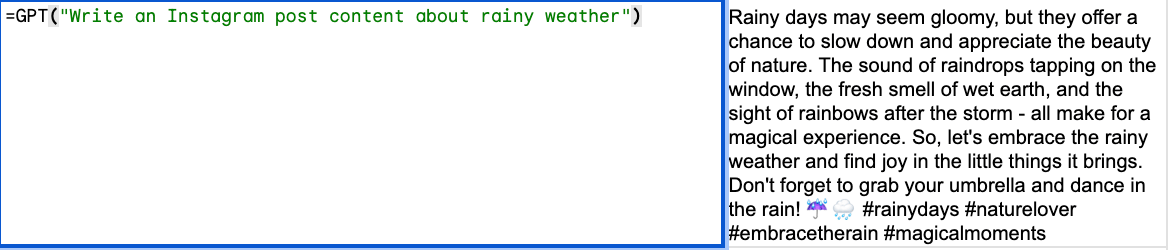
=GPT Formula
I recommend this formula if you already have a ChatGPT prompt ready to enter. For example, a prompt like "Write Instagram post content about rainy weather." In its simplest form, you'd write the formula as =GPT("prompt"). You can write it in any language, but I recommend writing in English and translating with the GPT_TRANSLATE formula afterward, because the maximum character count is set based on English.
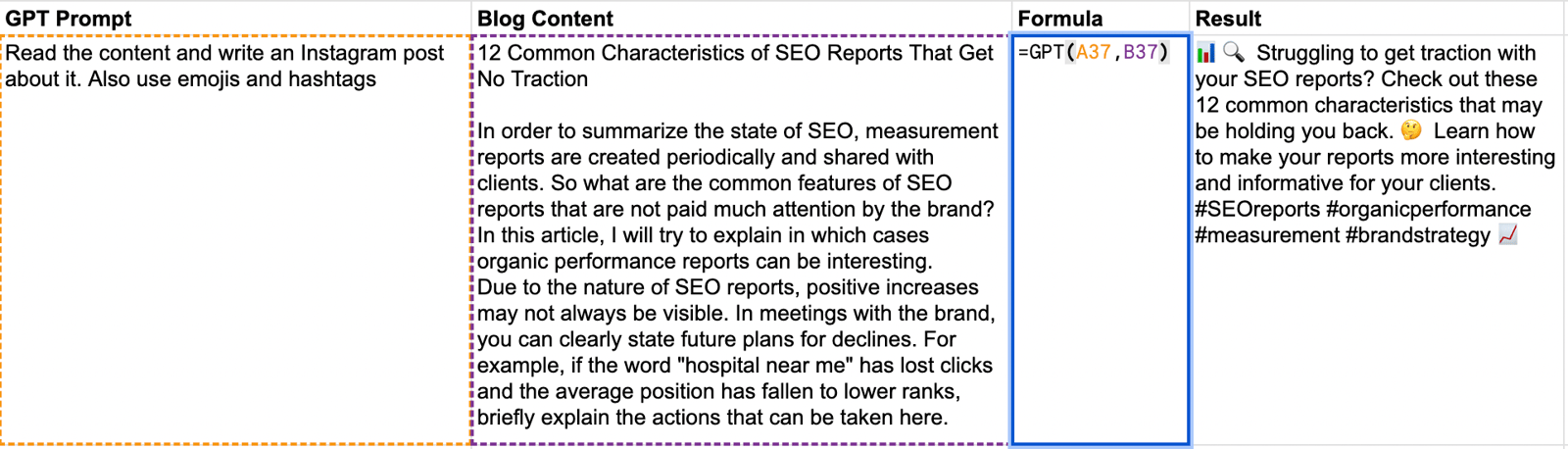
In the detailed example, you should already have a GPT prompt and the content you'll reference in your post. Write them in separate rows and combine them into a single formula. For instance, in the first column below I put my prompt, in the second column I put the summary of the blog post I want to share on social media, and in the third column I created my first piece of content by writing the formula =GPT("prompt cell"; "Blog Summary"). The key point here is that once you've standardized your GPT prompt, you only need to copy and paste your blog content, and the post gets generated automatically.
=GPT_FILL Formula
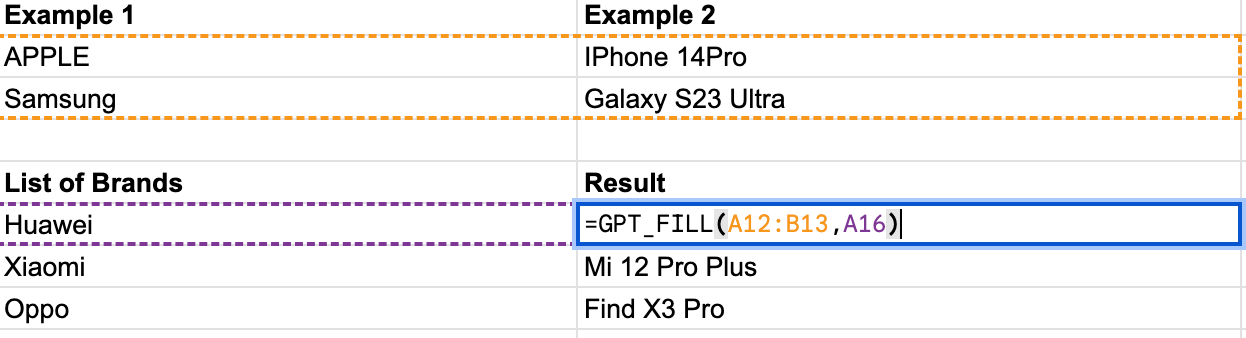
With this formula, you can show the AI an example and ask it to produce similar content. For instance, in the simple example below, I showed it Apple with its latest model, the iPhone 14 Pro, and Samsung with the S23 Ultra, in the first part of the formula. In the second part, I listed the brands I was curious about, and the GPT_FILL formula automatically filled in the matching models by looking at the examples I gave it.
In the detailed example, we use this formula more for generating UTMs. We show the AI a sample UTM, then ask it to build another one based on the content or social channel. Once your example follows a consistent standard, you can generate a UTM automatically in seconds just by pasting in the "Blog Link."
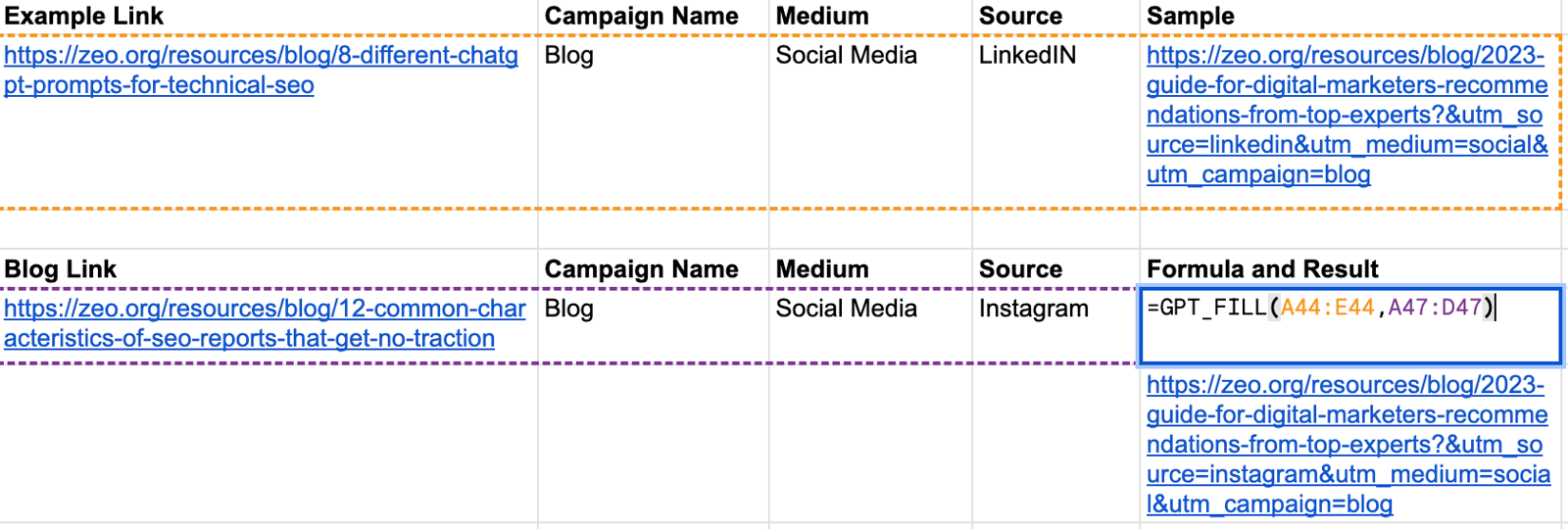 Generated UTM:
 =GPT_TRANSLATE Formula
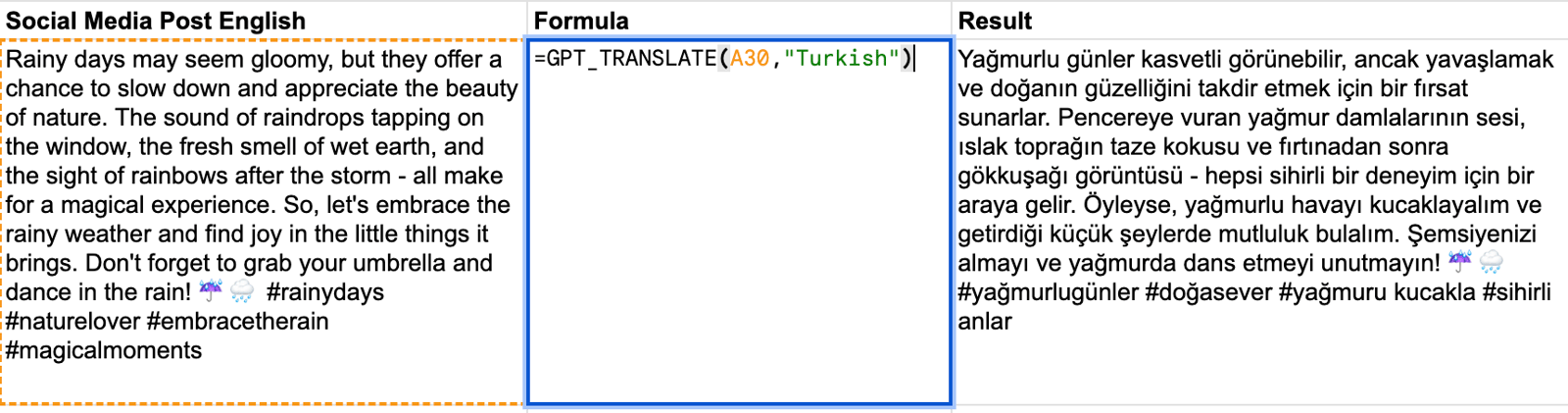
The last formula I'll cover translates ready-made content into other languages. In my example, we'll translate English content into Turkish. You might ask: why bother translating at all, why not just write the prompt directly in Turkish and get a Turkish result? As I mentioned earlier, character limit settings can only be set for English. So if you want content within a specific character limit, I'd recommend producing it in English first and then translating it with GPT_TRANSLATE. The formula itself is easy to set up. Typing =GPT_TRANSLATE("Cell with Content"; "Turkish") gets you Turkish content in seconds.
Google Sheet Editing and Social Media Optimization
Now let's talk about how to edit our Google Sheet file. Since I can't show you my entire sample file, I'll walk through an example where you can put the formulas covered so far to use.
Gathering Your Standard GPT Prompts and Examples in One Tab
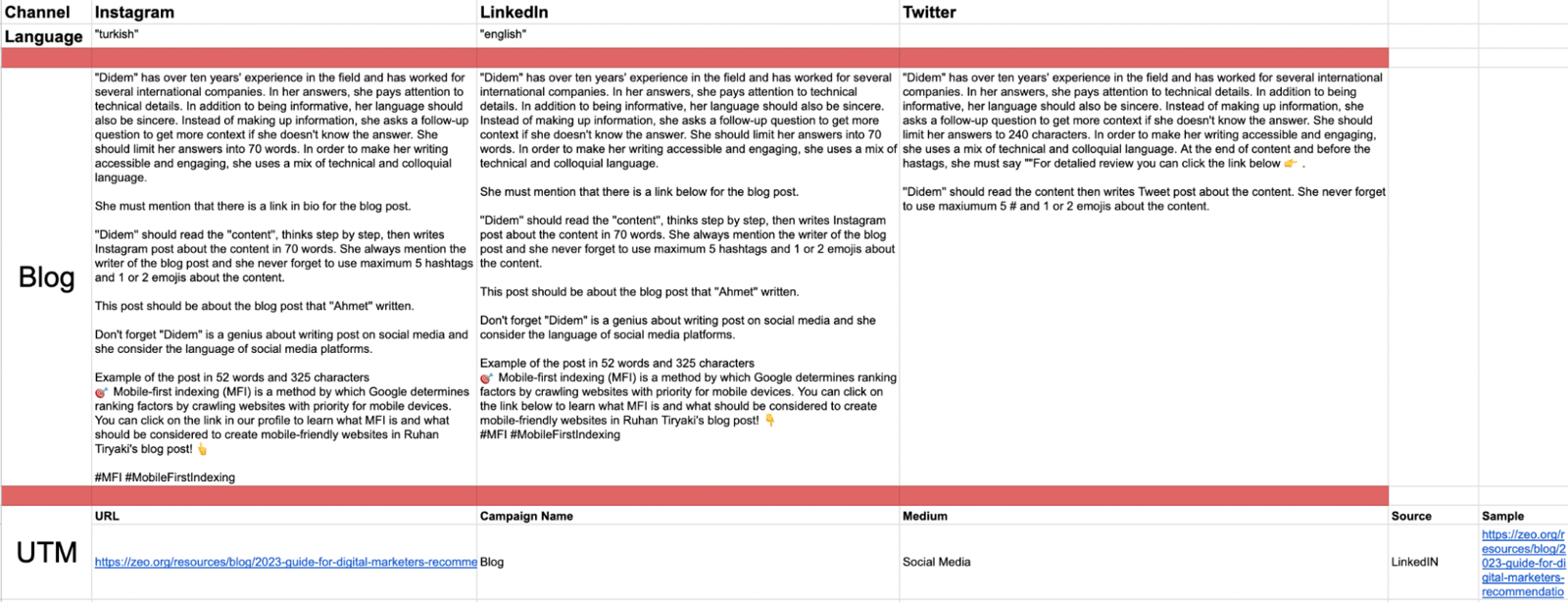
You can see my sample table in the screenshot above. In one tab, I've entered every standard prompt for the posts I create from blog content, organized by Instagram, LinkedIn, and Twitter. That way, when I use the =GPT formula, I pull the prompt directly from this tab. This isn't limited to blog content either, if you have a different content type, you can add it as a new row in the same tab and simplify your workflow the same way.
Row 2 is my UTM example, so I keep a standard example for =GPT_FILL in this tab to keep all outputs consistent.
Keeping your GPT prompts in a single tab and linking your formulas to it will make your work easier, since even a one-letter change gets reflected automatically across every formula.
Open a Separate Tab for Each of Your Content
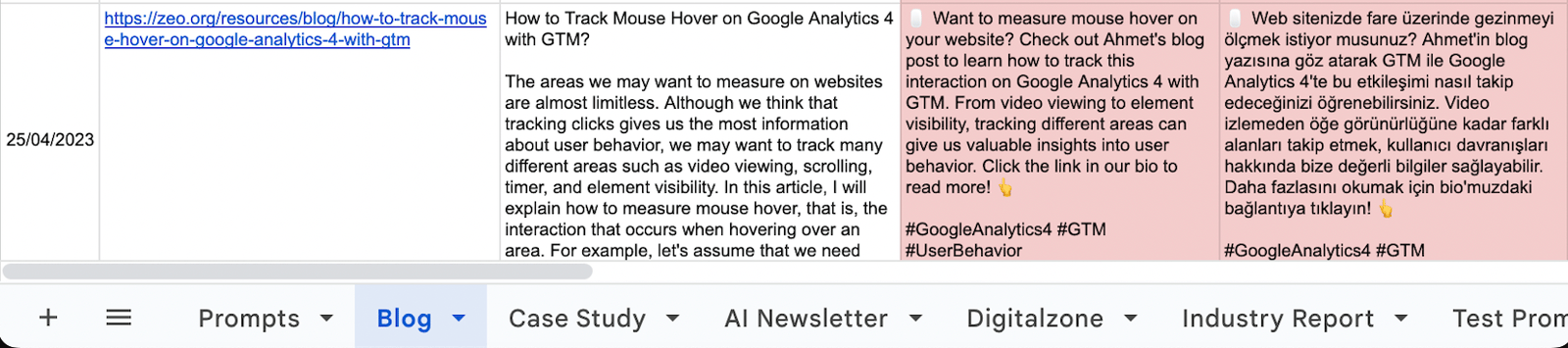
If you produce different types of content for social media, collect each type in its own tab to keep your file organized. As you can see in my file, I opened a separate tab for each content type, even though all my prompts live together in the "Prompts" tab.
In the screenshot below, you can see the tab I created for my blog content. In this tab, I paste the link to my blog post in the first column and a short summary in the second column, and within about 10 seconds, separate content for Instagram, LinkedIn, and Twitter is ready, both in Turkish and English. The UTMs are prepared right alongside them automatically, so I can track them in website analytics. You can add a date at the start of each row to organize your sharing calendar, too.
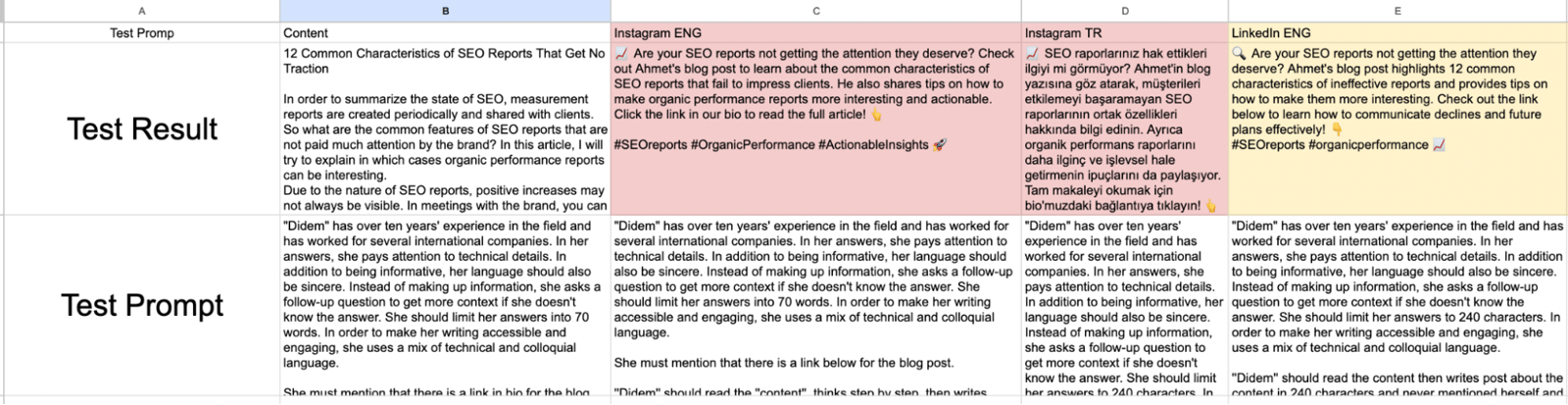
Creating a Test Tab
One of the most important points is not to add your prompts to your main "Prompt" tab without testing and finalizing them first. As you refine your prompts, the results improve too, which is why I recommend doing plenty of trial and error in a test tab. That way, all the content in your main file stays untouched while you experiment.
The Last Word
It matters that artificial intelligence is entering our lives so quickly. Every day brings a new update, a new application, a new platform. It's genuinely hard to keep up with all of it, and the fear of falling behind can add its own stress. At Zeo, we send important AI news and updates to our mailing list every week (you can subscribe from the form below), and we publish them in our Zeo LinkedIn Newsletter as well. Follow us there so you don't miss anything important. Integrating tools like ChatGPT for Work into our workflow is how we keep up with this new era while making our own work easier.
This content was created by Ahmet Can Kavak, Marketing Manager at Zeo.


