


R is widely used in statistics and data analysis, so how can you use ChatGPT alongside it? This article will be most useful to people doing statistical analysis and R enthusiasts.
I've explained R Project and R studio installations in another article. If you haven't installed them yet, give that article a read first. You can also find my other articles about R and SEO on the Zeo Blog.
Running ChatGPT in R & API Setup
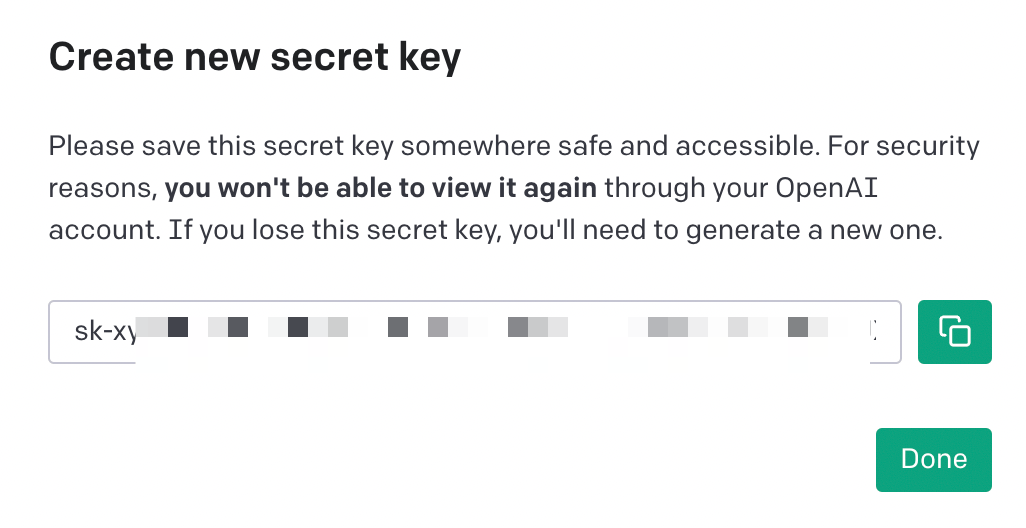
To connect to ChatGPT via R, you first need to create an API key at https://platform.openai.com/account/api-keys. Let's name and save the key, and keep that code somewhere safe:
Now we go back to R, run the initial code, and install the libraries:
library("TheOpenAIR")
Next, we add our API key information into R:
library("TheOpenAIR")
openai_api_key("sk-apı_key")
Install the library as shown below. You'll also need the "dplyr" package if it isn't already installed:

Sample Packages and Uses
With the package installed, we now have a connection to OpenAI. All that's left is to enter the prompt we want:
chat("Write a 175 character meta description about how R Studio can be used for SEO")

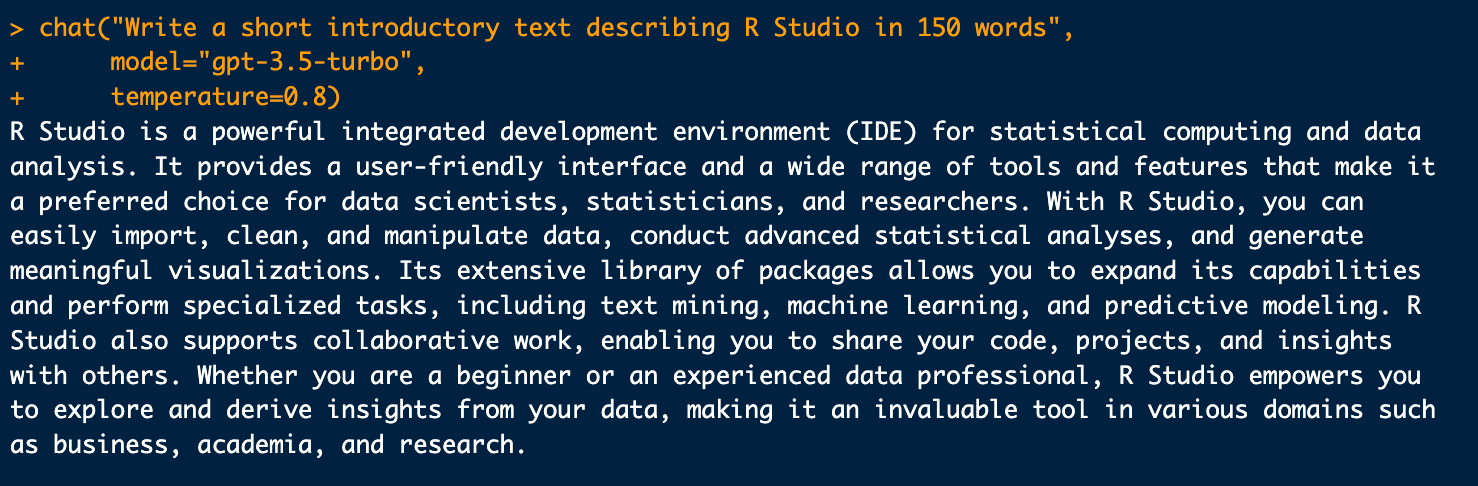
After that, the output starts to take shape based on what we ask ChatGPT for. For example, I can set "model" to gpt-3.5-turbo, though GPT-4 works too if you'd rather use it. The "temperature" value lets you dial in the setting you want and experiment for the best results:
chat("Write a short introductory text describing R Studio in 150 words",
model="gpt-3.5-turbo",
temperature=0.8)
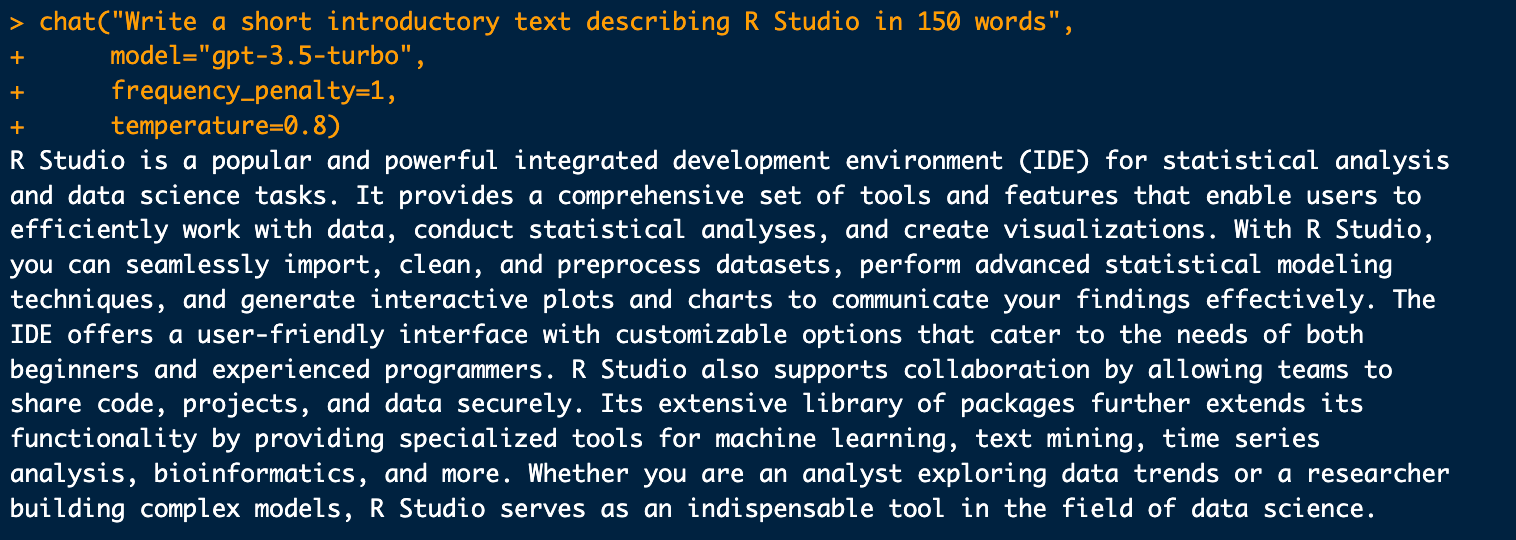
You can set the frequency using frequency_penalty: (Additional information)
chat("Write a short introductory text describing R Studio in 150 words",
model="gpt-3.5-turbo",
frequency_penalty=1,
temperature=0.8)
You can also use "count_tokens" to check how many tokens are in a URL, for example:
url <- "https://zeo.org/tr/kaynaklar/blog/chatgpt-anahtar-kelime-analizi-ve-google-sheets-otomasyonu" count_tokens(url)

There's plenty of room to adapt this depending on your own projects or work; I'm just giving these examples to illustrate the possibilities. For instance, you can use it to help with FAQ fields:

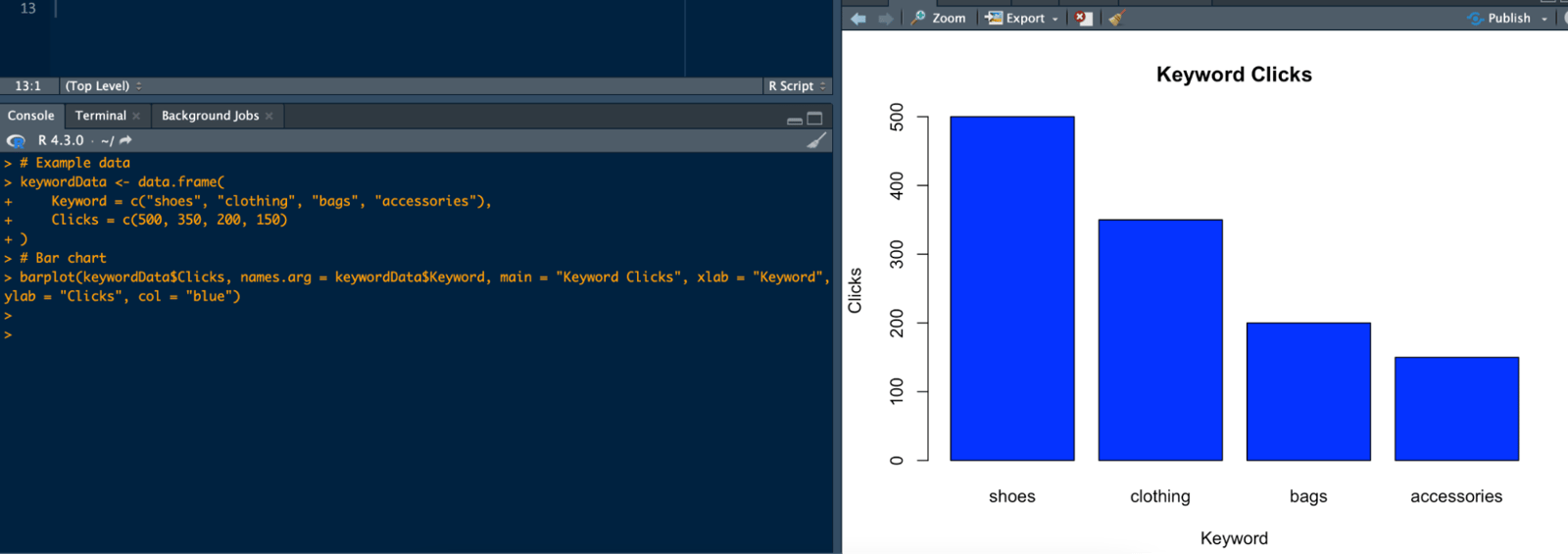
I want to create a sample data.frame and visualize it, so I'm writing a clear prompt:
chat("Show what keywords the visitors used to log in to an e-commerce site in the last 1 month and how many clicks they received, as a data.frame within the data frame with an example. Then create a bar chart and show me what codes you did it with.",
model="gpt-3.5-turbo")
The output walks me through it step by step:
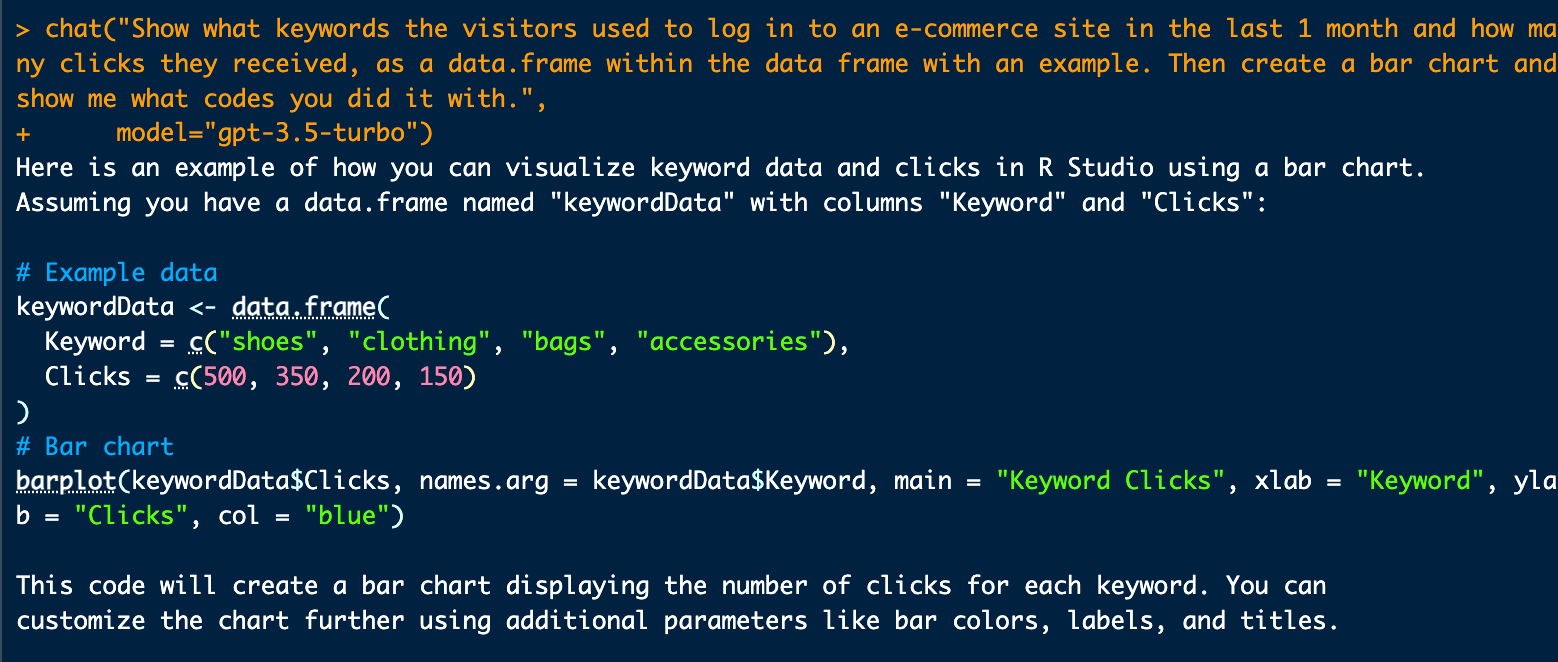
As a result, I got the graph I wanted. I've covered how to import a .csv or .txt file into R, and even how to scan URLs, in other articles, so I won't repeat those details here:
You can also turn the answer ChatGPT gives you into a vector in a single line. You can then ask that vector whatever questions you want or run statistical analysis on it. The View command also lets you look at the data set you've already created: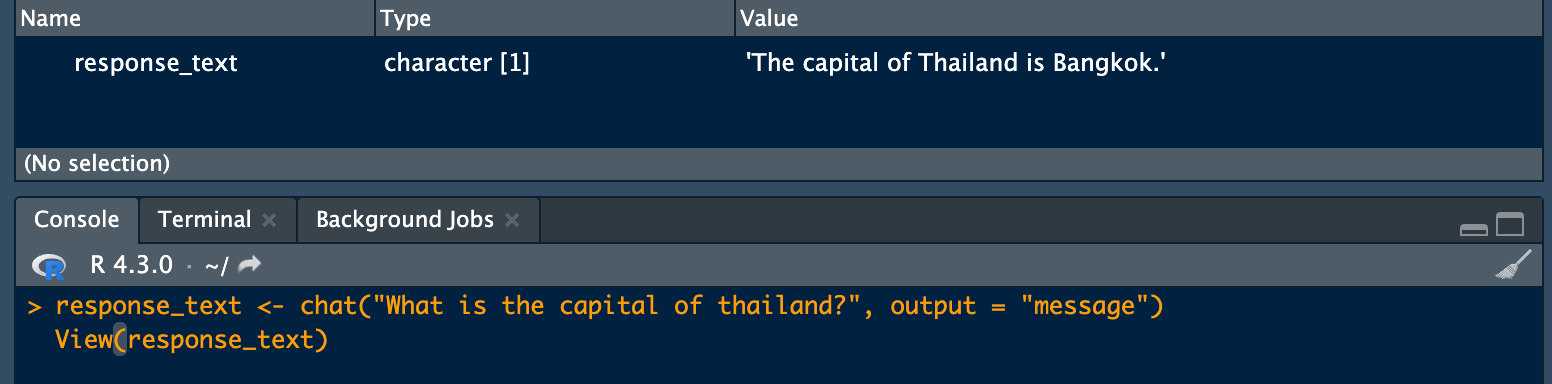
response_text <- chat("What is the capital of thailand?", output = "message")
View(response_text)
For example, you can split this answer at each period to get a list of sentences.
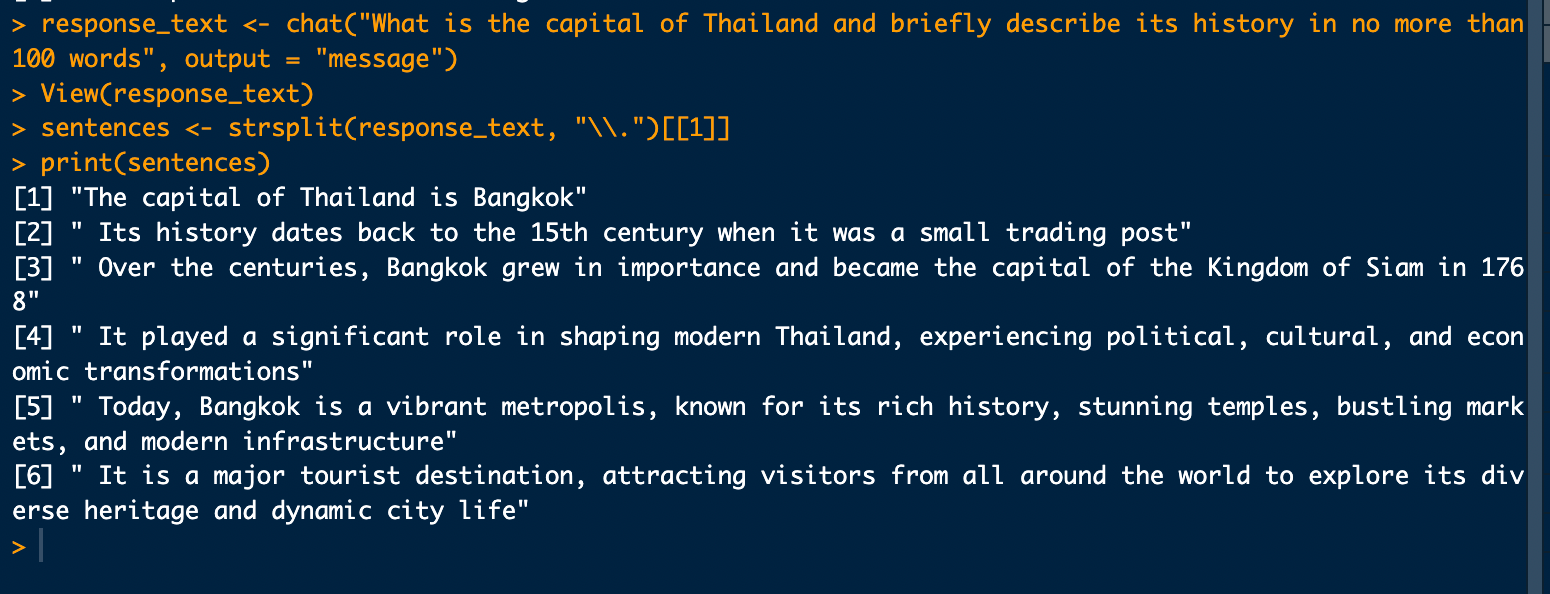
sentences <- strsplit(response_text, "\\.")[[1]]
print(sentences)
Again, I want it to write an article and create a word cloud based on the sentences in that piece:
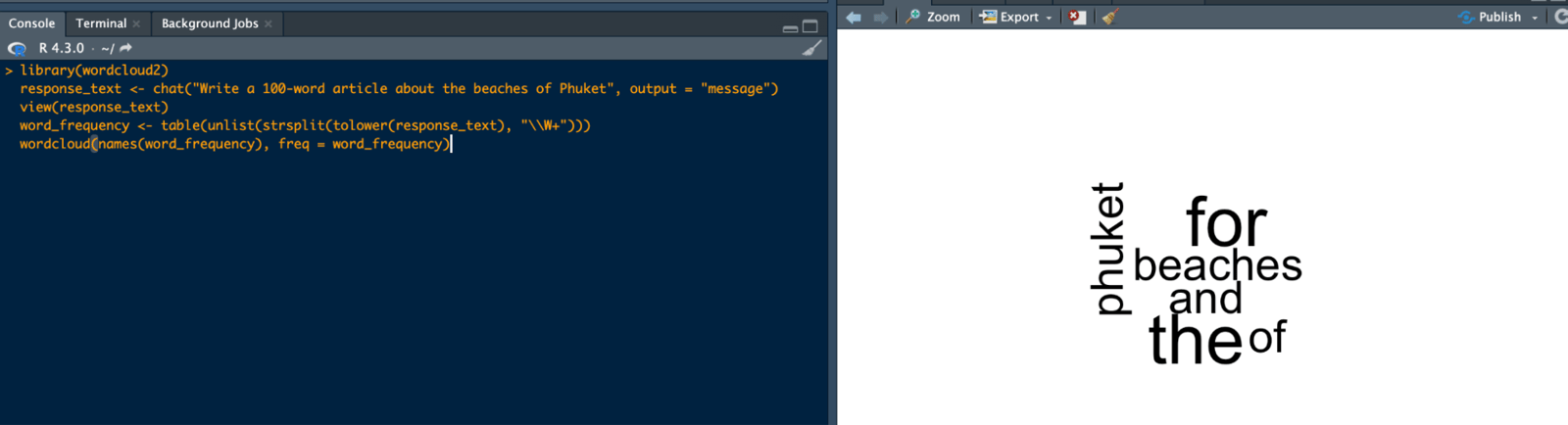
library(wordcloud2)
response_text <- chat("Write a 100-word article about the beaches of Phuket", output = "message")
view(response_text)
word_frequency <- table(unlist(strsplit(tolower(response_text), "\\W+")))
wordcloud(names(word_frequency), freq = word_frequency)
Here's how you can find subjective judgments in an article. You can adjust what comes after "grep"; I've written it below as an example:
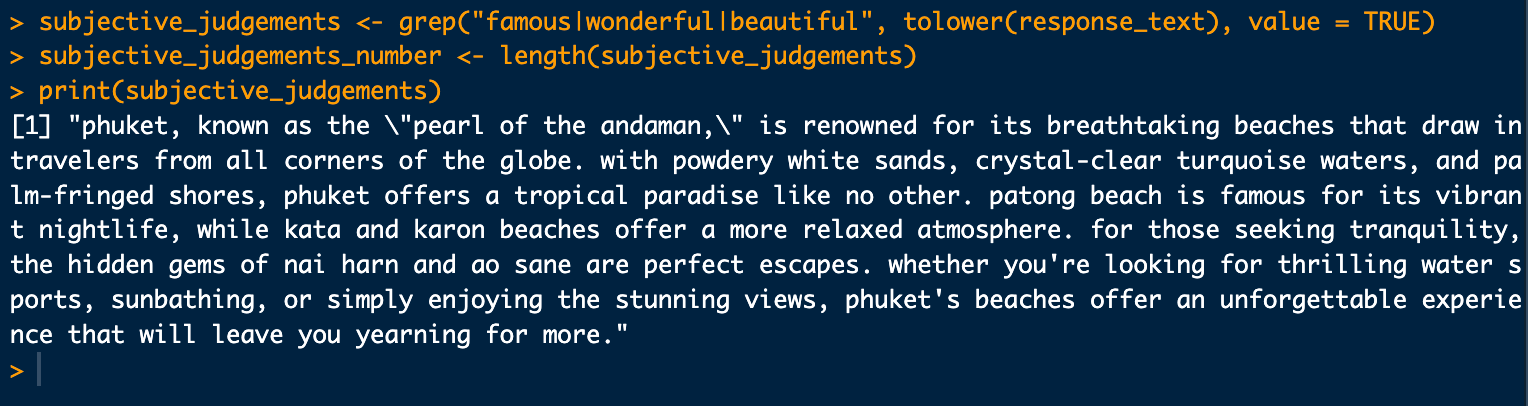
subjective_judgements <- grep("famous|wonderful|beautiful", tolower(response_text), value = TRUE)
subjective_judgements_number <- length(subjective_judgements)
print(subjective_judgements)
I asked ChatGPT to create two articles on the same topic, then wanted to check whether there were any common words between the texts using jaccard similarity. It showed me there were no common words between the texts:
library(stringdist)
jaccard_index <- stringdist::stringdist(article1, article2, method = "jaccard")
print(jaccard_index)
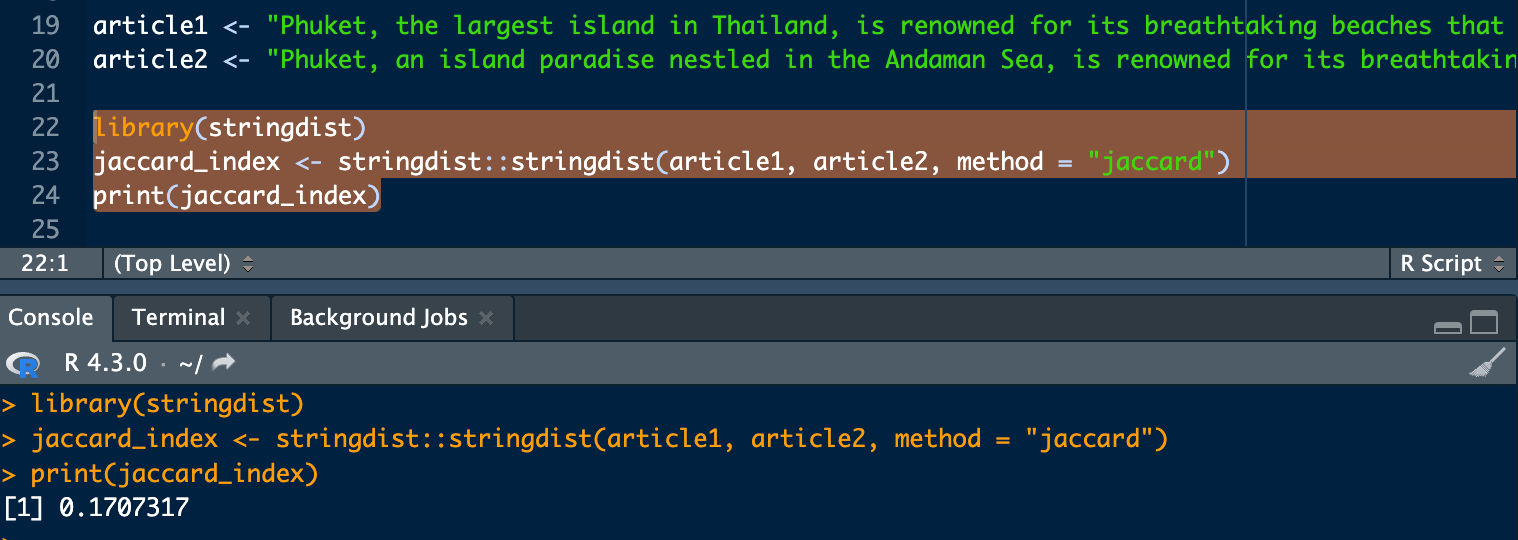
A Jaccard similarity scale of 0 indicates that there are no words in common between the two texts, or that all the words are different. In this case, the Jaccard similarity comes out to 0, meaning there's no similarity between the two texts:

I wish everyone who has read this far a day full of good statistics, and as much ease as AI can bring to their work.


