


Web pages have gone through a lot of evolution over time. While the first websites consisted solely of text, visuals and videos have gradually been added in. On the other hand, these unavoidable improvements have come at a cost for web pages: sizes that used to be measured in kilobytes are now measured in megabytes.
On top of these improvements and growing page sizes, users rightfully want web pages to load fast. As we can see in this statement from Google's John Mueller, website speed is certainly a ranking factor. So out of the many factors that affect website speed, how do we deal with these large, rich media formats?
Google announced two next-generation rich media formats at I/O 2010: WebP for images and WebM for videos. Let's get to know each of them.
What is WebP?
WebP is a file format Google announced in 2010. It offers high compression rates for images without sacrificing quality. With the WebP format, images come out smaller in size but almost never lose quality, which helps your page load faster.
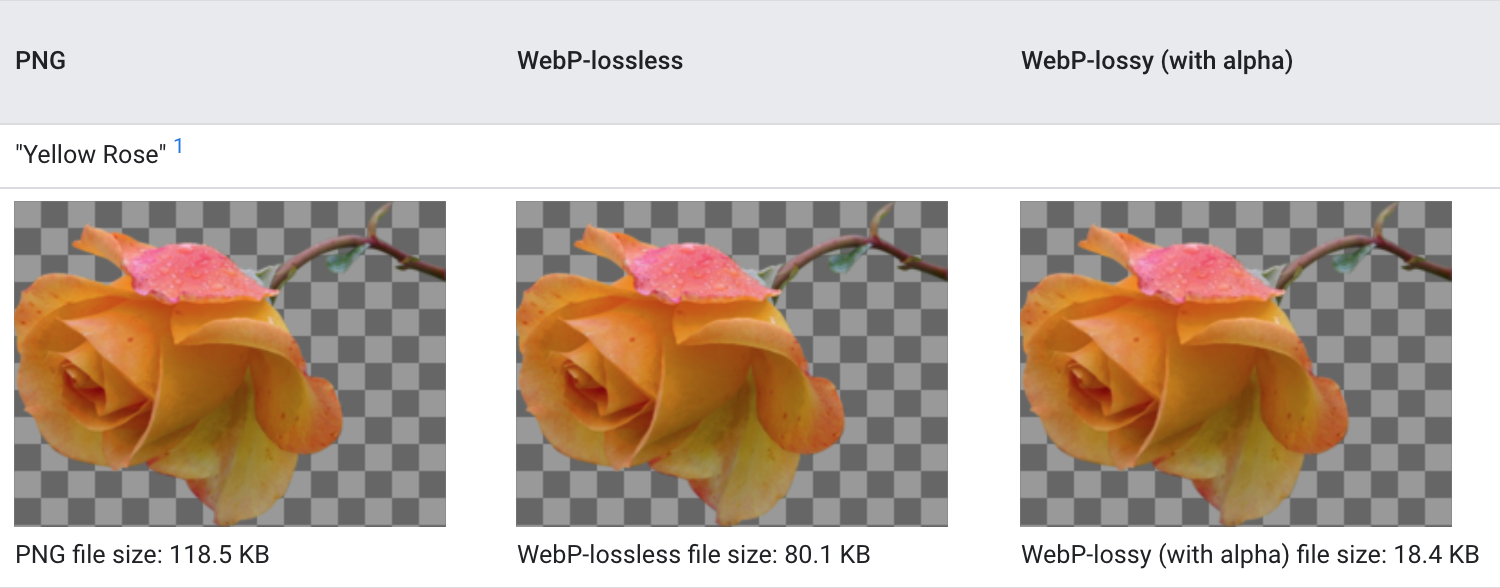
If you convert PNG files, which offer a lossless image experience as you can see in the example above, to WebP format, you can post images that are up to 26% smaller on your website without losing image quality. So, let's take a look at what lossy and lossless compression actually mean.
Lossless compression (WebP-Lossless): this means every pixel of your image stays the same after compression. The PNG file format serves lossless images, and likewise, WebP's lossless compression method offers the same quality at a size 26% smaller than lossless-compressed PNG files.
Lossy compression (WebP-Lossy): this format achieves more compression by removing a certain number of pixels from your images, ones the human eye can't detect. Compared with JPEG, the popular lossy file compression format, this gives a 25% to 34% reduction in file size.
What are the advantages of using WebP?
As mentioned above, smaller file sizes help your website load faster, which makes it a smart move that both your users and Google will approve of.
This advantage grows exponentially for owners of e-commerce websites or blogs with lots of images.
With the WebP format, you don't have to use different image formats across different parts of your website. Usually, logos get posted in PNG while photos get posted in JPG, and these file formats take up a lot of disk space, triggering the following warning in the Google PageSpeed Insight report.
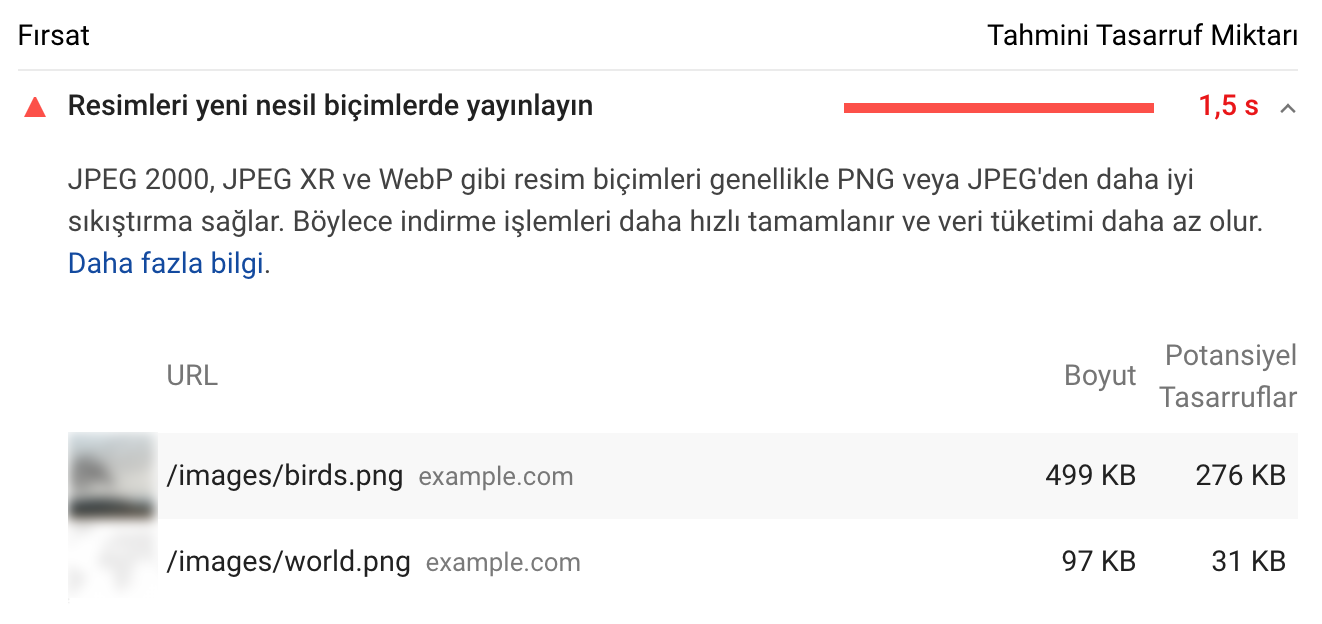
If you look at Google's WebP gallery, you'll see how beneficial it is.
What are the disadvantages of using WebP?
This file format, courtesy of Google, comes with one nuisance. As you can see below, the most popular web browsers support the WebP format and display it without any problems. Safari and Internet Explorer, however, do not (Edge does support it).
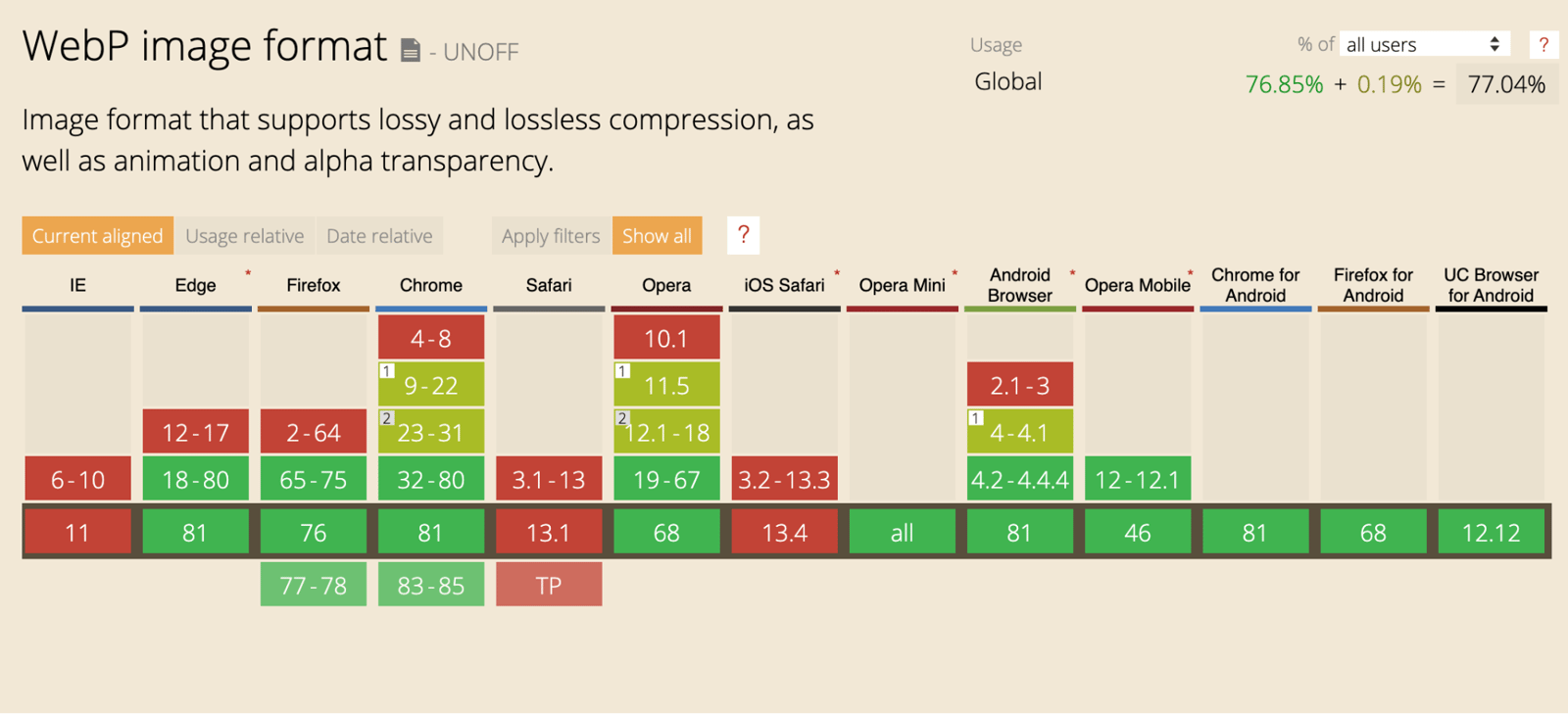
So is there a solution to this? Of course there is. Let's take a look.
How can I use WebP files?
You can serve images based on which browser the user is using. If someone's using Safari, your server sends PNG or JPEG images instead, while other browsers keep displaying WebP images as usual. For example, you can use plugins to serve WebP in WordPress. You can click here for plugins.
If you don't use WordPress, your developer will need to handle this integration directly. As you can see below, you can include both formats in HTML, and the browser will try to download the WebP image whenever it can. You can click here to learn more about this feature built into HTML5.
#### CODE FIELD ####
<picture>

  <source srcset="/path/to/image.webp" type="image/webp" />

    <img src="/path/to/image.jpg" alt="" />
</picture>
#### CODE FIELD ####
What is WebM?
In 2010, Google introduced a new format called WebM for videos and audio files, built specifically for the web. This open-source multimedia format was positioned as a rival to other multimedia formats, notably MP4. So what does this new format actually promise?
What innovations Does WebM offer?
WebM is basically built for the web. The VP8 and VP9 codecs it uses are designed to compress media files heavily and shrink their size on disk, and opening files takes very little computing power. The goal of this design is to enable high-quality, low-cost online video streaming on virtually any device (such as smartphones, desktop computers, tablets, or smart TVs) regardless of that device's processing power. Take YouTube, for example: Google converts your videos to WebM regardless of the format you upload, saving a lot of space thanks to its high compression rates.
What are the advantages and disadvantages of using WebM?
It's safe to say the main difference comes down to prevalence. MP4 is a video format that's been on the market for years and works on plenty of devices already, you can even play an MP4 video on an old digital video camera. Google, however, specifically states that web use sits at the core of the WebM format, so it makes more sense to look at how well WebM is supported on the web instead.
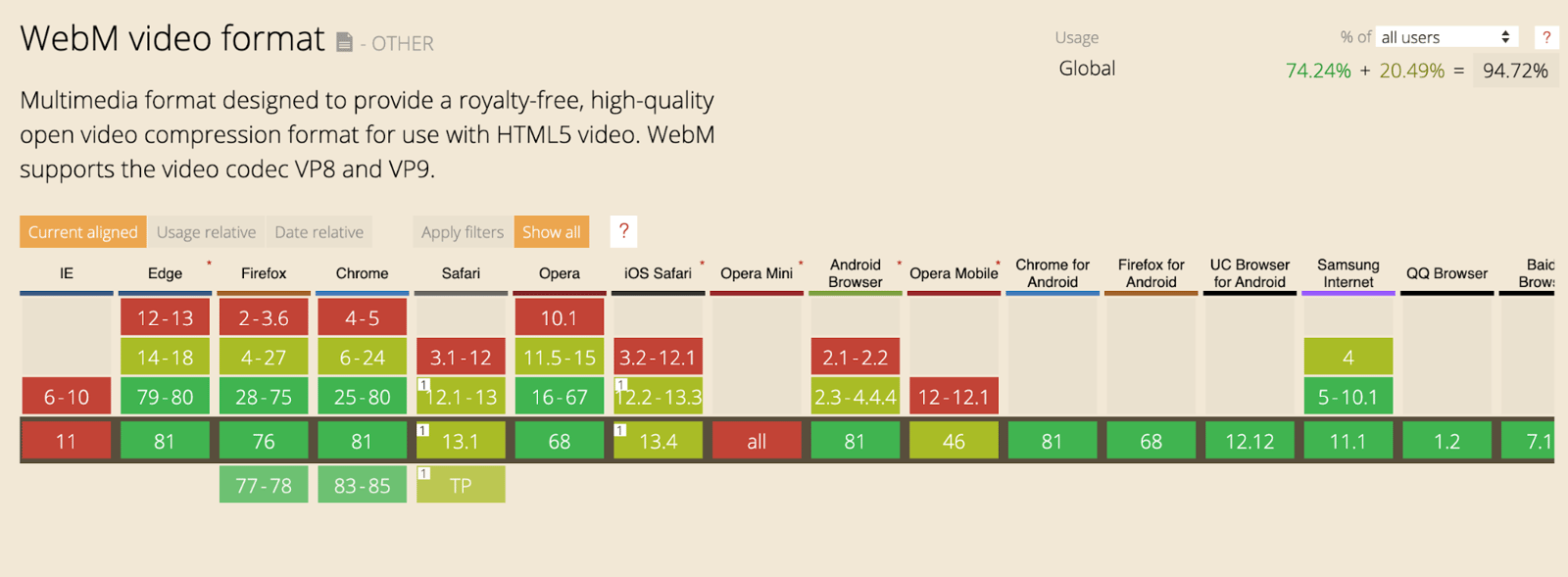
As you can see above, every browser except Internet Explorer (Edge does support it) and Opera Mini can work with WebM smoothly.
Licensing is another factor worth considering. You have to pay for MP4, along with its H.264 and H.265 codecs, if you build on these codecs. Developers who build on these codecs are required to pay license fees. WebM, on the other hand, is completely free. You can build with it however you like.
We mentioned that WebM was designed for the web. When building the WebM format, Google wanted its size to be as small as possible. So they used very high compression rates. This meant they had to compromise a bit on quality. It's also worth acknowledging that this difference is almost impossible for the average internet user to notice.
To sum up, WebM is a web-based format that's smaller in size, needs less processing power, and can be used for free, while MP4 is a format that needs more processing power, larger file sizes, and licensing.
The Relation Between WebM and SEO
As you know, both Google and users want web pages to load fast, and page size is an important metric in page speed. Today, pages larger than 3MB are considered slow-loading from a user experience standpoint.
WebM, however, lets you serve content such as videos and animated images (GIFs) that you post on your web page to your users in a much smaller size. This substantially reduces the page size.
How Can I Use WebM?
If you're a video content creator, you can easily convert your videos to WebM with the tools mentioned here. Many tools, including Adobe Premiere Pro, support WebM. If you want to cut back on size just by converting your simple GIFs to WebM, you can search gif to webm on Google. This way you can finish the job quickly.
If you also want users who use Internet Explorer and Opera Mini, even though they have a small audience, to be able to view your content, you can use the following HTML5 standard. The version that the browser supports will be executed. You can click here for more information.
#### CODE FIELD ####
<video autoplay loop muted playsinline>

  <source src="my-animation.webm" type="video/webm" />


  <source src="my-animation.mp4" type="video/mp4" />
</video>
#### CODE FIELD ####
This article was written by our former SEO and Web Analytics Executive Gökhan Ercan.


