


CSS often gets treated as just a design tool, but it's actually a factor that directly shapes SEO performance. Unnecessarily large, overly complex CSS files can hurt critical SEO areas like site speed, crawlability, mobile-friendliness, and Core Web Vitals.
In this article, we'll look at the technical effects of CSS on SEO, how effective style management contributes to search engine optimization, and cover best practices in detail. Let's start with a definition of CSS.
What is CSS (Cascading Style Sheets)?
CSS is, at its core, a style sheet language that controls the visual design of web pages. It sits on top of the structure and content HTML provides, managing visual properties like colors, fonts, spacing, buttons, grid systems, and responsive layouts. Without CSS, websites would show up as nothing but plain, unformatted text and images. For example, here's what the Amazon website would look like without CSS:
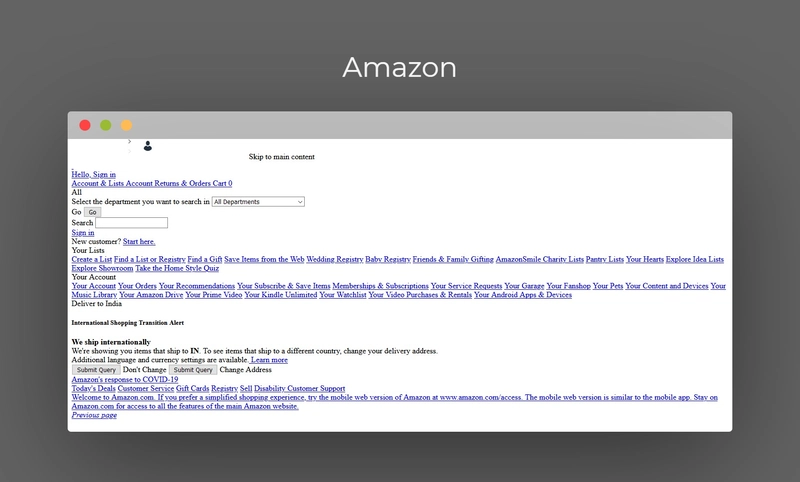
From an SEO perspective, CSS isn't just an aesthetic tool, it's a technical component that shapes both user experience and site performance. Given that Google favors fast-loading sites that offer a better experience, CSS files clearly need to be optimized.
How Does CSS Affect SEO Performance?
1. Site Speed and Core Web Vitals
Site speed is one of the primary areas CSS affects. If you've ever run a site speed tool like PSI or GTmetrix, you've likely noticed that the biggest gains come from optimizing JavaScript and CSS files. These optimizations can be tricky to implement on a long-running, established system, but they tend to offer the largest performance gains available.
So how exactly does CSS affect site speed?
CSS files are among the first resources a browser reads and processes when loading a page. When a user opens a page, the browser downloads and processes the HTML and CSS together before rendering the page visually, and CSS optimization directly shapes how fast that happens.
Render-Blocking Effect: CSS files are typically render-blocking, meaning the browser can't display the page's visual content until the CSS has fully loaded. Unnecessarily large or uncombined CSS files can stretch this out and slow the page down. The example below shows how render-blocking JavaScript files can delay page loading, and CSS files can cause similar delays by holding up rendering until the download finishes.
File Size and Load Time: CSS files with excessive code, missing minification, or unused styles all increase page load time, which directly hurts the Largest Contentful Paint (LCP) Core Web Vitals metric.
Using Critical CSS: Separating and preloading the CSS needed for the visible part of the page (above the fold) lets the site respond visually to the user much faster. Skip this step, and users might see a blank screen or a broken layout the moment they land.
Impact on Mobile Performance: CSS bloat that's tolerable on desktop can turn into a much more serious speed problem on mobile. Users on weak connections may abandon a site entirely before an unoptimized CSS file finishes loading.
2. Crawlability and Indexing
CSS does more than shape visual layout, it also helps search engines understand how a page actually looks. When Googlebot crawls a page, it downloads the CSS files and interprets the style structure alongside the content, which lets it analyze how the page presents itself to users more accurately.
CSS Blocks: If your CSS files are blocked through robots.txt or something similar, Google can't see the page's true appearance, and the search engine ends up treating the page as incomplete or flawed. Blocking CSS access during mobile-friendliness tests specifically can get a site flagged as mobile-unfriendly.
Indexing Issues: Incorrectly loaded or unavailable CSS files can cause a page's content to get indexed incorrectly. If menus or content don't display right, for example, Google may struggle to understand the page's hierarchy, which can reduce how important the search engine perceives your critical content to be.
Tired of reading?
You can also listen to this blog post as a podcast we created with Google NotebookLM on Spotify.
3. Mobile-Friendliness
Given Google's Mobile-First Indexing approach, mobile-friendliness matters more than ever for SEO performance. Websites that load quickly on mobile, stay easy to read, and offer simple interactions improve user satisfaction and support organic performance. Sites that ignore mobile-friendliness, on the other hand, can end up with high bounce rates, short sessions, and lost organic traffic.
Responsive Design: CSS media queries let layouts adapt to different screen sizes. Skip this optimization, and mobile users end up with a cramped, hard-to-read layout built for desktop. Here's what a non-responsive page looks like:
Tap Targets: CSS controls the size and spacing of buttons and links. Making these too small for mobile hurts the user experience and can show up as an error in Google's mobile usability reports.
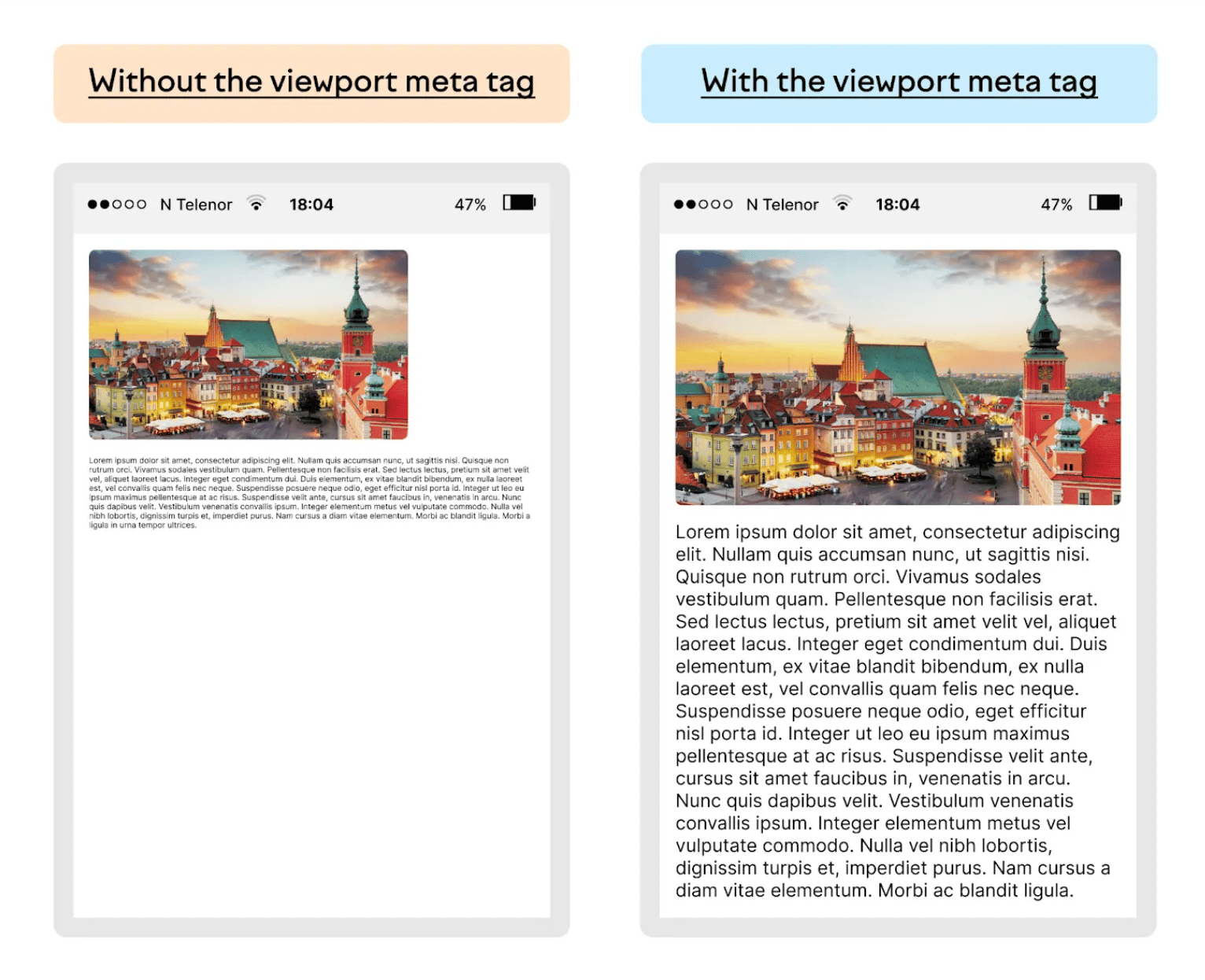
Viewport Settings: The <meta viewport> setting, used alongside CSS, makes sure a page scales correctly on mobile devices. Get the configuration wrong, and the page can appear too small or too large. You can see examples of pages with and without viewport settings below:
4. User Experience (UX)
User experience is another area where CSS has a major impact, and it now plays a central role in Google's ranking signals. Delivering a high-quality experience across every device matters. So how does CSS influence UX?
Readability: Font size, line height, paragraph layout, and color contrast are all determined by CSS. Get these wrong, and users struggle to read your content and leave quickly. For example, a 16px font size with 150% line height reads far more easily than 12px text, and low-contrast combinations, like light gray text on a white background, hurt readability and cut into session duration.
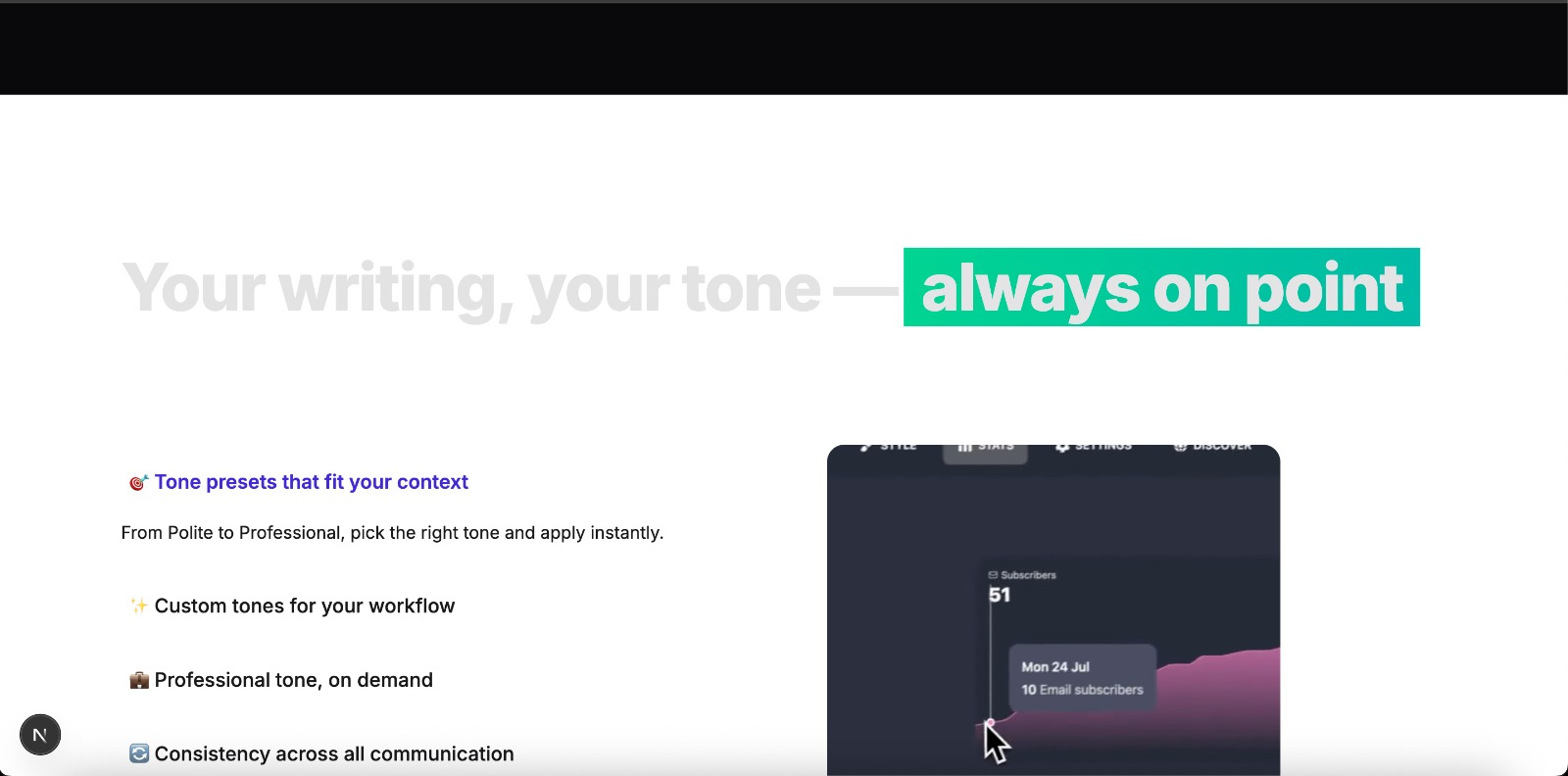
Visual Hierarchy: Visually separating headings, subheadings, lists, and buttons helps users understand the content flow quickly. Using a large font size for h1, medium for h2, and small for h3, for instance, improves readability and clarifies the content's structure. CSS choices like spacing between paragraphs, and how visuals and text align, also affect both UX and SEO performance.
Interactions and Animations: Hover effects, transition animations, and micro-interactions can make a page feel more fluid, but too many animations or heavy CSS effects will slow the site down. It's often better for site speed to keep the design as simple as you can.
Usability: CSS can style button colors, clickable areas, and error messages to improve how users act on a page. Giving buttons a minimum tap target of 44x44px, in line with Google's mobile usability criteria, or highlighting form errors with a clear CSS style, can both lift conversion rates.
How to Optimize CSS
There are plenty of methods for optimizing CSS, though putting them into practice isn't always easy. Below is a list of the most common CSS optimization techniques.
1. Minify Your CSS
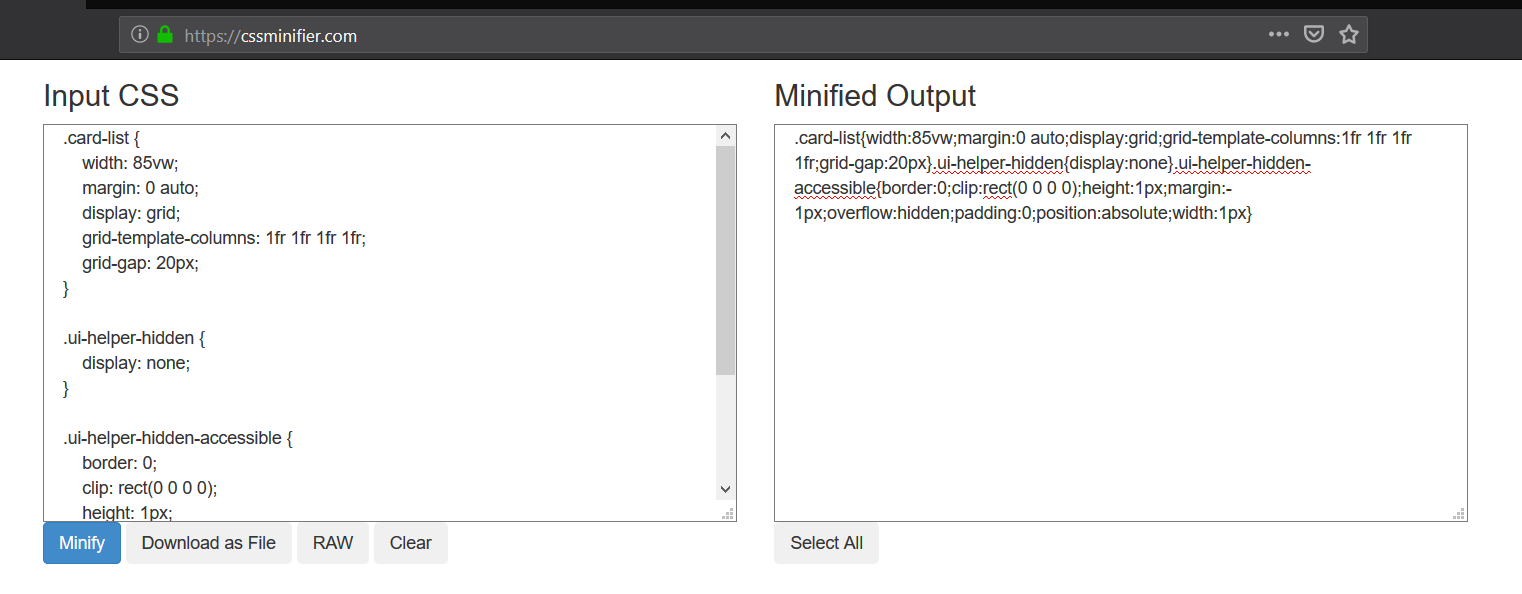
The first method is minifying your CSS files. Minification strips out unnecessary spaces, line breaks, comments, and other characters that only exist for human readability, which shrinks the file size and cuts the time it takes a browser to download it. Smaller files noticeably improve the experience, especially on mobile and slower connections.
You'll find an example of a minified CSS file below. Free online tools can handle this process for you as well.
2. Remove Unused CSS Code
Unused CSS code directly affects page load time. Over time, unused rules build up from design changes, plugin usage, or framework integrations, and that extra code increases load time and slows down rendering. Keeping only the code you actually need matters a lot for performance.
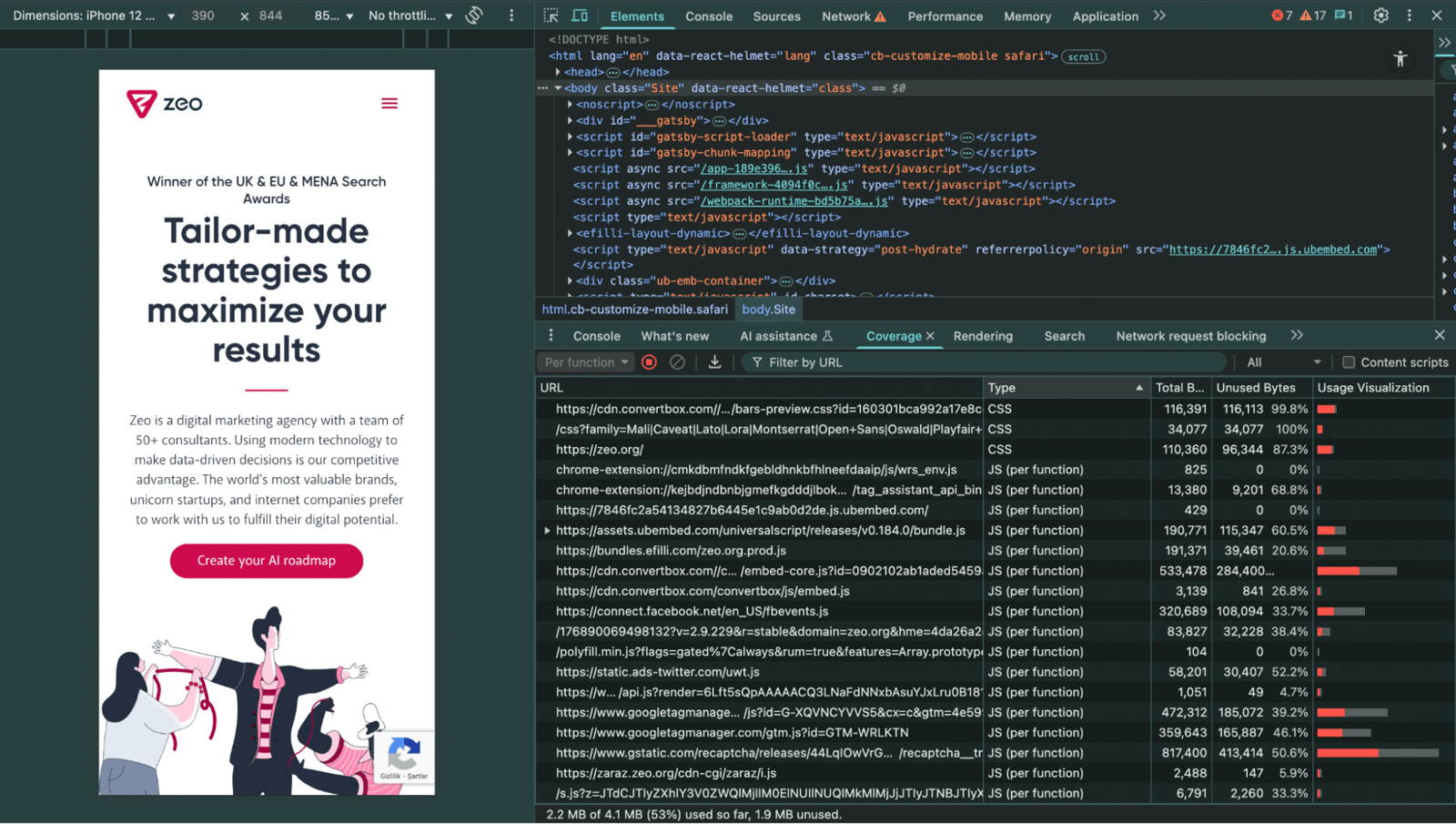
You can use the Chrome DevTools Coverage tab to spot unused CSS on a per-page basis. Before removing anything, make sure it isn't in use on other pages of your site.
3. Implement Critical CSS
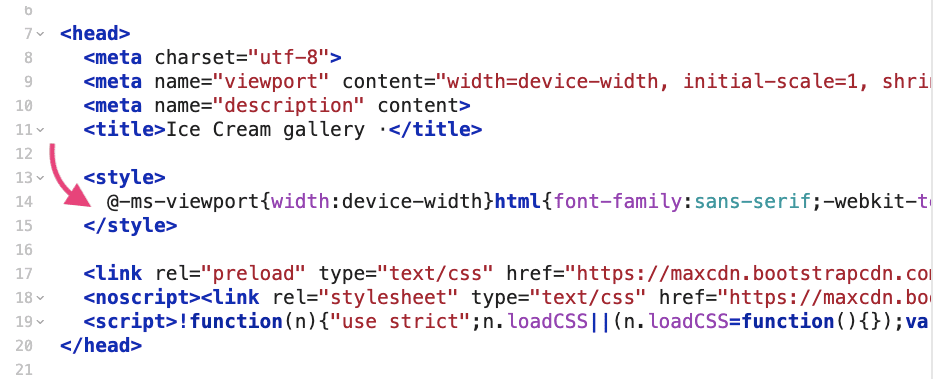
Critical CSS means isolating and prioritizing the styles needed for the initial, visible part of a page (above the fold), so that content loads quickly while the rest of the page keeps loading in the background. Skip this, and the browser can't display anything until every CSS file finishes downloading, which stretches out load time and hurts the Largest Contentful Paint (LCP) Core Web Vitals metric.
In the example below, you can see the critical CSS added directly to the top of the HTML.
4. Combine CSS Files
Having lots of small CSS files increases the number of HTTP requests a browser has to make, and that adds up. A separate request for each file hurts page load time, especially on mobile and slower connections. Combining CSS files cuts down on the number of requests, since the browser can download and process a single larger file more quickly.
That said, one giant CSS file isn't always the right call either. If different pages have different CSS needs, it can be more efficient to keep critical styles separate from page-specific ones. The best approach usually consolidates commonly used rules into a single file while loading page-specific styles separately.
5. Defer Non-Critical CSS (Preload & Media Attribute)
By default, CSS files are render-blocking, so the browser can't show the page's visual output until they've loaded. A few different methods let you defer non-critical CSS instead.
Preload + Onload Method: the <link rel="preload"> tag preloads the CSS file, and the onload attribute then applies it as a style. That way, the CSS loads without blocking the page's initial rendering.

Using the Media Attribute: the CSS file initially loads with a different media value, then switches to all once the page finishes loading. This lets you defer non-critical CSS as well.

Use Cases:
- These methods suit CSS files that aren't visible above the fold (footers, lower components, and so on).
- Styles that aren't essential to a user's first view can be deferred.
These approaches improve First Contentful Paint (FCP) and Time to Interactive (TTI) metrics, though you need to be careful, since getting the implementation wrong can lead to a Flash of Unstyled Content (FOUC).
6. Use a CDN
A CDN (Content Delivery Network) distributes CSS files across servers in different geographic locations. When a user visits your site, their browser pulls the CSS file from the nearest server, shortening its load time and improving overall performance.
Using a CDN matters a lot for sites with a global audience. A user in Turkey, for example, would pull files from a server in Istanbul or Frankfurt, while a user in the US would pull the same files from a server in New York or Los Angeles. That structure cuts latency and helps CSS files process faster.
7. Leverage Browser Caching
Browser caching stores CSS files on the user's device, so pages load much faster on repeat visits. On the first visit, the CSS file downloads from the server and gets stored in the browser's cache. When the user comes back, the browser reads from that cached copy instead of downloading the file again.
This can noticeably boost performance, especially for large-scale sites. On an e-commerce site, for example, the same CSS files don't get downloaded again and again as a user browses different product pages, the browser just pulls them from cache, which speeds up the page and cuts down on server requests.
HTTP headers (Cache-Control, Expires, and similar) let you define long-term caching for CSS files, so the browser keeps using the cached version as long as the files haven't changed. This has a direct, positive effect on the First Contentful Paint (FCP) Core Web Vitals metric.
8. Use CSS Sprites
The CSS sprite technique combines multiple small images, icons, buttons, background images, into a single, larger image file. With this method, the browser only downloads one image, and the relevant parts get displayed using CSS coordinates. Sprites work especially well for menu icons, social media icons, or other small UI elements, and they can genuinely help site speed. The example below shows how all the flags get combined into a single image, with a specific area defined for each flag through CSS.
CSS's impact on SEO is too significant to ignore. Unoptimized CSS files can hurt performance across many critical areas, from site speed and Core Web Vitals to mobile-friendliness and user experience. CSS files shouldn't be treated as merely visual design tools, they're elements that need SEO-conscious optimization too.


