


XPath, generally associated with crawling tools such as Screaming Frog, is a very useful query language for web scraping. It offers easier data extraction than programming languages such as Python and Javascript, and lets users pull many kinds of information from a page in seconds. In this article, I'll give an overview of XPath, walk through some XPath commands you can use during analysis, and show how you can use XPaths you've written through crawling tools such as Screaming Frog.
I use the Chrome XPath Helper extension to test the basic XPath commands. You can use it too, to easily check whether the XPaths you've written are working. If you want to conduct a website-wide test, you can follow the steps outlined in this article under the title "How to Configure XPath Settings in Screaming Frog" to adjust XPath settings for Screaming Frog.
- What Is XPath?
- What Are Different Types of XPath?
- What Are The Basic Concepts Related to XPath?
- Basic XPath Commands
- How To Configure XPath Settings In Screaming Frog
What Is XPath?
XPath is an XML manual that allows users to easily access the elements and information in an XML document. We can also say that XPath is a shortcut that helps users to navigate files created with a complex language such as XML. XPath can provide users with all the data they are looking for not only in XML but also in HTML.
XPath, which is among the basic XML concepts, can also be used in many programming languages such as Javascript, Java, and Python.
What Are Different Types of XPath?
Absolute XPath:
It is the direct way to find an item; however, the downside of Absolute XPath is that if any changes are made to the item's path, the XPath will not work successfully. By using Devtools, you can find the path to any item on the page with a copy full XPath.
Example:
/html/body/div[3] is an example of an absolute XPath.
Relative XPath:
Relative XPath is an XPath method by which you can search for the item within the DOM and it starts with //.
Relative XPath is usually used to test an item and check for any changes in the website architecture. You can reach the relative XPath of an item on the page with a copy XPath via Devtools.
Example:
//*[@id="123"]/div is an example of a relative XPath.
What Are the Basic Concepts Related to XPath?
Node:
XML DOM (Document Object Model) is an in-memory data representation that enables users to read and modify an XML document, and each part in an XML document is called a node.
An example XML file is presented below.
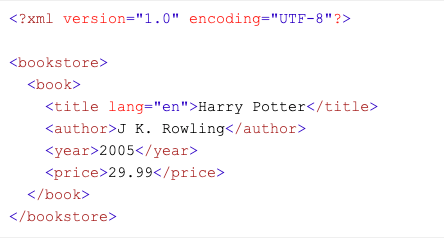
Each of the elements of this file, namely book, title, author, year, and price, is called a node. The important thing to take into account here is the hierarchy within the DOM. While <bookstore> is labeled as the root node, <book> is labeled as the child node, and the texts within the child node are called text nodes.
Attributes:
The properties of the nodes within an XML document such as class, id, href, and lang are called attributes. The lang tag in the example above is an attribute.
Parent:
The top-level element in an XML document is called the parent element. In the example above, <bookstore> is a parent element.
Child:
Child elements are the same-level elements within the parent elements in an XML document. In the example above, the element <title> is the child element of <book>.
Sibling:
The same-depth elements under the same parent element are called sibling elements. The <title>, <author>, <year> and <price> elements in the example above are sibling elements.
The basic XPath syntax is simply as follows:
XPath = /parent_tag/child_tag[@attribute=’value’][index]
Basic XPath Commands
Header Tags
Crawlers usually only give information about the h1 and h2 header tags. With //hx, you can find the other header tags on the page.
For example, to find the h3 header tag → //h3
To find the number of h3 tags on the page → count(h3)
To find the first 10 h3 tags on the page → /descendant::h3[position() >= 0 and position() <= 10]
To determine the length of the h3 tags on the page → string-length_(//h3)_
Hreflang Tags
To find the hreflang tags on the page → //*[@hreflang]/@hreflang
Structured Data
To find the structured data on the page → //*[@itemtype]/@itemtype
Social Media Tags
You can use the XPaths below to find social media tags such as Open Graph and Twitter card on a page.
//meta[starts-with(@property, 'og:title')]/@content
//meta[starts-with(@property, 'og:description')]/@content
//meta[starts-with(@property, 'og:type')]/@content
//meta[starts-with(@property, 'og:site_name')]/@content
//meta[starts-with(@property, 'og:image')]/@content
//meta[starts-with(@property, 'og:url')]/@content
//meta[starts-with(@property, 'fb:page_id')]/@content
//meta[starts-with(@property, 'fb:admins')]/@content
//meta[starts-with(@property, 'twitter:title')]/@content
//meta[starts-with(@property, 'twitter:description')]/@content
//meta[starts-with(@property, 'twitter:account_id')]/@content
//meta[starts-with(@property, 'twitter:card')]/@content
//meta[starts-with(@property, 'twitter:image:src')]/@content
//meta[starts-with(@property, 'twitter:creator')]/@content
E-Mail Addresses
To find the e-mail addresses on the page → //a[starts-with(@href, 'mailto')]
iFrame
To find the iFrame tags on the page → //iframe/@src
To find the YouTube videos on the page → //iframe[contains(@src ,'www.youtube.com/embed/')]
For example, to find the iFrame tags other than the Google Tag Manager →
//iframe[not(contains(@src, 'https://www.googletagmanager.com/'))]/@src
AMP Pages
To find AMP-served pages → //head/link[@rel='amphtml']/@href
Meta Viewport Tag
To find the meta viewport tags → //meta[@name='viewport']/@content
Count
You can reach the number of search results by typing "count" at the beginning of your XPath.
count(//h3) → Gives the number of h3 on the page.
Attribute Commands
//*[@id="example"] → Finds elements located on the page whose ID is "example".
count(//*[@id="example"]) → Gives the number of elements on the page whose ID is "example".
//*[@class="example"] → Finds all elements on the page whose class is "example".
count(//*[@class="example"]) → Gives the number of elements on the page whose class is "example".
AND
If you want to set two criteria in a single line in XPath, you can use the "|" symbol.
Example:
//book/title | //book/price → Finds all price and title elements under the book element.
Other Useful Commands
To find which URLs on the page are linked via anchor texts that contain the word "SEO" → //a[contains(.,'SEO')]/@href
To find the anchor texts on the page that contain the word "SEO" → //a[contains(.,'SEO')]
NOTE: XPath is case-sensitive, so if you search for "SEO" on the page, you won't find anchor texts containing the lowercase word "seo".
To find the anchor texts on the page that are linked to URLs that contain the word "seo" → //a[contains(@href, 'seo')]
To find the links that contain the word "seo" → //a[contains(@href, 'seo')]@href
The above XPath is case-sensitive. To find all links on the page that contain the word "seo" without case sensitivity → //a[contains(translate(., 'ABCDEFGHIJKLMNOPQRSTUVWXYZ', 'abcdefghijklmnopqrstuvwxyz'),'seo')]/@href
To find nofollow links on the page → //a[@rel="nofollow"]
How To Configure XPath Settings In Screaming Frog
You can easily examine the XPaths you wrote on the website by using the custom extraction field of Screaming Frog. You can follow the steps outlined below to do so.
Select Custom → Extraction from the Configuration area.
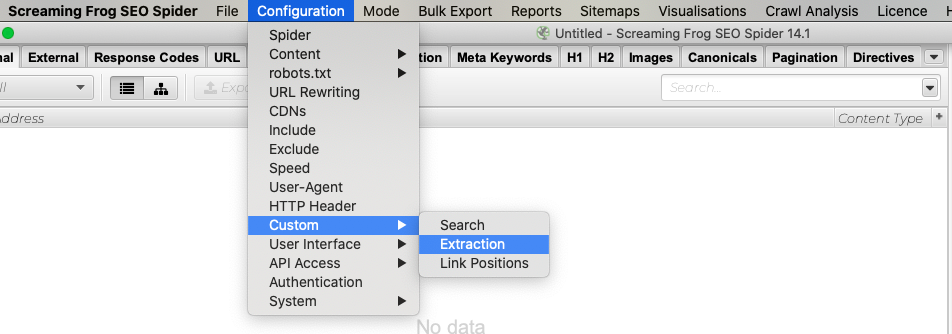
Next, enter a text that describes the XPath you wrote in the Extraction 1 field. (For example, if you are writing an XPath on the page that indicates whether HTTP pages are linked or not, you can edit this field as "HTTP Links".)
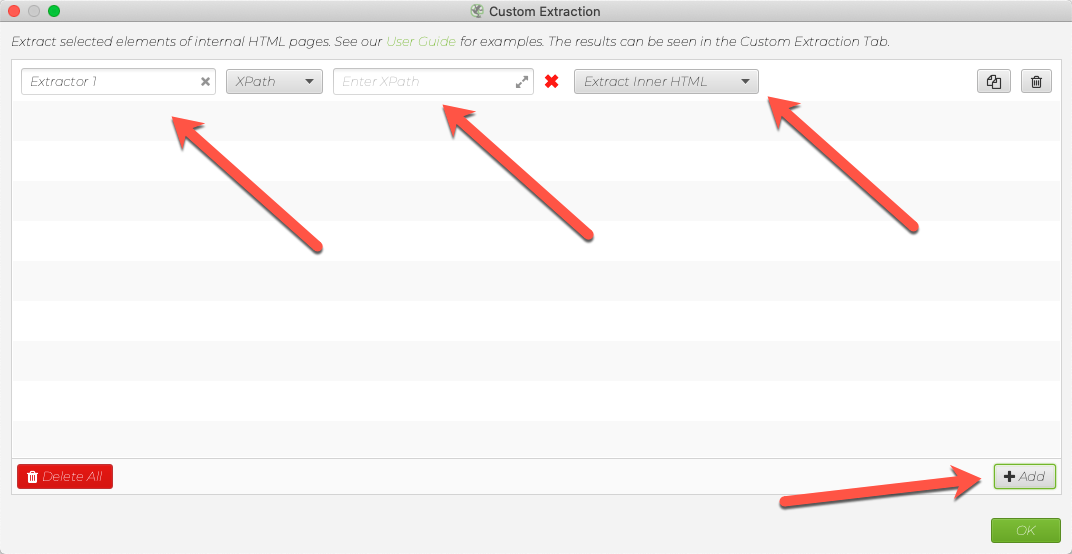
Enter the XPath you wrote in the Enter XPath field. To test more than one XPath, click the Add button at the bottom right and enter other XPaths.
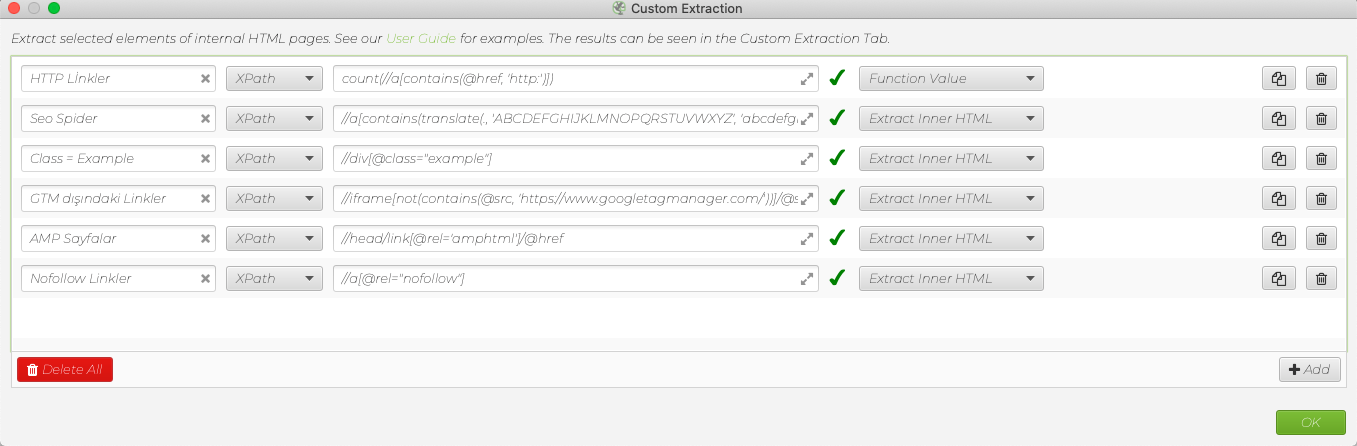
If the default Extract Inner HTML is from the written part and it will contain a function such as the XPath count, do not forget to choose Function Value.
For example, as a result of count(//*[@class="example"]), you will find the number of elements whose classes are "example". Therefore, you should enter this XPath as Function Value in Screaming Frog.
An Example of How to Use It:
In conclusion;
If you want to perform a detailed SEO analysis, or in other words, if you want to do more precise work, XPath is a very useful tool. Compared to other languages, XPath is easier to learn and write, and you can use it however your purpose requires, to dig deeper into your technical or content analysis. As I mentioned above, instead of doing a per-page review, you can use a crawler such as Screaming Frog to conduct a website-wide analysis.
Sources:
https://www.screamingfrog.co.uk/web-scraping/
https://www.screamingfrog.co.uk/how-to-scrape-google-search-features-using-xpath/
https://www.seerinteractive.com/blog/xpath-cheat-sheet-for-seo/
https://www.w3schools.com/xml/xpath_intro.asp


