


Ahrefs is one of the best-known SEO tools in the industry. It gives website owners access to a broad range of data for analyzing SEO performance. In this comprehensive guide, we explain how to use Ahrefs in detail and share our recommendations for getting the most from the tool.
About Ahrefs
Ahrefs began as a tool for managing backlinks and analyzing internal and external links. Over the years, it added modules for keyword analysis, site audits, competitor analysis, and more. Based on these features, we may say that Ahrefs provides several ways to analyze how a website can improve its position in search results.
Areas of Usage
You can use Ahrefs to analyze backlinks, research keywords, track page rankings, and compare SEO visibility scores.
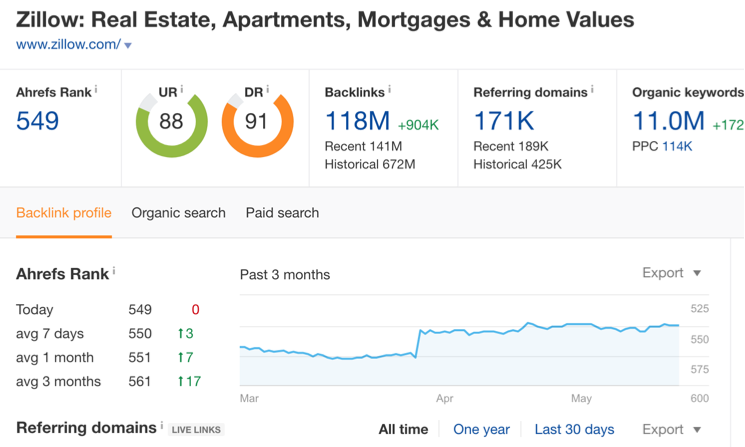
Ahrefs shows your website's organic traffic metrics, page rankings in search results, and organic traffic by country.
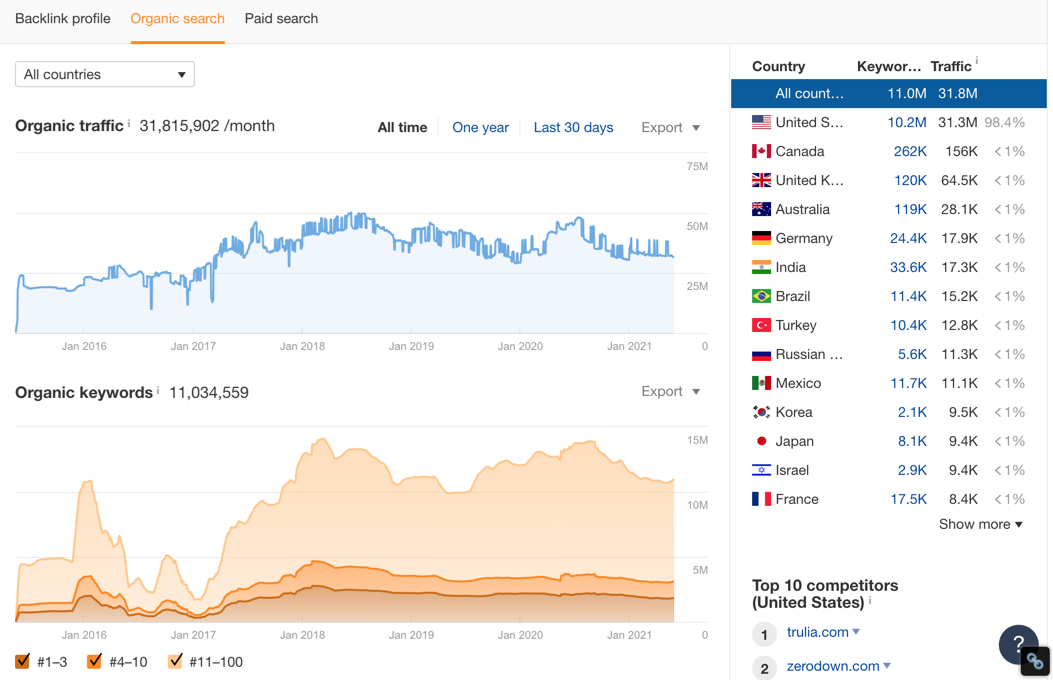
You can use the Competing Domains feature to identify potential competitors in the SERP.
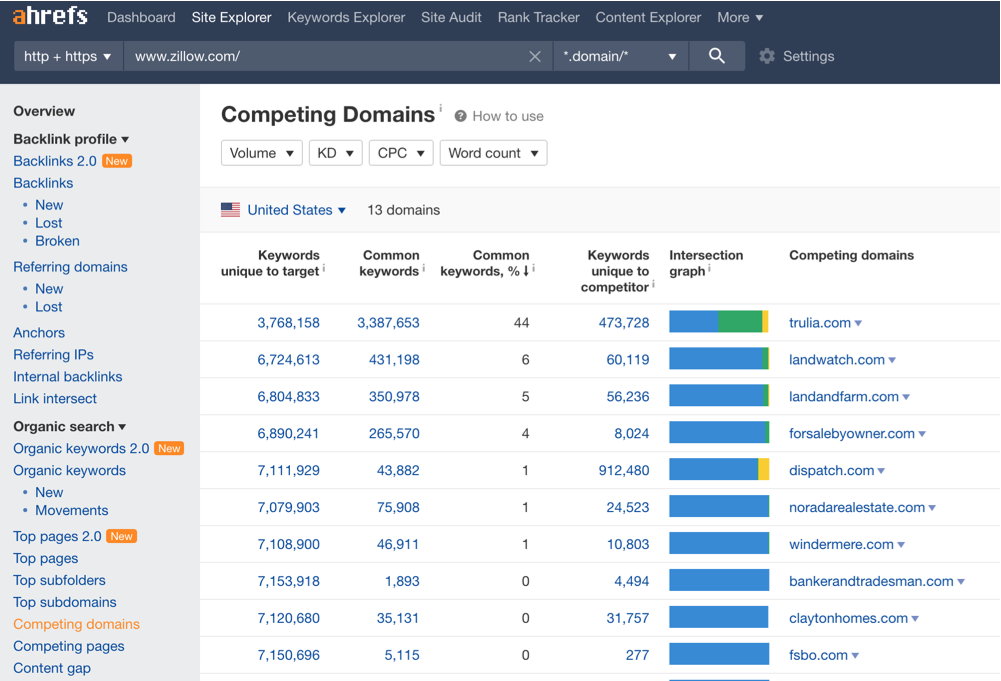
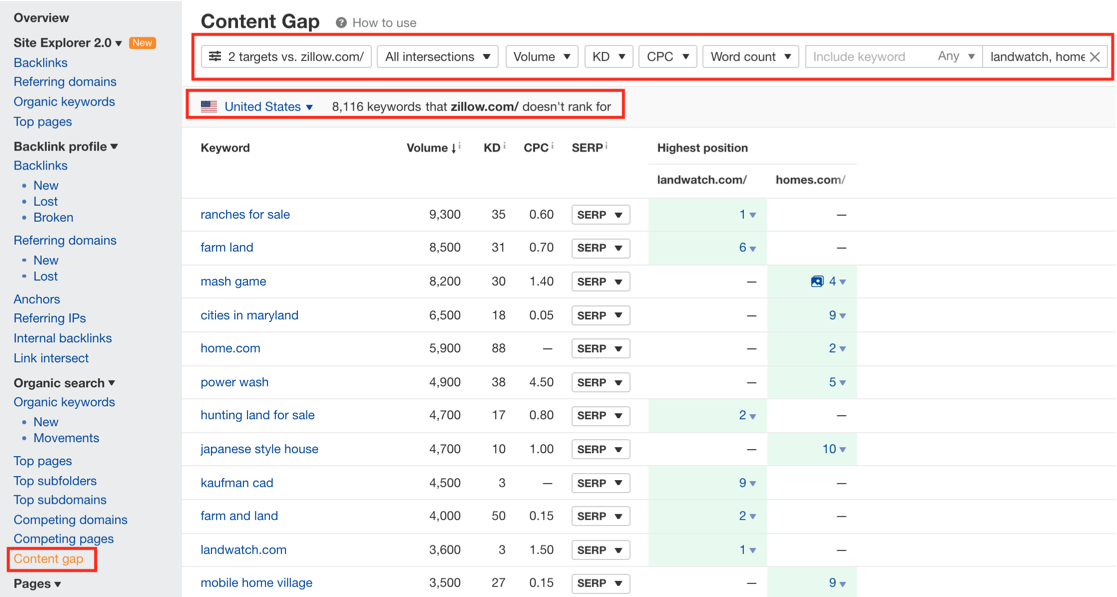
Ahrefs can also help you find keyword opportunities through competitor analysis. The Content Gap feature compares your website with competitor domains and identifies keywords they rank for but you do not. You can then optimize your content for those keywords to attract more organic traffic.
You can use Ahrefs to research keywords across platforms including Google, YouTube, and Amazon.
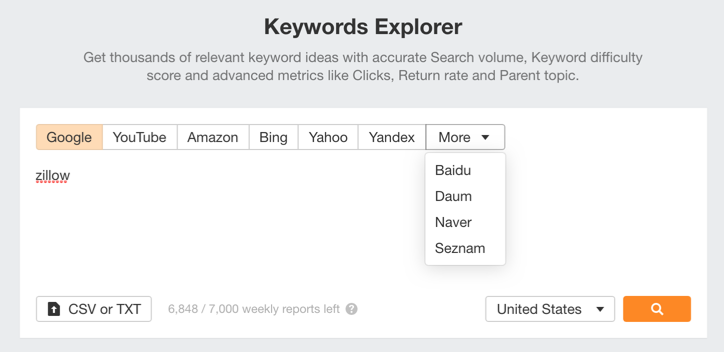
Although Ahrefs started as a backlink analysis tool, it has continued to add features and improve its keyword volume and backlink data. These developments have led more marketers to use Ahrefs as a practical SEO tool.
Site Explorer - Module 2.0
In June 2021, Ahrefs added the Site Explorer 2.0 module to the overview on the left and combined it with additional features from other main modules.
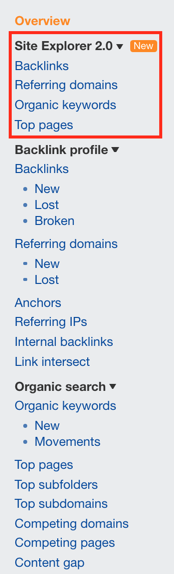
We have used screenshots from both before and after that update in this guide.
Pricing
Ahrefs offers several packages at different prices. Each package includes different features and limits for tools such as Site Audit and Rank Tracker, so monthly and annual fees vary. You can choose monthly or annual billing. The screenshot below shows Ahrefs' monthly pricing at the time.
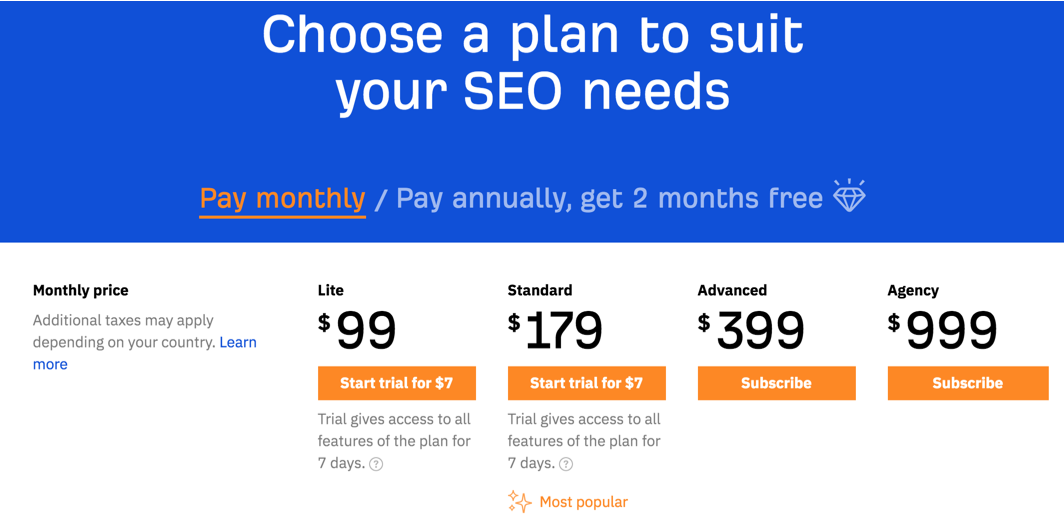
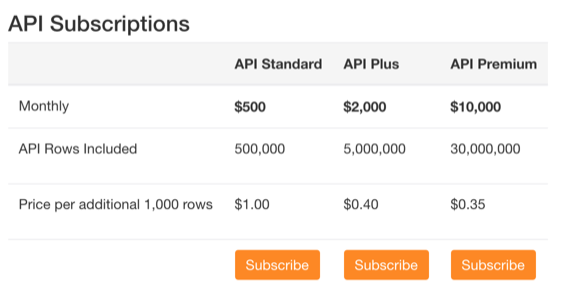
Ahrefs did not offer a free trial at the time, but users could access a 7-day trial for $7. Ahrefs also offered API support, allowing users to work with data from its database. API fees varied by package, and the monthly prices at the time were as follows.
Terms and Metrics in Ahrefs URL Analysis
One of Ahrefs' most important features is the range of metrics it provides. We can analyze data at the domain, subdomain, URL, or path level. The screenshot below shows a domain overview and several Site Explorer metrics.

Ahrefs Rank (AR): Ahrefs calculates this ranking from the inbound links and backlink profile of the relevant domain. The strongest AR value is 1, so an increase in the number indicates a negative change.
URL Rating (UR): This metric rates a queried URL from 0-100 based on the backlink value of pages linking to it. This value is between 0-100, with 100 as the highest value.
Domain Rating (DR): This metric rates a domain from 0-100 based on the backlink value of links pointing to its main domain. It is evaluated in the same way as UR. Comparing UR and DR can provide useful context when assessing your site.
Backlinks: This metric shows the number of URLs linking to the relevant domain or page.
Referring Domains: This metric shows the number of domains linking to the relevant domain or page. Ideally, these referring domains should be relevant, eligible sites that provide dofollow links.
Organic Keywords: This metric shows how many monitored keywords the relevant domain ranks for. At a more detailed level, you can review data such as the keyword, search volume, difficulty, and related URL.
Organic Traffic: This estimate shows how much traffic the relevant domain or page may receive based on the search volumes and positions of its ranking keywords.
Traffic Value: This metric estimates what the organic traffic would cost through PPC if you ran search ads for the keywords on which the domain or page ranks organically. It can help you assess the value of those ranking keywords.
These metrics appear in the overview panel under Site Explorer. The overview groups site data into three panels: Backlink Profile, Organic Search, and Paid Search. You can choose the panel that contains the information you need.
Backlink Profile
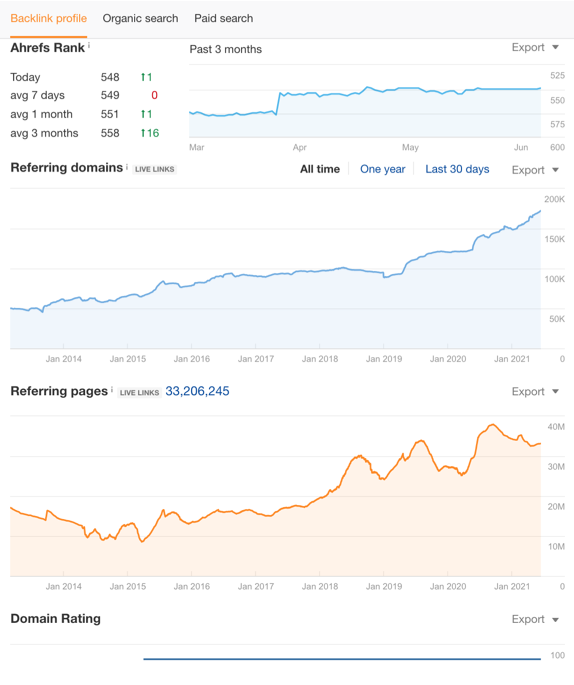
The Backlink Profile panel presents backlink and domain data for a domain, subdomain, URL, or path, including graphical views. You can view referring domain and page data across periods such as "all times", "last year", and "last 30 days" to monitor changes in your website's link profile. You can also export the data in csv, png, and pdf formats.
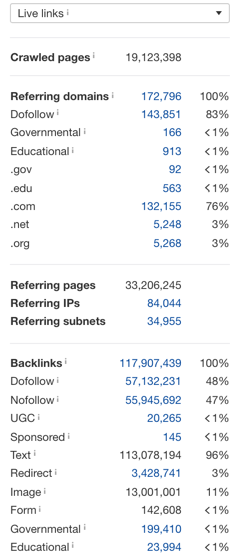
The panel groups referring domains by type and shows both their number and percentage share. We can see links categorized as dofollow, nofollow, sponsored, and other types, with follow and nofollow percentages particularly prominent.
Inbound links marked ‘dofollow’ are interpreted by Google as "I trust this site; I find what this site does is correct and what it offers is useful". You can observe the positive effect of meaningful links under this structure, inbound to your site.
Nofollow links, on the other hand, are interpreted by Google as "I am giving a link to this site, but I am not responsible for any mistakes, I cannot guarantee", I don't trust this site but I provide a link as a reference. The links under this structure do not have any effect on your site's backlink profile. They are just links given from these sites to direct readers to your site.
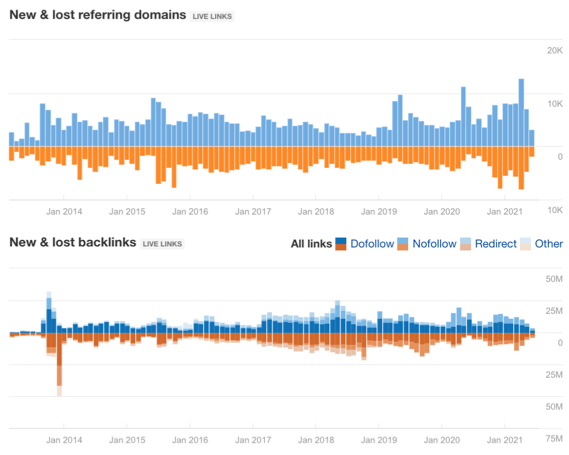
Another Backlink Profile graph groups the domains and URLs linking to the site as gained or lost. You can also view these links by the link types with the highest percentages.
Organic Search
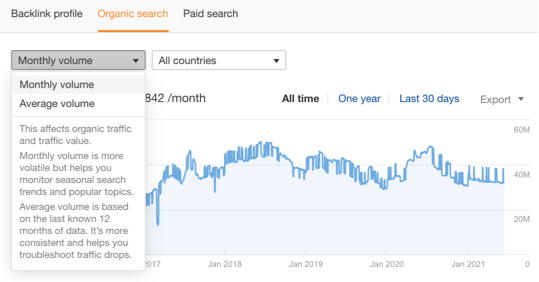
The Organic Search panel presents organic traffic, keywords, traffic value, PPC data, the top 5 keywords and pages, organic traffic by country, and the top 10 competitors in graphical form. The panel also supports the overview and filtering features available elsewhere in the Backlink Profile structure.
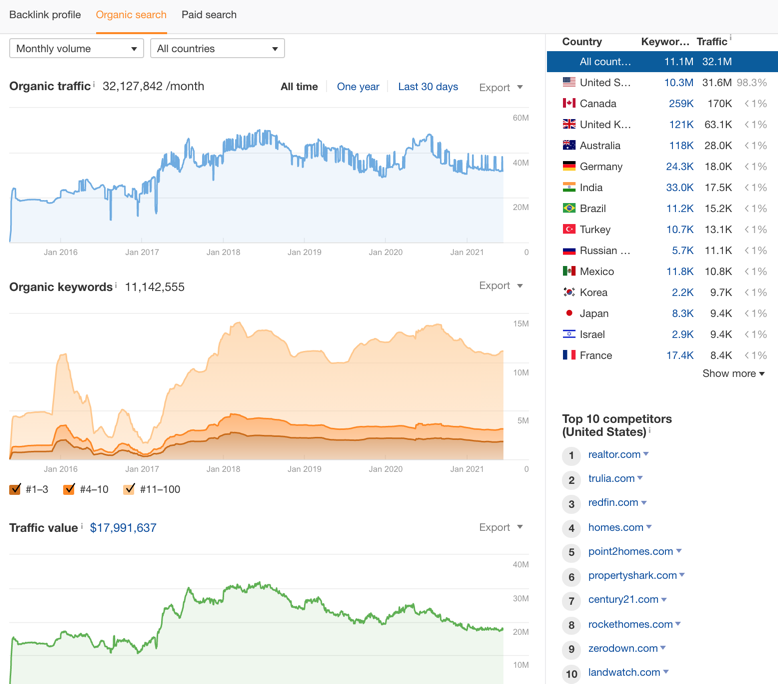
You can select monthly or average search volume metrics and break them down by country.
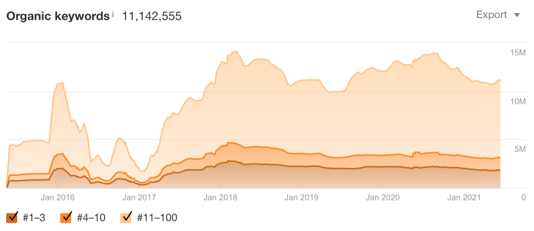
The Organic Keywords graph groups ranking pages by position. Select or clear the boxes below the graph to view pages ranking between 1-3, 4-10, and/or 11-100. You can also hover over the graph to see ranking data from different dates.
Paid Search
The Paid Search panel includes many of the features found in Organic Search. In particular, it shows which keywords competitors use for PPC and which keywords and pages receive traffic.
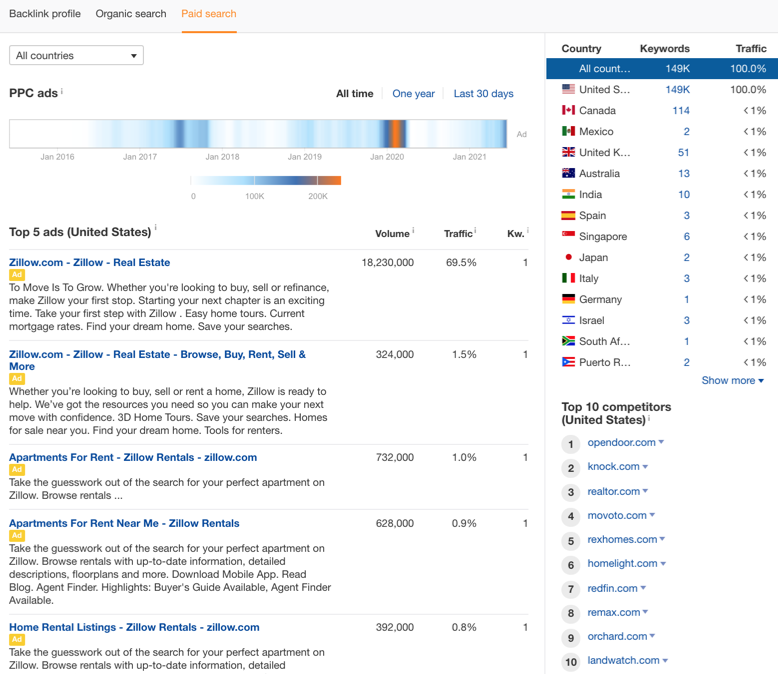
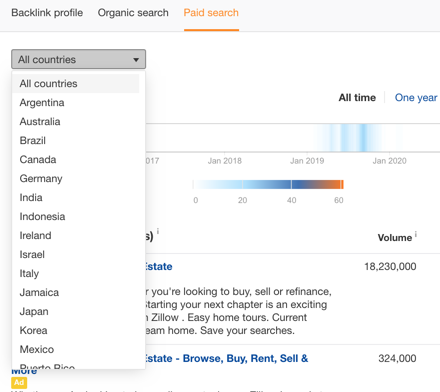
You can filter by country to examine how many keywords the relevant domain or URL ranks for in paid search.
Backlink Analysis
As we mentioned earlier, backlink analysis was Ahrefs' main feature when it launched. Ahrefs remains one of the leading tools for this work. You can use its Backlink Analysis features to assess links pointing to your site and your competitors' sites, then use those findings to shape your backlink strategy.
Backlink Profile
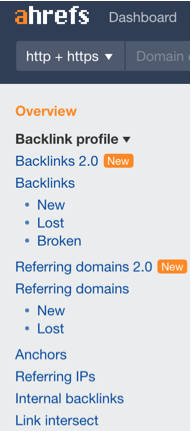
We covered the Backlink Profile dashboard above. To explore the data in more detail, enter a domain, subdomain, URL, or path in Ahrefs' Site Explorer module. The left panel will then display several modules under Backlink Profile.
Gained and Lost Links
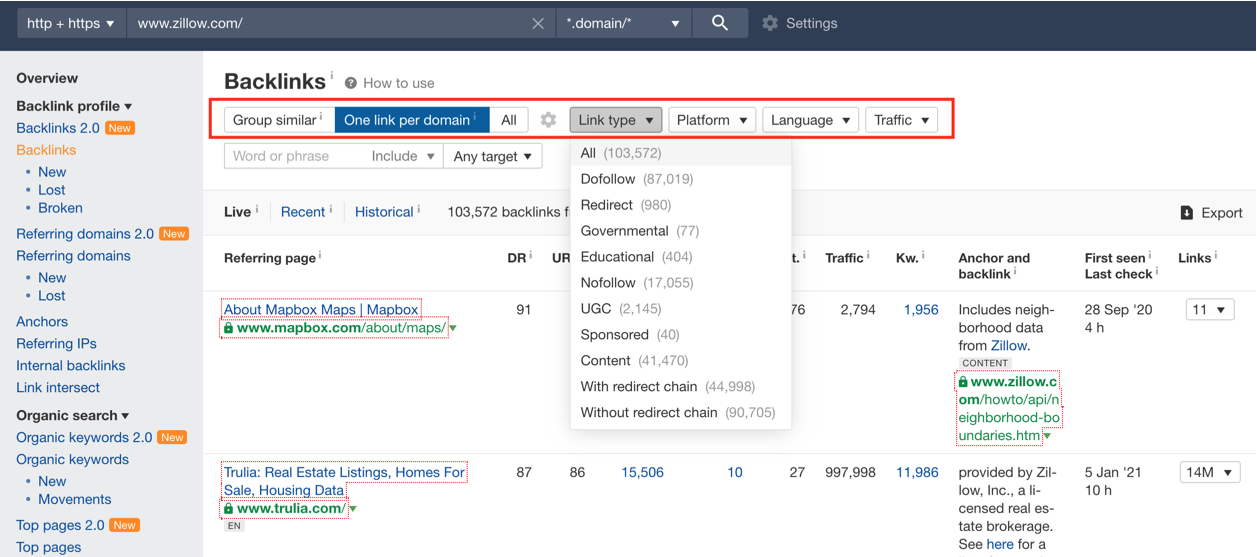
You can apply several filters when reviewing backlink data for a URL. We recommend selecting one link per domain so the report shows only one backlink from each domain, then choosing the link type you want to analyze.
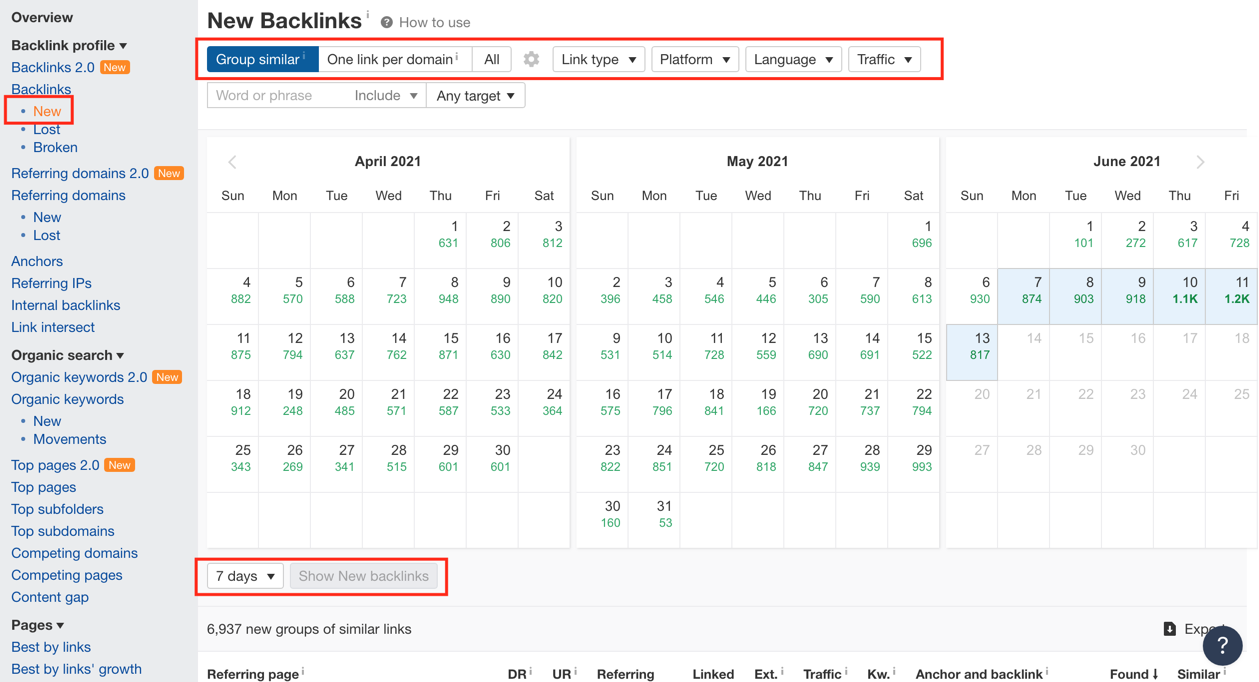
To review inbound links from a specific period, select gained or lost links. For example, you can limit new inbound links to data from the previous week. Filters for grouped URLs, referred pages, and link type can help you produce a cleaner report.
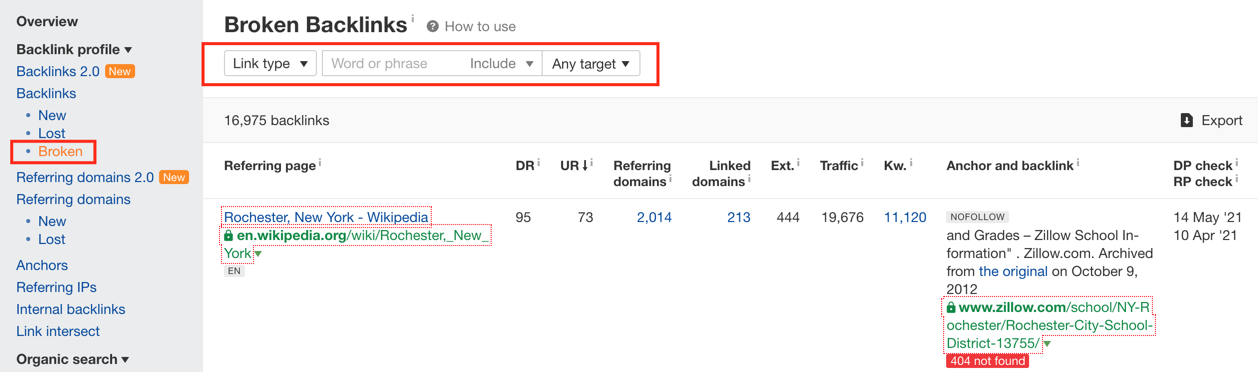
Ahrefs also identifies links pointing to your site that return a 404 response code and are broken.
Ahrefs updated its backlink module to provide users with more data. The screenshot below shows the updated structure.
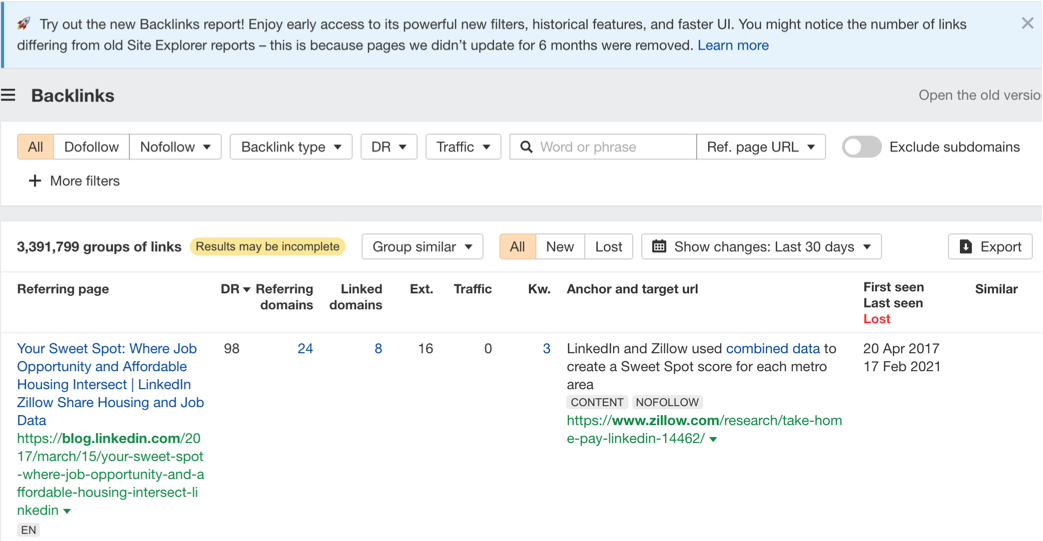
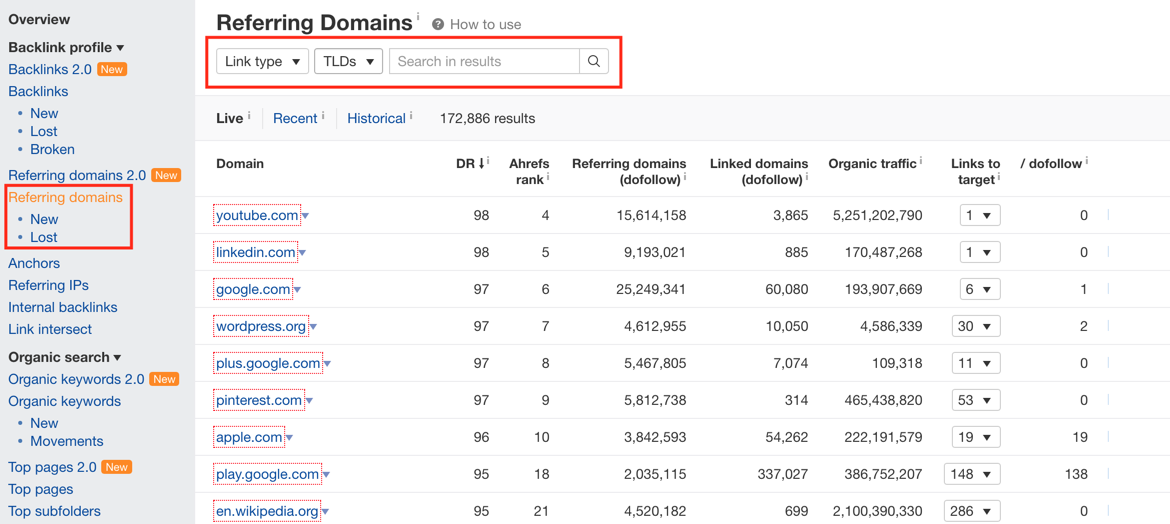
The Referring Domains feature provides data about the domains behind inbound and lost links. You can filter by link type and extension to review current domain information.
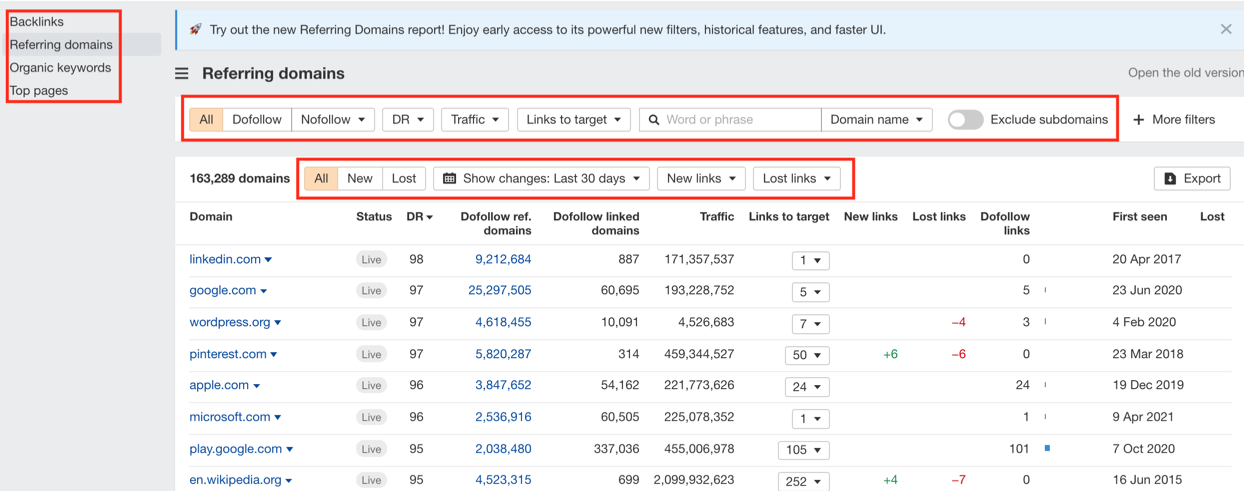
You can also access data about domains that refer to the website through organic search results. Ahrefs provides additional modules for more detailed analysis.
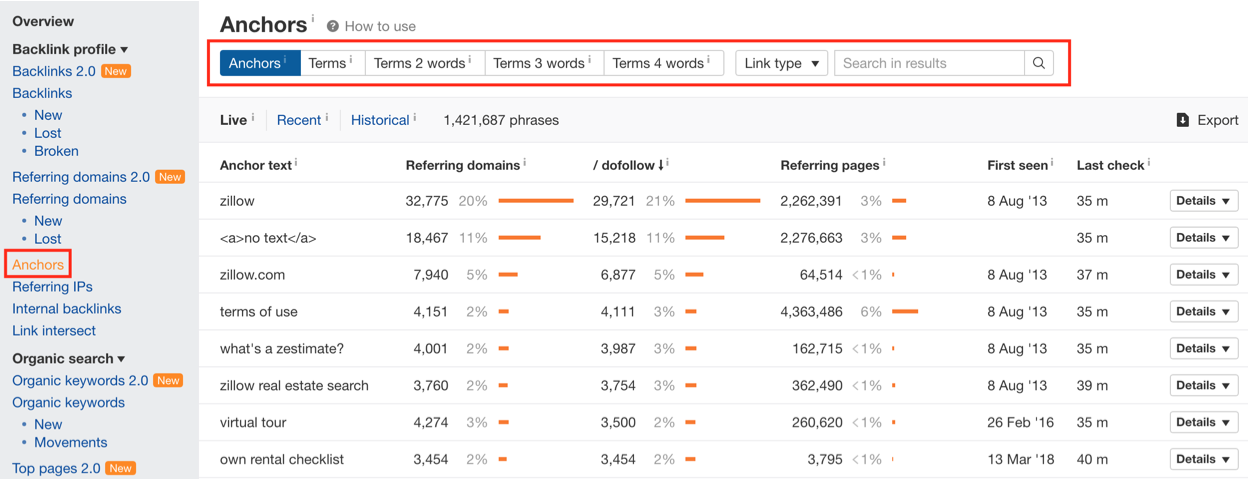
The Anchors module shows the words used in links pointing to the site, also known as link text.
The Internal Backlinks module shows pages within the same domain that link to a specific page. For example, it lists links from a service page to your blog pages.
Backlink Opportunities with Link Intersect
The Link Intersect tab lets you compare links pointing to your website with links pointing to competing websites. Add the domains of competitors in your sector to find domains that link to them but not to you. Ahrefs also provides additional options within the Link Intersect module.
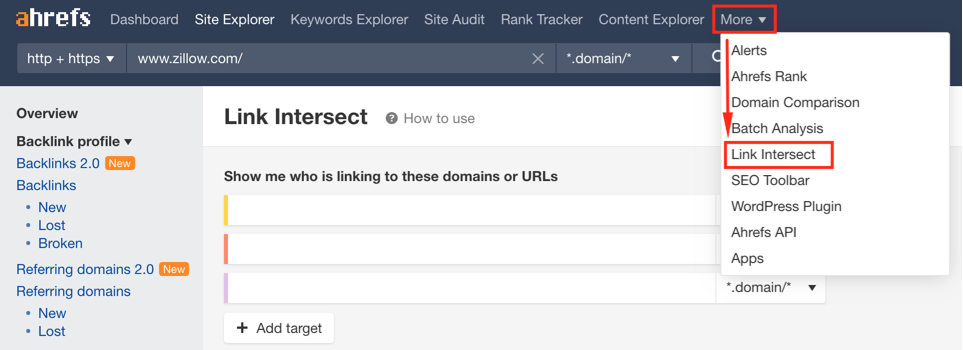
After opening the module, add the domain information for your competitors.
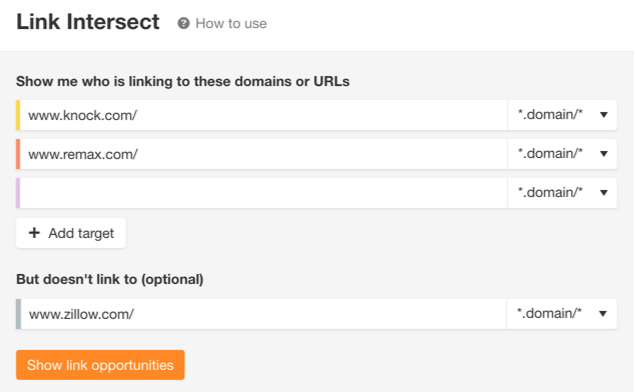
Ahrefs then lists websites that link to your competitors but not to your site. Among sites that link to all your competitors, you can look for strong, relevant websites that may also be suitable sources of links to your domain.
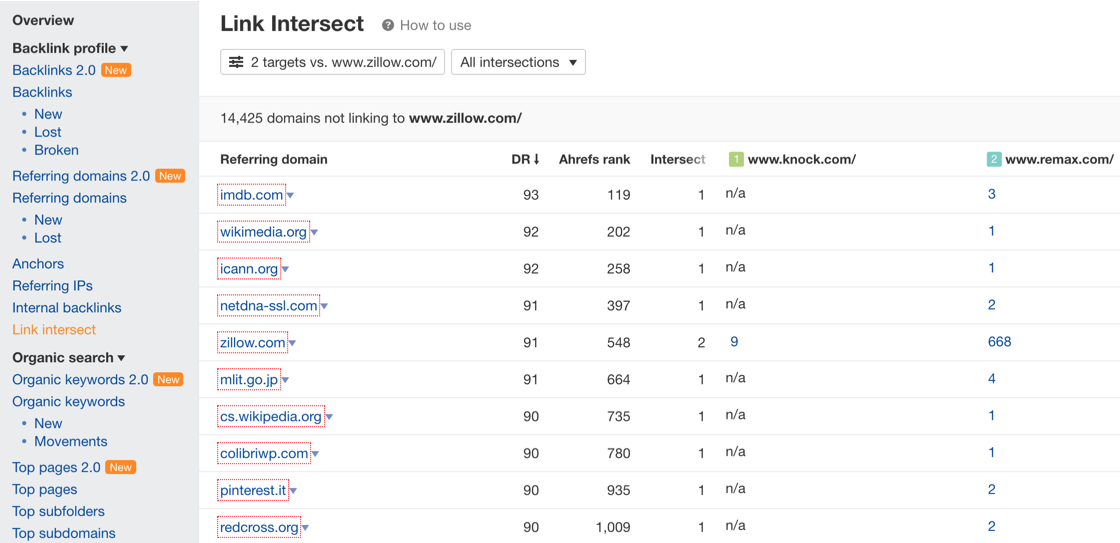
This competitor analysis can reveal backlink opportunities. Review the listed websites carefully and identify relevant sites that are missing from your link strategy.
Comparison of Domains
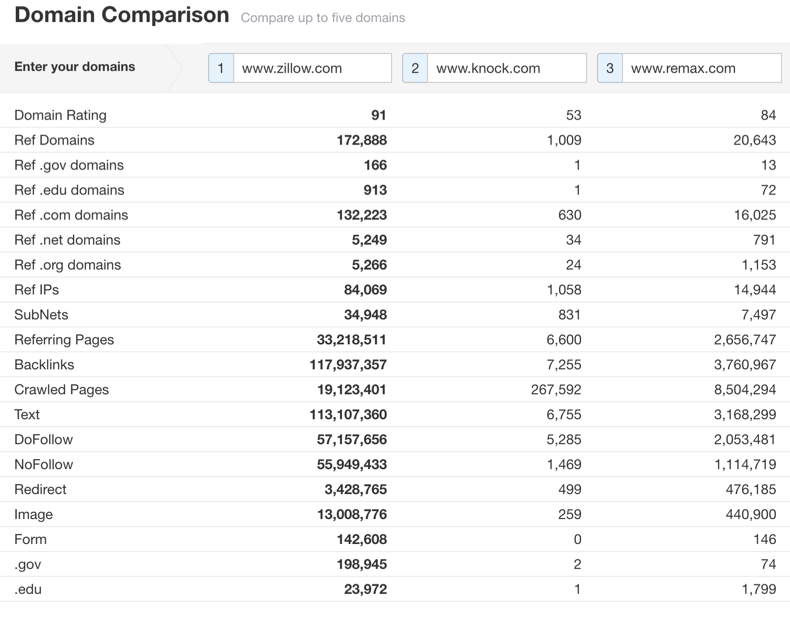
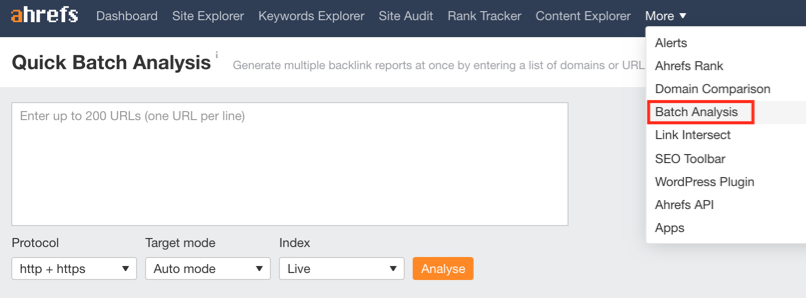
The Domain Comparison module lets you compare the metrics above for your website and its competitors. To open it, select the compare domain button from the "more" drop-down menu.
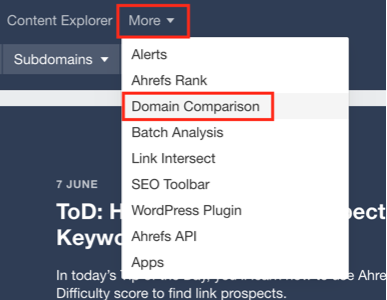
Enter your website and competitor domains in the window that appears to compare them across several metrics.
Best Links
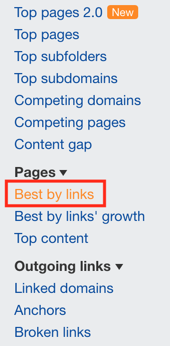
You can also rank the pages on your site by the inbound links they receive. Use the module for top pages by inbound links in the left menu.
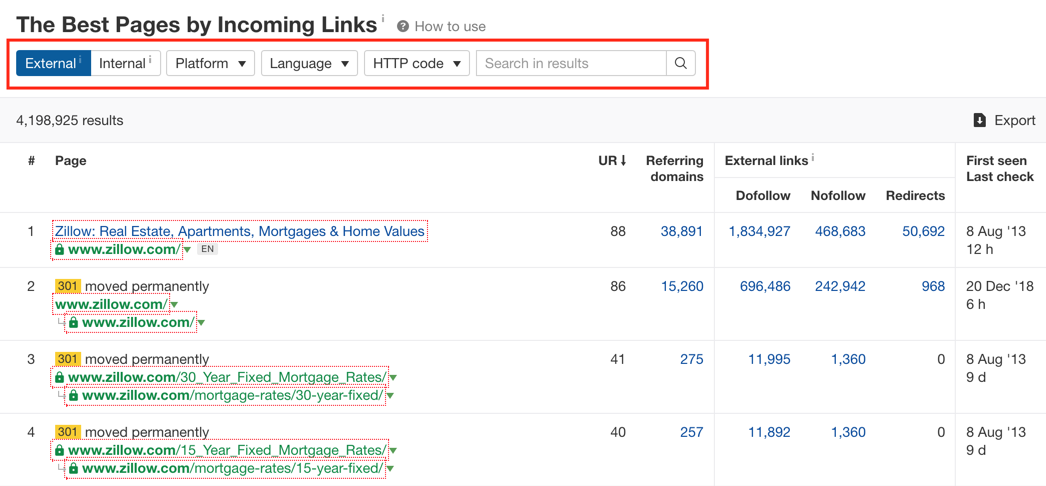
After entering a domain or page in Site Explorer, you can view its top pages by inbound links. Filters for inbound links, site pages, language, and status code can help you create a more useful report.
Keyword Research
Although Ahrefs was built around backlink analysis, its Keyword Analysis module is also widely used. Keyword Explorer provides extensive information about search queries. Choose the platform, enter one or more keywords, and select the country whose data you want to review. For example, the following setup retrieves US data for the query "real estate" in Google.
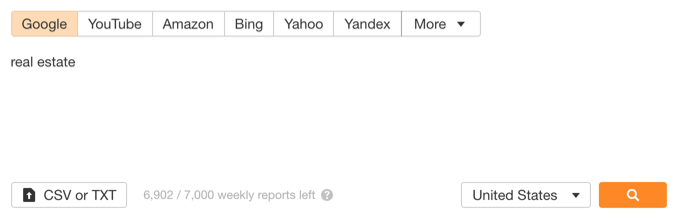
We can say that Ahrefs also provides keyword suggestions for other search engines.
Keywords Overview and Metrics
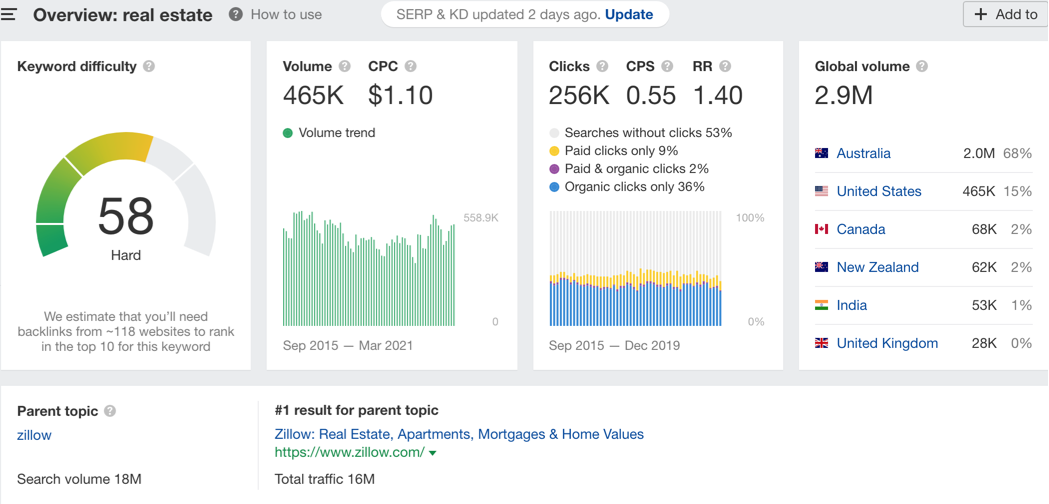
After you run a query, Ahrefs opens a panel containing data such as:
- Keyword difficulty
- Search volume
- Trend graph for the past period
- Cost per click for keyword
- Click data
- Click per search data
- Bounce rate
- Global search volume
- The search volume in the relevant word and the information of the website in the first place
- Keyword suggestions and presentation of these suggestions in some groups
- SERP history of all times
- Current structure in SERP in related word
For example, we may say that the image below shows an average monthly US search volume of 465K for "real estate", with global search volume at around 2.9M.
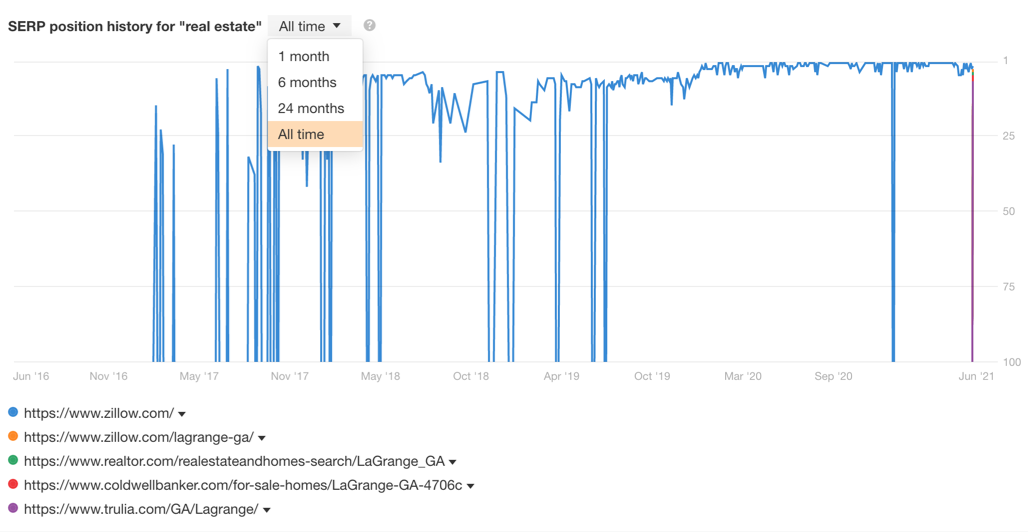
After running the query, you can also review changes in the first 5 pages of search results across 1, 6, or 24 months, or all times.
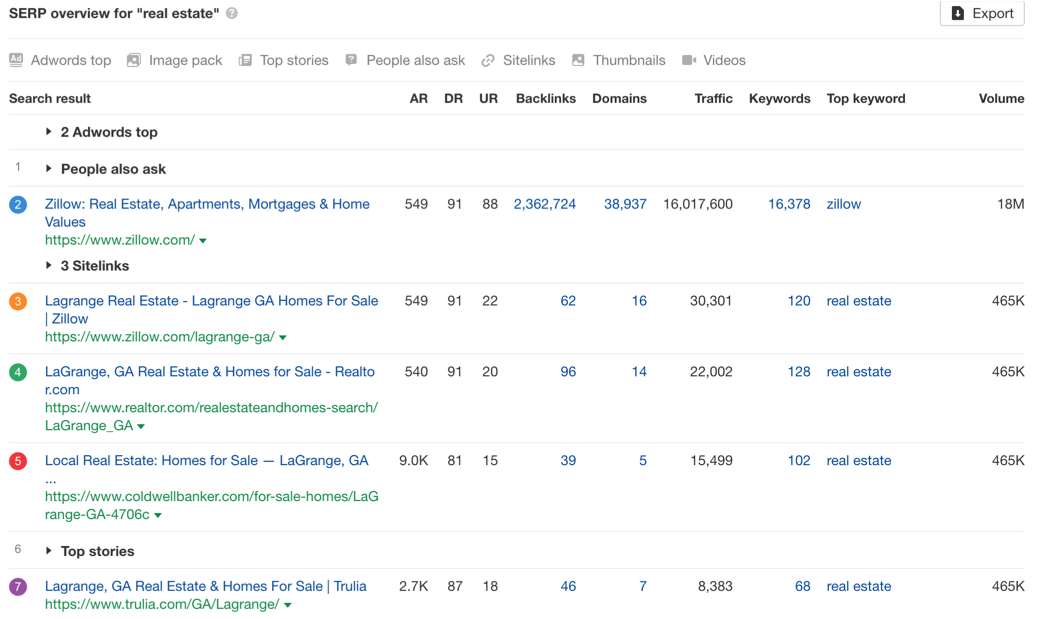
Ahrefs also shows the structure of the search results. Alongside organic results, you can see elements such as advertised results, questions, images, zero rank result, relevant news, and local businesses.
Keyword Insights
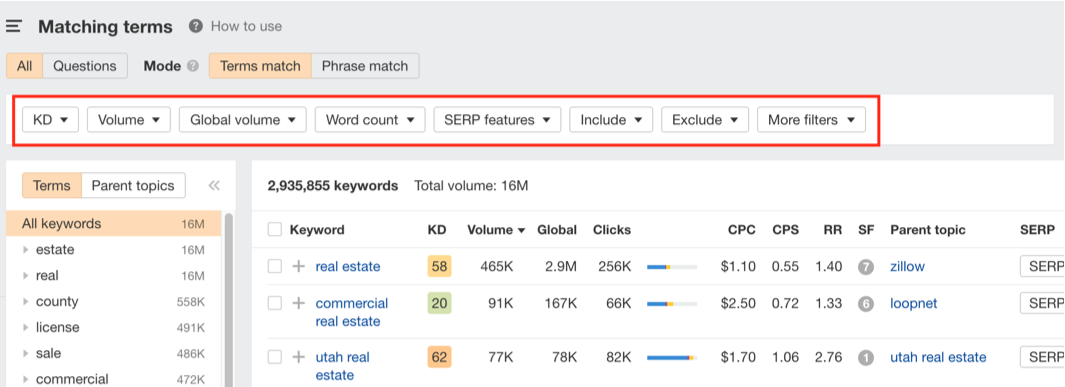
Ahrefs organizes keyword suggestions into 4 groups: keywords that exactly match the query, question-based keywords, terms that may be relevant based on pages in the top 10 results, and suggestions drawn from terms used by pages in the top 100 results. Exact-match keywords and questions are often the first groups reviewed during keyword research.
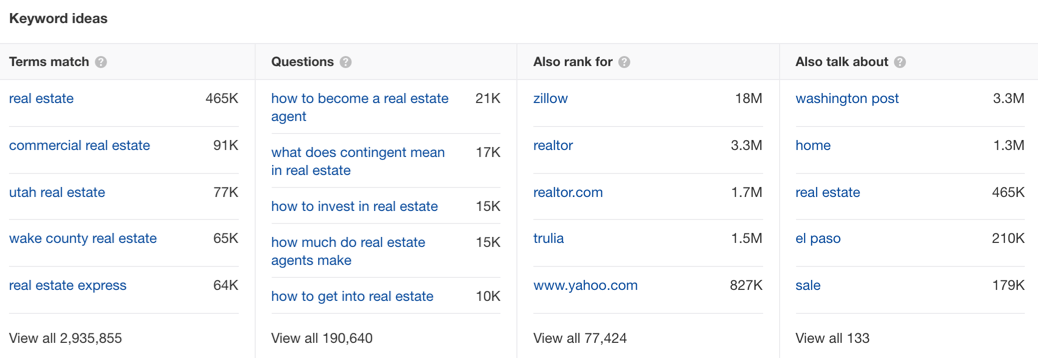
Each suggestion group opens a panel with filtering options. These filters can significantly reduce the number of suggested keywords and help you focus on the structure you need. For example, you can filter for keywords with a difficulty of 30 or above, or apply another query. Ahrefs also displays questions related to the keyword above the filtering area.
Organic Traffic
Organic traffic is an estimate of the traffic generated by keywords ranking on the search results page. Ahrefs displays this metric after you run a query in Site Explorer.
Organic Keywords
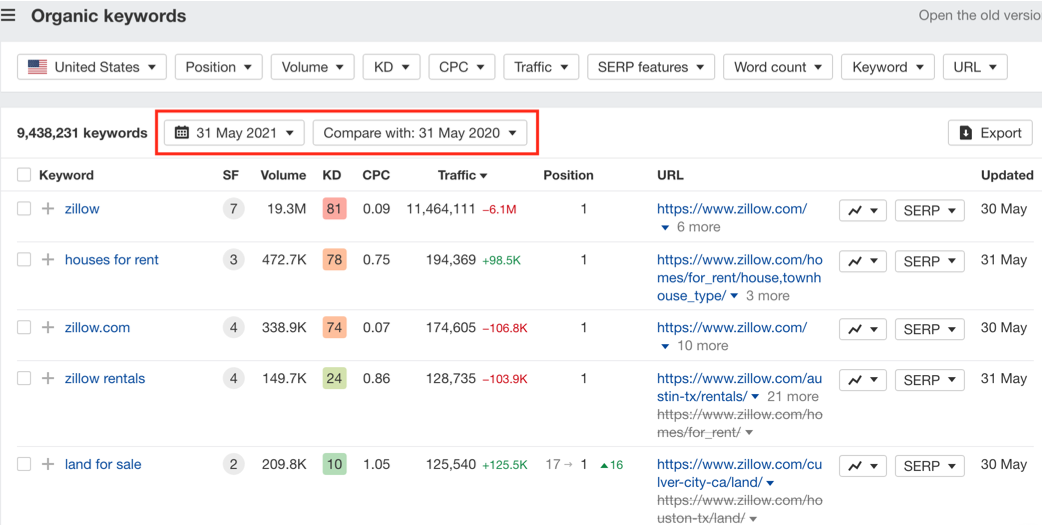
Organic Keywords shows the keywords for which a site ranks in organic search results. The data appears both in the Site Explorer results panel and in the left menu. As with keyword research, you can use several filters to examine organic keywords in detail. An update also added features for filtering organic keywords by previous months and comparing the resulting data.
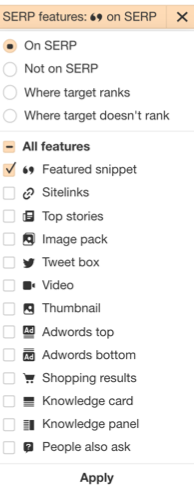
The SERP Features filter can show which organic keywords send traffic to a website. For example, you can use the selection below to find queries for which your website appears as a featured snippet.
You can also analyze the SERP features associated with your competitors' organic keywords and use the findings to shape your action list.
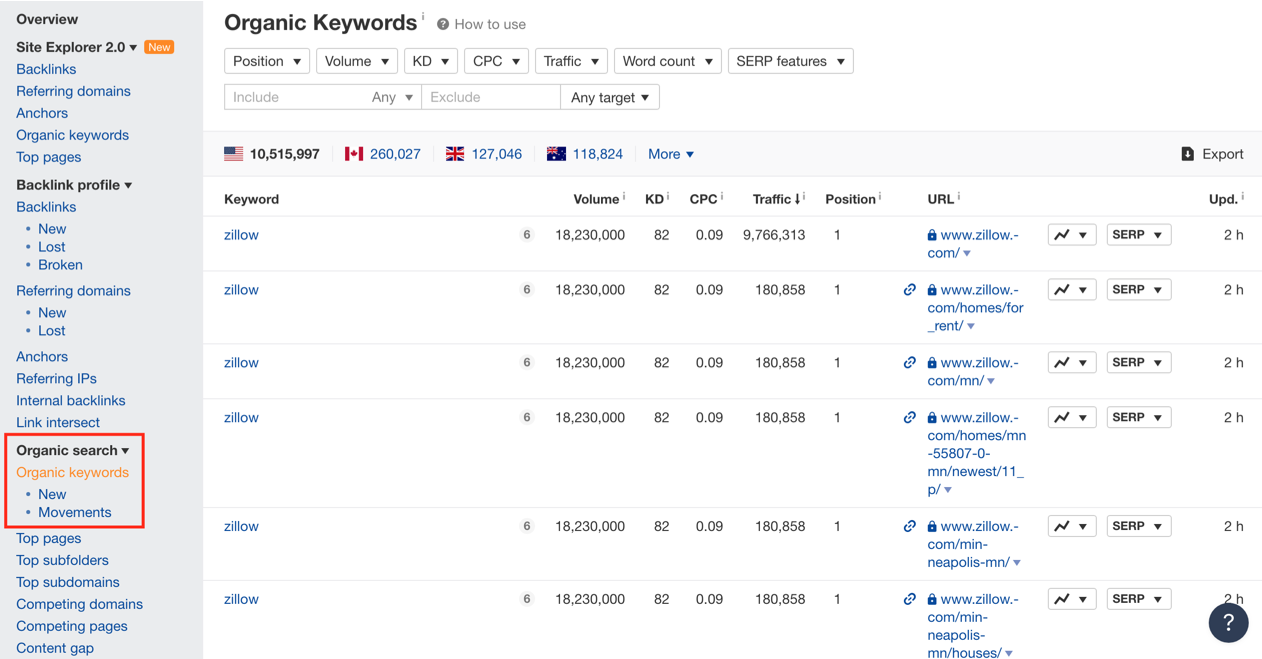
The Organic Keywords module in the left menu shows which keywords the queried website ranks for.
Filtering the ranking keywords can produce a more useful data set. For example, you can remove branded keywords and focus on queries that do not contain brand terms.

Ahrefs shows which pages rank for non-branded keywords and how they appear in the SERP.
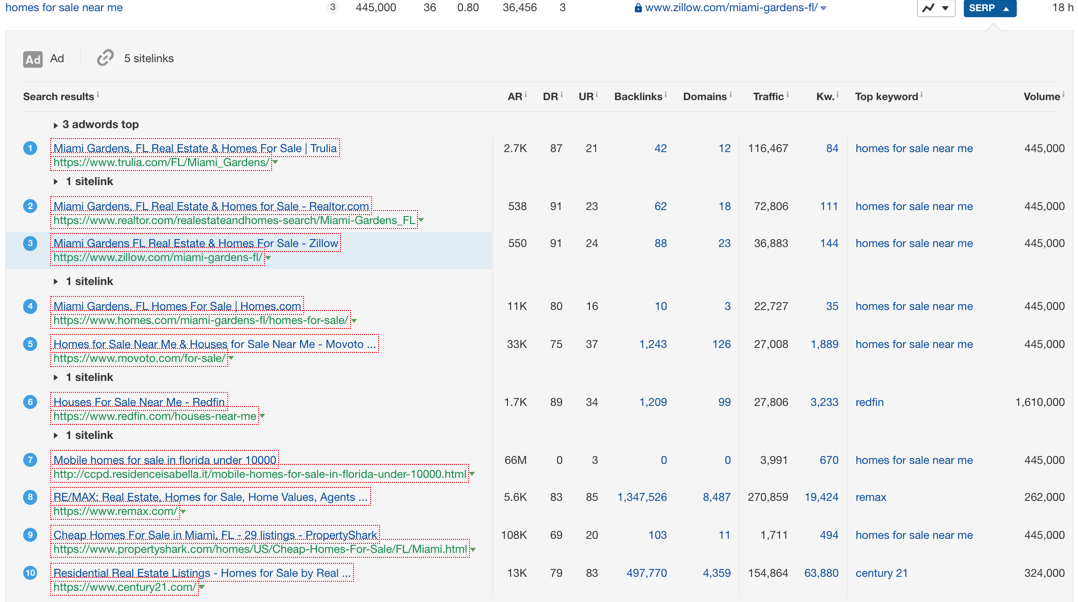
This data includes the traffic received by each website and metrics for the ranking pages.
Top Pages
Ahrefs' Top Pages module lists the pages on a website with the highest organic traffic. It includes metrics such as traffic, page details, and the number of keywords for which each page ranks. You can open it from the left menu.
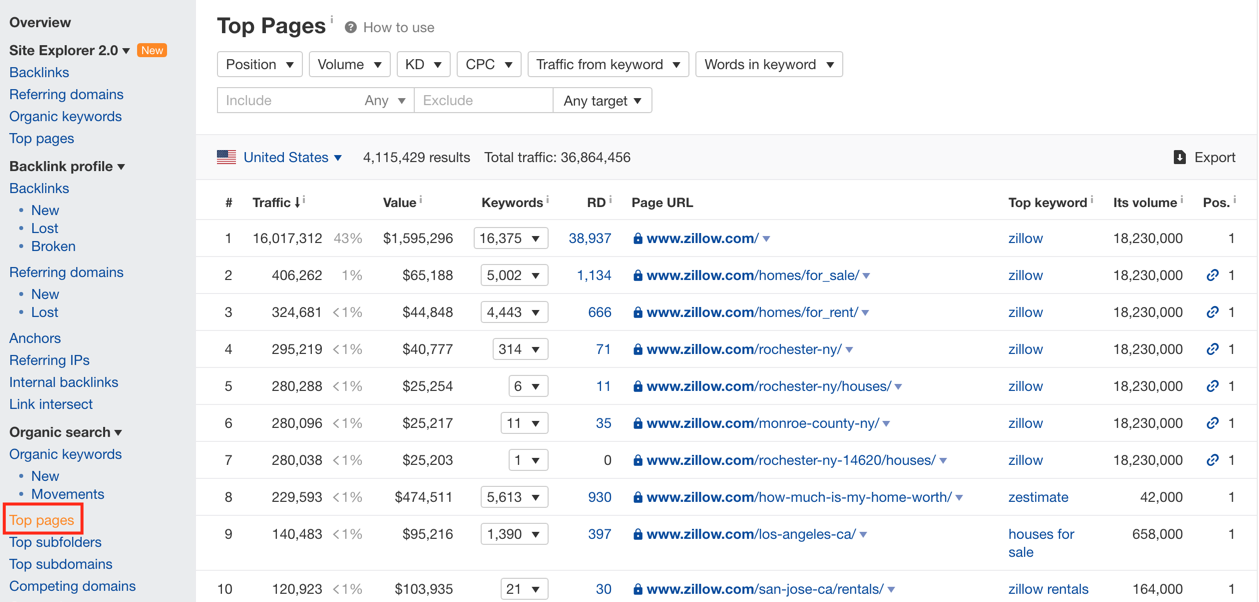
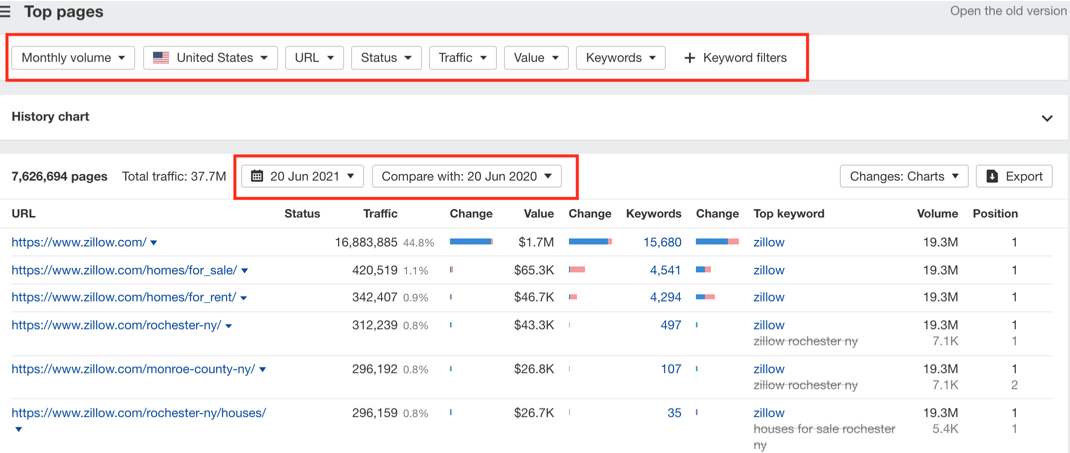
After later updates, this data also became available from the Organic Keywords report. Ahrefs added more filters and the ability to compare current Top Pages data with data from previous months.
Competitor Analysis
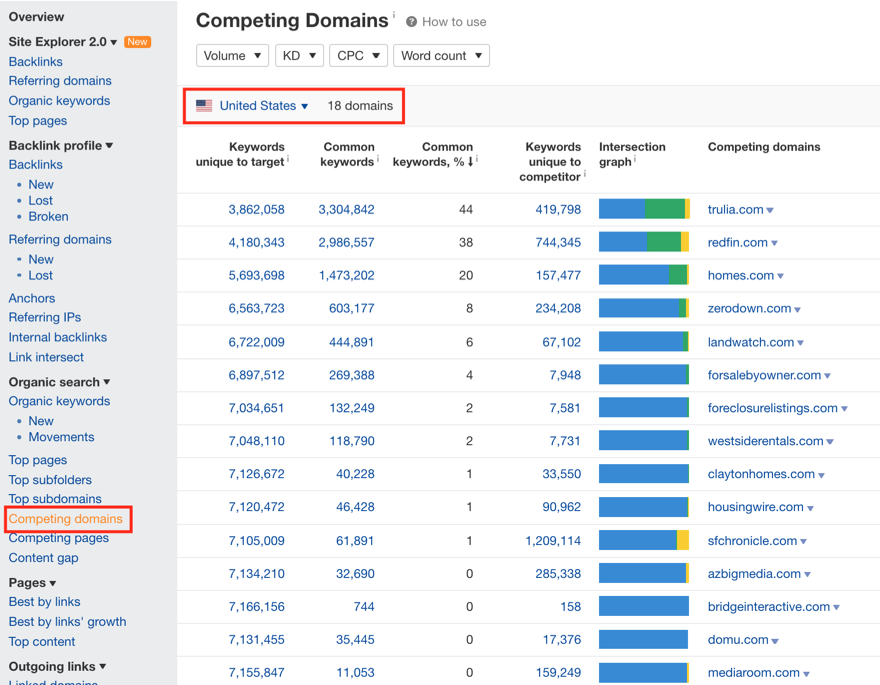
Ahrefs can compare your website with competitors and present competitor data directly. The Competing Domains module in the left menu shows websites competing with yours in search results. You can select a location to access different international data sets. Ahrefs lists competitors using metrics such as common keywords, unique ranking keywords, and the percentage of unique keywords. We recommend checking the listed websites manually before treating them as direct competitors. Review the SERP for a sample of keywords and examine the websites Ahrefs suggests.
The Competing Pages module applies a similar analysis at page level and is also available from the left menu. You can examine competitors further through the aggregate analysis module under "more" in the top menu.
Competing Keywords
Once you have identified competitors, you can analyze the keywords for which their domains or pages rank. Use the content analysis module in the left menu, then enter the competing website you want to review at domain or page level. The results screen provides several filters and listing options. You can exclude branded queries from the list. In the example below, Zillow does not rank in the US market for 8,116 non-branded keywords.
Content Explorer
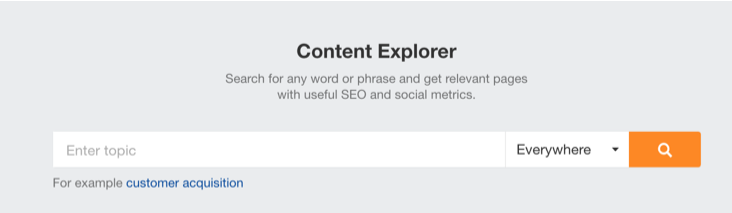
Content Explorer in the top menu provides data about a keyword's history and the content created around that query.
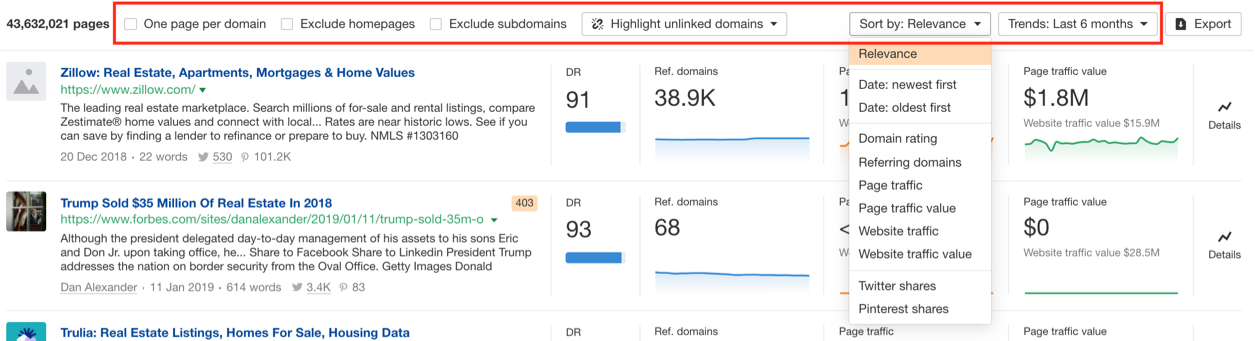
For example, the real estate query returned about 44M websites. You can use filters to narrow the results to content relevant to your query.
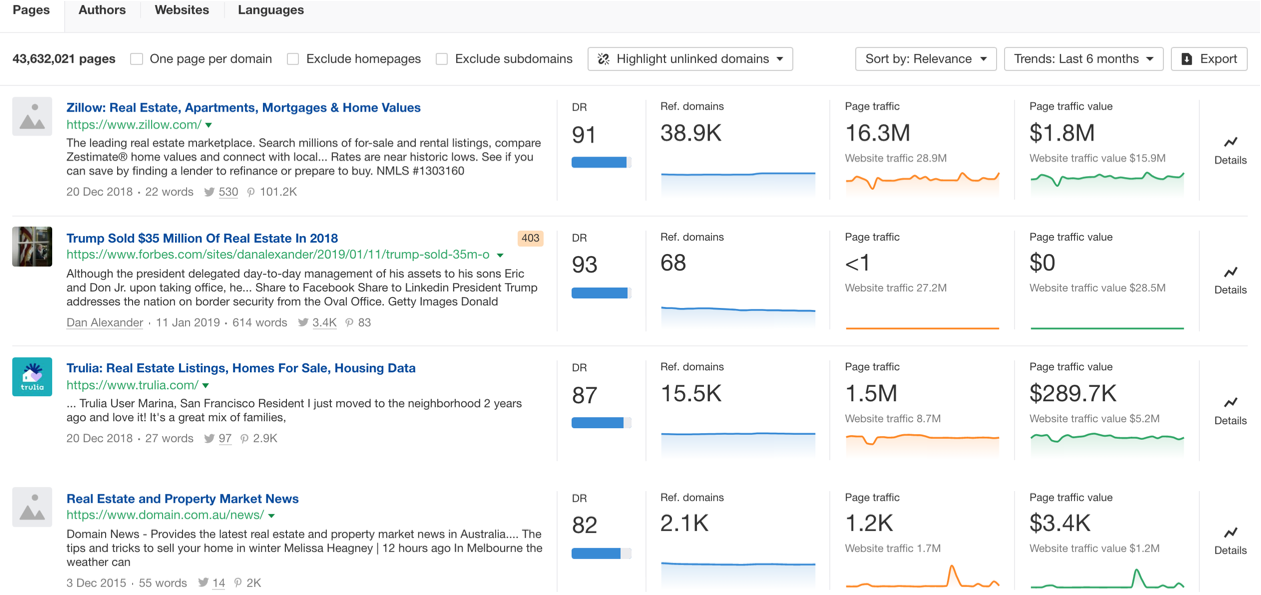
You can limit results by date, show only Twitter posts, or sort by traffic value.
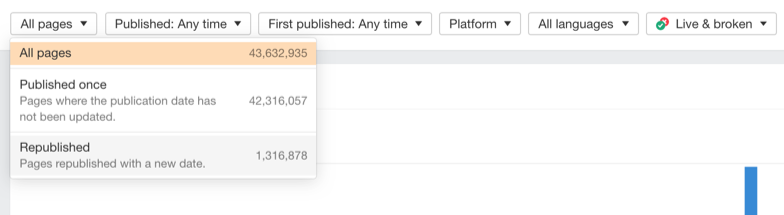
A separate filter helps you find republished content.
Ahrefs Site Analysis
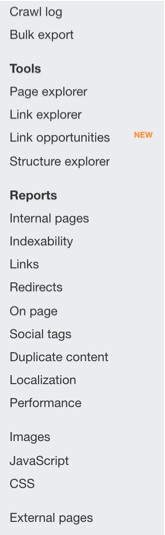
Ahrefs Site Audit crawls a website with Ahrefs’ bot and lists its technical issues. It includes features also found in crawl tools such as Deepcrawl, Screaming Frog, and Oncrawl.
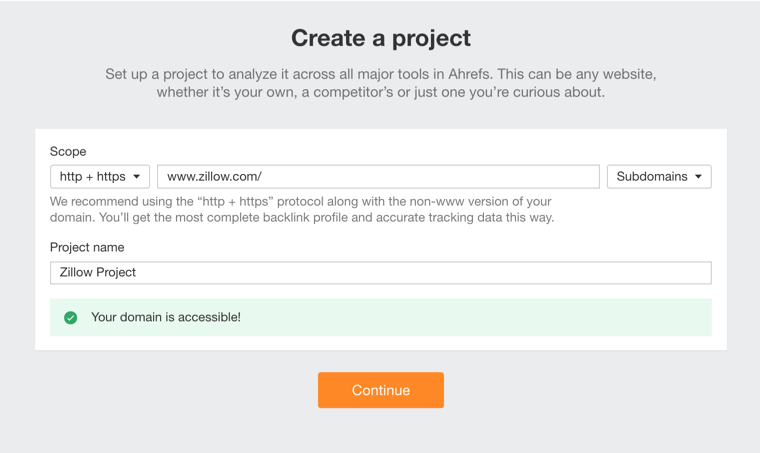
To use it, create a project in your Ahrefs package. Enter the domain, optionally schedule a weekly crawl, choose the crawl features, optionally add keywords to monitor, and enter competitor information.
When the site audit finishes, the results screen presents visual and text-based reports. Ahrefs creates a technical report for the pages its bots accessed on your website, which you can use to shape an action plan.
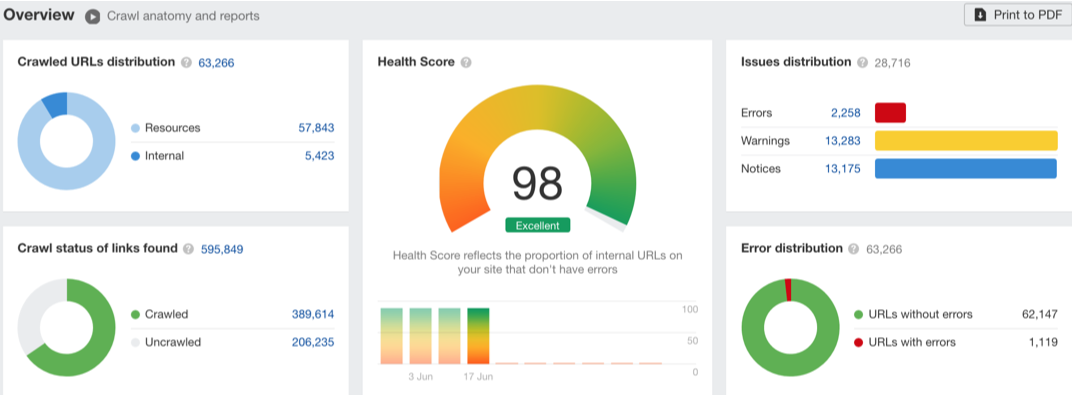
Ahrefs also provides a consolidated report of the issues found during the site audit.
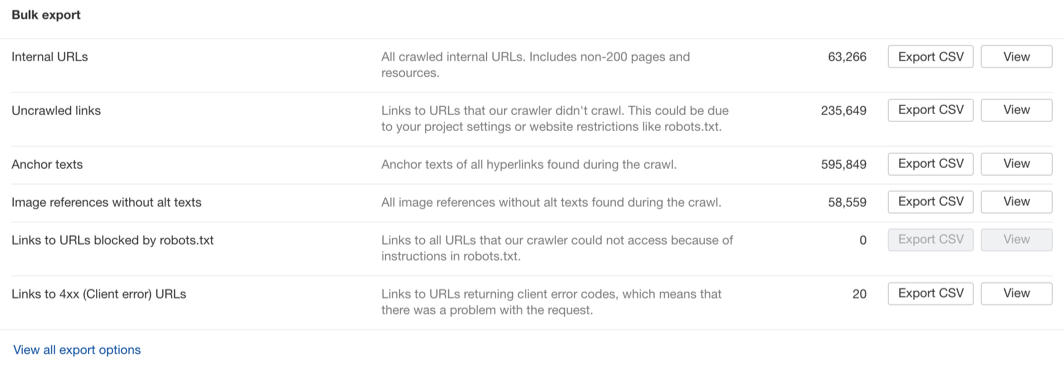
Common issues in the Site Audit Report include:
- Redirect chains
- Non-indexable pages
- Broken links with the response code 404
- Duplicate title and description
- Https redirecting errors
- H1 heading issues
- Problems in Hreflang language tag
- URL structure
- Problematic outbound links
- Orphan pages
- Canonical issues
- Social media tags
- Pages with thin or duplicate content
- Images without alt tags
Rank monitoring
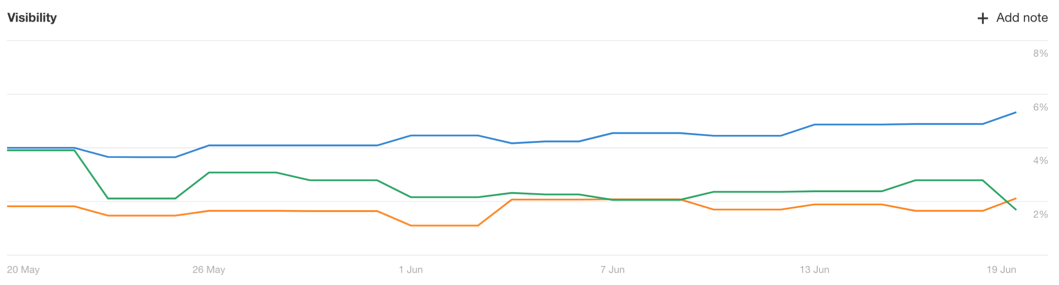
A project in Ahrefs can use more than the Site Audit module. If you have a keyword list, Rank Tracker lets you monitor it regularly. You can compare your website and competitor websites in search results for those keywords. Ahrefs provides data such as organic visibility, average position, organic traffic, and position changes for the relevant terms.
Creating Alerts
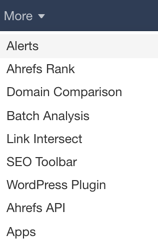
Ahrefs can create alerts and send them by email so you can monitor changes in your projects. Open the alerts button under "more" in the top menu.
In the window that appears, select the report you want Ahrefs to monitor at regular intervals.
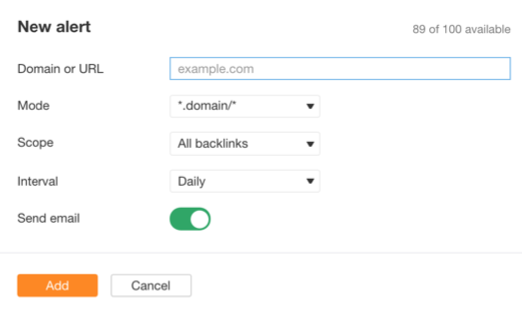
You can create daily, weekly, or monthly alerts for new pages linking to your site, new keywords you rank for, tracked keywords, and keyword changes.
Penned by Mert Vahit Demir, Sr. SEO Analyst - Zeo Agency
