


Setting up text ads can take a huge amount of manual work when you're building a new Google Ads account or launching a new campaign. At Zeo, we use Google Ads Scripts to make this process easier, and we wanted to share the script we built for it with everyone.
Here's how it works.
The script we're sharing follows these steps:
- We create our text ads in a Google Sheets file.
- We specify in a column which ad group each ad will run under.
- We copy and paste the script into our Google Ads account.
- We customize the fields that need editing in the script, then run it.
- Our ads are transferred from Google Sheets to our Google Ads account.
Let's walk through these steps.
Operation
Step 1. Creating the Google Sheets Template
To get started, copy the Google Sheets file below to your own Google Drive using the "Make a Copy" option: http://zeo.agency/google-sheets-toplu-reklam-sablonu. The document looks like this:
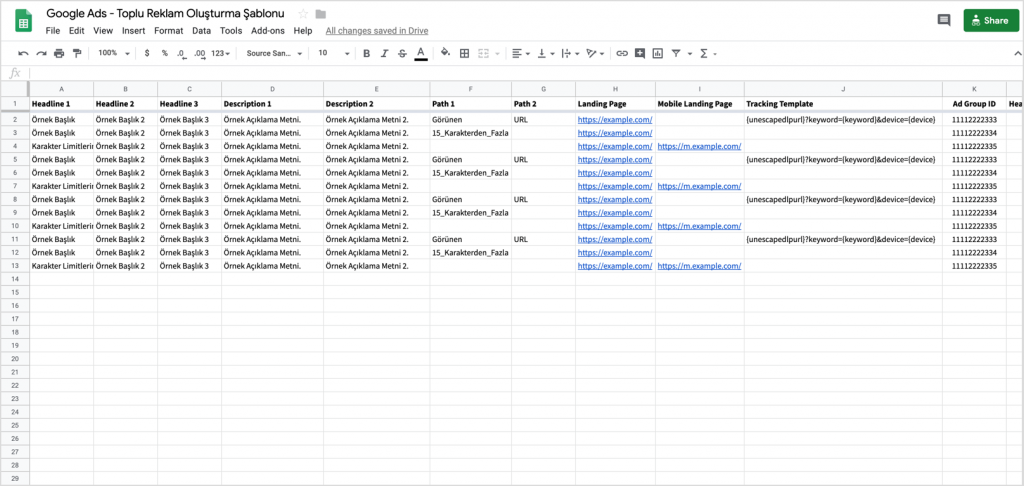
Columns A through K contain the information our script will use, so none of the columns in that range should be deleted or reordered. Columns L through R control the character limits for each ad slot: if a limit is exceeded, the cell shows red text, and cells within the limit show green. Column S shows the total number of character-limit violations. You can delete or change the columns between L and S without affecting how the script runs; they're there purely to make writing the ad text easier.
Step 2. Creating Ads in Google Sheets
When creating your ads in the Google Sheets file, follow these rules:
- All 3 Headline fields must be filled in. If any of them contains fewer than 1 character, the script skips that ad.
- The 2 Description fields must both be filled in. If either contains fewer than 1 character, the script skips that ad.
- Path 1 and Path 2 are optional and can be left blank. If Path 1 is blank and Path 2 has a value, the script uses Path 2 as the Path 1 value when it creates the ad.
- At least one of Landing Page or Mobile Landing Page must be filled in, or the script skips that ad entirely.
- If Landing Page is blank but Mobile Landing Page is set, the script uses the Mobile Landing Page value as the Landing Page.
- The tracking template is optional and can be left blank.
- Ad Group ID is required. Ads without a group number are skipped by the script.
Step 3. Copying and Editing the Script
You can access the script at the link below. http://zeo.agency/script-toplu-reklam-olusturucu After copying it, create a new script file in the Google Ads interface under Tools > Bulk Actions > Script Editor, then paste the script in.
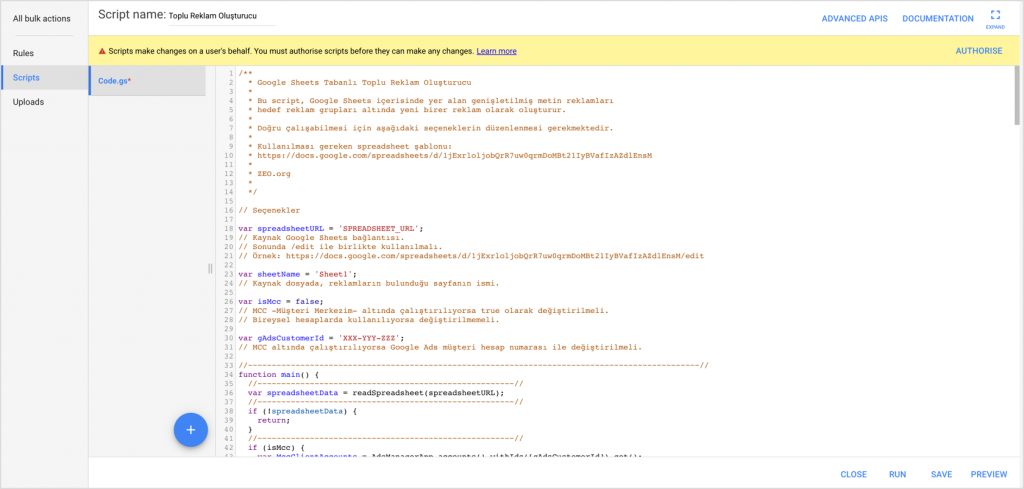
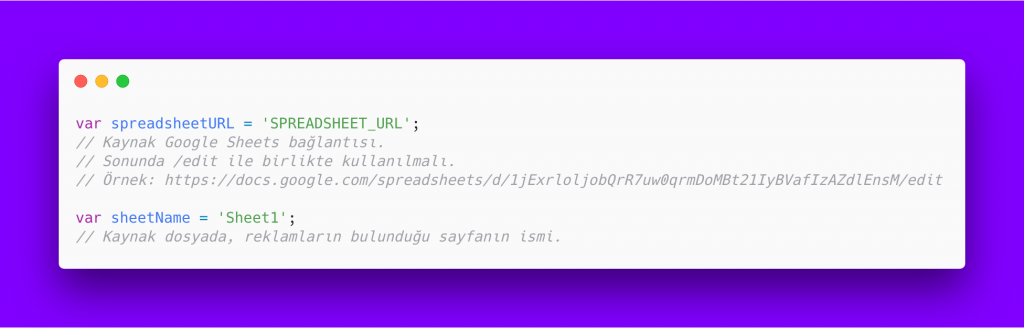
Next, you'll need to make a few adjustments so the script runs correctly. First, enter the link to the source file and the name of the page that hosts your ads, using the following variables:
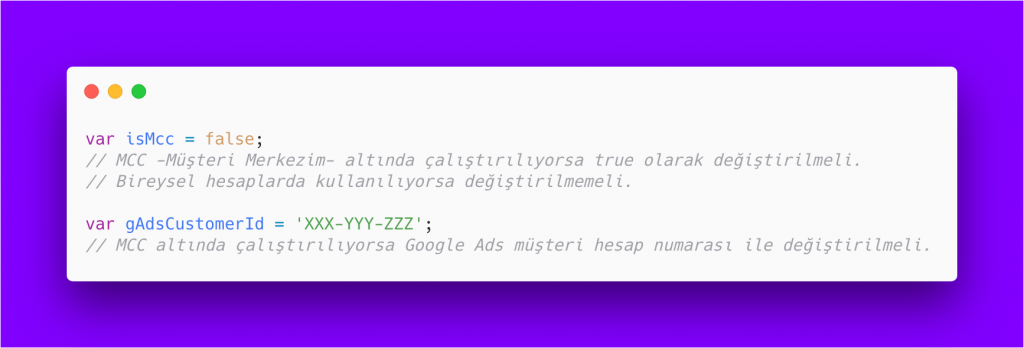
If you want to run the script under an MCC (My Client Center) account, edit the following variables instead.
Once you've made these changes, click Authorize on the script and save it.
Step 4. Preview and Testing
You can use preview mode to simulate the changes before actually running the script. We strongly recommend running it in preview mode first, to make sure everything looks right and avoid errors. When I ran the preview through the sample file, I got a result like this:
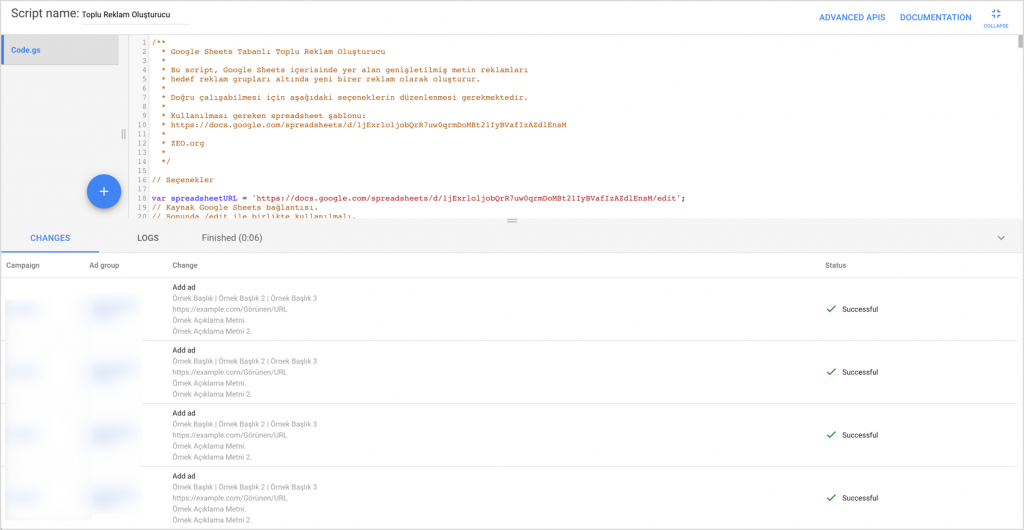
Here, the script will transfer 4 ads from the source file to the account. When I switched to the Logs tab, I saw messages that some ads had been excluded because they didn't meet the character limit:
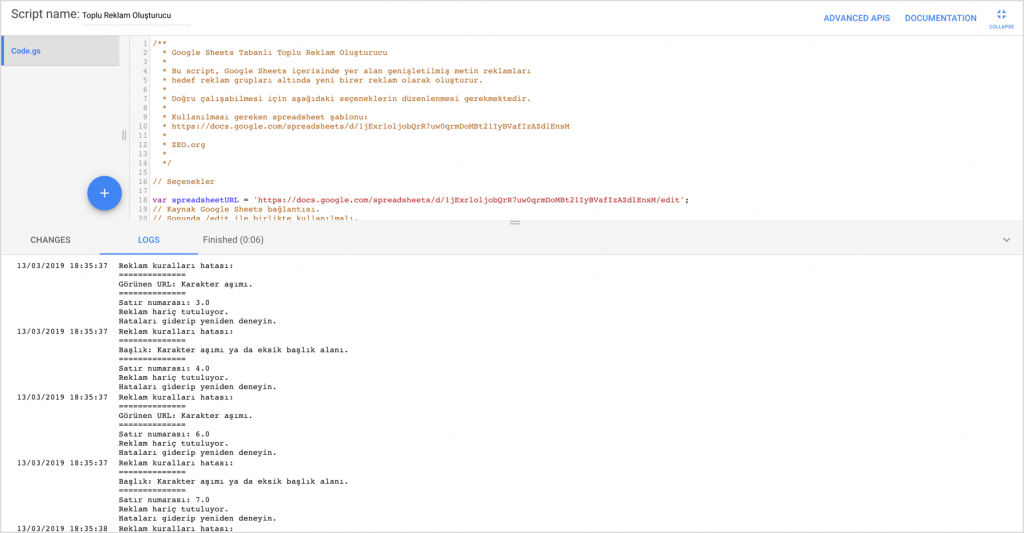
After going back to the source file and editing those ads, you can run the script and let it make the changes to your Ads account.
Notes
- The script doesn't check for duplicate ads, so make sure the same ad isn't repeated on multiple lines in the Google Sheets file.
- The script only checks the character count for validity, so make sure your ads comply with all of Google's policy rules separately.
- The script doesn't validate landing page URLs, so make sure the Landing Page column contains valid URLs with the protocol, host, and path.
- Using the script is the user's responsibility. To run it, Google will ask for your explicit consent and authorization.
- We recommend formatting all cells in the Google Sheets file as text, using the template above, to avoid errors.
If you run into any questions or issues during setup or use, feel free to contact us.


