


"DOM SEO optimization" is a task anyone familiar with site speed improvements has heard of, and when you implement it correctly, it can pay off well. In this article, I wanted to bring together exactly how errors like "Reduce the DOM size" can actually get fixed. Keep in mind, as I explained in my article on how to use limited resources in SEO efforts, setting priorities matters just as much on tasks like these. Let's start with a quick definition:
What is the DOM?
The DOM (Document Object Model) is essentially a tree-like model of a webpage's HTML structure as the browser interprets it. Google and other search engines rely on this structure when they crawl your site and try to understand its content.
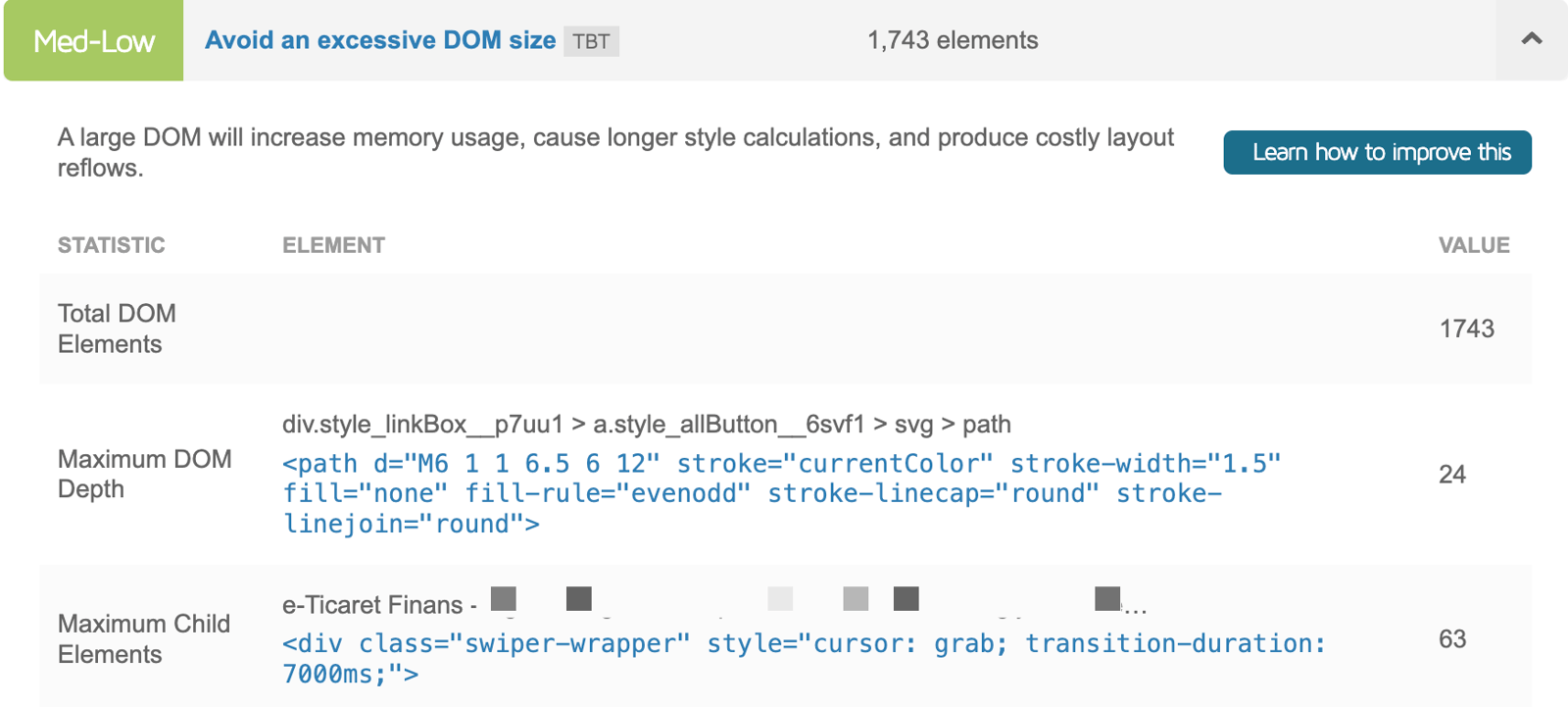
Overly complex structures and a slow DOM can make it harder for Googlebot to crawl the site, and can noticeably slow down your page load speed. When these issues stack up with other problems, your rankings can suffer, and you may end up losing organic traffic.
1. How to Reduce DOM Size and Complexity?
The number of HTML elements on a page, and how deeply they're nested, directly affects page load time. That's the main reason tools like Google Lighthouse or GTmetrix flag "Avoid an excessive DOM size" during audits. Aim for a simple, clean structure for both browsers and Googlebot.
Sometimes unnecessary <div> layers get stacked up around a single element, and that bloats the DOM for no reason. Here's a bad example: it takes 4 layers just to reach the profil-karti element:
<div class="zeo-makale">`<div class="zeo-icerik-alani">` `<div class="zeo-profil-karti-wrapper">` `<div class="profil-karti">` `<img src="profil.jpg" alt="Samet Özsüleyman">` `<h3>Samet Özsüleyman</h3>` `</div>` `</div>` `</div>`
</div>
Here's a cleaner, simpler example:
<section class="zeo-makale">`<div class="profil-karti">` `<img src="profil.jpg" alt="Samet Özsüleyman">` `<h3>Samet Özsüleyman</h3>` `</div>`
</section>
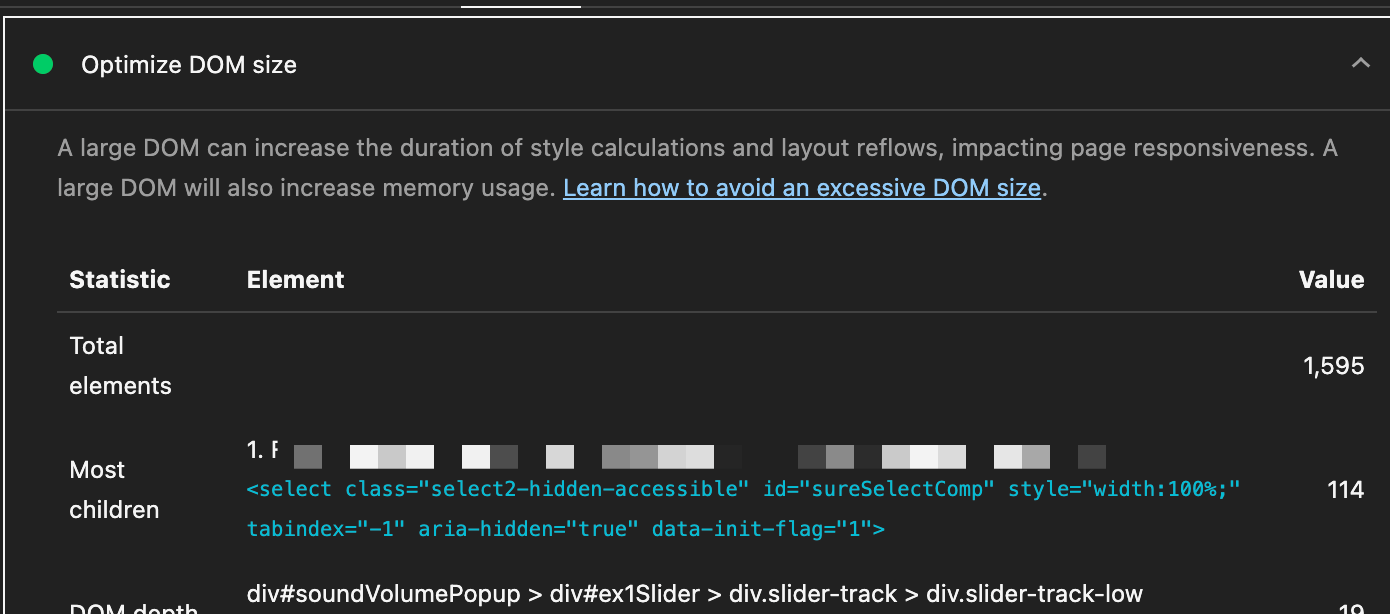
Optimizing your DOM size like this can get you a passing grade in your Lighthouse results:
2. JavaScript and CSS Optimization
JavaScript and CSS optimization come up everywhere in this line of work. So how should we optimize them, or more precisely, how do we guide developer teams to optimize them?
When a browser reads an HTML file and hits a CSS or JavaScript file, it usually pauses building the DOM and waits to download and process that file. This wait is known as render-blocking, and as a result, your page takes longer to become visible to the user.
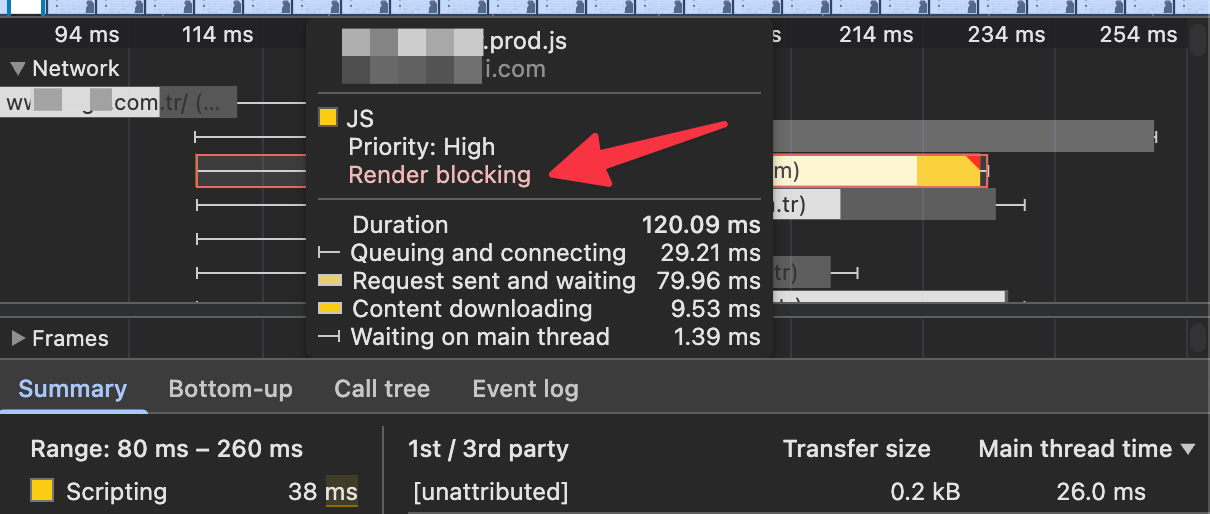
You can make your page load faster by deferring JavaScript files that aren't critical for the initial page load, a chat bubble or an analytics script, for example. Here's a bad example:
<head>`<title>Page Title</title>` `<link rel="stylesheet" href="style.css">` `<script src="analytics.js"></script>`</head> <body>`...`
</body>
We can improve this code by adding the defer attribute. Doing so tells the browser, "download this script, but don't run it until you've finished processing the HTML." This one small change makes a big difference to page load speed:
<head>`<title>Page Title</title>` `<link rel="stylesheet" href="style.css">`</head> <body>`...` `<script src="analytics.js" defer></script>`
</body>
3. Rendering Strategy
On sites built with modern JavaScript frameworks (like React, Vue, and Angular), how content gets rendered matters a great deal for SEO. Googlebot can execute JavaScript, but that's an extra step, and sometimes it means Googlebot doesn't see the entire content. In cases like that, solutions such as Dynamic Rendering come into play.
In builds put together without Google in mind, if a site uses Client-Side Rendering (CSR), the initial HTML from the server is often empty. That's what Googlebot sees on its first look. For Googlebot to actually see the content, it needs to download and execute the app.bundle.js file, and that can slow down or even block indexing:
<!DOCTYPE **html**>
<html>
<head>
`<title>Zeo Example Page</title>`</head> <body>`<div id="app-root"></div> <script src="app.bundle.js"></script>`</body> </html>
With SSR (Server-Side Rendering), the server sends the content as fully prepared HTML instead. Here's what Googlebot sees in that case, and as you can tell, all the important content is already there in the initial HTML response. This is the ideal scenario for search engines.
<!DOCTYPE **html**>
<html>
<head>
`<title>Zeo Example Page</title>`</head> <body>`<div id="app-root">` `<main>` `<h1>DOM SEO Optimization</h1>` `<p>This article explains the importance of DOM optimization...</p>` `<img src="seo.jpg" alt="SEO example chart">` `</main>` `</div>`</body> </html>
4. Usage of HTML5
Semantic tags (<article>, <nav>, <header>, and so on) give search engines valuable clues about your page's content and structure. Rather than putting every detail inside a <div>, structuring your content with tags that match its meaning helps Google understand your page layout. Here's a non-semantic div example:
<div class="ust-bolum">`<div class="logo">...</div>` `<div class="menu">...</div>`</div> <div class="ana-icerik">`<div class="yazi">` `<h1>Title</h1>` `<p>Paragraph...</p>` `</div>`</div> <div class="alt-bolum">All rights reserved.</div>
Tired of reading?
You can also listen to this blog post as a podcast we created with Google NotebookLM on Spotify.
Below is a correct example using semantic HTML5 tags. If you have news detail pages like this one, you can build new strategies around tags like <article>. In this example, we can clearly tell Googlebot which section is the header, which is the main content, and which is the footer:
<header>`<div class="logo">...</div>` `<nav>...</nav>`</header> <main>`<article>` `<h1>Title</h1>` `<p>Paragraph details.</p>` `</article>`</main> <footer>All rights reserved.</footer>
5. Using Too Many CSS Selectors
Using very specific, long CSS selectors hurts the DOM, especially on pages with thousands of DOM elements, since it lengthens the browser's style calculation time. Here's a bad CSS example with excessive specificity:
div#main-container section.content-area ul li a.active {`color: red;`
}
It's far better to assign a simple class directly to the target element instead:
<a class="menu-link is-active">Link</a>
.menu-link.is-active {`color: red;`
}
You should also check for elements hidden with display: none. Sometimes FAQ structures show up twice in the HTML with display: none, which bloats the DOM without you realizing it.
6. data-* Attributes
The data-* attributes are extremely useful for passing data to JavaScript, but sometimes they end up holding a whole JSON object. If you have too many of these attributes, they quietly inflate the HTML file size and slow down DOM parsing. Here's an example to make this concrete: on a product listing page for an e-commerce site, the data-product attribute for each product might store a large JSON blob with every product detail (description, all variants, stock status, and so on):
<div class="product-card"`data-product='{"id": 123, "name": "Awesome Product", "description": "a long description of the product", "variants": [{"sku": "A1", "price": 199}, {"sku": "A2", "price": 205}], "stock": 50, ...}'>` `<h3>Awesome Product</h3>` `<img src="product.jpg" alt="Awesome Product">`
</div>
With this approach, if 30 products are listed on a page, for example, it will seriously bloat the HTML file size and the DOM's memory usage. Instead, store just the necessary ID, keep only the product's identifier in the DOM, and keep the detailed data in a JavaScript object or fetch it via an API only when the user interacts with it:
<div class="product-card" data-product-id="123">`<h3>Awesome Product</h3>` `<img src="product.jpg" alt="Awesome Product">`</div> <script> // Store the data in a separate JavaScript object const productData = {`"123": {"id": 123, "name": "Awesome Product", "description": "...", "variants": [...]}`}; document.querySelector('[data-product-id="123"]').addEventListener('click', function() {`const productId = this.dataset.productId;` `const details = productData[productId];` `// Show the details...`}); </script>
This way, the HTML file size shrinks and DOM parsing speeds up. It improves the Time to First Byte (TTFB) metric too, especially for visitors on slow network connections. Keep in mind there are plenty more methods beyond the ones covered in these subheadings.
By implementing the points above, what have we actually fixed?
- We've improved our Core Web Vitals metrics, especially LCP, and taken a step toward rising in the rankings.
- We've optimized our crawl budget by taking steps that let Google crawl more of your pages.
- Since pages now load faster, we've contributed to the Google Ads Quality Score.
- Most importantly, we've built faster-loading pages that raise the overall user experience, and in doing so, we've also helped increase your revenue.
Thank you to everyone who has read this far, and I hope you build some lightning-fast landing pages :)


